Home Articles Books Search About
RSS 日本語

Latest Articles

I Created a Program to Extract Differences Between Two Texts

I Created a Program to Extract Differences Between Two Texts

Overview I created a program to extract differences between two texts. You can use it from the following Google Colab notebook. https://colab.research.google.com/github/nakamura196/ndl_ocr/blob/main/校異情報の生成.ipynb A well-known service for this purpose is “difff”, but this time I implemented it using Python. https://difff.jp/ For calculating the differences between texts, I used difflib.SequenceMatcher. https://docs.python.org/ja/3/library/difflib.html Usage You can choose between two output formats: HTML files and TEI files. HTML Here is an example of the HTML file output. ...
Trying Omeka Classic as a Headless CMS

Trying Omeka Classic as a Headless CMS

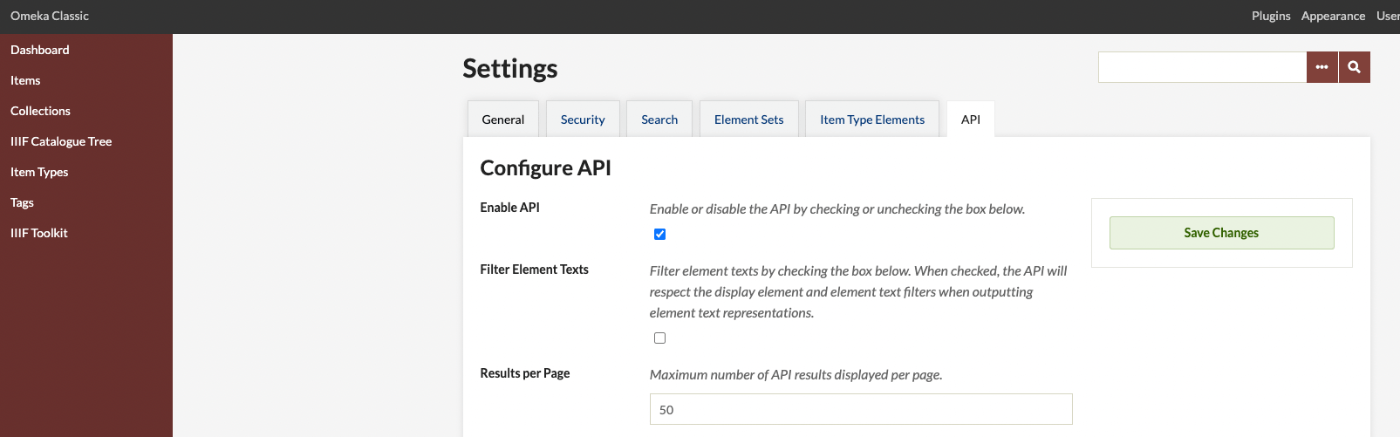
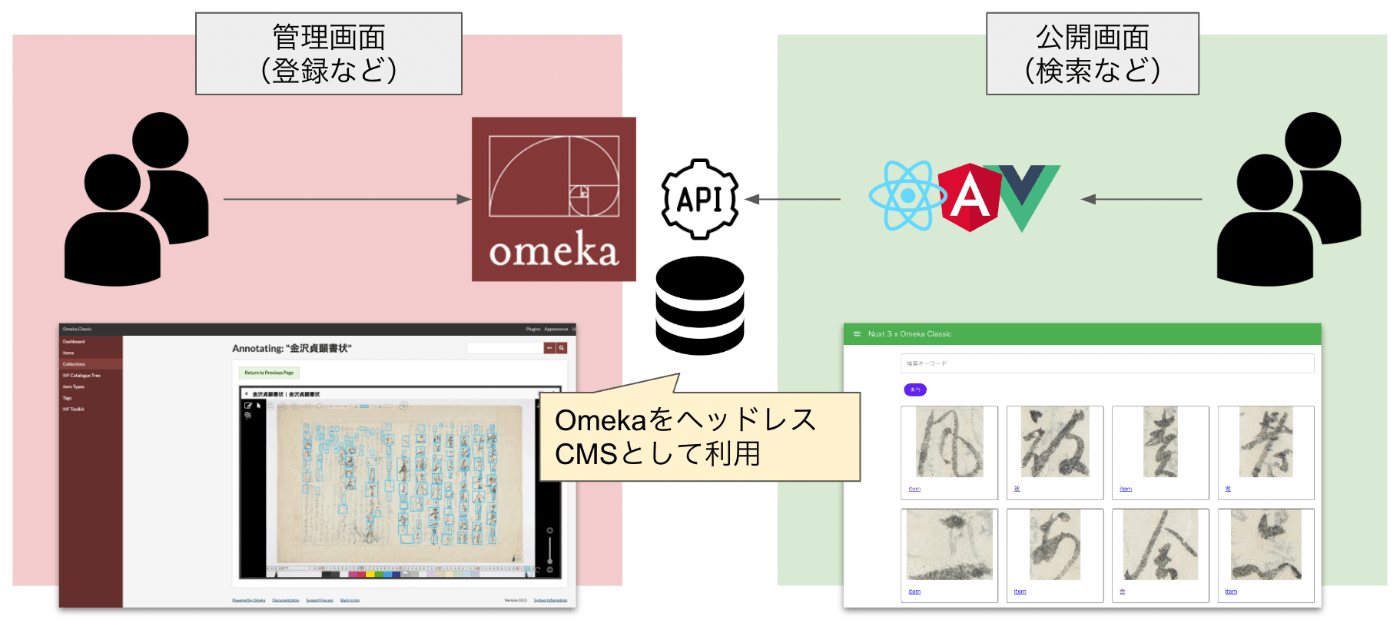
Overview Omeka S and Omeka Classic are very useful tools for building digital archives and for humanities (informatics) research. https://omeka.org/ They come with a REST API as standard and have high extensibility through the addition of modules and plugins. Various existing assets can also be used, including IIIF-related tools, transcription support tools, and tools for handling spatiotemporal information. On the other hand, I (personally) feel that theme development for changing the appearance of sites requires knowledge of PHP and Omeka, making it relatively difficult. On this point, the Headless CMS approach, where the backend and frontend are separated, has been gaining popularity in recent years. ...

Created an Image Comparison Tool Using Mirador 3

Created an Image Comparison Tool Using Mirador 3

I created an image comparison tool using Mirador 3. The URL is as follows. https://ldas-jp.github.io/viewer/input/ The GitHub repository URL is as follows. https://github.com/ldas-jp/viewer Below is the input form. You specify the URLs of the IIIF manifest files and the Canvas URIs for the images you want to compare. You can check input examples by clicking the buttons under “Examples.” Clicking the “Open” button launches Mirador 3 as shown below. You can compare images based on the input information. ...

Bulk Registration of Annotations Using the IIIF Toolkit for Omeka Classic

Bulk Registration of Annotations Using the IIIF Toolkit for Omeka Classic

Introduction This article is primarily a memorandum. There may be many unclear points, so please bear with me. In particular, I hope this serves as a useful reference for how to use the annotation endpoint used by the IIIF Toolkit, as introduced below. https://github.com/utlib/IiifItems/wiki/The-Mirador-Omeka-Annotator-Endpoint Overview The IIIF Toolkit plugin for Omeka Classic is a very useful tool that can load IIIF manifest files and add annotations to images. https://zenn.dev/nakamura196/books/2a0aa162dcd0eb/viewer/b37a8c This article covers how to bulk register annotations that were created independently of Omeka Classic into Omeka Classic. ...

Building an Omeka Classic Site Using Amazon Lightsail (Including Custom Domain + SSL)

Building an Omeka Classic Site Using Amazon Lightsail (Including Custom Domain + SSL)

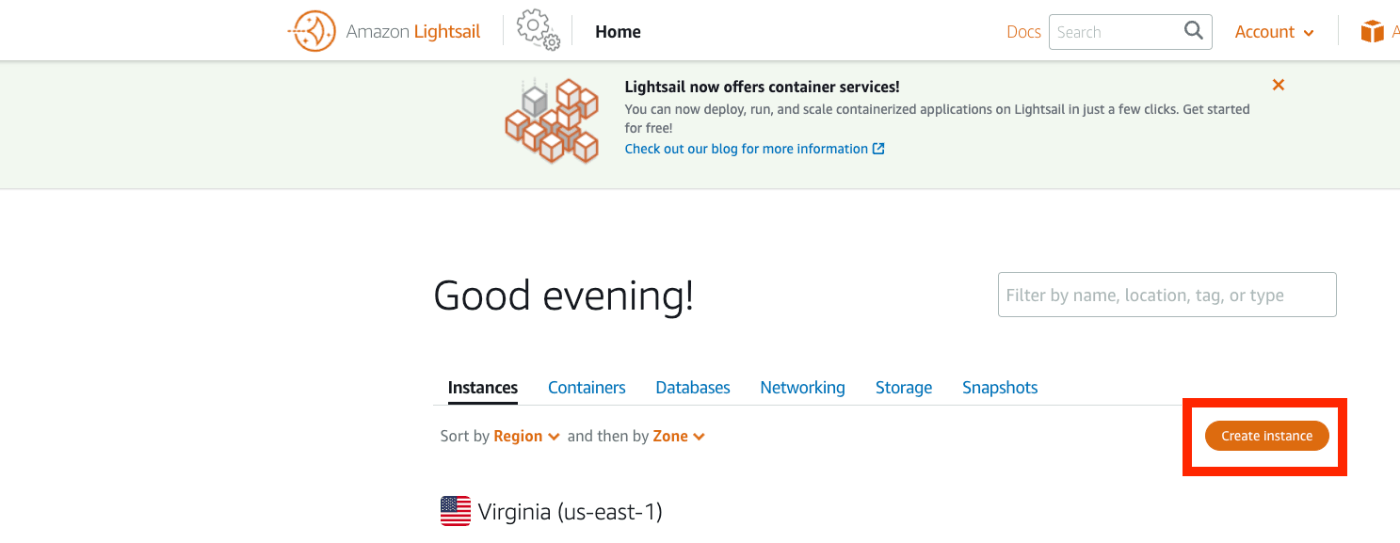
Overview I summarized how to build Omeka S using Amazon Lightsail in the following article. This time, I will introduce how to build Omeka Classic using Amazon Lightsail. As described in the following book, Omeka Classic is useful for building annotation environments using the IIIF Toolkit. https://zenn.dev/nakamura196/books/2a0aa162dcd0eb Amazon Lightsail Creating an Instance Access the following page. https://lightsail.aws.amazon.com/ls/webapp/home/instances Then click the “Create Instance” button. Under “Select a blueprint,” choose “LAMP (PHP 7).” ...

NDL OCR Now Supports Ruby (Furigana) Text Extraction

NDL OCR Now Supports Ruby (Furigana) Text Extraction

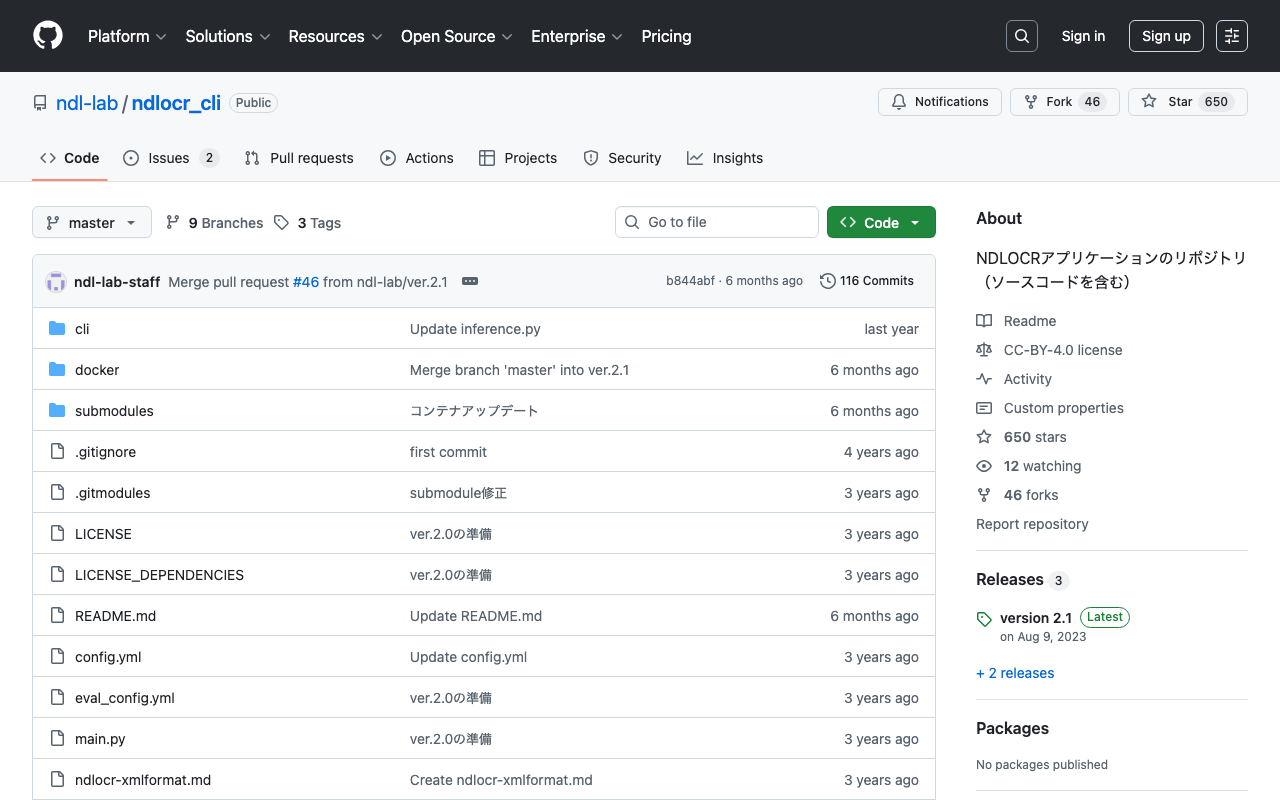
Overview For NDL OCR, the default setting previously did not include ruby (furigana) text extraction. Thanks to the cooperation of the NDL team, it is now possible to configure whether or not to perform text extraction for ruby. https://github.com/ndl-lab/ndlocr_cli/ Setting the following to True in config.yaml enables the ruby text extraction feature. yield_block_rubi: False Please note the following caveats when using this feature: Ruby text is not always split at the exact kanji positions where furigana is placed; multiple ruby sections may be merged into a single output Because ruby characters are small, they may sometimes be output as a placeholder character Tutorial Notebook Updates The ruby text extraction option has also been added to the Google Colab tutorial. ...

Aggregations with Different Keys and Values (Labels and IDs) in Elasticsearch

Aggregations with Different Keys and Values (Labels and IDs) in Elasticsearch

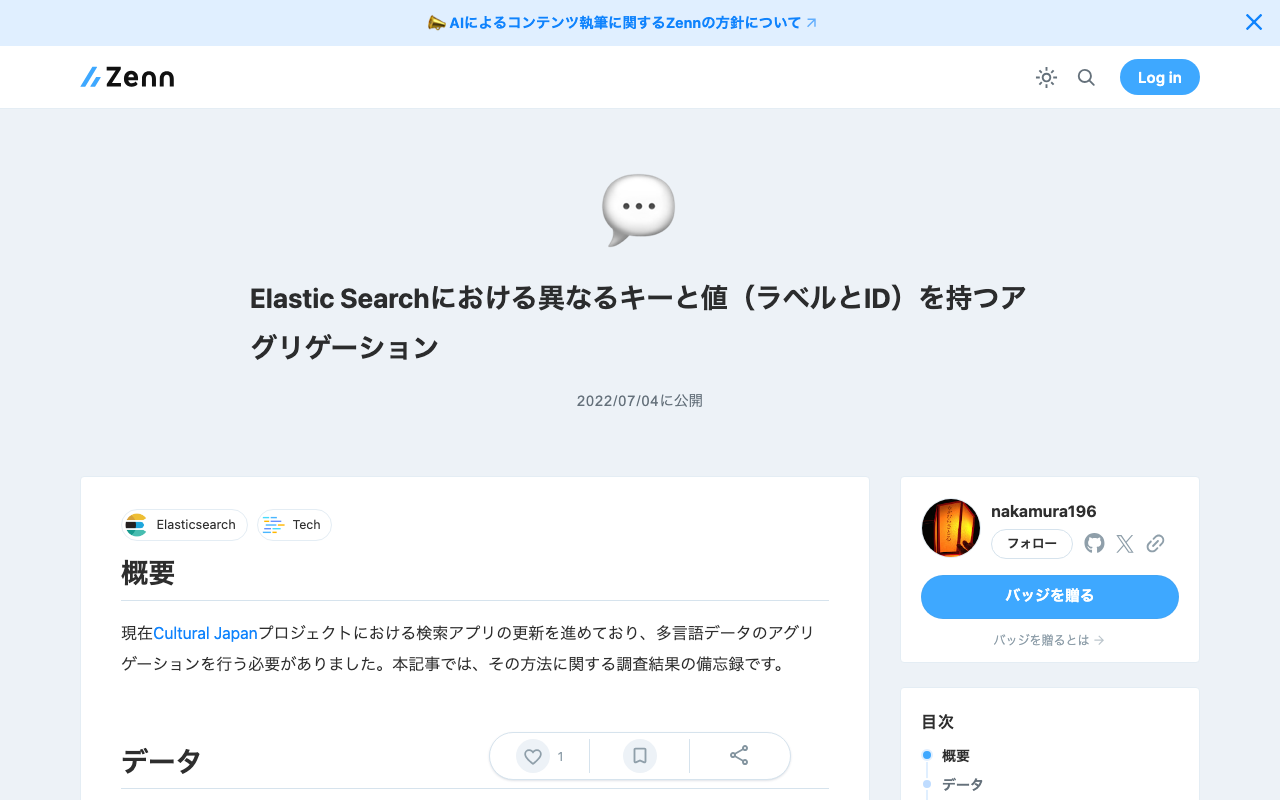
Overview I am currently working on updating the search application for the Cultural Japan project, and I needed to perform aggregation on multilingual data. This article is a memo of the investigation results regarding the methods. Data For the data, we assume a case where the agential (indicating a person) field has values for id, ja, and en. { "agential": [ { "ja": "葛飾北斎", "en": "Katsushika, Hokusai", "id": "chname:葛飾北斎" } ] } For the above data, we want to perform filtering by id while displaying the ja or en value according to the language setting. ...

Bug and Fix for Omeka S Bulk Import

Bug and Fix for Omeka S Bulk Import

The Bulk Import module for batch registration of items and media in Omeka S has a bug in versions 3.3.28.0 through 3.3.33.2 that prevents media from being registered. If you need to register media, you will need a workaround such as using version 3.3.27.0 or earlier. After creating an issue about this problem, the bug was promptly fixed: https://gitlab.com/Daniel-KM/Omeka-S-module-BulkImport/-/issues/10 As of July 1, only the source code on GitLab has been updated, but it should be added to the GitHub Releases soon. Please be aware of this when using this module. ...

Created a Video on How to Use the NDLOCR App with Google Colab

Created a Video on How to Use the NDLOCR App with Google Colab

I created a video on how to use the NDLOCR app with Google Colab. I hope it serves as a useful reference. https://youtu.be/46p7ZZSul0o The blog used in the video is the following. Note that the “Initial Setup” portion has been trimmed in the video. In reality, it takes about 3-5 minutes, so please be aware.

Scheduled Backup of Omeka S Data Using AWS Copilot

Scheduled Backup of Omeka S Data Using AWS Copilot

Overview I previously created a program to download Omeka S data. This time, I use AWS Copilot to run the above program on a scheduled basis. Installing AWS Copilot Please refer to the following. https://docs.aws.amazon.com/ja_jp/AmazonECS/latest/developerguide/AWS_Copilot.html Preparing Files Create three files in any location: Dockerfile, main.sh, and .env. Dockerfile FROM python:3 COPY *.sh . CMD sh main.sh main.sh set -e export output_dir=../docs # Program to download data from Omeka S export repo_tool=https://github.com/nakamura196/omekas_backup.git dir_tool=tool dir_dataset=dataset # If folder exists if [ -d $dir_tool ]; then rm -rf $dir_tool rm -rf $dir_dataset fi # clone git clone --depth 1 $repo_tool $dir_tool git clone --depth 1 $repo_dataset $dir_dataset # requirements.txt cd $dir_tool pip install --upgrade pip pip install -r requirements.txt # Execute cd src sh main.sh # copy odir=../../$dir_dataset/$subdir mkdir -p $odir cd $odir cp -r ../../$dir_tool/data . cp -r ../../$dir_tool/docs . # git git status git add . git config user.email "$email" git config user.name "$name" git commit -m "update" git push # Cleanup cd ../../ rm -rf $dir_tool rm -rf $dir_dataset .env api_url=https://dev.omeka.org/omeka-s-sandbox/api github_url=https://<personal-access-token>@github.com/<username>/<repository-name>.git username=nakamura email=nakamura@example.org dirname=dev The following is an explanation of the parameters. ...

Created a Program to Download Data from Omeka Classic

Created a Program to Download Data from Omeka Classic

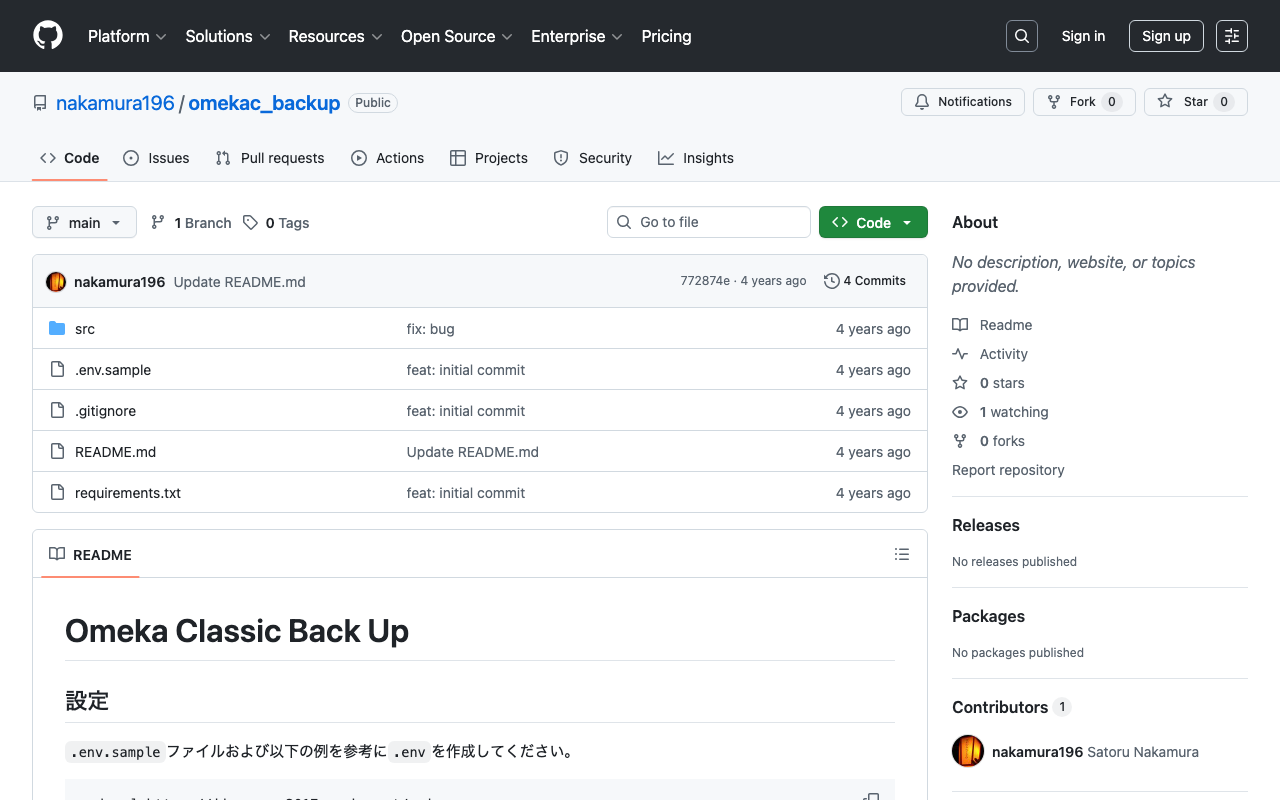
I created a program to download data from Omeka Classic. It is published in the following repository. https://github.com/nakamura196/omekac_backup I also created a Google Colab notebook that demonstrates how to run this program. https://colab.research.google.com/github/nakamura196/ndl_ocr/blob/main/omeka_classic_backup.ipynb In the above tutorial, data download is performed targeting the following Omeka Classic site. https://jinmoncom2017.omeka.net/ After execution, the API download results are output to the docs folder. You can use the above data for backups, etc. I hope this serves as a useful reference when using Omeka Classic. ...

Created a Program to Download Omeka S Data

Created a Program to Download Omeka S Data

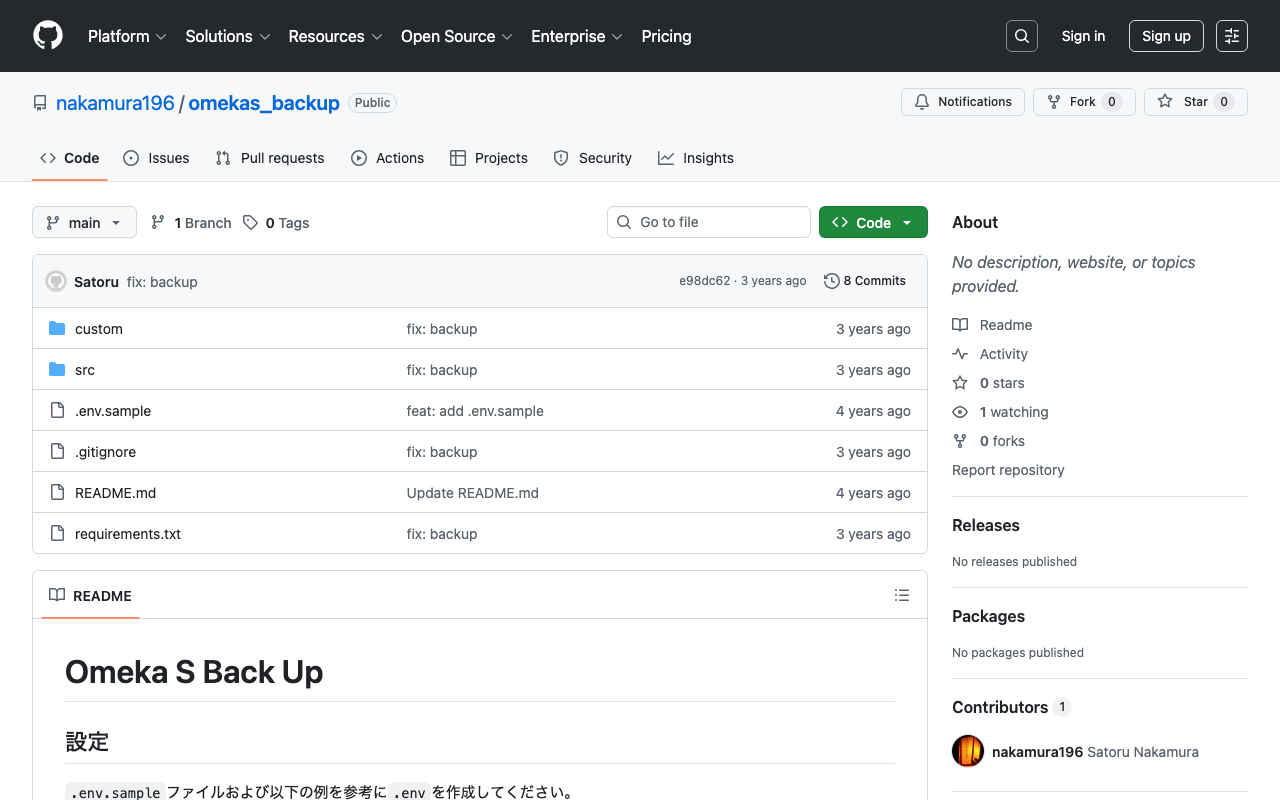
I created a program to download Omeka S data. It is published in the following repository. https://github.com/nakamura196/omekas_backup I also created a Google Colab showing an execution example of this program. https://colab.research.google.com/github/nakamura196/ndl_ocr/blob/main/omekas_backup.ipynb In the above tutorial, data download is executed targeting the following Omeka S sandbox. https://omeka.org/s/download/#sandbox After execution, API download results are output to the docs folder, and an MS Excel file summarizing them is output to the data folder. ...

How to Add the mirador-image-tools Plugin to Mirador 3 and Bundle It into a Single JS File for Distribution

How to Add the mirador-image-tools Plugin to Mirador 3 and Bundle It into a Single JS File for Distribution

Overview As the title suggests, this article describes how to add plugins such as mirador-image-tools to Mirador 3 and bundle them into a single JS file for distribution. Due to my limited knowledge of JavaScript, there may be some inaccuracies. I would appreciate it if you could point out any mistakes. Goal The goal is to create an application like the one at the following URL by writing an HTML file as shown below. It uses Mirador 3 with the mirador-image-tools plugin enabled. ...

I Created an IIIF Image API Tool Using Nuxt 3 and Vuetify 3

I Created an IIIF Image API Tool Using Nuxt 3 and Vuetify 3

Overview I created an IIIF Image API tool using Nuxt 3 and Vuetify 3. The background for developing this tool was a need to work with the IIIF Image API, as well as the purpose of learning how to use Nuxt 3. The GitHub repository is as follows. I hope it serves as a useful reference. https://github.com/nakamura196/nuxt3-vuetify3 Usage You can access it from the following URL. https://nv3.netlify.app/ As shown below, pressing the “Example” button inputs a URL into the text form at the top of the screen, and the elements contained in that URL (such as “region” and “size”) are displayed at the bottom of the screen. ...

File Upload (Python) and Download (PHP)

File Upload (Python) and Download (PHP)

I had an opportunity to upload files to a server, so this is a memo of the process. The image receiving program running on the server was created in PHP. Please be careful about security. upload.php <?php $root = "./"; // Change as appropriate. $path = $_POST["path"]; $dirname = dirname($path); if (!file_exists($dirname)) { mkdir($dirname, 0755, true); } move_uploaded_file($_FILES['media']['tmp_name'], $root.$path); ?> The program to upload files via POST was created in Python. It posts the local image file and the output destination path. ...

Creating Microsoft Word Files with python-docx: Using Templates and int2kanji

Creating Microsoft Word Files with python-docx: Using Templates and int2kanji

Overview I had the opportunity to convert information managed in a tabular format into a vertical-writing Microsoft Word format, so here are my notes. Before conversion: Research Project Title Project Number Direct Costs Development of Digital Archive System Construction Methods Considering Sustainability and Reusability 21K18014 2600000 After conversion: The implementation uses a specified template and the “Kanjize” library for mutual conversion between numbers and kanji numerals. Creating Microsoft Word Files with python-docx First, create a Microsoft Word template file like the following. While using the specified layout, place {<variable_name>} in the parts where values should be changed. ...

[Omeka S Module] How to Disable Image API in the IIIF Server Module

[Omeka S Module] How to Disable Image API in the IIIF Server Module

Overview In the Omeka S module “IIIF Server,” which generates IIIF manifests, you can configure settings to not use the Image API. This makes it easier to deliver IIIF manifests in resource-limited environments such as rental servers. I previously wrote the following article: https://nakamura196.hatenablog.com/entry/2021/07/22/171657 As of May 2022, the configuration method has changed due to module updates, so I am writing this article about the updated settings. For the advantages and disadvantages of not using the Image API, please refer to the article above. ...

[Omeka S Theme] Partial Mapping Module Support for Bootstrap 5 Theme

[Omeka S Theme] Partial Mapping Module Support for Bootstrap 5 Theme

Overview For the following Omeka S theme using Bootstrap 5, when the Mapping module was installed, display issues occurred on the map-browse page as described below. https://github.com/ldasjp8/Omeka-S-theme-Bootstrap5 The fix was made as follows. https://github.com/ldasjp8/Omeka-S-theme-Bootstrap5/commit/d60c93ff6d79b5505d25ef26e31e3776f55199d4 Before Fix The geographic-related forms had display issues. After Fix The display issues with the geographic-related forms were fixed. Summary There are still pages and modules with display issues, but I plan to address them gradually. ...

[Omeka S] How to Use the "IIIF Viewers" Module for Multiple IIIF-Compatible Viewers

[Omeka S] How to Use the "IIIF Viewers" Module for Multiple IIIF-Compatible Viewers

Overview I have developed and published the “IIIF Viewers” module for Omeka S, which displays IIIF manifest URI icons and viewers. The development of this module was supported by the National Institute of Japanese Literature. https://github.com/omeka-j/Omeka-S-module-IiifViewers Below, I will explain how to use this module. Installation The module can be installed using the standard method for Omeka S. Specifically, first click on the “Releases” link shown below. Next, click the following link to download the zip file. Extract the downloaded file and place the extracted folder “IiifViewers” into the “modules” folder of your installed Omeka S. ...

Registering DC-NDL (National Diet Library Dublin Core Metadata Description) as a Vocabulary in Omeka S

Registering DC-NDL (National Diet Library Dublin Core Metadata Description) as a Vocabulary in Omeka S

Here is how to register DC-NDL (National Diet Library Dublin Core Metadata Description) as a vocabulary in Omeka S. First, select “Vocabularies” as shown below. Next, click the button in the upper right. (The translation data for this button label is incorrect; I hope to fix it in the future.) Then, enter the required information as shown on the following screen. The specific information is as follows. Category Field Value Notes Basic Information Label DC-NDL This value is arbitrary. Basic Information Namespace URI http://ndl.go.jp/dcndl/terms/ Basic Information Namespace Prefix dcndl File Vocabulary URL https://www.ndl.go.jp/jp/dlib/standards/meta/2020/12/ndl-terms.rdf As a result, DC-NDL becomes available as a vocabulary as shown below. ...