Home Articles Books Search About
RSS 日本語

Latest Articles

Usage Example of the Image Map Editor in Oxygen XML Editor

Usage Example of the Image Map Editor in Oxygen XML Editor

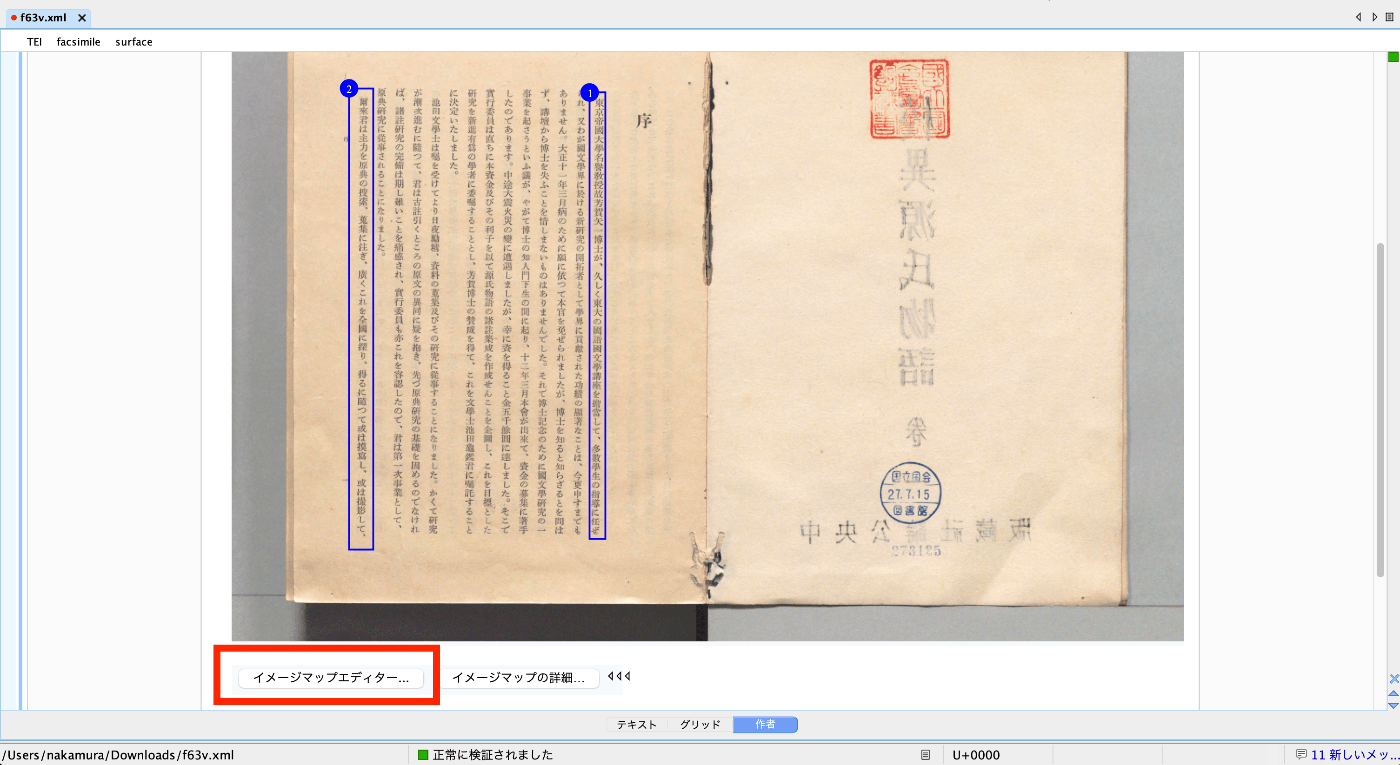
Overview This is an explanation of how to use the Image Map Editor in Oxygen XML Editor. Video https://youtu.be/9dZQ1v0Rky0?si=8EhAZdVsLqgPz2Rf Usage Prepare a TEI/XML file like the following. The url value of <graphic> can specify a relative path from the file, an absolute path on your PC, or a URL published on the internet. In the following example, the file digidepo_3437686_pn_null_9c48d89b-e2ec-4593-8d00-6fbc1d29d1bd.jpg stored in the same folder as the TEI/XML file is referenced. ...

Georeferencing with Allmaps

Georeferencing with Allmaps

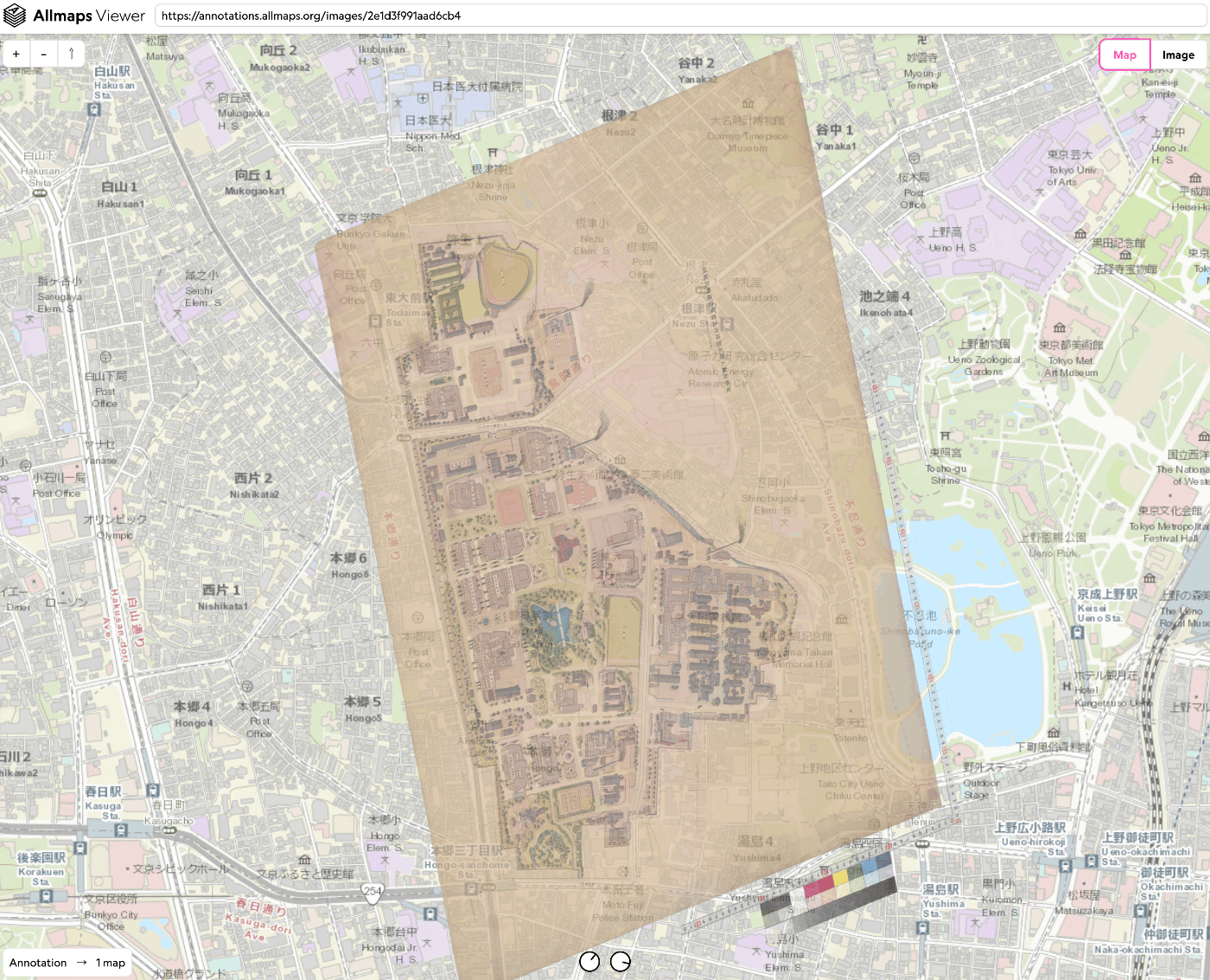
Overview This time, we try georeferencing using Allmaps. https://allmaps.org/ Allmaps is described as follows. Allmaps makes it easier and more inspiring to curate, georeference and explore collections of digitized maps. This time, we use the “Bird’s-eye View of the University of Tokyo Main Campus and Faculty of Agriculture Buildings” held by the University of Tokyo Library for Agriculture and Life Sciences. https://da.dl.itc.u-tokyo.ac.jp/portal/assets/187cc82d-11e6-9912-9dd4-b4cca9b10970 We create the following result. https://viewer.allmaps.org/?url=https%3A%2F%2Fannotations.allmaps.org%2Fimages%2F2e1d3f991aad6cb4 ...

Nuxt3 x Vuetify x Cesium

Nuxt3 x Vuetify x Cesium

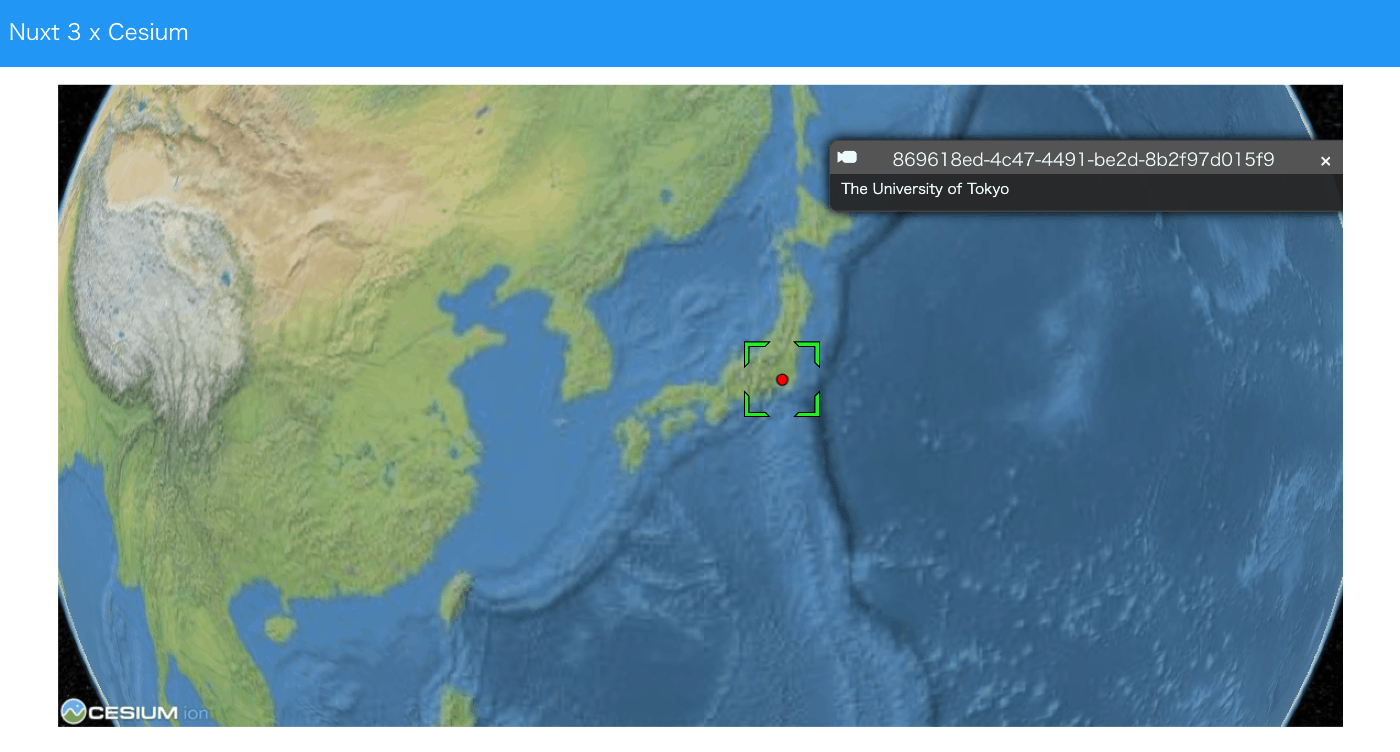
Overview I created a sample repository using Nuxt3, Vuetify, and Cesium. Source Code vue-cesium is used. https://github.com/zouyaoji/vue-cesium The GitHub repository is as follows. https://github.com/nakamura196/nuxt3-vuetify-cesium Demo Site https://nakamura196.github.io/nuxt3-vuetify-cesium/ Summary We hope this serves as a useful reference.

Trying Nuxt 3 and Decap CMS

Trying Nuxt 3 and Decap CMS

Overview I tried out Nuxt 3 and Decap CMS, so here are my notes. https://decapcms.org/ Preparing the Nuxt 3 Project I referred to the following for adding Decap CMS to an existing site. https://decapcms.org/docs/add-to-your-site/ First, prepare a Nuxt 3 project that includes the nuxt/content module. Here is an example of the source code. https://github.com/nakamura196/nuxt3-decapcms The following two files were created. # when using the default proxy server port local_backend: true # This line should *not* be indented publish_mode: editorial_workflow backend: name: git-gateway branch: main # Branch to update (optional; defaults to master) media_folder: public/img public_folder: /img collections: - name: 'blog' label: 'Blog' folder: 'content/blog' format: 'frontmatter' create: true slug: '{{year}}-{{month}}-{{day}}-{{slug}}' fields: - { label: 'Title', name: 'title', widget: 'string' } - { label: 'Publish Date', name: 'date', widget: 'datetime' } - { label: 'Description', name: 'description', widget: 'string' } - { label: 'Body', name: 'body', widget: 'markdown' } <!DOCTYPE html> <html> <head> <meta charset="utf-8" /> <meta name="viewport" content="width=device-width, initial-scale=1.0" /> <title>Content Manager</title> <!-- Include the script that enables Netlify Identity on this page. --> <script src="https://identity.netlify.com/v1/netlify-identity-widget.js"></script> </head> <body> <!-- Include the script that builds the page and powers Decap CMS --> <script src="https://unpkg.com/decap-cms@^3.0.0/dist/decap-cms.js"></script> </body> </html> Then, it was pushed to GitHub. ...

Handling AttributeError: 'ImageDraw' object has no attribute 'textsize'

Handling AttributeError: 'ImageDraw' object has no attribute 'textsize'

When using the following in Python’s Pillow: textsize = 14 font = ImageFont.truetype("Arial Unicode.ttf", size=textsize) txw, txh = draw.textlength(label, font=font) The following error occurred. AttributeError: ‘ImageDraw’ object has no attribute ’textsize’ The following was helpful as a solution. https://stackoverflow.com/questions/77038132/python-pillow-pil-doesnt-recognize-the-attribute-textsize-of-the-object-imag Specifically, I rewrote it as follows. textsize = 14 font = ImageFont.truetype("Arial Unicode.ttf", size=textsize) txw = draw.textlength(label, font=font) txh = textsize I hope this is helpful.

Restarting Virtuoso on EC2 Using Amazon SNS

Restarting Virtuoso on EC2 Using Amazon SNS

Overview In the following article, I described how to perform health checks. I also described the command for restarting Virtuoso when it stops in the following article. This time, I will try restarting Virtuoso in conjunction with Amazon SNS notifications. Method To send a command like sudo rm -rf /usr/local/var/lib/virtuoso/db/virtuoso.lck && ... to an EC2 instance, SSM (AWS Systems Manager) configuration was required. IAM Roles and Policies I created a new IAM role and granted the AmazonSSMFullAccess policy. Initially, I had granted the AmazonSSMManagedInstanceCore policy, but the following error occurred when executing the Lambda function described later, and it did not work properly. ...

Resolving SAM Error: Running AWS SAM Projects Locally Requires Docker

Resolving SAM Error: Running AWS SAM Projects Locally Requires Docker

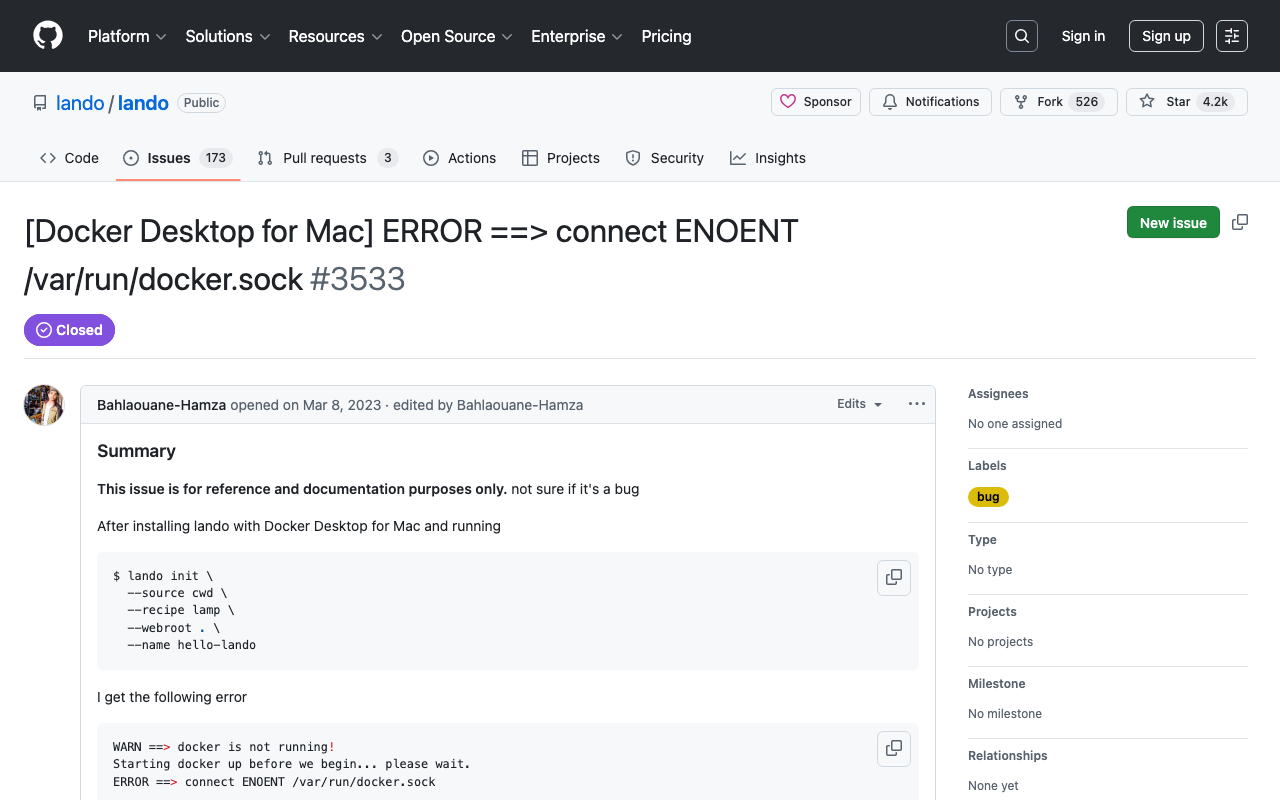
Overview When trying sam local invoke with AWS SAM, the following message was displayed. Error: Running AWS SAM projects locally requires Docker. Have you got it installed and running? The environment was Mac, and Docker was running. Solution Running the following command resolved the issue. sudo ln -s ~/.docker/run/docker.sock /var/run/docker.sock I referenced the following. https://github.com/lando/lando/issues/3533 Summary I hope this is helpful for anyone facing the same issue.

Trying Leaflet Marker Cluster with Nuxt 3 and Composition API

Trying Leaflet Marker Cluster with Nuxt 3 and Composition API

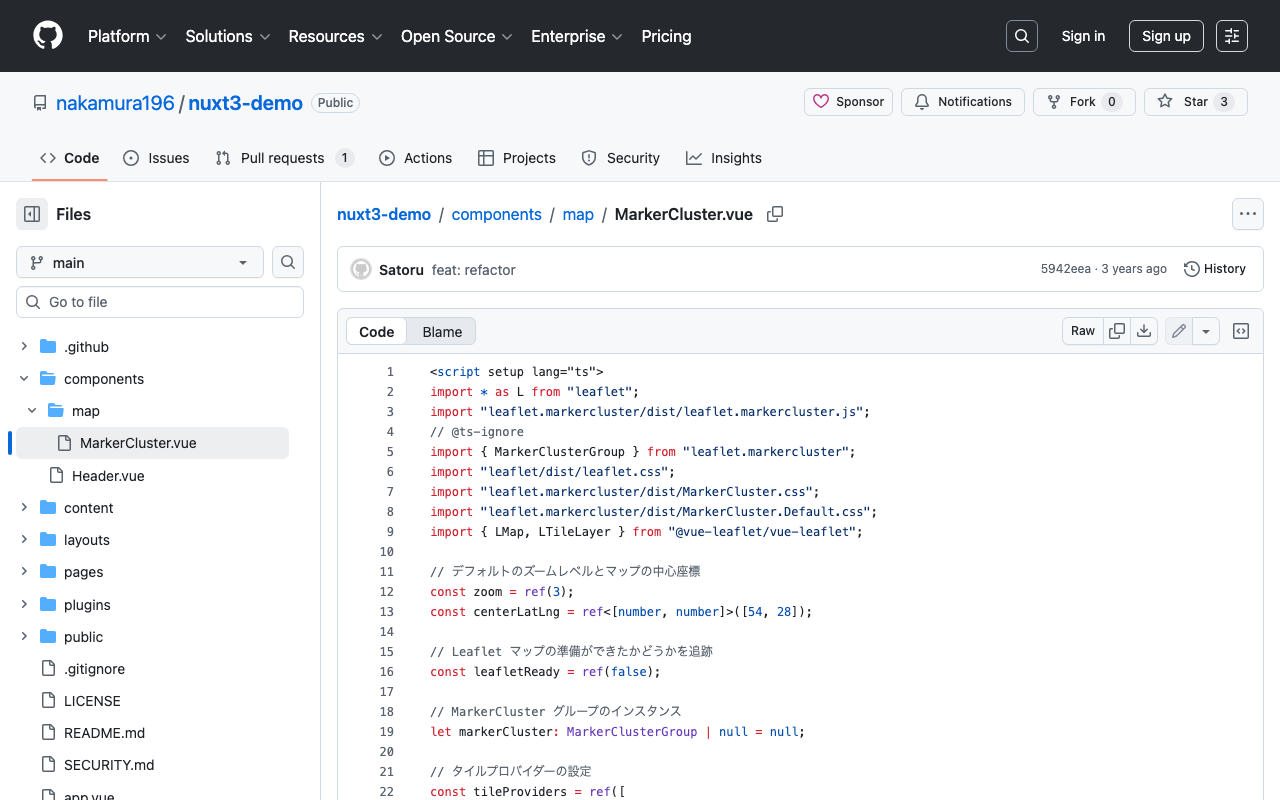
Overview In the following article, I introduced how to use Leaflet Marker Cluster with Nuxt 3. This time, I updated it to use the Composition API, so here are my notes. Installation Install the following: npm i leaflet leaflet.markercluster @vue-leaflet/vue-leaflet npm i -D @types/leaflet @types/leaflet.markercluster Source Code Please refer to the following: https://github.com/nakamura196/nuxt3-demo/blob/main/components/map/MarkerCluster.vue Summary There are some parts where TypeScript support is incomplete, but I hope this serves as a useful reference. ...

Example of Creating a Page Using Universal Viewer v4

Example of Creating a Page Using Universal Viewer v4

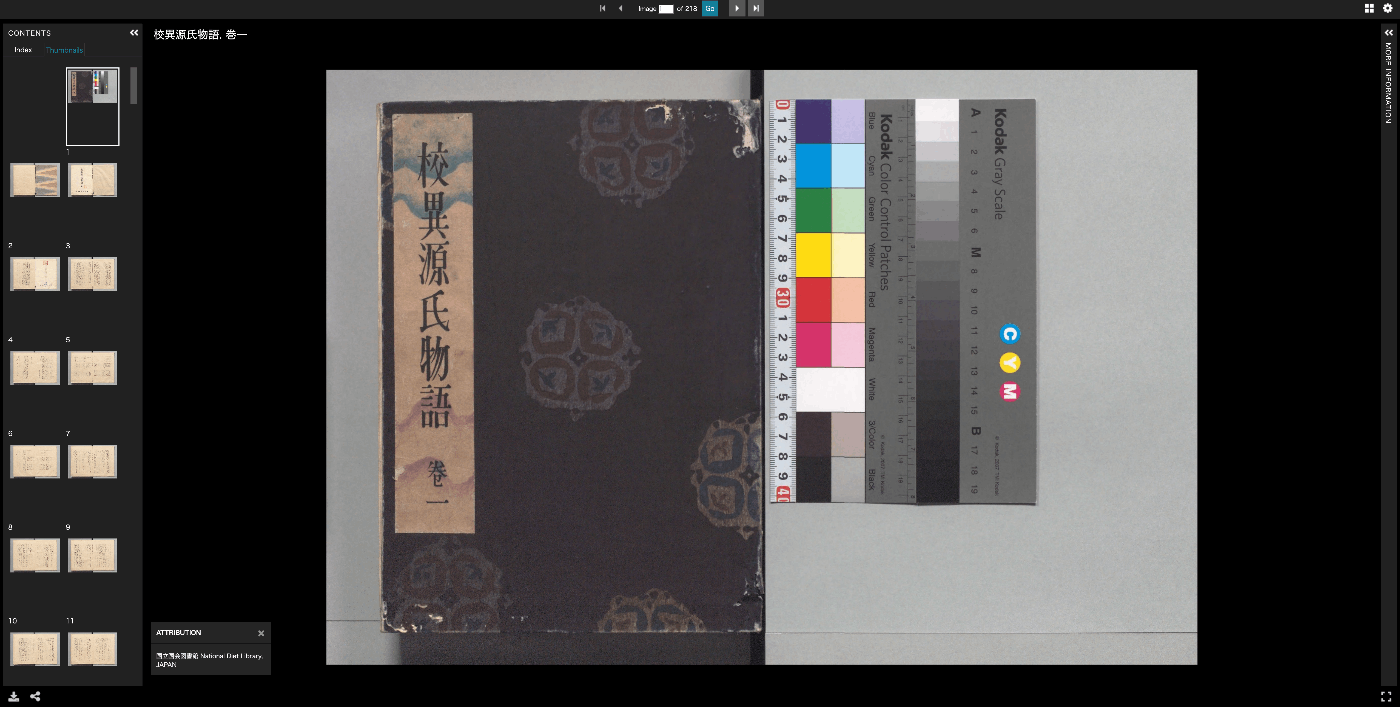
Overview I created a page where Universal Viewer is displayed across the entire page, as shown below, so this is a memo of the process. Universal Viewer v4 is used. https://nuxt3-demo-nine.vercel.app/uv/?manifest=https://dl.ndl.go.jp/api/iiif/3437686/manifest.json Source Code Please refer to the following source code. https://github.com/nakamura196/nuxt3-demo/blob/main/public/uv/index.html Referring to the following page: https://github.com/UniversalViewer/universalviewer/wiki/UV-Examples and the following sample, the viewer size is adjusted to change according to page resizing. https://codesandbox.io/s/uv-url-adapter-example-9d6x8 It also includes code to receive a manifest query parameter. ...

Nuxt3 x Vuetify x Cytoscape

Nuxt3 x Vuetify x Cytoscape

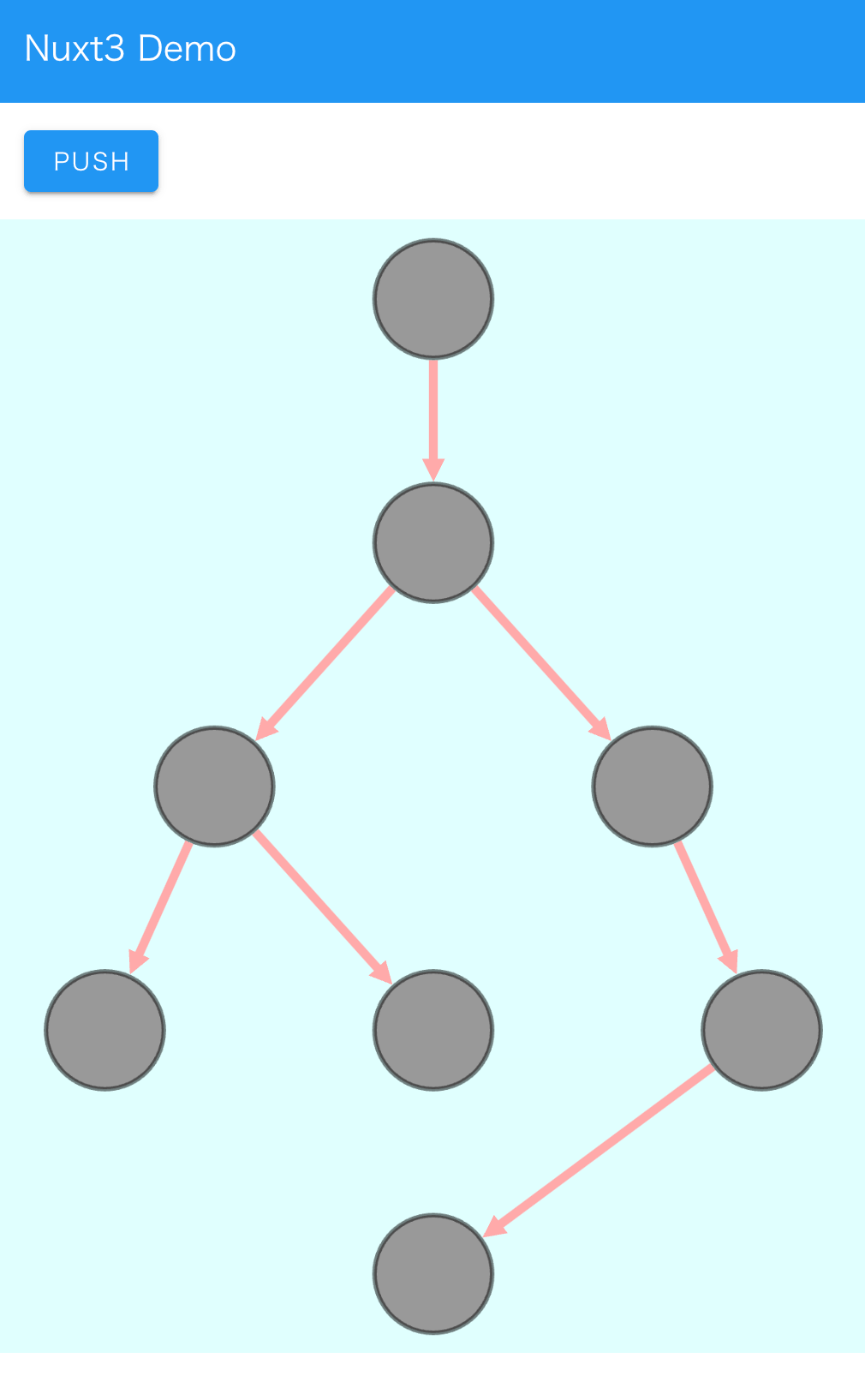
Overview I added a Cytoscape demo to a sample repository using Nuxt3 and Vuetify. https://github.com/nakamura196/nuxt3-demo You can check it working on the following page. https://nakamura196.github.io/nuxt3-demo/ Installation I ran the following. npm i cytoscape npm i @types/cytoscape Source Code <template> <div id="view"> <v-btn class="ma-4" color="primary" v-on:click="addNode">push</v-btn> <div id="cy"></div> </div> </template> <script setup lang="ts"> import cytoscape from "cytoscape"; let cy: any = null; // = ref(null); //reactive({}); //: any const count: number = 0; // = ref(0); //reactive(0); const addNode = () => { cy.add([ { group: "nodes", data: { id: "node" + count }, position: { x: 300, y: 200 }, }, { group: "edges", data: { id: "edge" + count, source: "node" + count, target: "cat" }, }, ]); }; onMounted(() => { cy = cytoscape({ container: document.getElementById("cy"), boxSelectionEnabled: false, autounselectify: true, style: cytoscape .stylesheet() .selector("node") .css({ height: 80, width: 80, "background-fit": "cover", "border-color": "#000", "border-width": 3, "border-opacity": 0.5, content: "data(name)", "text-valign": "center", }) .selector("edge") .css({ width: 6, "target-arrow-shape": "triangle", "line-color": "#ffaaaa", "target-arrow-color": "#ffaaaa", "curve-style": "bezier", }), elements: { nodes: [ { data: { id: "cat" } }, { data: { id: "bird" } }, { data: { id: "ladybug" } }, { data: { id: "aphid" } }, { data: { id: "rose" } }, { data: { id: "grasshopper" } }, { data: { id: "plant" } }, { data: { id: "wheat" } }, ], edges: [ { data: { source: "cat", target: "bird" } }, { data: { source: "bird", target: "ladybug" } }, { data: { source: "bird", target: "grasshopper" } }, { data: { source: "grasshopper", target: "plant" } }, { data: { source: "grasshopper", target: "wheat" } }, { data: { source: "ladybug", target: "aphid" } }, { data: { source: "aphid", target: "rose" } }, ], }, layout: { name: "breadthfirst", directed: true, padding: 10, }, }); }); </script> <style scoped> #cy { width: 100%; height: 80%; position: absolute; background-color: lightcyan; } </style> Summary I hope this is helpful. ...

Cantaloupe: Running as a Service

Cantaloupe: Running as a Service

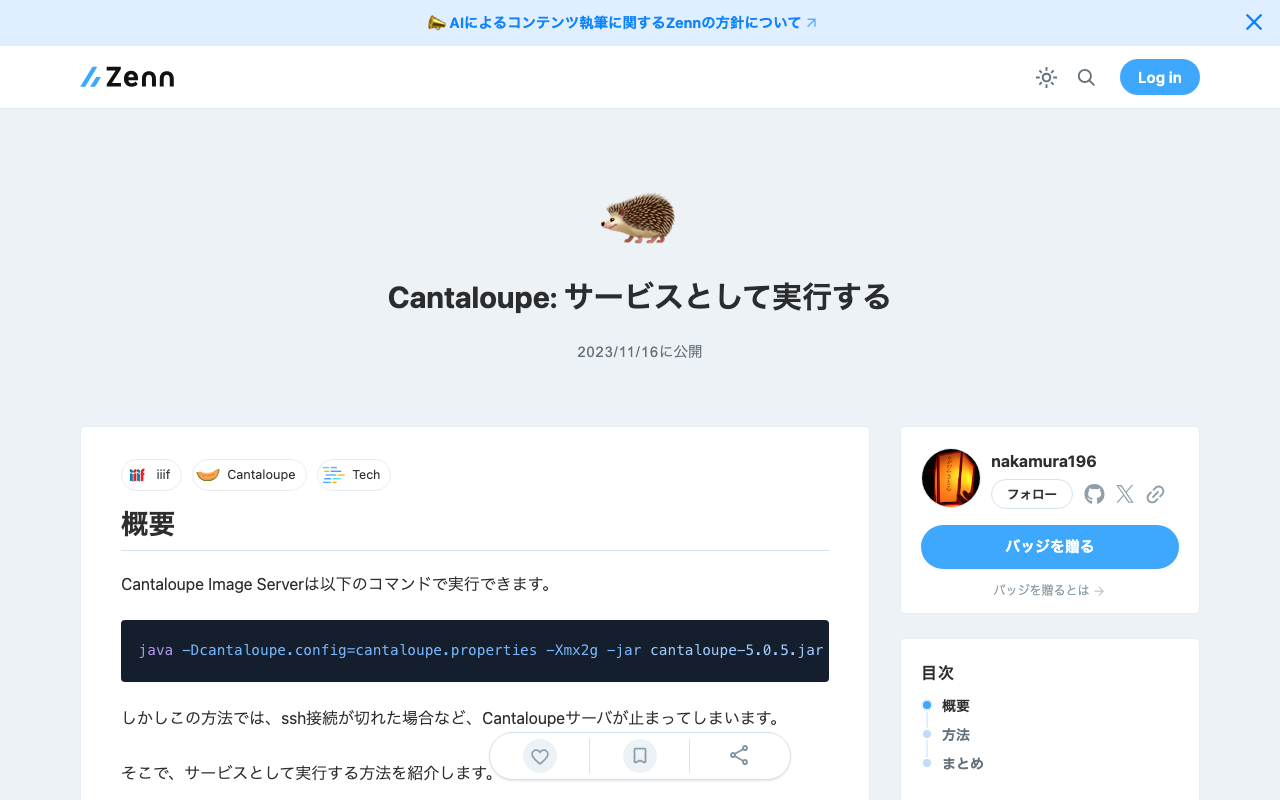
Overview The Cantaloupe Image Server can be run with the following command. java -Dcantaloupe.config=cantaloupe.properties -Xmx2g -jar cantaloupe-5.0.5.jar However, with this method, the Cantaloupe server stops when the SSH connection is lost, for example. Here I introduce how to run it as a service. Method Create a service file: Create a service file (e.g., cantaloupe.service) in the /etc/systemd/system/ directory with sudo privileges. [Unit] Description=Cantaloupe Image Server [Service] User=ubuntu # Please modify the following paths as appropriate WorkingDirectory=/home/ubuntu/cantaloupe-5.0.5 ExecStart=/usr/bin/java -Dcantaloupe.config=cantaloupe.properties -Xmx2g -jar cantaloupe-5.0.5.jar SuccessExitStatus=143 [Install] WantedBy=multi-user.target In this file, the Java command to execute is specified in ExecStart. Also, User and WorkingDirectory need to be set appropriately. ...

Cantaloupe: Serving Images Stored in Amazon S3

Cantaloupe: Serving Images Stored in Amazon S3

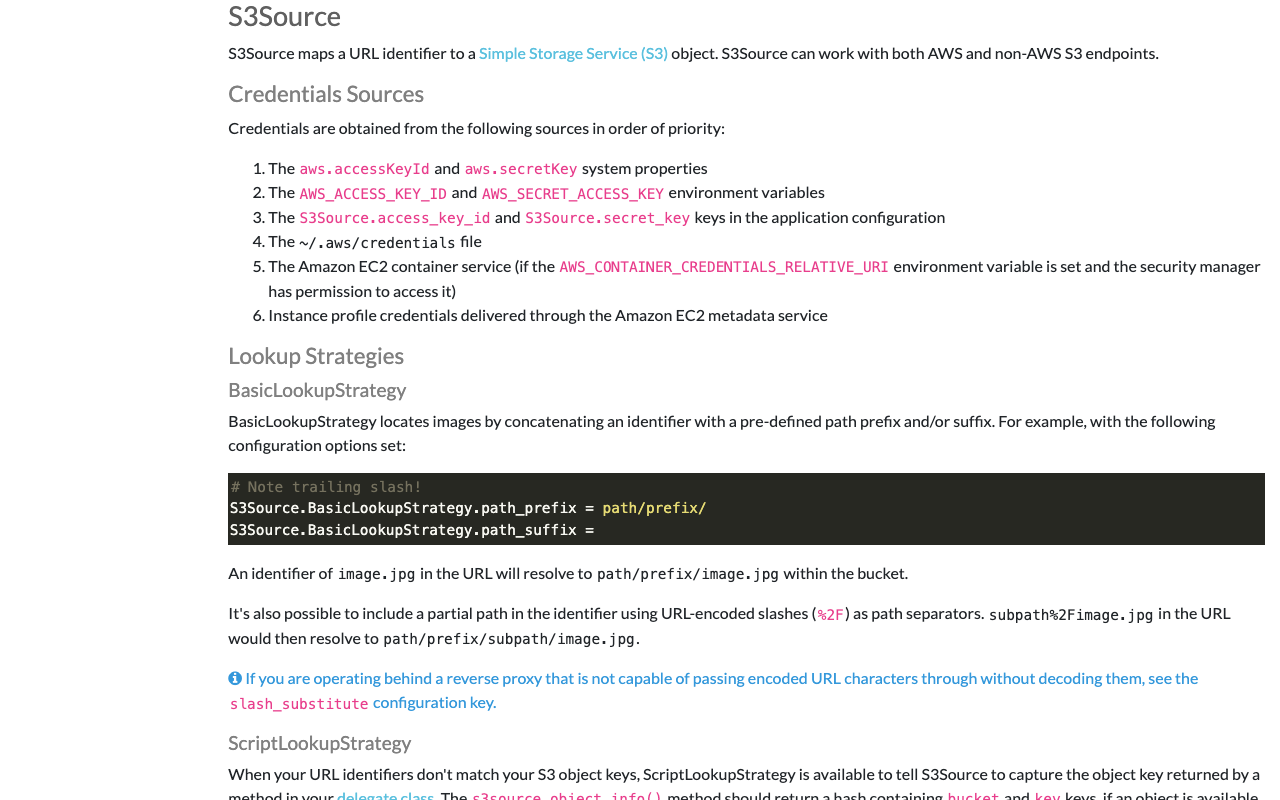
Overview This is a note on how to serve images stored in Amazon S3 using Cantaloupe Image Server, one of the IIIF image servers. As an alternative method for serving images stored in Amazon S3, I also introduced an approach in the following article. (The tools may have been updated since the article was written, so the instructions may not work exactly as described.) Configuration The official manual is available at the following link. ...

Drupal: Registering Multiple Values and Skip Processing Using the Feeds Tamper Module

Drupal: Registering Multiple Values and Skip Processing Using the Feeds Tamper Module

Overview I attempted to register a CSV like the following using Drupal’s Feeds module. id title target xxx aaa 9600023 When you want to register multiple values in a single field like this, the Feeds Tamper module can be used. https://www.drupal.org/project/feeds_tamper The following article was helpful. https://acret.jp/drupal/articles/456 By configuring as follows, I was able to batch register multiple values. However, when the target column contains empty rows like the following, ...

Drupal: Displaying UUIDs

Drupal: Displaying UUIDs

Overview This is a note on how to display UUIDs for content, as shown below. Module Installation The following module was used. https://www.drupal.org/project/uuid_extra Usage Select the “Manage display” tab for the content type where you want to display UUIDs, and move the UUID field as shown below. Summary I hope this serves as a useful reference.

TEI Publisher: Visualization Examples from the TEI Publisher Demo Collection (Part 1)

TEI Publisher: Visualization Examples from the TEI Publisher Demo Collection (Part 1)

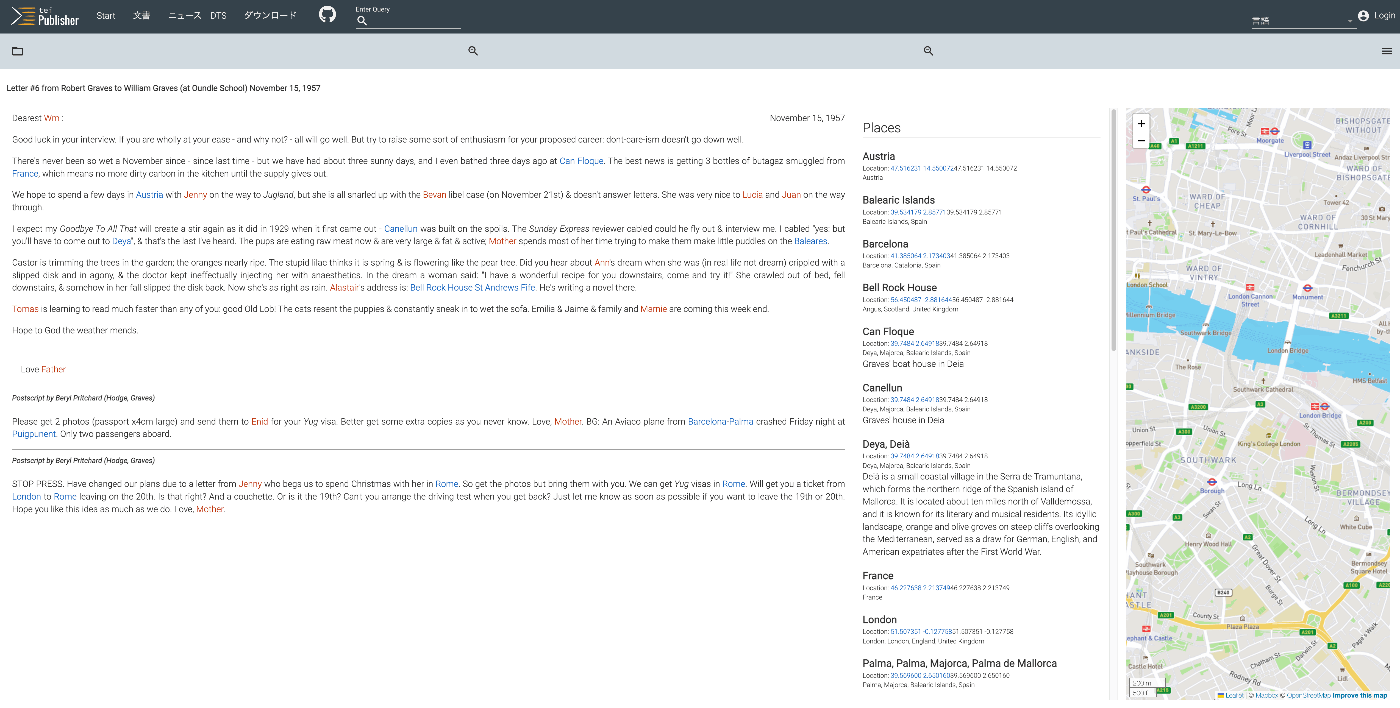
Overview The following page on TEI Publisher showcases various visualization examples. https://teipublisher.com/exist/apps/tei-publisher/index.html?query=&collection=test&sort=title&field=text&start=1 In this and subsequent articles, I will introduce the above visualization examples. Letter #6 from Robert Graves to William Graves (at Oundle School) November 15, 1957 Overview https://teipublisher.com/exist/apps/tei-publisher/test/graves6.xml As shown below, the text is displayed alongside a list of place names and person names, as well as a map. It is described as follows: A 20th century manuscript letter from Robert Graves where emphasis has been put on visualizing rich encoding of semantic information in the letter, in particular geographic and prosopographical data. The map is displayed with a pb-leaflet component. ...

Vue.js: Handling Panes with iframes When Using Splitpanes

Vue.js: Handling Panes with iframes When Using Splitpanes

Splitpanes is a Vue.js library that enables pane splitting and resizing, as shown below. https://github.com/antoniandre/splitpanes When using this library, I encountered an issue where resizing did not work properly when a pane contained an iframe element. A solution was described in the following pull request. https://github.com/antoniandre/splitpanes/pull/162 As described there, adding the following CSS resolved the issue and allowed correct resize operations even with panes containing iframe elements. .splitpanes--dragging .splitpanes__pane { pointer-events: none; } I hope this helps anyone experiencing the same issue. ...

Formatting and Syntax Highlighting XML in Nuxt3

Formatting and Syntax Highlighting XML in Nuxt3

Overview As shown in the following image, I had the opportunity to display XML text data using Nuxt3, so this is a memo. Installation I used the following two libraries. npm i xml-formatter npm i highlight.js Usage I created the following file as a Nuxt3 component. It formats XML strings with xml-formatter and then applies syntax highlighting with highlight.js. <script setup lang="ts"> import hljs from "highlight.js"; import "highlight.js/styles/xcode.css"; import formatter from "xml-formatter"; interface PropType { xml: string; } const props = withDefaults(defineProps<PropType>(), { xml: "", }); const formattedXML = ref<string>(""); onMounted(() => { // `highlightAuto` 関数が非同期でない場合は、 // `formattedXML` を直接アップデートできます。 // そうでない場合は、適切な非同期処理を行ってください。 formattedXML.value = hljs.highlightAuto(formatXML(props.xml)).value; }); const formatXML = (xmlstring: string) => { return formatter(xmlstring, { indentation: " ", filter: (node) => node.type !== "Comment", }); }; </script> <template> <pre class="pa-4" v-html="formattedXML"></pre> </template> <style> pre { /* 以下のスタイルは適切で、pre要素内のテキストの折り返しを制御しています。 */ white-space: pre-wrap; /* CSS 3 */ white-space: -moz-pre-wrap; /* Mozilla, 1999年から2002年までに対応 */ white-space: -pre-wrap; /* Opera 4-6 */ white-space: -o-pre-wrap; /* Opera 7 */ word-wrap: break-word; /* Internet Explorer 5.5+ */ } </style> Summary I hope this is helpful for visualizing TEI/XML data. ...

Schemas Convertible from TEI ODD: RNG, XSD, DTD, and More

Schemas Convertible from TEI ODD: RNG, XSD, DTD, and More

Overview In the following article, I tried creating an ODD. The above uses a tool called Roma, and you can see that the created ODD has the following output formats available. Specifically, the available formats are “RELAX NG Schema,” “RELAX NG Compact,” “W3C Schema,” “Document Type Definition,” and “ISO Schematron Constraints.” I asked GPT-4 about the differences between these formats and am sharing the results here. There may be some inaccuracies, but I hope this serves as a useful reference. ...

Using Roma to Limit Tags for Your Project and Generate Documentation

Using Roma to Limit Tags for Your Project and Generate Documentation

Overview I previously explained how to use Roma in the following article. This time, I will explain the workflow for creating TEI ODD (One Document Does-it-all) and documentation (HTML and PDF) targeting TEI/XML files at hand. Note that at the end of this article, I have included GPT-4’s response regarding the differences between ODD (One Document Does it all) and RNG (RelaxNG). Please refer to that as well. Obtaining a List of Tags Used First, obtain a list of tags used in your project. ...

Using Versioning Machine (VM5.0) with Visual Studio Code (VSCode)

Using Versioning Machine (VM5.0) with Visual Studio Code (VSCode)

Overview Versioning Machine (VM5.0) is an application for visualizing textual variant information. http://v-machine.org/ This article explains how to use Visual Studio Code (VSCode) to display your own TEI/XML files in this application. The target TEI/XML files contain variant information described using the <listWit> tag, as shown below: <TEI xmlns="http://www.tei-c.org/ns/1.0"> <teiHeader> <fileDesc> <titleStmt> ... </titleStmt> <publicationStmt> ... </publicationStmt> <sourceDesc> <listWit> <witness xml:id="WA"> <title xml:lang="ja">ヴァイマル版ゲーテ全集(略称WA)</title> <title xml:lang="de">Goethes Werke. herausgegeben im Auftrage der Großherzogin Sophie von Sachsen</title> </witness> <witness xml:id="UTL"> <title xml:lang="ja">東京大学総合図書館所蔵のゲーテ自署付書簡</title> <title xml:lang="de">Der Brief von Goethe an Ludwig Wilhelm Cramer vom 29. Dezember 1822 im Besitz der Universitätsbibliothek Tokio</title> </witness> </listWit> <msDesc sameAs="#UTL"> ... As described later, this article uses text data from a letter with Goethe’s autograph held in the University of Tokyo General Library, which is publicly available at the following link: ...