Home Articles Books Search About
RSS 日本語

Latest Articles

Differences Between DACS and ISAD(G)

Differences Between DACS and ISAD(G)

I am sharing a response from ChatGPT4 about the differences between DACS and ISAD(G). There may be some inaccuracies, but I hope it serves as a useful reference. DACS (Describing Archives: A Content Standard) and ISAD(G) (International Standard Archival Description, General) are standards used for describing archival materials in American and international contexts, respectively. These standards were developed to facilitate cataloging, access, and understanding of archival materials, but they differ in scope, structure, and specific focus areas. ...

Differences Between Omeka Classic and Omeka S

Differences Between Omeka Classic and Omeka S

I am sharing a response from ChatGPT4 about the differences between Omeka Classic and Omeka S. I hope it serves as a useful reference. Omeka and Omeka S are open-source web publishing platforms for building digital collections and exhibitions. Both are widely used by academic institutions, libraries, museums, archives, educators, and cultural heritage organizations. However, Omeka and Omeka S differ in their design and intended use. Omeka (Classic) Target audience: Best suited for individuals and small-scale projects. Suitable for school projects, personal research, and small archival collections. Features: Easy to install and provides an intuitive admin interface. Focused on individual websites and projects, specializing in single site management and exhibition creation. Use cases: Best for exhibiting small digital collections and educational projects. Customization is possible through plugins and themes, but it is not suited for integrated management of multiple projects or collections. Omeka S Target audience: Best suited for organizations with multiple projects and collections, such as universities, libraries, and museums. Features: Omeka S is designed to enable the creation and management of multiple sites. With a single installation, it allows sharing, reusing, and linking resources across different projects and collections. Use cases: Best for large institutions that have multiple digital collections and exhibitions and want to manage them in an integrated manner. It provides more advanced features including API support, advanced search functionality, and Linked Open Data support. Key Differences Intended use: Omeka Classic is designed for small-scale projects and individual users, while Omeka S is designed for organizations and institutions with multiple projects and sites. Functionality: Omeka S provides more advanced features such as multi-site management, Linked Open Data support, and data access via API. Extensibility and interoperability: Omeka S aims for broader data integration and interoperability by sharing items across collections. The choice depends on the scale of the project, its purpose, and the type of data being managed. Omeka Classic is suitable for small-scale projects and personal use, while Omeka S is suitable for organizations handling multiple projects and large datasets. ...

Trying ArchivesSpace's OAI Repository

Trying ArchivesSpace's OAI Repository

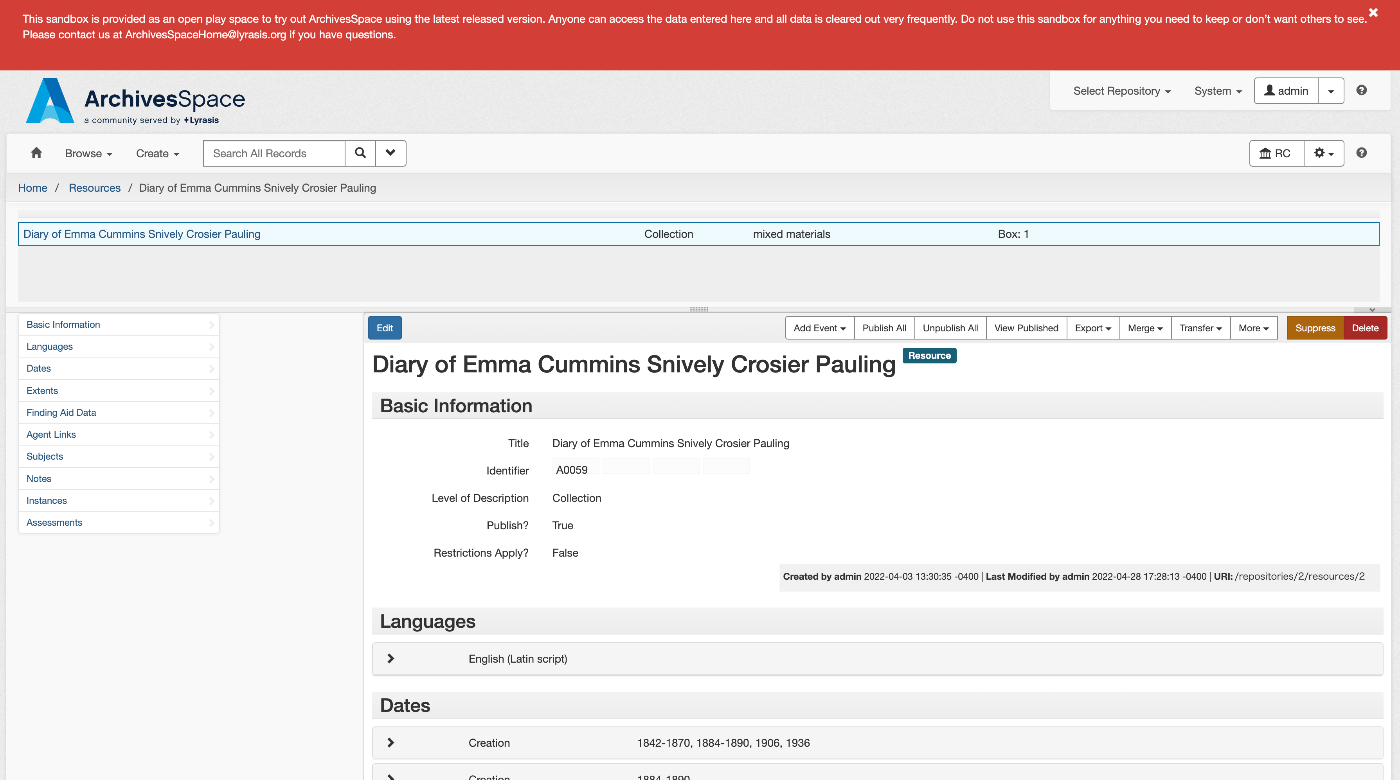
Overview ArchivesSpace is described as follows. https://github.com/archivesspace/archivesspace Built for archives by archivists, ArchivesSpace is the open source archives information management application for managing and providing web access to archives, manuscripts and digital objects. This article tries out the OAI Repository feature provided by ArchivesSpace. https://archivesspace.github.io/tech-docs/architecture/oai-pmh/ Configuration This time, we use the ArchivesSpace demo site. Access the following page and configure the necessary settings. https://sandbox.archivesspace.org/staff/oai_config/edit Retrieving the List of Metadata Formats The list of metadata formats was retrieved using the following. ...

Trying Access to Memory's OAI Repository

Trying Access to Memory's OAI Repository

Overview Access to Memory is described as follows. https://github.com/artefactual/atom AtoM (short for Access to Memory) is a web-based, open source application for standards-based archival description and access. The application is multilingual and multi-repository. First commissioned by the International Council on Archives (ICA) to make it easier for archival institutions worldwide to put their holdings online using the ICA’s descriptive standards, the project has since grown into an internationally used community-driven project. ...

Trying Out AIPscan

Trying Out AIPscan

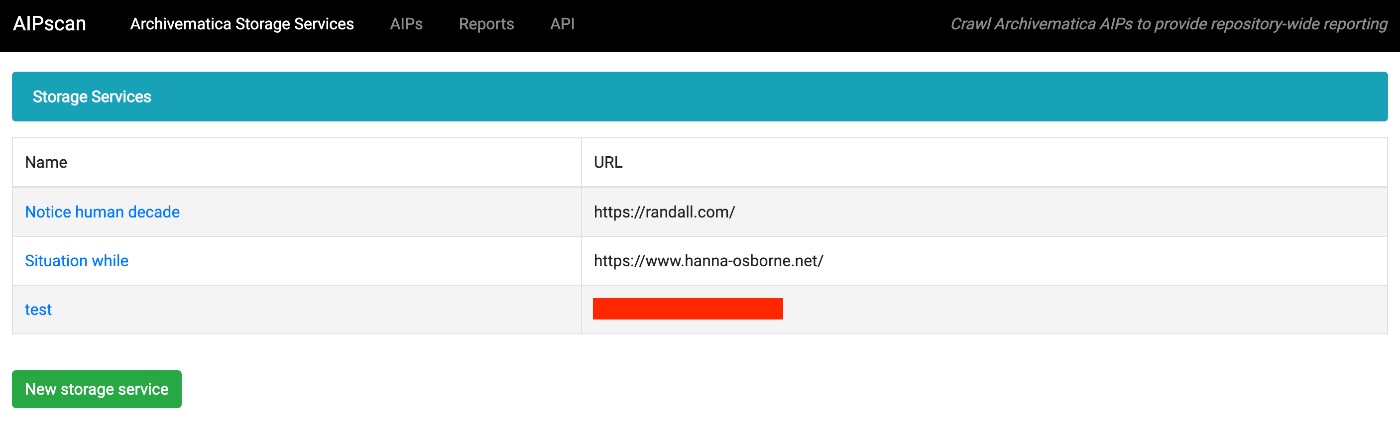
Overview In this article, I try out the following tool. https://github.com/artefactual-labs/AIPscan This tool is described as follows: AIPscan was developed to provide a more in-depth reporting solution for Archivematica users. It crawls METS files from AIPs in the Archivematica Storage Service to generate tabular and visual reports about repository holdings. It is designed to run as a stand-alone add-on to Archivematica. It only needs a valid Storage Service API key to fetch source data. ...

Using the Media Arts Database SPARQL Endpoint with Yasgui

Using the Media Arts Database SPARQL Endpoint with Yasgui

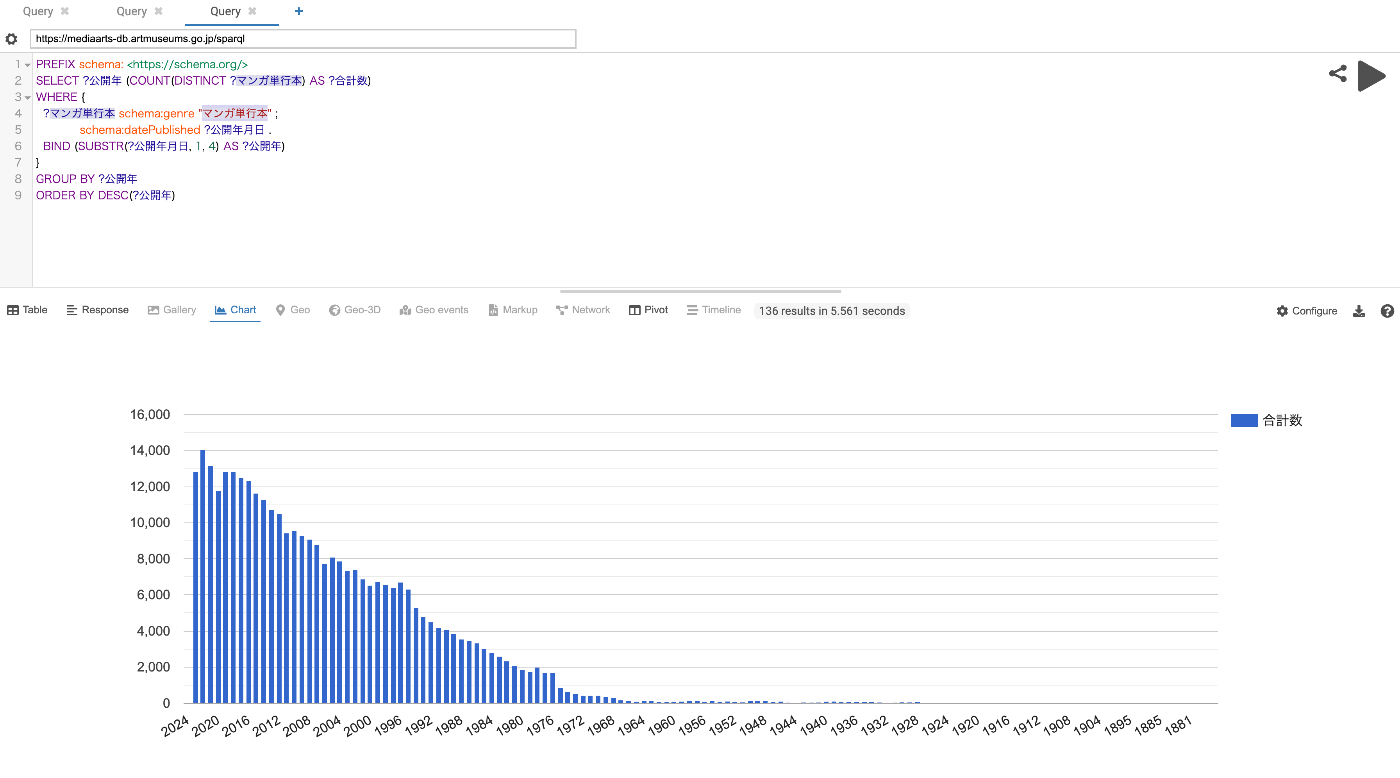
Overview The Media Arts Database was officially released on 2024/1/31. https://mediaarts-db.artmuseums.go.jp/ This article introduces usage examples of the Media Arts Database SPARQL endpoint with Yasgui. I hope the following article about Yasgui is also helpful. Usage Examples Time-series changes in the number of published manga tankoubon (collected volumes) https://api.triplydb.com/s/AqIH1InmC Time-series changes in the number of published game packages https://api.triplydb.com/s/L2REuOshZ Time-series changes in the number of published manga tankoubon containing “isekai” (another world) or “tensei” (reincarnation) https://api.triplydb.com/s/4ciTNJGb2 ...

Limiting Filter Properties in Omeka S Advanced Search

Limiting Filter Properties in Omeka S Advanced Search

Overview On the advanced search screen for each site built with Omeka S, users can select a property and search for specific values. With the default settings, all properties registered in Omeka S are displayed, which can make it difficult to use. This article introduces how to limit the properties shown as selectable options, as shown below: This article targets Omeka S version 4.0.4. Documentation The relevant documentation can be found here: ...

Tips for Using sidebase/nuxt-auth in a Production Environment

Tips for Using sidebase/nuxt-auth in a Production Environment

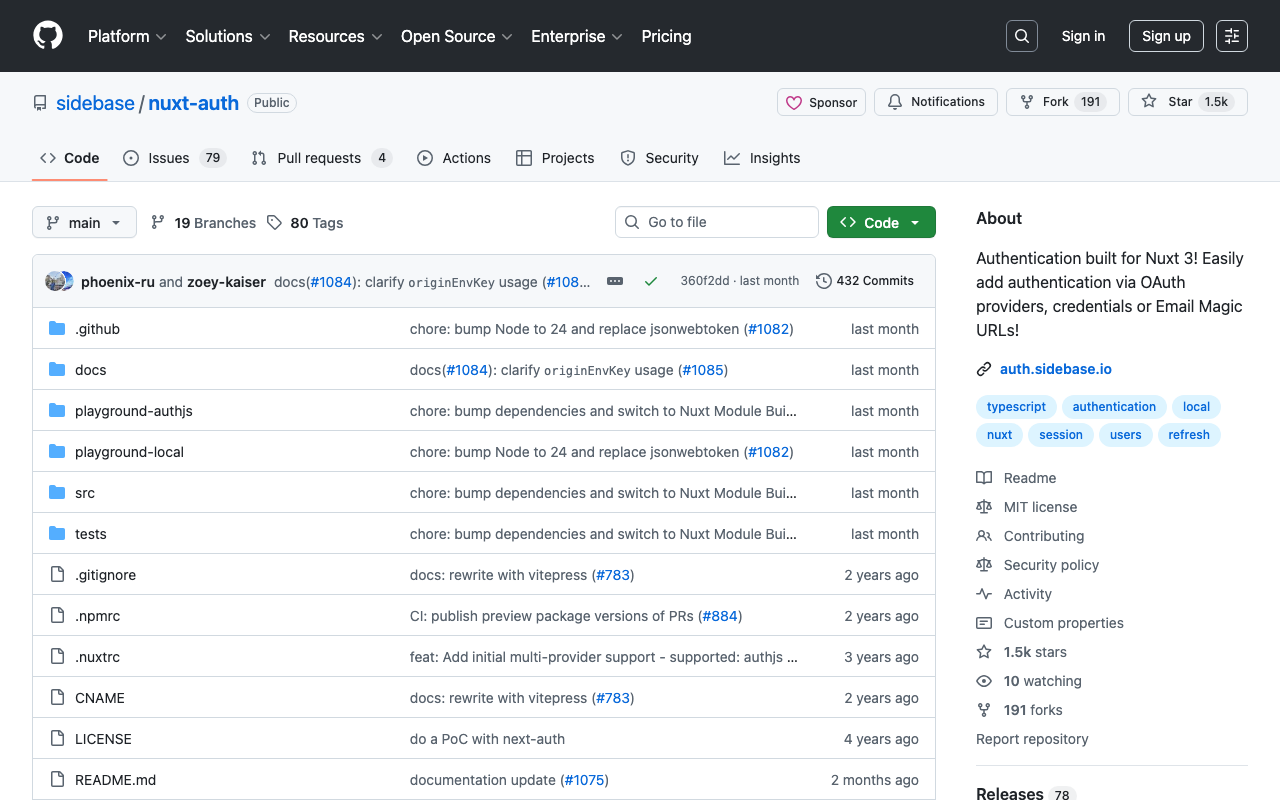
Overview This is a memo about important considerations when using sidebase/nuxt-auth in a production environment. sidebase/nuxt-auth is an authentication module for Nuxt 3 applications. https://github.com/sidebase/nuxt-auth Problem When deploying to Vercel or AWS Amplify, a server error occurred with the following message. AUTH_NO_ORIGIN: No `origin` - this is an error in production, see https://sidebase.io/nuxt-auth/resources/errors. You can ignore this during development Solution The following was helpful. https://github.com/sidebase/nuxt-auth/issues/613 By providing baseURL as shown below, the above error was resolved. ...

Adding Japanese Translation to a Documentation Site Built with Sphinx

Adding Japanese Translation to a Documentation Site Built with Sphinx

Overview I had the opportunity to add Japanese translation to a documentation site built with sphinx, so this is a note for reference. The target is the following. https://github.com/artefactual/archivematica-storage-service-docs Method First, fork the target repository. Next, clone it. git clone https://github.com/nakamura196/archivematica-storage-service-docs cd atom-docs Here, we create a Python virtual environment. python -m venv .venv source .venv/bin/activate pip install --upgrade pip pip install -r requirements.txt Adding Libraries Add sphinx-intl to requirements.txt and install it. ...

Copying Build Results to Sakura Rental Server Using GitHub Actions and SCP

Copying Build Results to Sakura Rental Server Using GitHub Actions and SCP

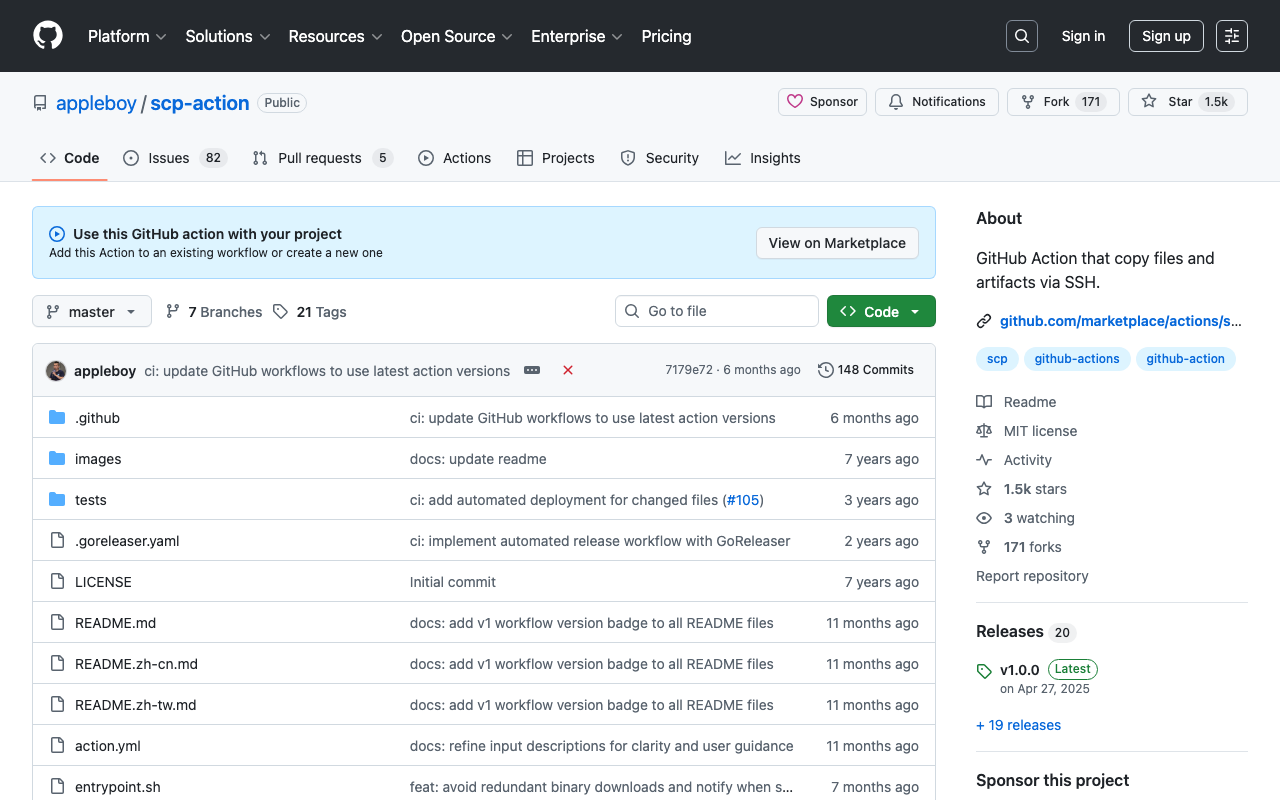
Overview I had an opportunity to copy build results to a Sakura rental server using GitHub Actions and SCP, so this is a memorandum of the process. I used the following GitHub Action. https://github.com/appleboy/scp-action Issue Encountered When I tried using the following notation, it worked fine when using act in the local environment, but it did not work when running on GitHub Actions. name: scp files on: [push] jobs: build: name: Build runs-on: ubuntu-latest steps: - uses: actions/checkout@v4 - name: copy file via ssh password uses: appleboy/scp-action@master with: host: ${{ secrets.HOST }} username: ${{ secrets.USERNAME }} password: ${{ secrets.PASSWORD }} port: ${{ secrets.PORT }} source: "tests/a.txt,tests/b.txt" target: your_server_target_folder_path Specifically, the following error occurred: ...

Resolving mysqldump: not found in MariaDB

Resolving mysqldump: not found in MariaDB

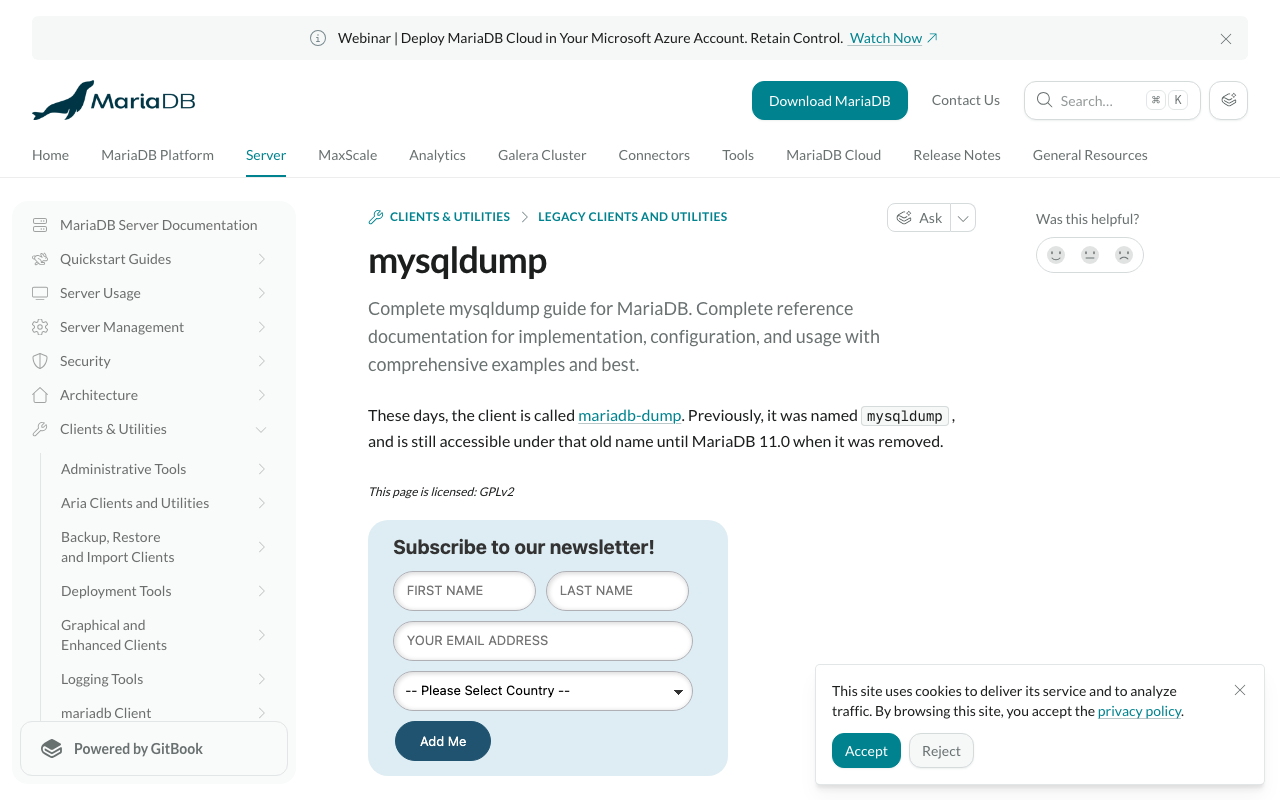
When using MariaDB, I tried to create a backup with the following command and encountered the error mysqldump: not found: mysqldump -uomeka -pomeka omeka > test.sql As a workaround, I referenced the following article and found that using mariadb-dump resolved the issue: https://mariadb.com/kb/en/mysqldump/ Specifically, the backup was successfully created using the following command: mariadb-dump -uomeka -pomeka omeka > test.sql I hope this serves as a useful reference for anyone experiencing the same issue. ...

Omeka S Bulk Import Module: Usage Guide (February 2024 Edition)

Omeka S Bulk Import Module: Usage Guide (February 2024 Edition)

Overview Bulk Import is a module for batch registration of items and media in Omeka S. https://github.com/Daniel-KM/Omeka-S-module-BulkImport It has been continuously updated and has become quite convenient, so this is a memo. Installation It can be installed in the usual way. However, the Log module must be installed beforehand. https://github.com/Daniel-KM/Omeka-S-module-Log Usage Here, I will introduce an example of registration using a CSV file. Configuration First, access the following and click the edit icon. ...

Workaround When Presentation API v2 Manifests Cannot Be Displayed in Mirador 3

Workaround When Presentation API v2 Manifests Cannot Be Displayed in Mirador 3

Overview When loading a Presentation API v2 manifest file like the following into Mirador 3, a display error occurred. https://gist.githubusercontent.com/nakamura196/42fb6bca6a9fa137234c334cb313fc58/raw/4188ebccb7406ff5132331a4fecc4ace8bdd7ebc/ng.json Below is the display in Mirador 3. I investigated the cause and workaround, and am sharing the findings here. Cause The following error message was displayed. Despite providing IIIF v2 input, it appeared to be interpreted as v3. Error: A IIIF v3 localized property value must have an array as the value for a given language. at PropertyValue.ts:126:20 at Array.map (<anonymous>) at t.parse (PropertyValue.ts:123:29) at t.getLabel (ManifestResource.ts:35:28) at canvases.js:162:12 at index.js:67:25 at h (defaultMemoize.js:123:20) at index.js:81:40 at h (defaultMemoize.js:123:20) at Function.mapToProps (OpenSeadragonViewer.js:39:12) This appeared to occur when the canvas label was written in object format, as shown below: ...

Updating the IIIF Viewers Module for Omeka S

Updating the IIIF Viewers Module for Omeka S

Overview IIIF Viewers is one of the modules for Omeka S. https://github.com/omeka-j/Omeka-S-module-IiifViewers The latest release is available here: https://github.com/omeka-j/Omeka-S-module-IiifViewers/releases/latest I made several updates this time, so this is a memorandum. Universal Viewer Version Update I updated Universal Viewer to v4.0.25. Additionally, I documented how to update Universal Viewer in the following section of README.md: https://github.com/omeka-j/Omeka-S-module-IiifViewers?tab=readme-ov-file#compilation-of-universal-viewer This was based on the documentation in the following module: https://github.com/Daniel-KM/Omeka-S-module-UniversalViewer I also documented how to update Mirador, but since the latest version was already installed, no update was performed. ...

Created a Simple TEI/XML File Viewer Using Next.js

Created a Simple TEI/XML File Viewer Using Next.js

Overview I created a simple viewer that displays the contents of TEI/XML files. https://github.com/utda/tei-viewer Here is a display example targeting TEI/XML of the Koui Genji Monogatari: https://utda.github.io/tei-viewer/?u=https://kouigenjimonogatari.github.io/tei/01.xml&v=true Usage As a minimum feature, when a IIIF manifest file is associated, the Mirador viewer is displayed. The association method is based on the following format: https://github.com/TEI-EAJ/jp_guidelines/wiki/IIIF画像とのリンク Additionally, when the n attribute is given to the pb tag, a page number display feature is provided. Furthermore, for Japanese language support, when v=true is given as a query parameter, vertical text is displayed. ...

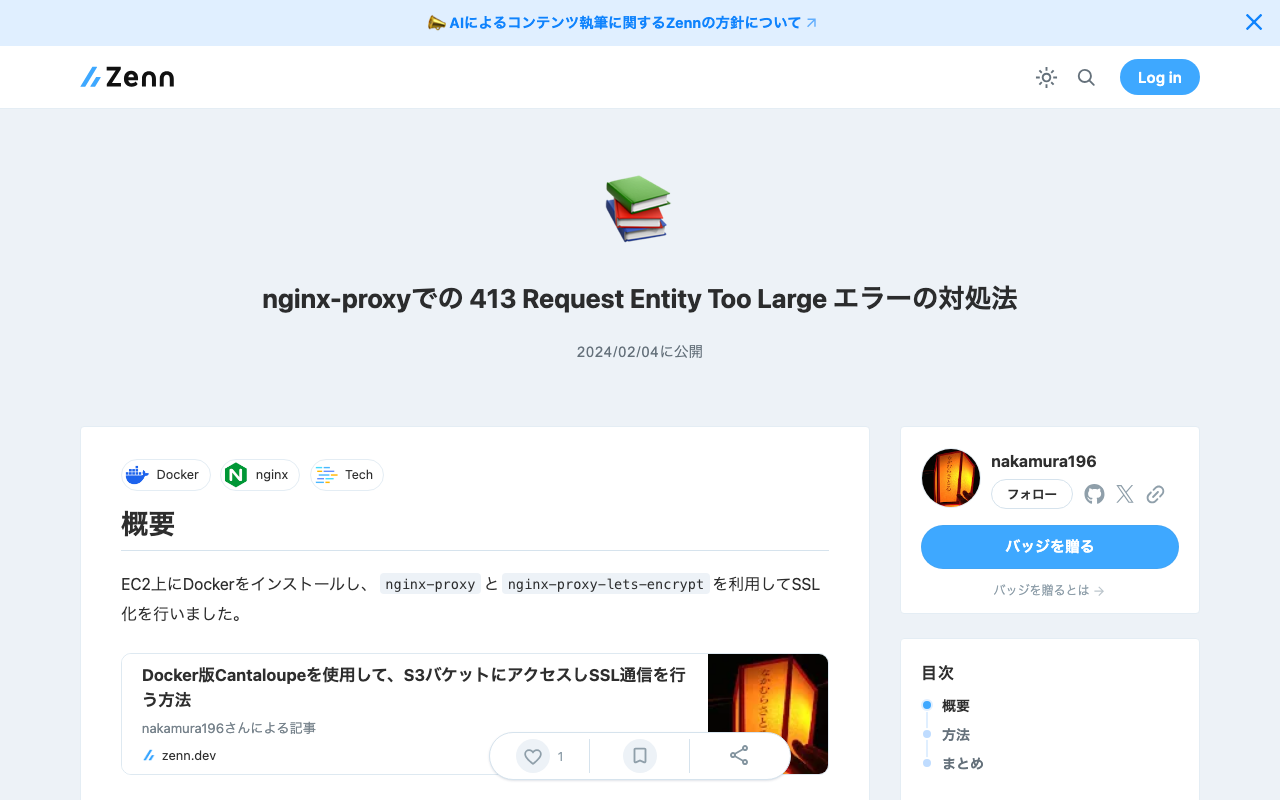
How to Fix the 413 Request Entity Too Large Error in nginx-proxy

How to Fix the 413 Request Entity Too Large Error in nginx-proxy

Overview I installed Docker on EC2 and used nginx-proxy and nginx-proxy-lets-encrypt to set up SSL. Everything was working fine with the above configuration, but when I created an app that POSTs relatively large files, the following error occurred and the upload failed. nginx-proxy 413 (Payload Too Large) I needed to increase Nginx’s client_max_body_size. Solution ChatGPT4 taught me the following solution, which resolved the issue. The 413 Request Entity Too Large error occurs when the payload of a request that the client is trying to send to the server (i.e., the size of the file being uploaded) exceeds the limit set on the server. To resolve this error, you need to increase the maximum request size in the Nginx configuration. ...

Configuring Amazon S3 as a Processing Source and AIP Storage Destination in Archivematica

Configuring Amazon S3 as a Processing Source and AIP Storage Destination in Archivematica

Overview This is a memo on how to configure Amazon S3 files and folders as processing targets in Archivematica, and save the resulting AIPs to S3. Using S3 as storage is expected to facilitate integration with other systems and expand options for long-term AIP preservation. The following article from Wellcome Collection was helpful. https://docs.wellcomecollection.org/archivematica/administering-archivematica/bootstrapping Amazon S3 Configuration Create a bucket. This time, I created a bucket named archivematica.aws.ldas.jp in the us-east-1 region. ...

An Example of Specifying Image Frames in Universal Viewer

An Example of Specifying Image Frames in Universal Viewer

In recent years, it has become common for museums, libraries, and archives to publish images using the International Image Interoperability Framework (IIIF), an international framework for image sharing. https://iiif.io/ For publishing IIIF images, viewers such as Mirador and Universal Viewer are used. https://projectmirador.org/ https://universalviewer.io/ In digital archive systems that adopt the latter Universal Viewer, you can often obtain a URL specifying a particular frame by appending “#?cv={image frame index}”. Note that the index starts from 0, so to specify the 2nd frame, you would use 1. ...

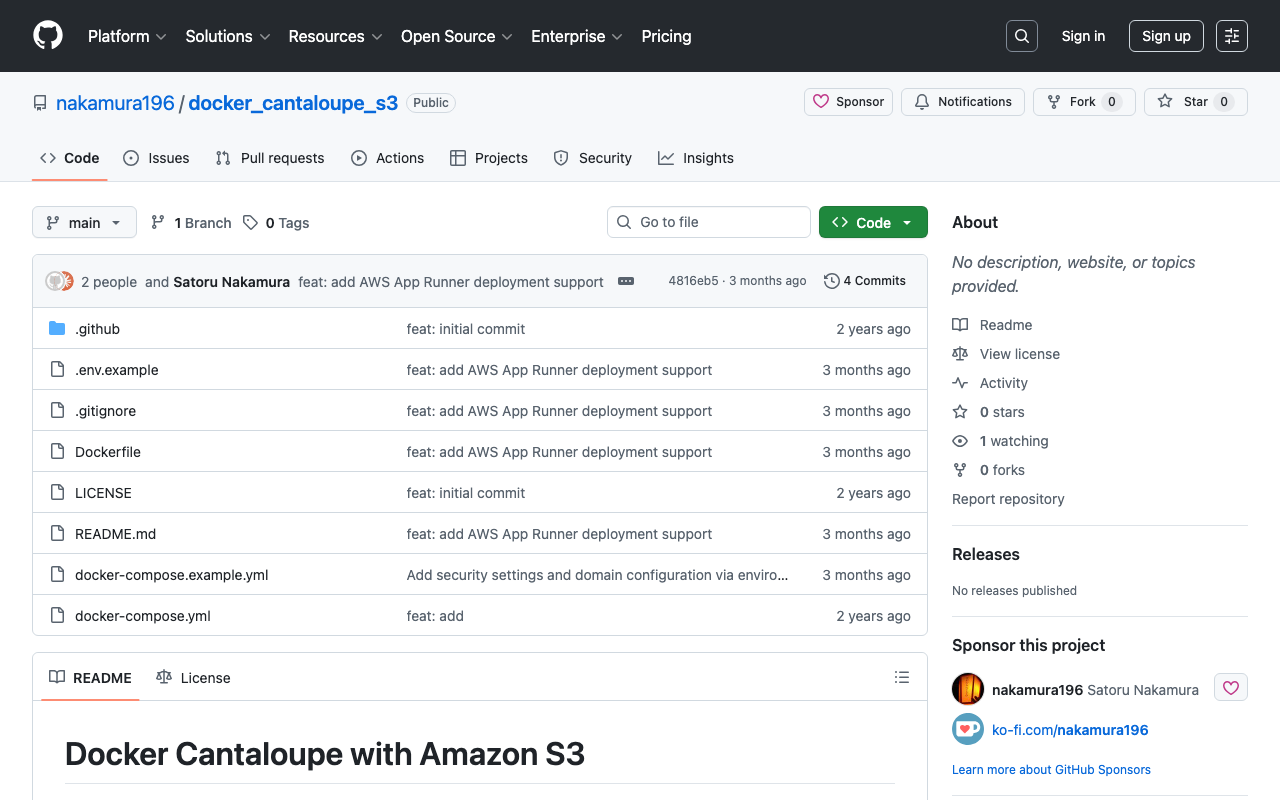
How to Access S3 Buckets and Enable SSL Communication Using Docker-based Cantaloupe

How to Access S3 Buckets and Enable SSL Communication Using Docker-based Cantaloupe

Overview I introduced how to use the Docker version of Cantaloupe in the following article. To use this Docker-based Cantaloupe in a (non-large-scale) production environment, connection to Amazon S3 and SSL support are required. Here is an example of how to do this. Connecting to Amazon S3 The official documentation is available at: https://cantaloupe-project.github.io/manual/5.0/sources.html#S3Source The following Japanese article is also available: For the Docker version covered here, information was found at: ...

Trying Out File Information Tool Set (FITS)

Trying Out File Information Tool Set (FITS)

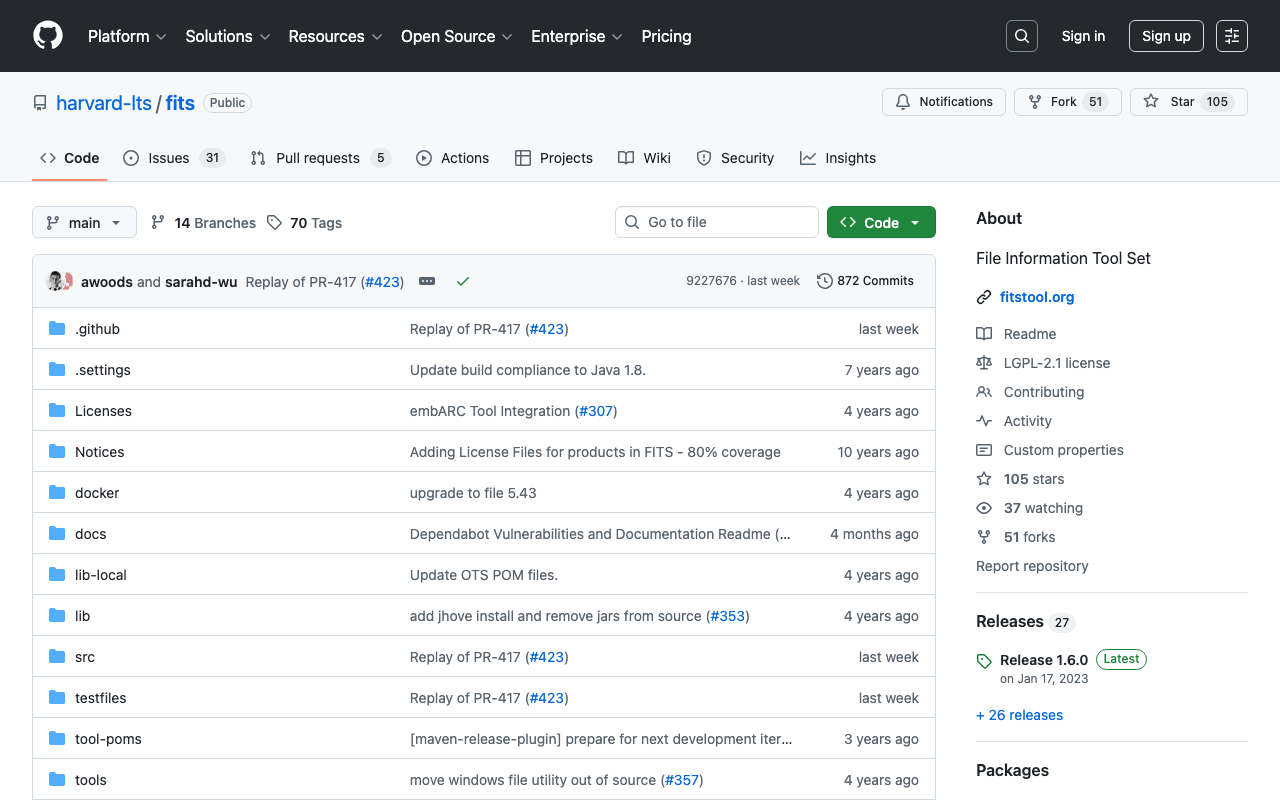
Overview While investigating Archivematica, there were aspects of File Information Tool Set (FITS) behavior I wanted to verify, so I tried it using Docker. This is a memo of that process. https://github.com/harvard-lts/fits Installation The installation method using Docker is described at the following page. https://github.com/harvard-lts/fits?tab=readme-ov-file#docker-installation However, when accessing the following page mentioned in the manual, the latest release (1.6.0) that includes the Dockerfile could not be downloaded. https://projects.iq.harvard.edu/fits/downloads Instead, the latest zip file could be downloaded from the following GitHub releases page. ...