Home Articles Books Search About
RSS 日本語

Latest Articles

Using mdx Object Storage (Using Cyberduck)

Using mdx Object Storage (Using Cyberduck)

Overview I had the opportunity to use mdx’s object storage, so this is a memo. https://mdx.jp/ Pricing The pricing for fiscal year 2024 is as follows. https://mdx.jp/guide/charge It costs 0.01 points (yen) per GB per day, which is approximately 0.3 yen per GB per month. Application Method & Usage with s3cmd The following official tutorial video was helpful. https://www.youtube.com/watch?v=IN_4NS9hO2Y Using Cyberduck The video above introduces file operations using command-line tools. ...

Using Scroll View in Mirador 3

Using Scroll View in Mirador 3

Overview These are notes on how to use Scroll View in Mirador 3. The following example uses “Kagoshima Seitoki no Uchi: The Battle at Takase River Crossing - Nozu’s Brigade Recaptures the Regimental Flag” (held by the National Diet Library). This IIIF manifest consists of three canvases (images), and in the default display mode (Single), images are shown one at a time. Our goal is to display all three connected together. ...

Reverse Proxy Settings for Drupal Running with Docker + Traefik

Reverse Proxy Settings for Drupal Running with Docker + Traefik

Overview I was running Drupal with HTTPS using Docker + Traefik, as introduced in the following article. At the time, with Drupal’s default settings, URLs were set with http as shown below. The problem with this was that, for example, when setting up Google account login as described in the following article, the redirect URL started with http, while the Google Cloud console requires URLs starting with https. This discrepancy caused authentication to fail in some cases. ...

Redirecting to HTTPS with Traefik

Redirecting to HTTPS with Traefik

Overview In the following article, I introduced an example of running HTTPS-enabled containers using Traefik. However, (this has since been fixed) the setting to redirect HTTP connections to HTTPS was missing, and accessing port 80 resulted in a “not found” error. This is a memorandum on how to fix this issue. Before the Change log: # level: DEBUG entryPoints: web: address: :80 websecure: address: :443 api: dashboard: true providers: docker: exposedByDefault: false certificatesResolvers: myresolver: acme: email: aaa@bbb storage: /acme.json caServer: https://acme-v02.api.letsencrypt.org/directory # caServer: https://acme-staging-v02.api.letsencrypt.org/directory httpChallenge: entryPoint: web After the Change log: # level: DEBUG entryPoints: web: address: :80 http: redirections: entryPoint: to: websecure schema: https permanent: true websecure: address: :443 api: dashboard: true providers: docker: exposedByDefault: false certificatesResolvers: myresolver: acme: email: na.kamura.1263@gmail.com storage: /acme.json caServer: https://acme-v02.api.letsencrypt.org/directory # caServer: https://acme-staging-v02.api.letsencrypt.org/directory httpChallenge: entryPoint: web In the entryPoints section, the redirect configuration has been added as follows: ...

Survey of IIIF-Compatible Viewers

Survey of IIIF-Compatible Viewers

Overview I conducted a survey of IIIF-compatible viewers and would like to share the results. There may be some gaps, but I hope it serves as a useful reference. Name URL Icon Mirador https://projectmirador.org/embed/?iiif-content= mirador3.svg Universal Viewer https://uv-v3.netlify.app/#?manifest= uv.jpg Annona https://ncsu-libraries.github.io/annona/tools/#/display?url= annoa.png Clover https://samvera-labs.github.io/clover-iiif/docs/viewer/demo?iiif-content= clover.png Glycerine Viewer https://demo.viewer.glycerine.io/viewer?iiif-content= glycerine.jpg IIIF Curation Viewer http://codh.rois.ac.jp/software/iiif-curation-viewer/demo/?manifest= icp-logo.svg Image Annotator https://www.kanzaki.com/works/2016/pub/image-annotator?u= ia-logo.png TIFY https://tify.rocks/?manifest= tify-logo.svg References The following IIIF 3.0 Viewer Matrix was particularly helpful. ...

Large Videos Not Playing in Chrome

Large Videos Not Playing in Chrome

Overview I encountered an issue where large videos could not be played in Chrome. However, they could be played in Safari. When I checked with the developer tools, the download was being cancelled. The viewer part looks like this: <video controls="controls" preload="none" style="width: 620px; height: 465px;" width="100%" height="100%"> <source src="https://omeka.aws.ldas.jp/files/original/c486fe4ae8d926034678fa11b0d6b2fd55b0e695.mp4" type="video/quicktime" title="undefined"> </video> This HTML was generated by the combination of Omeka S + IIIF Server introduced in the following article. Cause Looking at the HTML above, the type is type="video/quicktime", and although the extension is mp4, the actual content is different (a mov file perhaps). ...

Difference Between production and development in Omeka S SetEnv APPLICATION_ENV

Difference Between production and development in Omeka S SetEnv APPLICATION_ENV

The steps to enable detailed error display in Omeka S are as follows. By making this setting, specific error messages and details will be displayed on the “Omeka S has encountered an error” page. Additionally, PHP-level errors and warnings will also be displayed on the page. This is intended to make it easier to identify and resolve issues during development, but for security reasons, it is recommended not to use this in production environments. ...

Operating Multiple HTTPS-Enabled Containers with Traefik

Operating Multiple HTTPS-Enabled Containers with Traefik

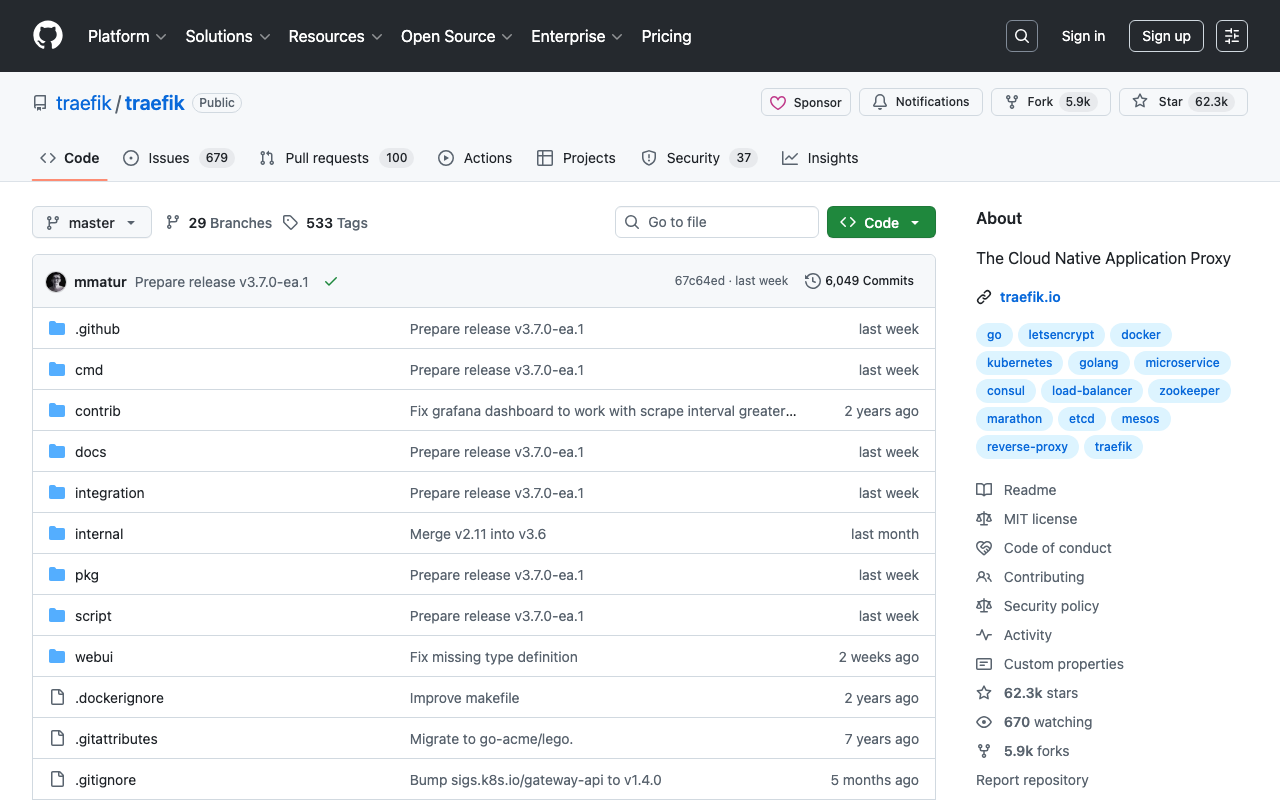
Overview This is a note on how to operate multiple HTTPS-enabled containers with Traefik. https://github.com/traefik/traefik Background Previously, I was using jwilder/nginx-proxy and jrcs/letsencrypt-nginx-proxy-companion with the following configuration. Proxy version: '3' # proxy services: nginx-proxy: image: jwilder/nginx-proxy container_name: nginx-proxy ports: - "80:80" - "443:443" volumes: - html:/usr/share/nginx/html - dhparam:/etc/nginx/dhparam - vhost:/etc/nginx/vhost.d - certs:/etc/nginx/certs:ro - /var/run/docker.sock:/tmp/docker.sock:ro - /srv/docker/nginx-proxy-with-encrypt/log:/var/log/nginx labels: - "com.github.jrcs.letsencrypt_nginx_proxy_companion.nginx_proxy" restart: always letsencrypt: image: jrcs/letsencrypt-nginx-proxy-companion container_name: nginx-proxy-lets-encrypt depends_on: - "nginx-proxy" volumes: - certs:/etc/nginx/certs:rw - vhost:/etc/nginx/vhost.d - html:/usr/share/nginx/html - /var/run/docker.sock:/var/run/docker.sock:ro volumes: certs: html: vhost: dhparam: networks: default: external: name: common_link Container Below is a Django example. ...

Fixing Issues with the Omeka S GoogleAnalytics Module

Fixing Issues with the Omeka S GoogleAnalytics Module

Overview In Omeka S, there is a module called Google Analytics for enabling Google Analytics. https://github.com/Libnamic/Omeka-S-GoogleAnalytics/ When enabling this module, there were cases where the following error message was displayed. Undefined index: additional_snippet in (...) /modules/GoogleAnalytics/Module.php on line 316 The following issue had also been raised regarding this. https://github.com/Libnamic/Omeka-S-GoogleAnalytics/issues/9 I will share the method for addressing this issue. Fix Method Make the following changes. https://github.com/Libnamic/Omeka-S-GoogleAnalytics/pull/10/commits/0123ce557d0f38834c5c37fa1ac9c986c87cbc90 Specifically, the changes are as follows. ...

Redirecting Using Amazon S3 and Route 53

Redirecting Using Amazon S3 and Route 53

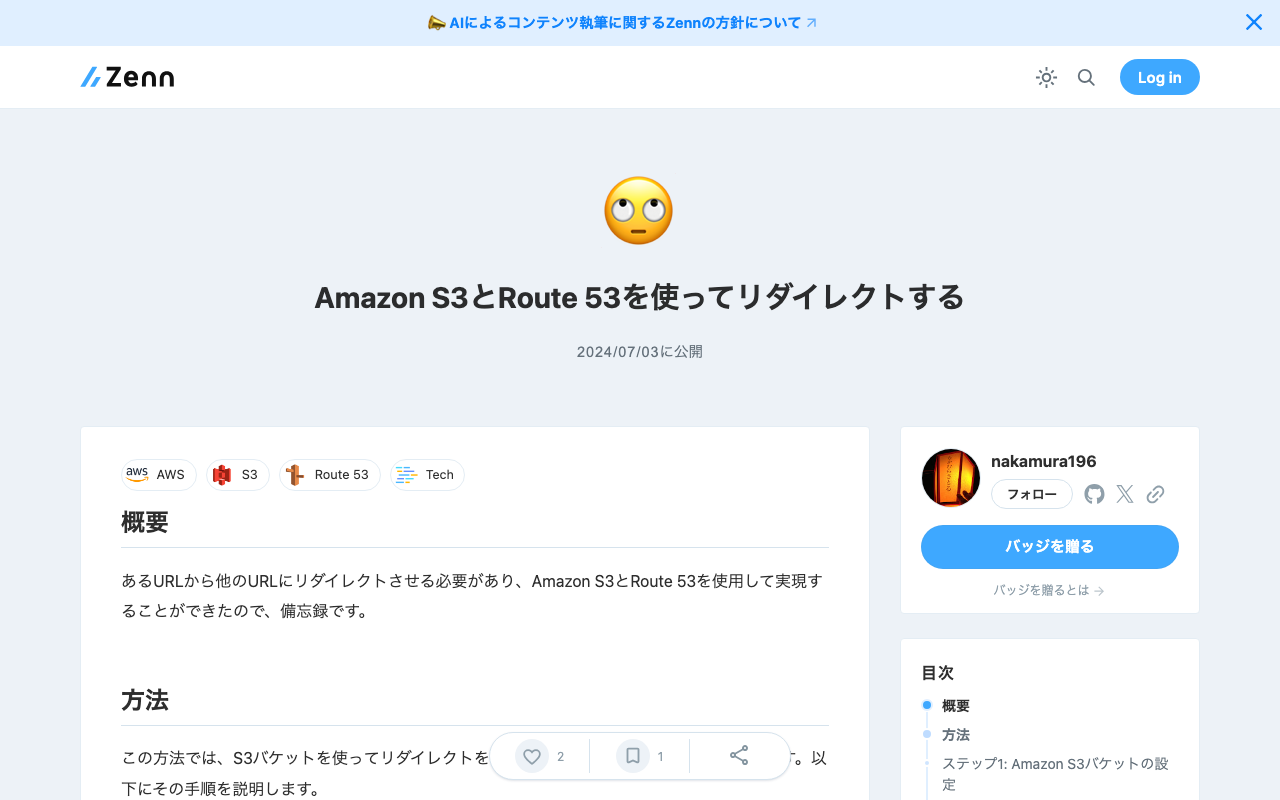
Overview I needed to redirect from one URL to another and was able to accomplish this using Amazon S3 and Route 53, so this is a memo of the process. Method This method uses an S3 bucket for the redirect and Route 53 for DNS configuration. The steps are explained below. Step 1: Amazon S3 Bucket Configuration Create a new bucket in Amazon S3. The bucket name should match the domain name you want to redirect (e.g., example.com). In the bucket properties, select “Static website hosting.” In the “Static website hosting” options, choose “Redirect requests” and enter the redirect destination URL (e.g., http://example.net). Step 2: DNS Configuration in Route 53 In Route 53, open the hosted zone for the domain name you want to redirect. Create a new record set. Select A as the record type. Set “Alias” to “Yes.” As the alias target, select the static website hosting endpoint of the S3 bucket configured in Step 1 (e.g., example.com.s3-website-us-east-1.amazonaws.com). With this setup, when someone accesses the specified domain, they will be redirected to the configured URL. This method is simple yet effective for redirecting from one domain to another URL. ...

Configuring CORS for Docker-based Omeka S

Configuring CORS for Docker-based Omeka S

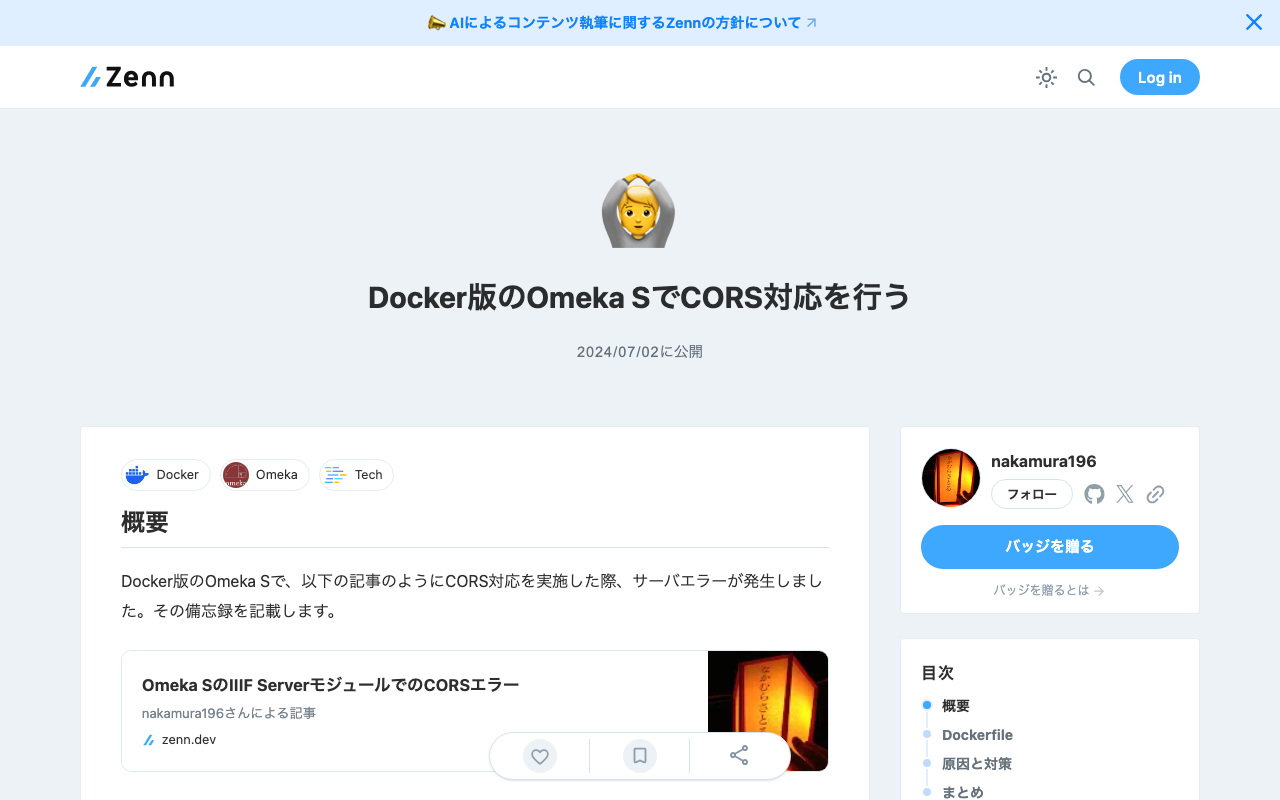
Overview When implementing CORS configuration for a Docker-based Omeka S as described in the following article, a server error occurred. This is a memo about that issue. Dockerfile The target is a Dockerfile like the following. FROM php:apache LABEL maintainer="Satoru Nakamura <na.kamura.1263@gmail.com>" RUN a2enmod rewrite ENV DEBIAN_FRONTEND noninteractive RUN apt-get -qq update && apt-get -qq -y upgrade RUN apt-get install -y \ zlib1g-dev \ libpng-dev \ libjpeg-dev \ libfreetype6-dev \ imagemagick \ unzip \ wget # PHP extensions RUN docker-php-ext-install -j$(nproc) iconv pdo pdo_mysql mysqli gd RUN docker-php-ext-configure gd --with-jpeg=/usr/include/ --with-freetype=/usr/include/ # Download Omeka-s ARG version=4.1.1 RUN wget https://github.com/omeka/omeka-s/releases/download/v${version}/omeka-s-${version}.zip -O /var/www/omeka-s-${version}.zip \ && unzip -q /var/www/omeka-s-${version}.zip -d /var/www/ \ && rm /var/www/omeka-s-${version}.zip \ && rm -rf /var/www/html/ \ && mv /var/www/omeka-s/ /var/www/html/ COPY ./.htaccess /var/www/html/.htaccess # Configure volumes and permissions COPY ./database.ini /var/www/html/volume/config/ RUN mkdir -p /var/www/html/volume/files/ \ && rm /var/www/html/config/database.ini \ && ln -s /var/www/html/volume/config/database.ini /var/www/html/config/database.ini \ && rm -Rf /var/www/html/files/ \ && ln -s /var/www/html/volume/files/ /var/www/html/files \ && chown -R www-data:www-data /var/www/html/ \ && find /var/www/html/volume/ -type f -exec chmod 600 {} \; VOLUME /var/www/html/volume/ CMD ["apache2-foreground"] Cause and Solution The following line needed to be added. ...

Commands for Batch Replacing IIIF Canvas URIs

Commands for Batch Replacing IIIF Canvas URIs

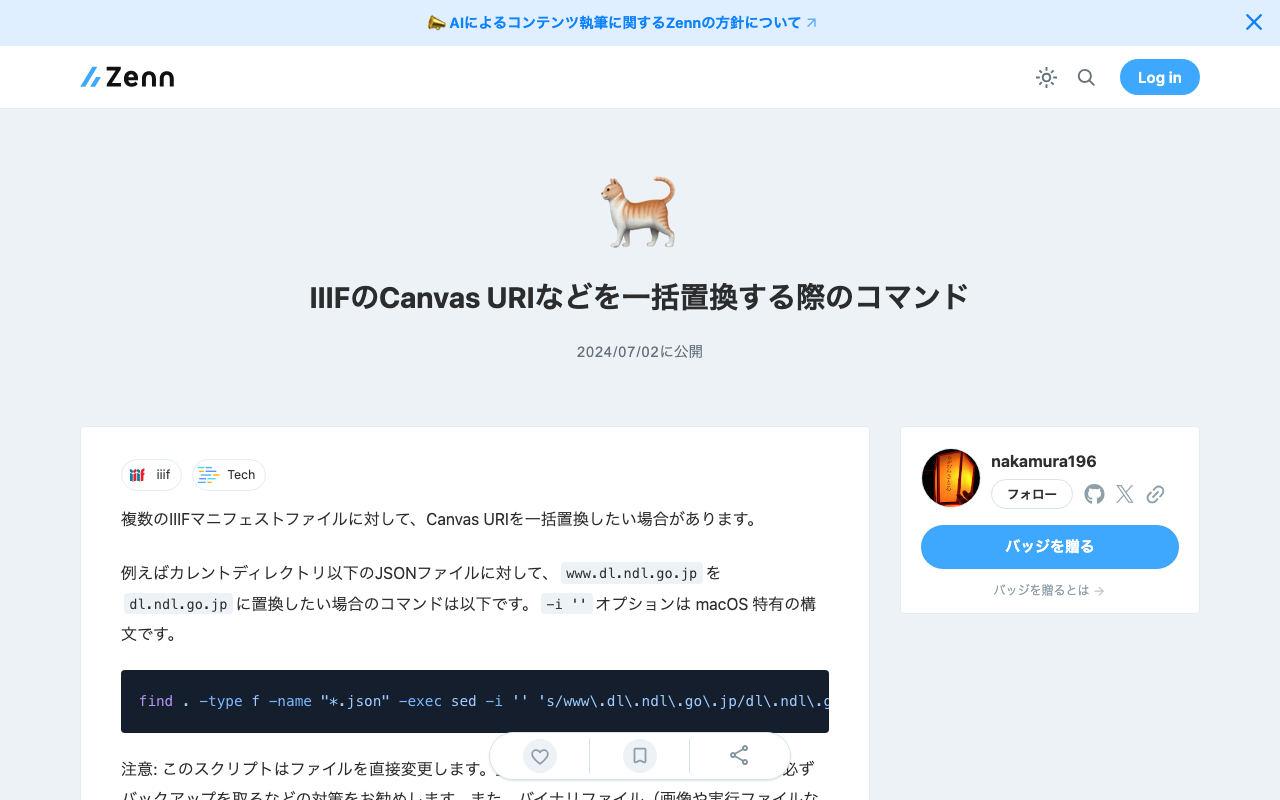
There are cases where you want to batch replace Canvas URIs across multiple IIIF manifest files. For example, the command to replace www.dl.ndl.go.jp with dl.ndl.go.jp in JSON files under the current directory is as follows. The -i '' option is specific to macOS syntax. find . -type f -name "*.json" -exec sed -i '' 's/www\.dl\.ndl\.go\.jp/dl\.ndl\.go\.jp/g' {} + Note: This script directly modifies files. Before using it on important data, I recommend taking precautions such as creating backups. Additionally, please be careful about the types of files you apply this to, as performing text replacement on binary files (such as images or executables) may corrupt them. ...

Configuration Example for Using BulkImport in Omeka S

Configuration Example for Using BulkImport in Omeka S

Overview When performing bulk data registration using Omeka S’s BulkImport, you can configure various settings for the registration method. While these settings can be configured each time you upload, using pre-registered settings can help reduce errors made by operators. Here, I introduce a configuration example for bulk registration when associating IIIF images with already registered items. Item Example Create an item with sample as the dcterms:identifier as shown below: ...

Bug in the BulkImport Module for Omeka S

Bug in the BulkImport Module for Omeka S

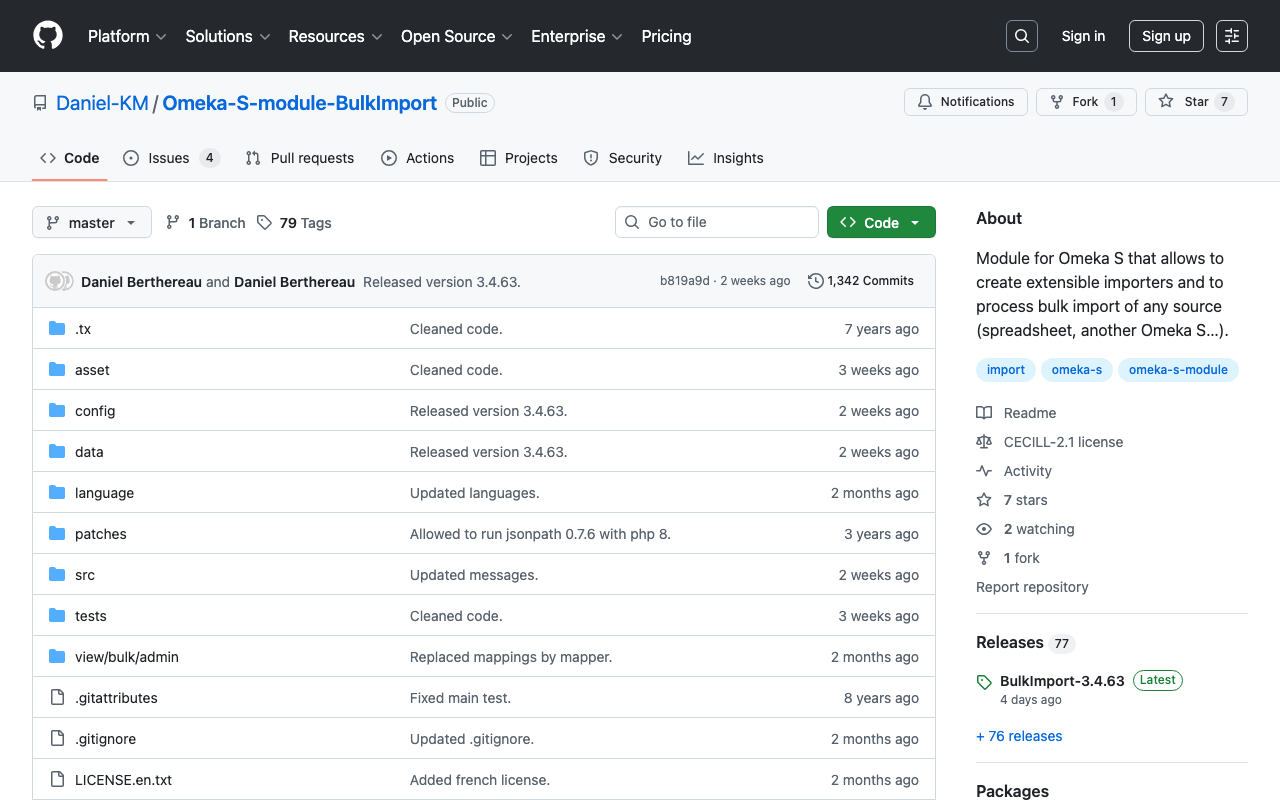
Overview When using the BulkImport module with the combination of PHP 8.1.29 and Omeka S version 4.0.4, the following error occurred. Fatal error: Uncaught TypeError: mb_substr(): Argument #1 ($string) must be of type string, null given in /home/xxx/www/omeka-s/modules/BulkImport/src/Processor/ResourceProcessor.php:1079 Stack trace: #0 /home/xxx/www/omeka-… I have not been able to identify the root cause at this point, but I will describe the workaround. Workaround By using BulkImport v3.4.51 below, the above error no longer occurred. ...

CORS Error with Omeka S IIIF Server Module

CORS Error with Omeka S IIIF Server Module

Overview When distributing IIIF manifests using the Omeka S IIIF Server module, the following CORS error occurred in external viewers. Access to fetch at 'https://xxx/iiif/2/09fd29d5-8497-4def-a64d-ca104284f90d/manifest' from origin 'https://universalviewer.io' has been blocked by CORS policy: No 'Access-Control-Allow-Origin' header is present on the requested resource. If an opaque response serves your needs, set the request's mode to 'no-cors' to fetch the resource with CORS disabled. This article introduces measures to address CORS errors in Omeka S. ...

Service with name "Omeka\Acl" could not be created

Service with name "Omeka\Acl" could not be created

Overview When installing the CleanUrl module on Omeka S 4.1.x, the following error occurred. Laminas\ServiceManager\Exception\ServiceNotCreatedException Service with name "Omeka\Acl" could not be created. Reason: Resource id 'Omeka\Controller\Site\Page' already exists in the ACL This issue had also been reported in the following forum. https://forum.omeka.org/t/error-installing-version-4-1/22522 Solution The issue was resolved by downgrading to Omeka S 4.0.x. Summary I hope you find this helpful.

'session.name' is not a valid sessions-related ini setting

'session.name' is not a valid sessions-related ini setting

Overview The following error occurred during Omeka S operation. 'session.name' is not a valid sessions-related ini setting This same issue was reported in the following forum. https://forum.omeka.org/t/session-name-is-not-a-valid-sessions-related-ini-setting/15499 Cause and Solution This appears to occur with the combination of Omeka S version 3.x and PHP 8.1. The issue here is PHP 8.1 specifically. You won’t see it on 8.0 or older versions. An upcoming release of Omeka S will resolve this problem with PHP 8.1, but I don’t have a date currently set on when that will release. ...

LEAF Writer: How to Add Sample Data

LEAF Writer: How to Add Sample Data

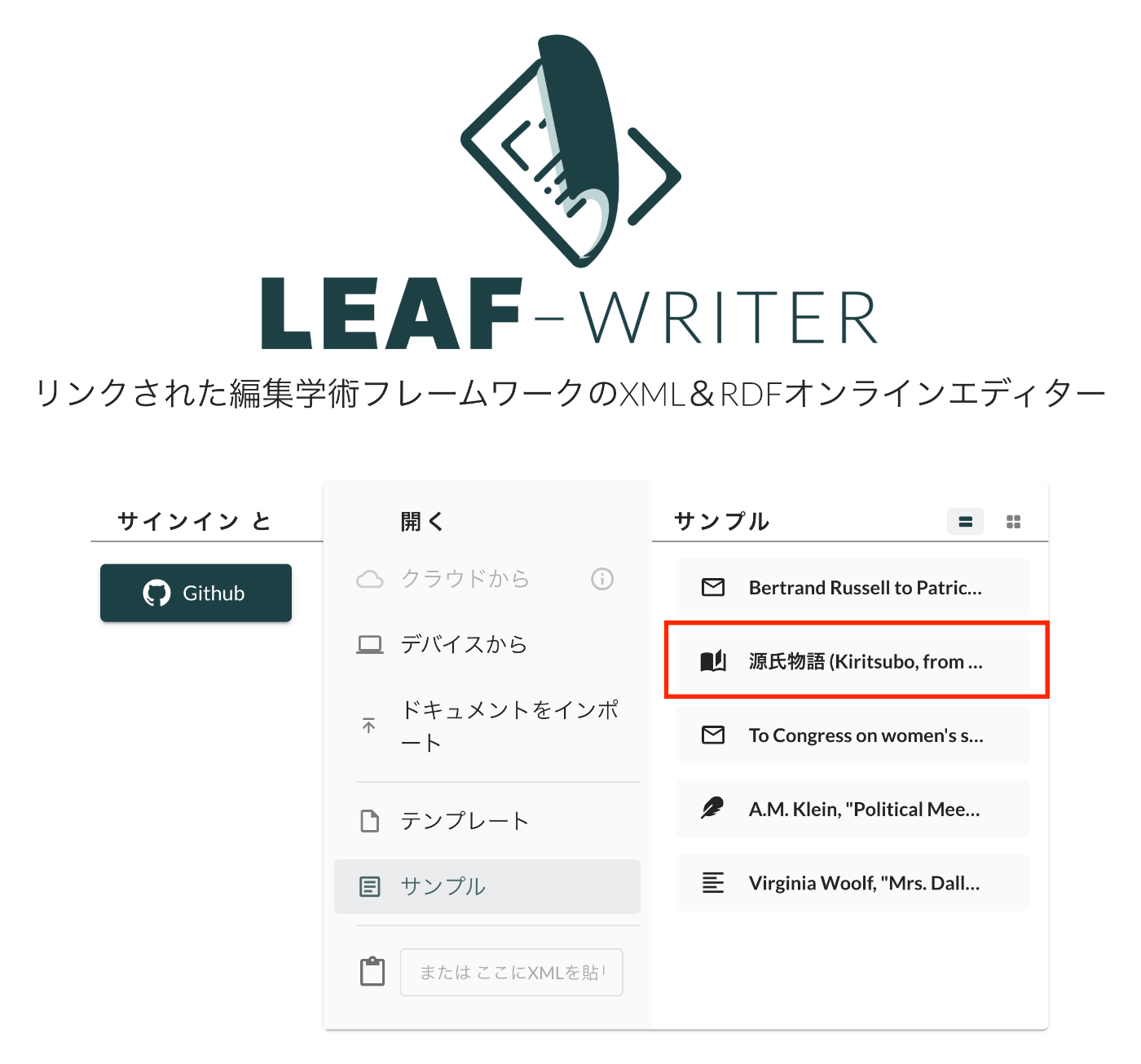
Overview This is a record of investigating how to customize LEAF Writer. https://gitlab.com/calincs/cwrc/leaf-writer/leaf-writer This time, it is a memo on how to add sample data. We add custom sample data as shown below. Method Please refer to the following. https://gitlab.com/nakamura196/leaf-writer/-/commit/c4e98090c94874037980819c9672eea10814eedb In addition to updating samples.json, it was also necessary to update apps/commons/src/icons/index.tsx to add an icon, although this is not mandatory. Result As shown below, the editor environment could be opened from the sample data. ...

LEAF Writer: How to Use the Image Viewer

LEAF Writer: How to Use the Image Viewer

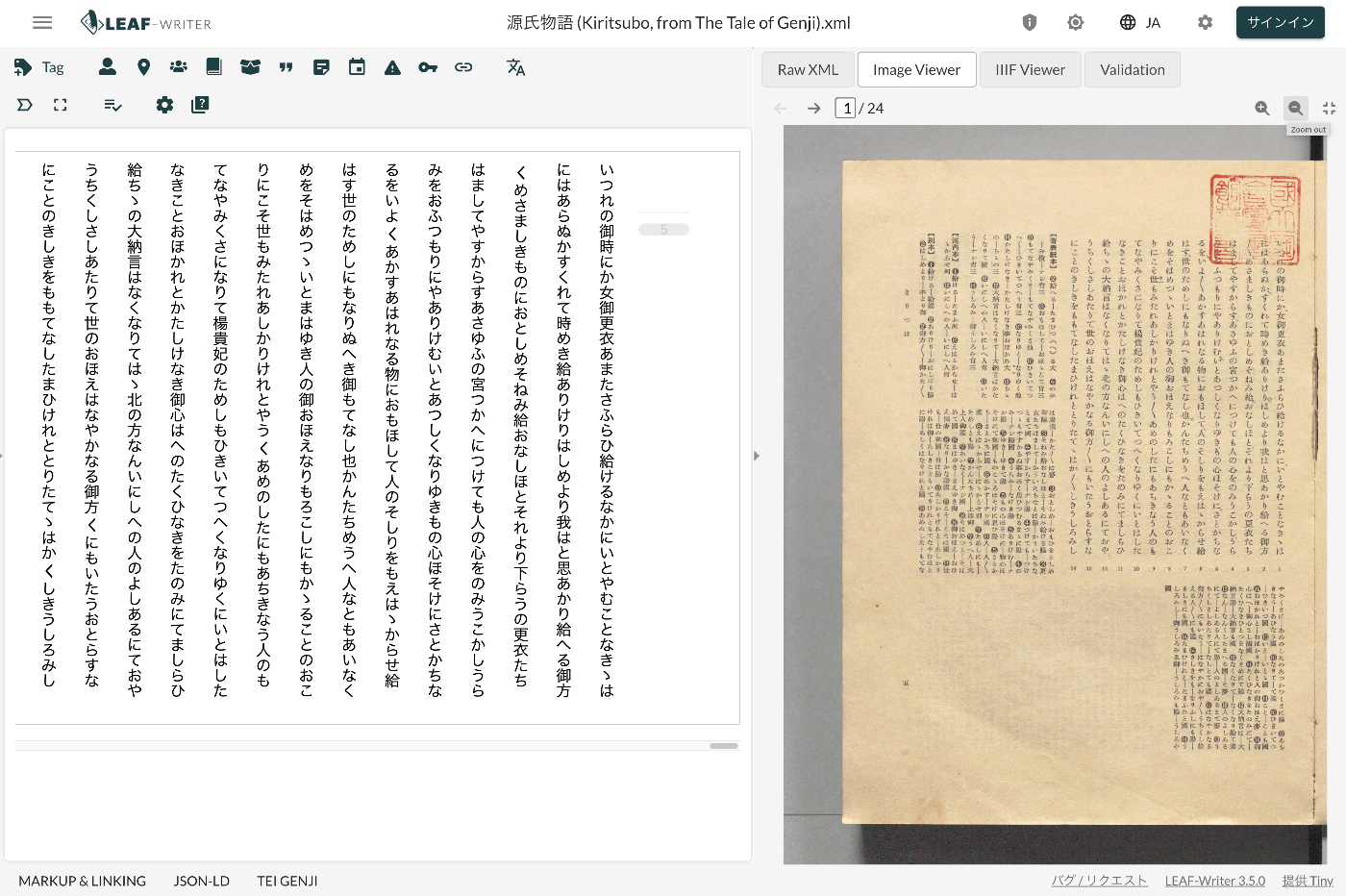
Overview LEAF Writer provides a feature for displaying text and images side by side, as shown below. It also offers a feature where the text moves in sync when you navigate through image pages. This article introduces TEI/XML markup examples for displaying images in the Image Viewer section. Method Specify the pb tag as follows. https://github.com/kouigenjimonogatari/kouigenjimonogatari.github.io/blob/master/xml/lw/01.xml Specifically, it looks like this: ... <pb corresp="#zone_0005" facs="https://dl.ndl.go.jp/api/iiif/3437686/R0000022/0,0,3445,4706/full/0/default.jpg" n="5"/> ... The image specified in the facs attribute of the pb element appears to be displayed in the Image Viewer section. ...

LEAF Writer: CSS Customization

LEAF Writer: CSS Customization

Overview This is a research note on how to customize LEAF Writer. https://gitlab.com/calincs/cwrc/leaf-writer/leaf-writer This article specifically covers CSS-based visual customization. This allows you to set up an editing environment with vertical text display, as shown below. The following shows the display before customization. Method Specify the schema file as follows. https://github.com/kouigenjimonogatari/kouigenjimonogatari.github.io/blob/master/xml/lw/01.xml Specifically: <?xml-stylesheet type="text/css" href="https://kouigenjimonogatari.github.io/lw/tei_genji.css"?> LEAF Writer reads this schema file and changes the editor’s style accordingly. This is not a LEAF Writer-specific feature but is supported by general web browsers as well. ...