Home Articles Books Search About
日本語

Latest Articles

Describing Annotations Using SVG in IIIF Presentation API v3

Describing Annotations Using SVG in IIIF Presentation API v3

Overview I had an opportunity to describe annotations using SVG in IIIF Presentation API v3, so here are my notes. Method By writing the following, I was able to display annotations using SVG: { "@context": "http://iiif.io/api/presentation/3/context.json", "id": "http://127.0.0.1:62816/api/iiif/3/11/manifest", "type": "Manifest", "label": { "none": [ "きりつぼ" ] }, "rights": "http://creativecommons.org/licenses/by/4.0/", "requiredStatement": { "label": { "none": [ "Attribution" ] }, "value": { "none": [ "Provided by Example Organization" ] } }, "items": [ { "id": "http://127.0.0.1:62816/api/iiif/3/11/canvas/p1", "type": "Canvas", "width": 6642, "height": 4990, "label": { "none": [ "[1]" ] }, "thumbnail": [ { "format": "image/jpeg", "id": "https://iiif.dl.itc.u-tokyo.ac.jp/iiif/genji/TIFF/A00_6587/01/01_0023.tif/full/200,/0/default.jpg", "type": "Image" } ], "annotations": [ { "id": "http://127.0.0.1:62816/api/iiif/3/11/canvas/p1/annos", "type": "AnnotationPage", "items": [ { "id": "http://127.0.0.1:62816/api/iiif/3/11/canvas/p1/annos/1", "type": "Annotation", "motivation": "commenting", "body": { "type": "TextualBody", "value": "<p>校異源氏物語 p.21 開始位置</p><p><a href=\"http://dl.ndl.go.jp/info:ndljp/pid/3437686/30\">国立国会図書館デジタルコレクション</a>でみる</p>" }, "target": { "source": "http://127.0.0.1:62816/api/iiif/3/11/canvas/p1", "type": "SpecificResource", "selector": { "type": "SvgSelector", "value": "<svg xmlns='http://www.w3.org/2000/svg'><path xmlns=\"http://www.w3.org/2000/svg\" d=\"M2798,1309c0,-34 17,-68 51,-102c0,-34 -17,-51 -51,-51c-34,0 -51,17 -51,51c34,34 51,68 51,102z\" id=\"pin_abc\" fill-opacity=\"0.5\" fill=\"#F3AA00\" stroke=\"#f38200\"/></svg>" } } } ] } ], "items": [ { "id": "http://127.0.0.1:62816/api/iiif/3/11/canvas/p1/page", "type": "AnnotationPage", "items": [ { "id": "http://127.0.0.1:62816/api/iiif/3/11/canvas/p1/page/imageanno", "type": "Annotation", "motivation": "painting", "body": { "id": "http://127.0.0.1:62816/api/iiif/3/11/image", "type": "Image", "format": "image/jpeg", "service": [ { "id": "https://iiif.dl.itc.u-tokyo.ac.jp/iiif/genji/TIFF/A00_6587/01/01_0023.tif", "type": "ImageService2", "profile": "level2" } ], "width": 6642, "height": 4990 }, "target": "http://127.0.0.1:62816/api/iiif/3/11/canvas/p1" } ] } ] } ] } The display result is shown below: ...

Avoid Japanese Folder Names When Registering Metadata to Folders in Archivematica

Avoid Japanese Folder Names When Registering Metadata to Folders in Archivematica

Overview When registering metadata to folders in Archivematica, I found that Japanese folder names need to be avoided, so here are my notes. Metadata By preparing a /metadata/metadata.csv file like the following, you can include metadata in the AIP. filename dc.type objects/aaa Folder objects/aaa/MARBLES.TGA Image At this point, if aaa is prepared with a Japanese name, the metadata for that record was not registered. Summary I hope this serves as a useful reference for those experiencing similar issues. ...

Performing Similar Image Search Using GUIE (Google Universal Image Embedding) Pre-trained Models

Performing Similar Image Search Using GUIE (Google Universal Image Embedding) Pre-trained Models

Overview I created a sample program for performing similar image search using GUIE (Google Universal Image Embedding) pre-trained models. You can access the notebook from the following link. https://colab.research.google.com/github/nakamura196/000_tools/blob/main/guie_sample.ipynb References It uses the model output from the following notebook. https://www.kaggle.com/code/francischen1991/tf-baseline-v2-submission Usage Notes Kaggle Account A Kaggle account is required to run the notebook. Obtain a Kaggle API Key and register it in your secrets. If the following is displayed, please click “Allow access.” ...

I Created a Drupal Module to Trigger GitHub Actions

I Created a Drupal Module to Trigger GitHub Actions

Overview I created a Drupal module to trigger GitHub Actions. https://github.com/nakamura196/Drupal-module-github_webhook Below is an explanation of how to use it. Usage Configuration After installing the module, navigate to the following path. /admin/config/github_webhook You will see a screen like the following. It is divided into two main sections: Repositories and Trigger Webhook. First, enter the repository information for the GitHub Actions target in Repository 1 under Repositories. You can add and remove repositories using Add repository and Remove repository. ...

Created a Sample Repository Using @elastic/search-ui with Nuxt

Created a Sample Repository Using @elastic/search-ui with Nuxt

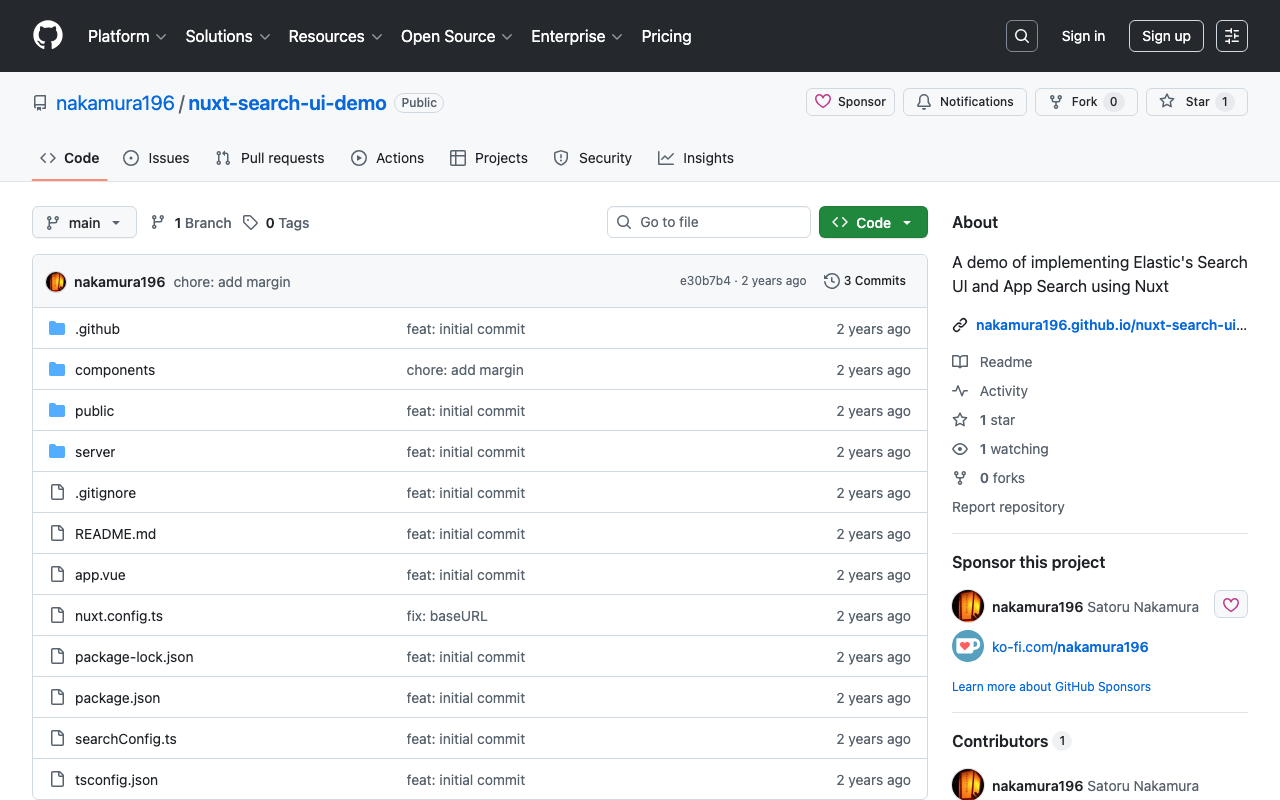
Overview I created a sample repository using @elastic/search-ui with Nuxt. https://github.com/nakamura196/nuxt-search-ui-demo You can try it from the following URL. https://nakamura196.github.io/nuxt-search-ui-demo Background @elastic/search-ui is described as follows. https://www.elastic.co/docs/current/search-ui/overview A JavaScript library for the fast development of modern, engaging search experiences with Elastic. Get up and running quickly without re-inventing the wheel. A sample repository using Vue.js is published at the following link. https://github.com/elastic/vue-search-ui-demo This time, I created a sample repository using Nuxt, based on the above repository. ...

Mirador Repository with Vertical Text Support for the Text Overlay Plugin

Mirador Repository with Vertical Text Support for the Text Overlay Plugin

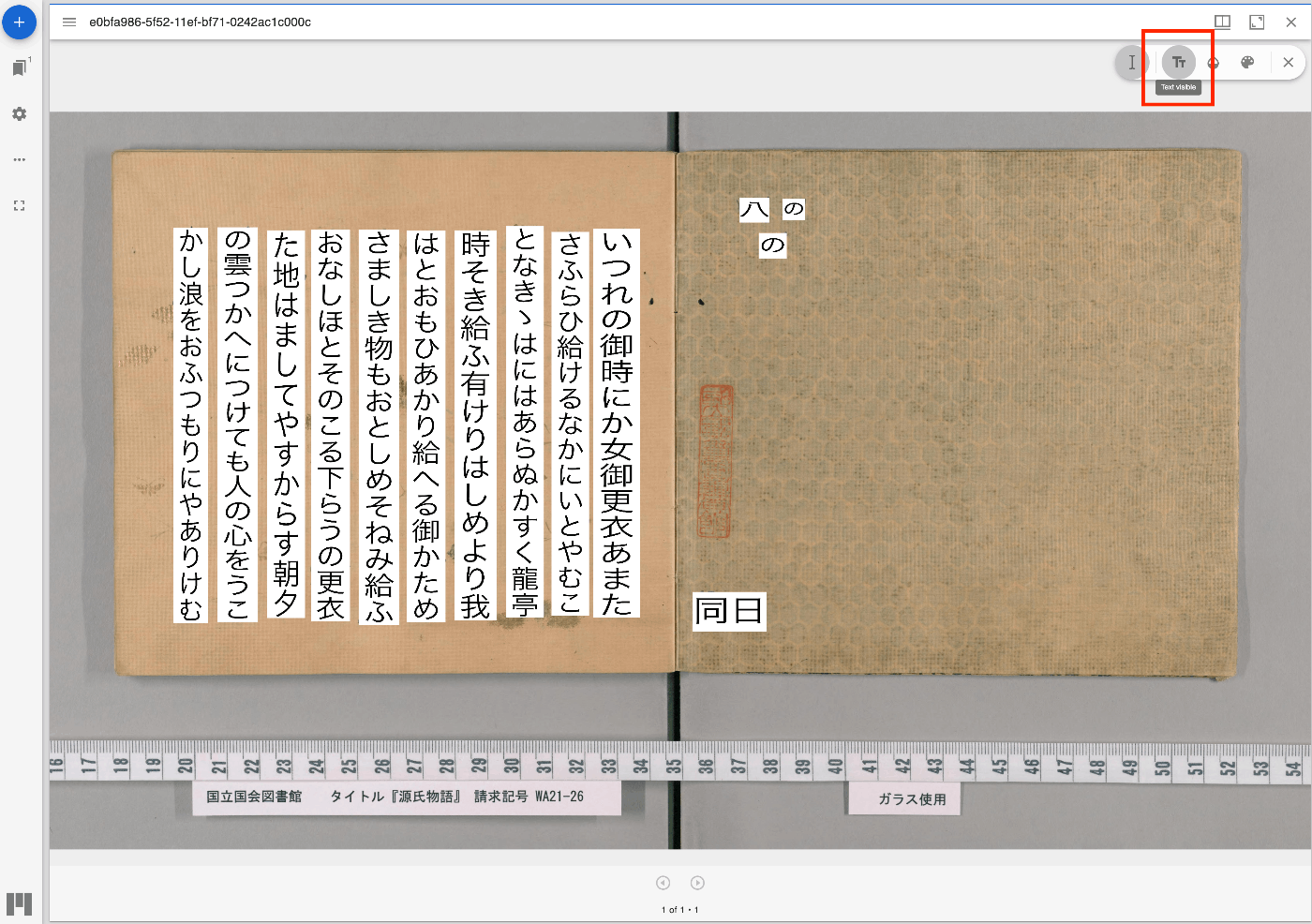
Overview I have updated the Mirador repository with the Text Overlay plugin that supports vertical text. https://github.com/nakamura196/mirador-integration-textoverlay References The original Text Overlay plugin repository is below. https://github.com/dbmdz/mirador-textoverlay Demo You can check the behavior on the following page. https://nakamura196.github.io/mirador-integration-textoverlay/ Press the “Text visible” button in the upper right to display the text. If it remains in a loading state, try reloading the page. References The Text Overlay plugin was added to Mirador 3 using the method introduced in the following article. ...

Archivematica Sample Data

Archivematica Sample Data

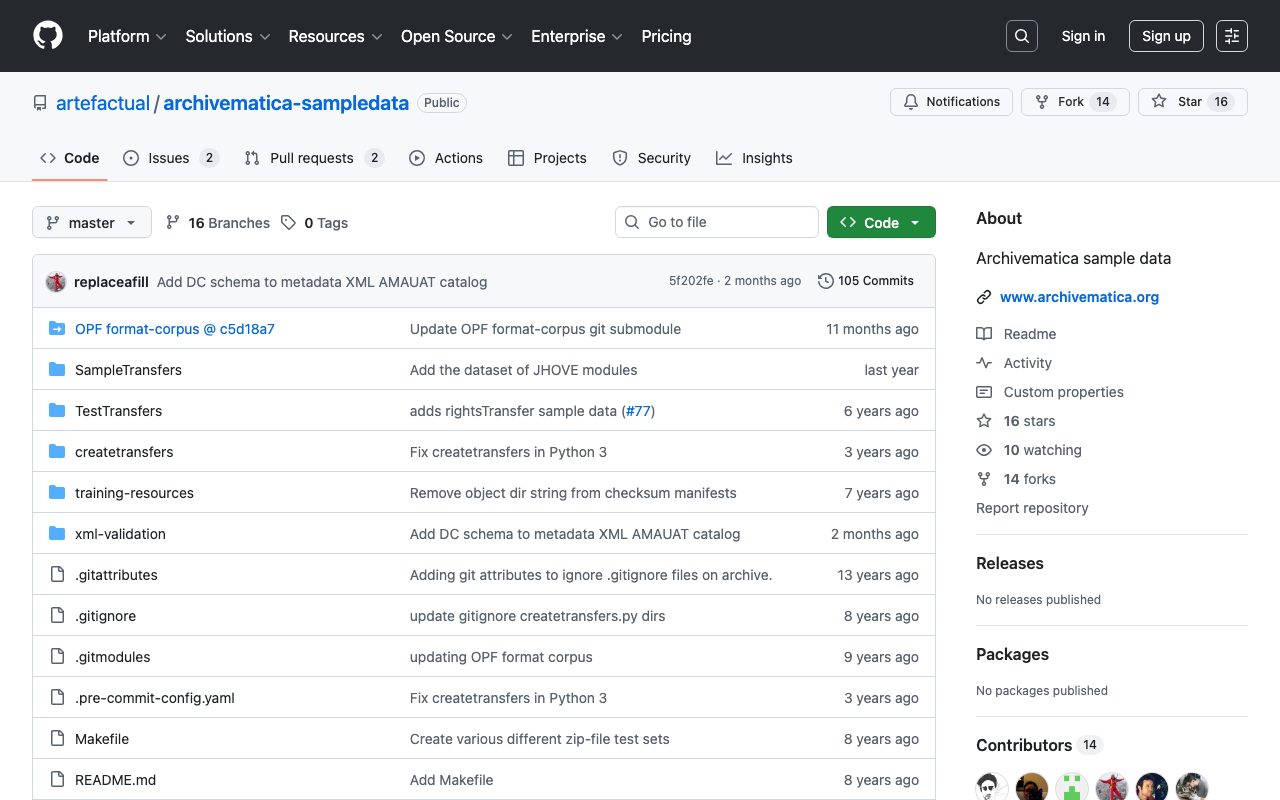
Overview Archivematica sample data is stored in the following repository. https://github.com/artefactual/archivematica-sampledata Notes Archivematica supports multiple input types, including Standard, Zipped directory, and Zipped bag. The data in the above repository is helpful as a reference for what files and folders to prepare for each of these types. Example: Registering with a CSV File Containing Metadata The manual documentation is at the following location. https://www.archivematica.org/en/docs/archivematica-1.16/user-manual/transfer/transfer/#transfers-with-metadata A sample is available here. https://github.com/artefactual/archivematica-sampledata/tree/master/SampleTransfers/CSVmetadata ...

Verifying the Behavior of Normalization in Archivematica

Verifying the Behavior of Normalization in Archivematica

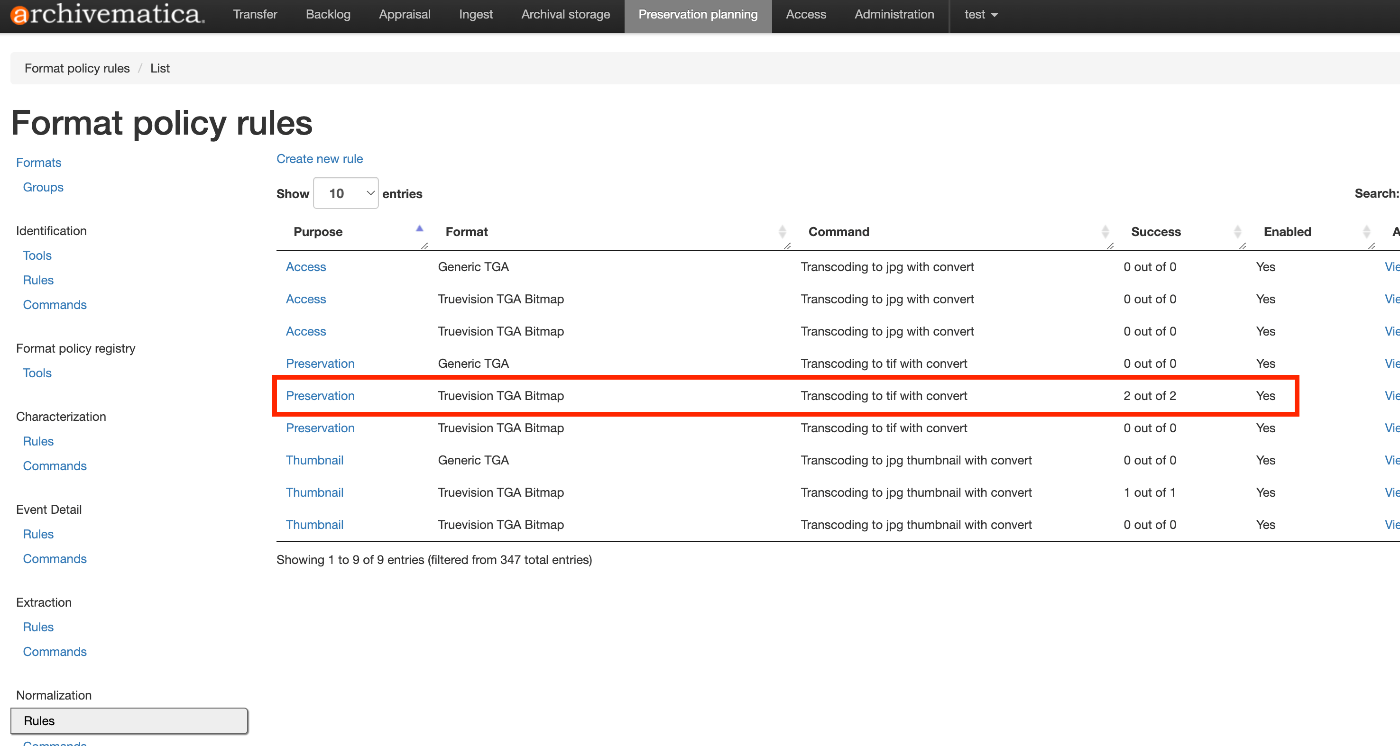
Overview In Archivematica, you can configure settings such as Normalization in Preservation Planning. This is a memo on verifying this behavior. Configuration Normalization-related settings can be checked at the following location. /fpr/fprule/normalization/ In the above, for items where Purpose is Preservation and Format is Truevision TGA Bitmap, it instructs to perform Transcoding to tif with convert as described in Command. Execution Example The following is used as the processing target. ...

Specifying Sort Order in Drupal Facets

Specifying Sort Order in Drupal Facets

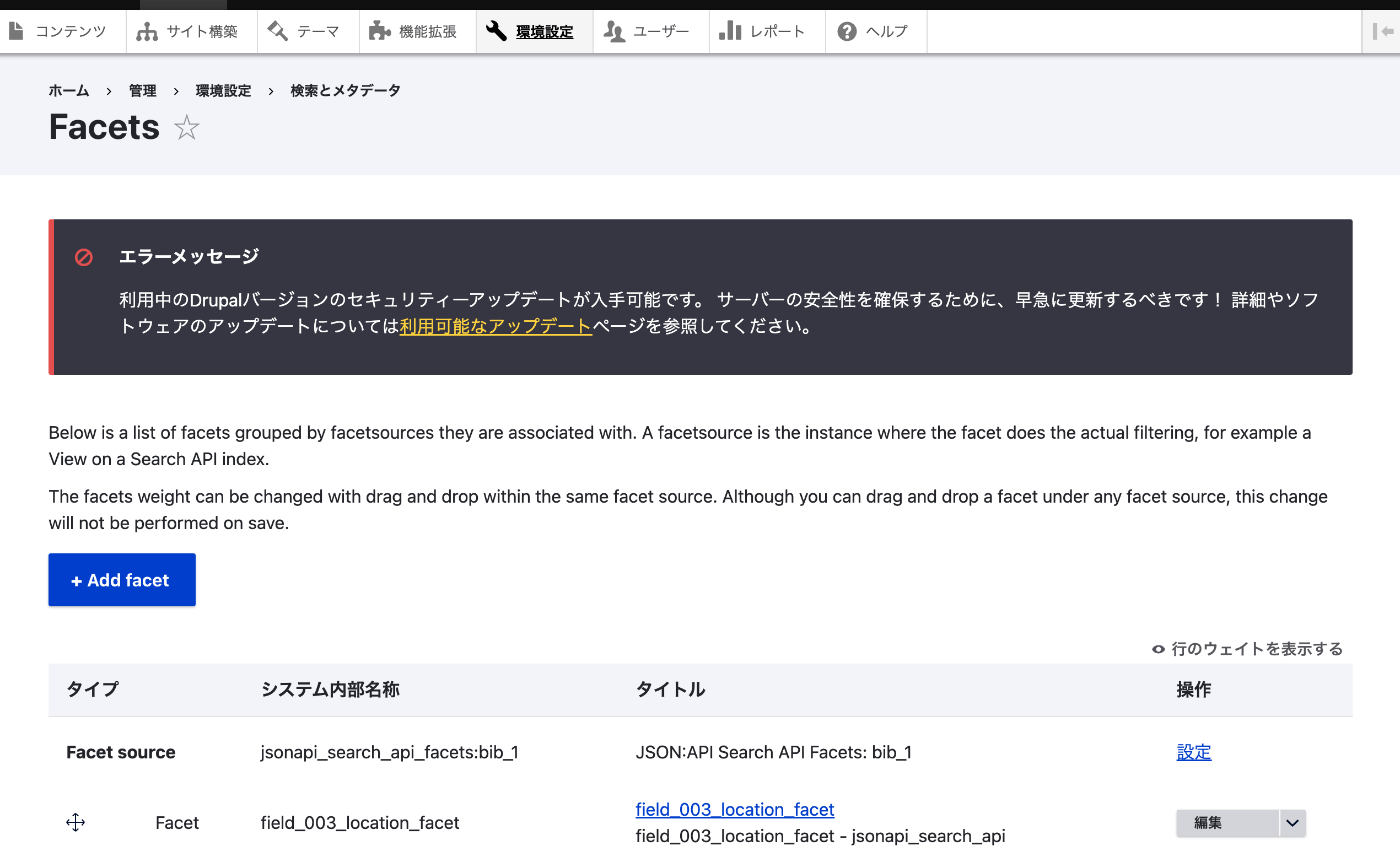
Overview These are notes on specifying the sort order in Drupal Facets. Method You can change the facet settings by accessing the following: /admin/config/search/facets Clicking the edit button for each facet navigates to the following screen: At the bottom of the screen, there is a Facet sorting section where you can configure sorting by count and by name. To sort by name, uncheck Sort by count. Summary I hope this serves as a useful reference when working with Drupal. ...

Exporting Tropy Data to Omeka S

Exporting Tropy Data to Omeka S

Overview I had the opportunity to export Tropy data to Omeka S, so this is a memo of the process. Instructions A machine translation of the official manual is provided at the end of this article. Usage Example Below is the Tropy screen. We used images from Irasutoya. As shown, it was possible to annotate images. Below is the result after exporting to Omeka S. The item was registered as a new item along with multiple media including cropped images. ...

Preventing Unpublished Content from Being Indexed by Drupal's Search API

Preventing Unpublished Content from Being Indexed by Drupal's Search API

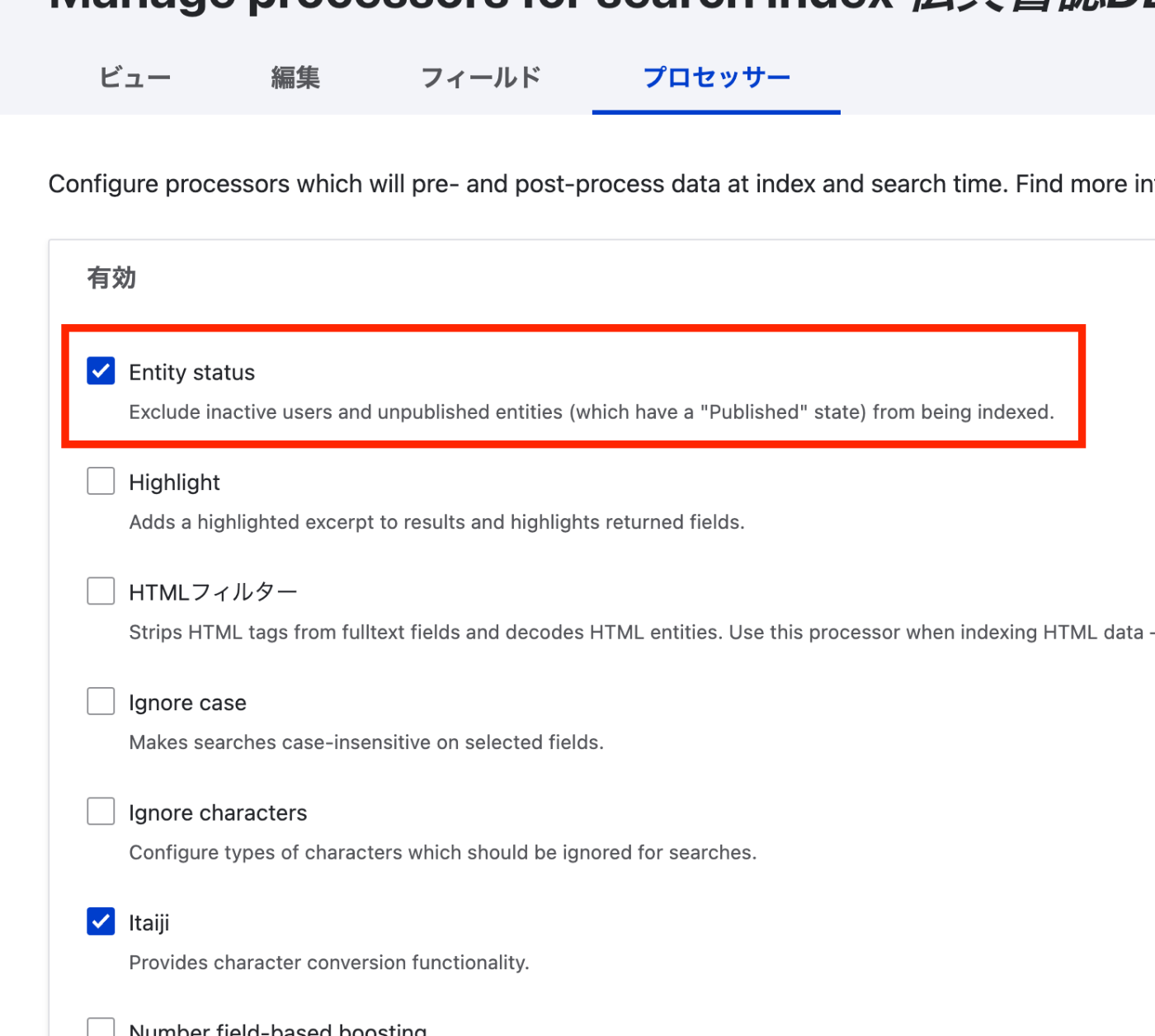
Overview This is a memo on how to prevent unpublished content from being indexed by Drupal’s Search API. References This was also documented in the following article. https://www.acquia.com/jp/blog/introduction-to-search-api-1 Method It was necessary to enable “Entity status” at the following location: /admin/config/search/search-api/index/xxx/processors Summary We hope this serves as a useful reference.

Sample Program Using the Annotorious OpenSeadragon Plugin

Sample Program Using the Annotorious OpenSeadragon Plugin

Overview I created a sample program using the Annotorious OpenSeadragon Plugin that allows adding annotations to multiple images loaded from an IIIF manifest file. You can try it at the following link. https://nakamura196.github.io/nuxt3-demo/annotorious Source Code Please refer to the following. https://github.com/nakamura196/nuxt3-demo/blob/main/pages/annotorious/index.vue Key Points npm install –force The library @recogito/annotorious-openseadragon does not appear to support openseadragon v5, so a forced installation was necessary. npm error Could not resolve dependency: npm error peer openseadragon@"^3.0.0 || ^4.0.0" from @recogito/annotorious-openseadragon@2.7.18 npm error node_modules/@recogito/annotorious-openseadragon npm error @recogito/annotorious-openseadragon@"^2.7.18" from the root project plugins I loaded Annotorious as a plugin. ...

Setting Field-level Visibility (Public/Private) in Drupal

Setting Field-level Visibility (Public/Private) in Drupal

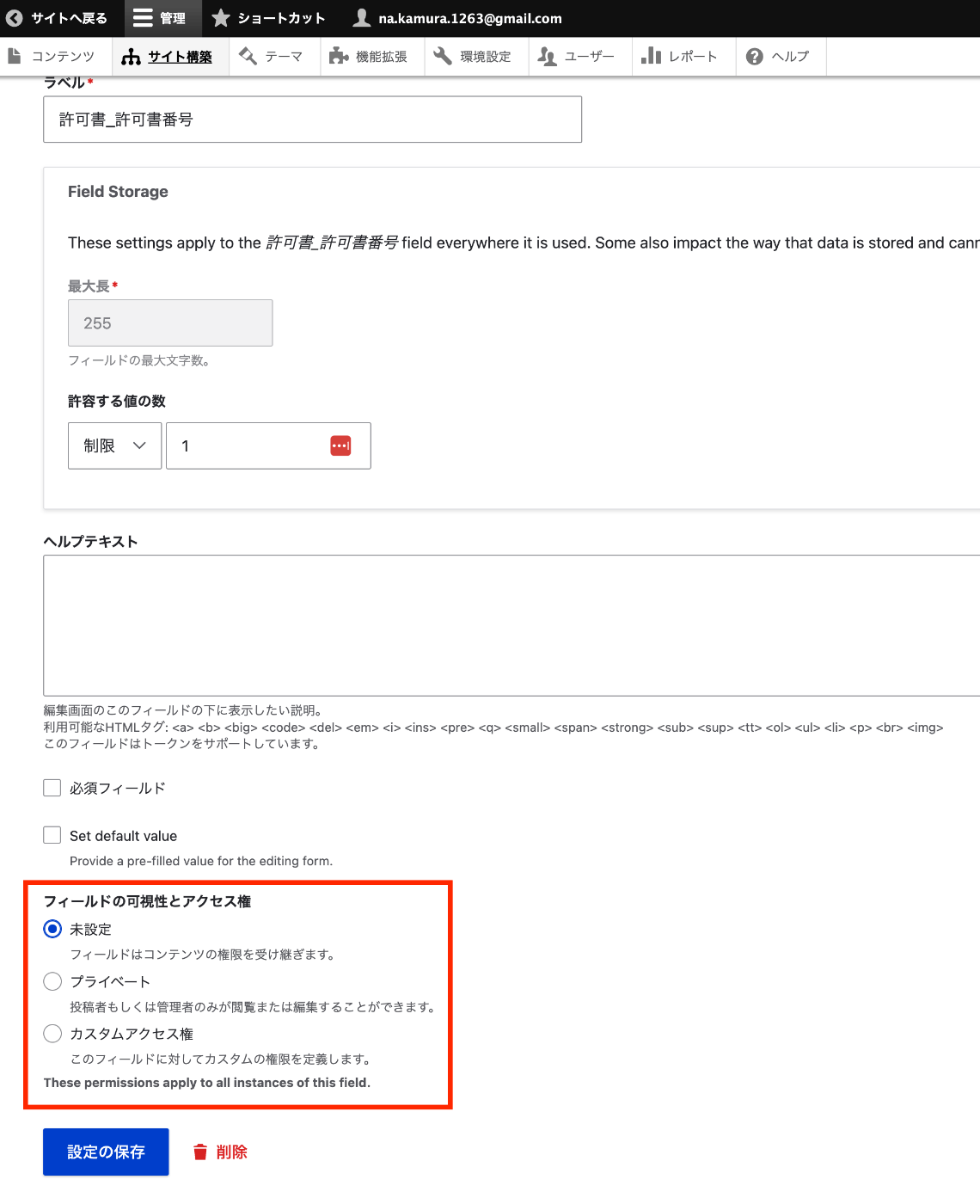
Overview In Omeka S, visibility can be set at the field level (public/private). These are notes on how to achieve this in Drupal. Installation composer.phar require 'drupal/field_permissions:^1.4' ./vendor/bin/drush en field_permissions Configuration Navigate to the edit page for a specific field of a content type, such as: /admin/structure/types/manage/bib_1/fields/node.bib_1.field_003_permission_number As shown below, you can configure the field visibility. Programmatic Access Field view permissions can be checked using the access function as follows. ...

Drupal: Troubleshooting Cache Clear Errors

Drupal: Troubleshooting Cache Clear Errors

Overview When clearing the cache in Drupal, the following error sometimes occurred. ./vendor/bin/drush cr In CheckExceptionOnInvalidReferenceBehaviorPass.php line 88: The service "access_check.contact_personal" has a dependency on a non-exist ent service "user.data". Here are my notes on how to resolve this error. References The following was helpful. https://www.drupal.org/forum/support/upgrading-drupal/2018-04-26/after-upgrade-to-853-the-service-access_checkcontact Solution A module named user had been created by the Features module. /modules/custom/user Deleting this resolved the error. Additional Note Similarly, a module named comment was also causing issues. Deleting it likewise resolved the error. ...

Applying Google Cloud Vision to Image Files to Create IIIF Manifests and TEI/XML Files

Applying Google Cloud Vision to Image Files to Create IIIF Manifests and TEI/XML Files

Overview I created a library that applies Google Cloud Vision to image files and generates IIIF manifest and TEI/XML files. https://github.com/nakamura196/iiif_tei_py This article explains how to use the library. Usage You can check the usage and more at the following page. https://nakamura196.github.io/iiif_tei_py/ Installing the Library Install the library from the GitHub repository. pip install https://github.com/nakamura196/iiif_tei_py Creating a GC Service Account Download a GC (Google Cloud) service account key (JSON file) by referring to articles such as the following. ...

Handling Errors When Updating Omeka S from v4.0.4 to v4.1

Handling Errors When Updating Omeka S from v4.0.4 to v4.1

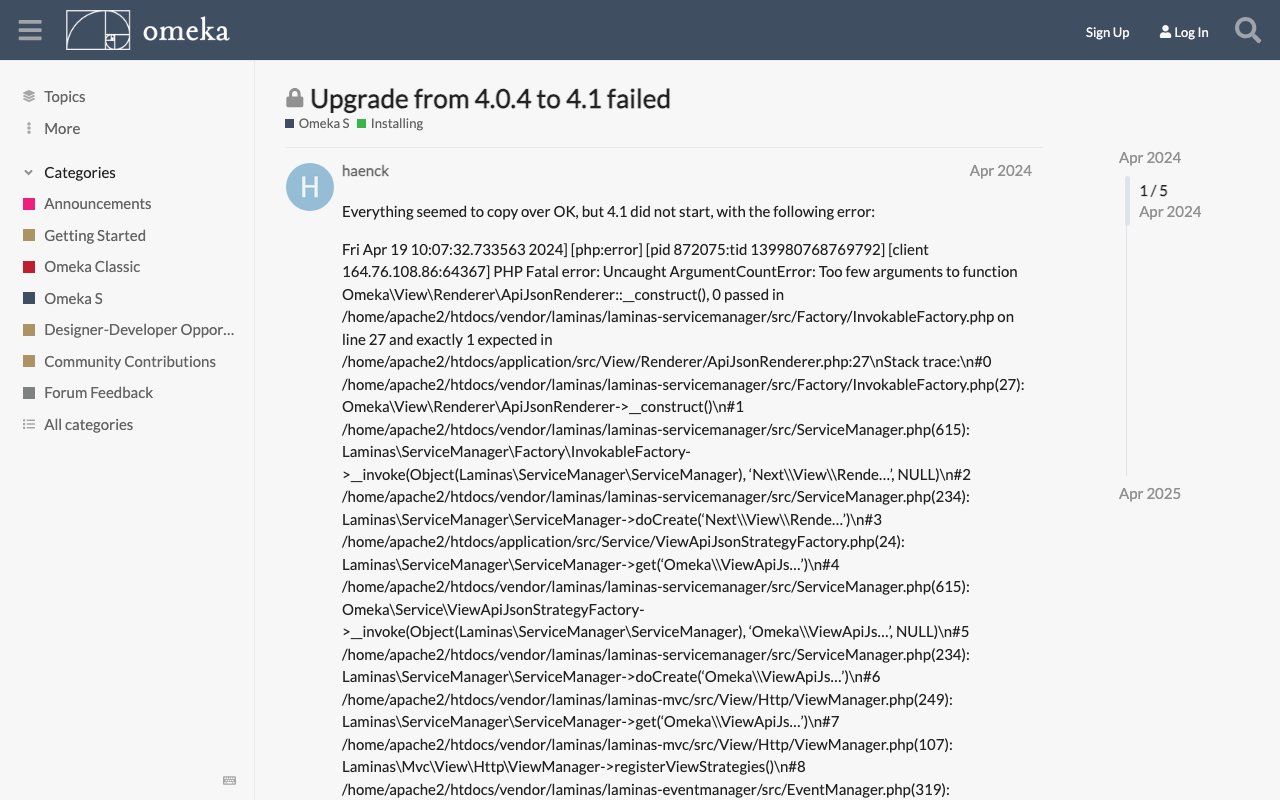
Overview During the Omeka S update process, the following error occurred. Fatal error: Uncaught ArgumentCountError: Too few arguments to function Omeka\View\Renderer\ApiJsonRenderer::__construct(), 0 passed This is a personal note on how to address this error. Solution The solution was found at the following link. https://forum.omeka.org/t/upgrade-from-4-0-4-to-4-1-failed/22281 Specifically, uninstalling the Next module resolved the above issue. Summary I hope this serves as a useful reference for those encountering the same issue.

Updating Omeka S

Updating Omeka S

Overview This is a personal note on updating Omeka S. Please also refer to the following official documentation. https://omeka.org/s/docs/user-manual/install/#updating Preparation: Backup Before performing update operations, be sure to create backups of the database and all files in case of unforeseen circumstances. 1. Database Backup Create a database dump file using the mysqldump command or similar. # mysqldump -u [DB username] -p [DB name] > [output filename] mysqldump -u db_user -p omeka_s_db > omeka_s_backup.sql 2. File Backup Back up (duplicate) the entire Omeka S installation directory. ...

Exporting Only Specific Items and Selected Fields Using Omeka S BulkExport

Exporting Only Specific Items and Selected Fields Using Omeka S BulkExport

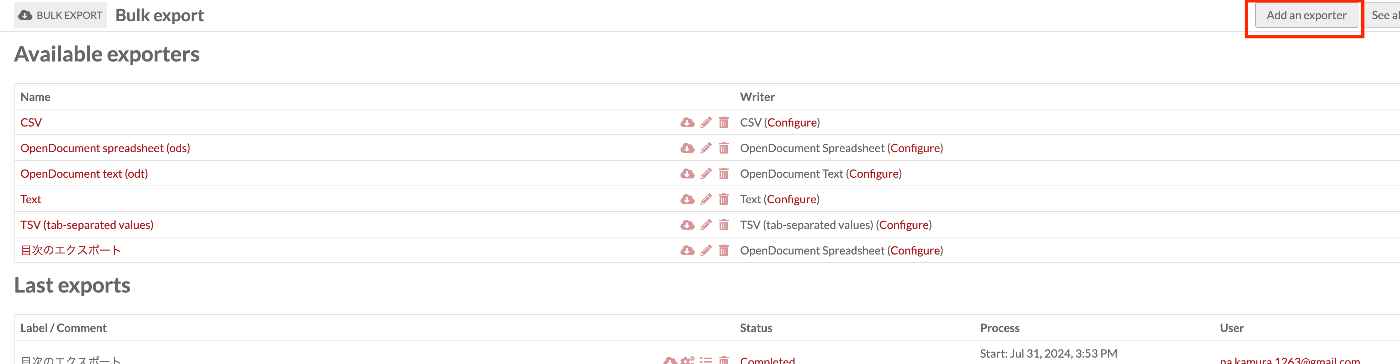
Overview This article introduces how to export only specific items with selected fields using Omeka S BulkExport. Here, we will limit the export to items that have “Table Of Contents (dcterms:tableOfContents)” and export only “Title (dcterms:title)” and “Identifier (dcterms:identifier)”. Related The following article explains the overview of the Omeka S BulkExport module. This time, I will explain based on a specific use case. Method Navigate to the following path. ...

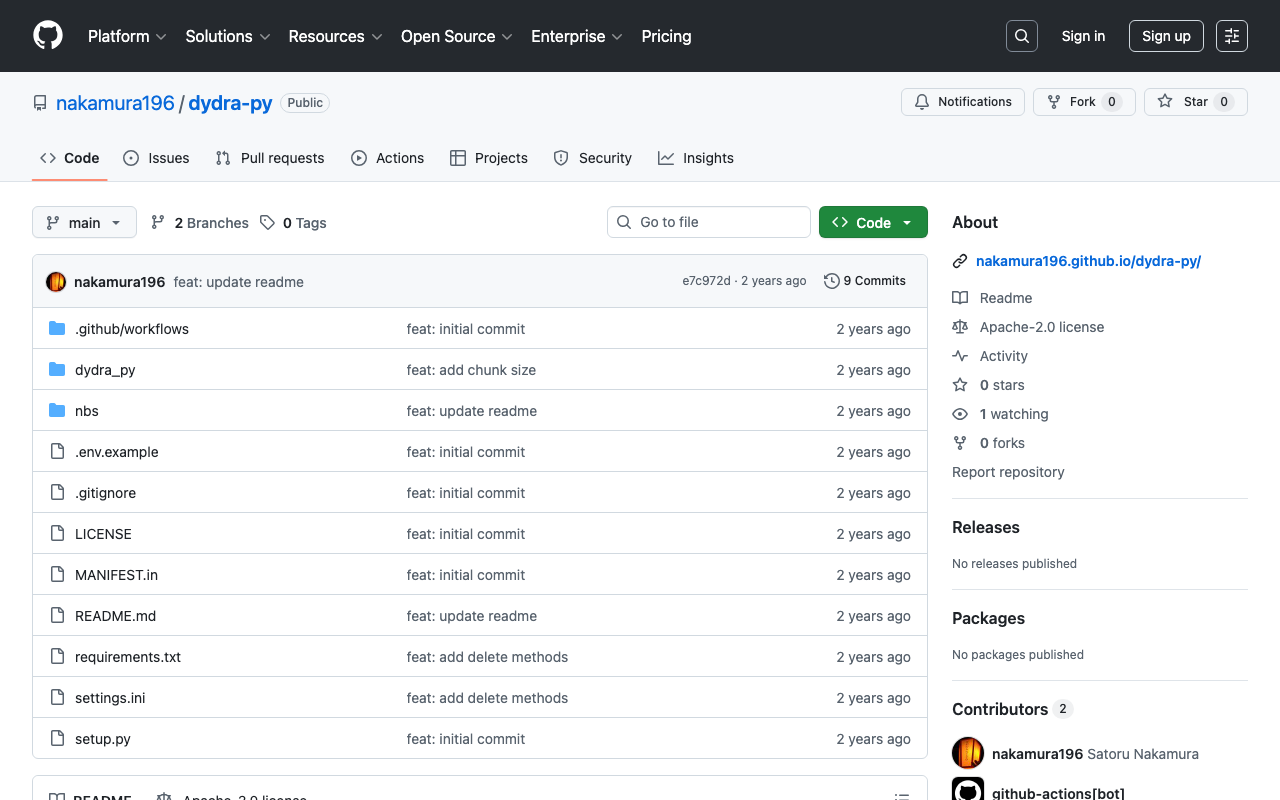
Registering RDF Data to Dydra Using Python

Registering RDF Data to Dydra Using Python

Overview I created a library for registering RDF data to Dydra using Python. https://github.com/nakamura196/dydra-py It includes some incomplete implementations, but we hope it proves useful in some situations. Implementation Details The import is performed in the following file. https://github.com/nakamura196/dydra-py/blob/main/dydra_py/api.py#L55 It uses the SPARQL INSERT DATA operation as follows. def import_by_file(self, file_path, format, graph_uri=None, verbose=False): """ Imports RDF data from a file into the Dydra store. Args: file_path (str): The path to the RDF file to import. format (str): The format of the RDF file (e.g., 'xml', 'nt'). graph_uri (str, optional): URI of the graph where data will be inserted. Defaults to None. """ headers = { "Authorization": f"Bearer {self.api_key}", "Content-Type": "application/sparql-update" } files = self._chunk_rdf_file(file_path, format=format) print("Number of chunks: ", len(files)) for file in tqdm(files): # RDFファイルの読み込み graph = rdflib.Graph() graph.parse(file, format=format) # フォーマットはファイルに応じて変更 nt_data = graph.serialize(format='nt') if graph_uri is None: query = f""" INSERT DATA {{ {nt_data} }} """ else: query = f""" INSERT DATA {{ GRAPH <{graph_uri}> {{ {nt_data} }} }} """ if verbose: print(query) response = requests.post(self.endpoint, data=query, headers=headers) if response.status_code == 200: print("Data successfully inserted.") else: print(f"Error: {response.status_code} {response.text}") Key Design Decision One notable design decision was handling large RDF files. When uploading large RDF files all at once, there were cases where the process would stop midway. ...

Deleting All Files in OpenAI Storage

Deleting All Files in OpenAI Storage

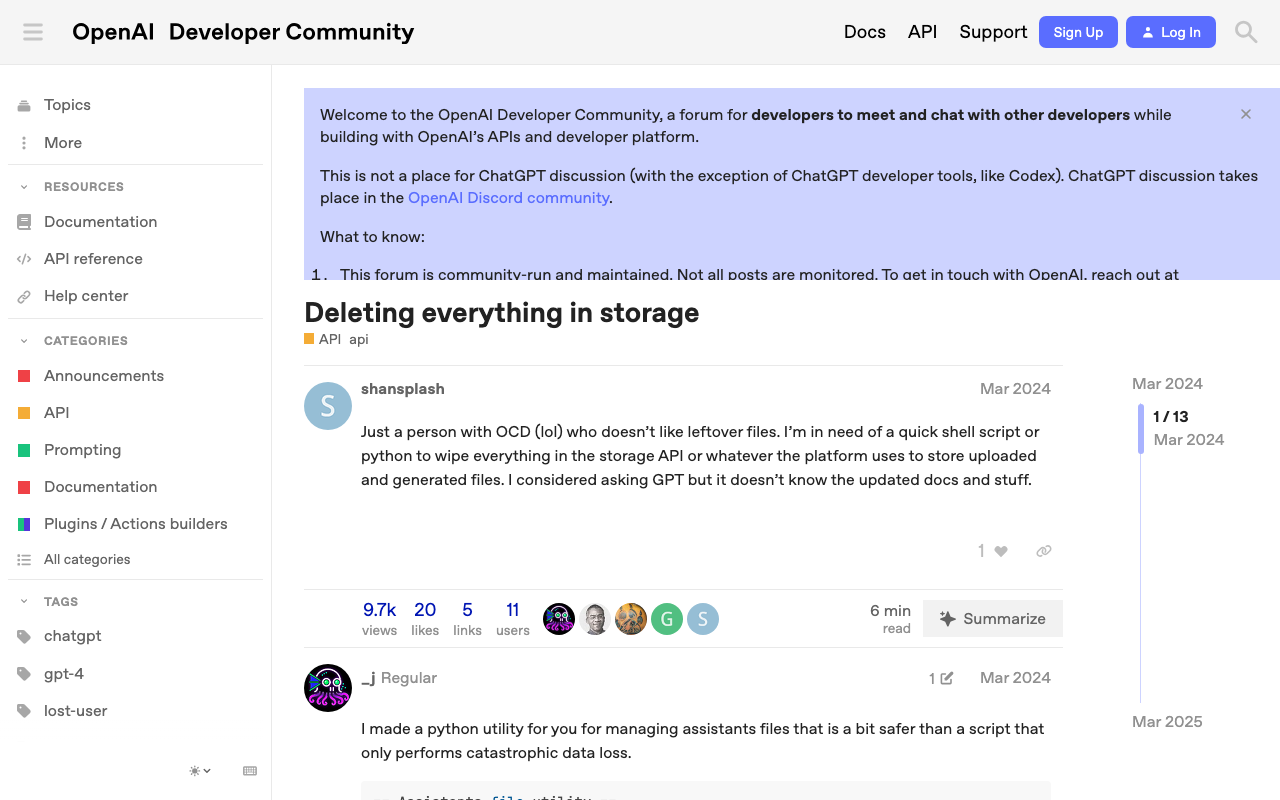
Overview This is a memo on how to delete all files in OpenAI storage. The following page was helpful. https://community.openai.com/t/deleting-everything-in-storage/664945 Background There was a case where I wanted to bulk-delete multiple files uploaded using code like the following. file_paths = glob("data/txt/*.txt") file_streams = [open(path, "rb") for path in file_paths] # Use the upload and poll SDK helper to upload the files, add them to the vector store, # and poll the status of the file batch for completion. file_batch = client.beta.vector_stores.file_batches.upload_and_poll( vector_store_id=vector_store.id, files=file_streams ) # You can print the status and the file counts of the batch to see the result of this operation. print(file_batch.status) print(file_batch.file_counts) Method Running the following code allowed me to perform bulk deletion. ...