Home Articles Books Search About
日本語

Latest Articles

Running a Local LLM Using mdx.jp 1GPU Pack and Ollama

Running a Local LLM Using mdx.jp 1GPU Pack and Ollama

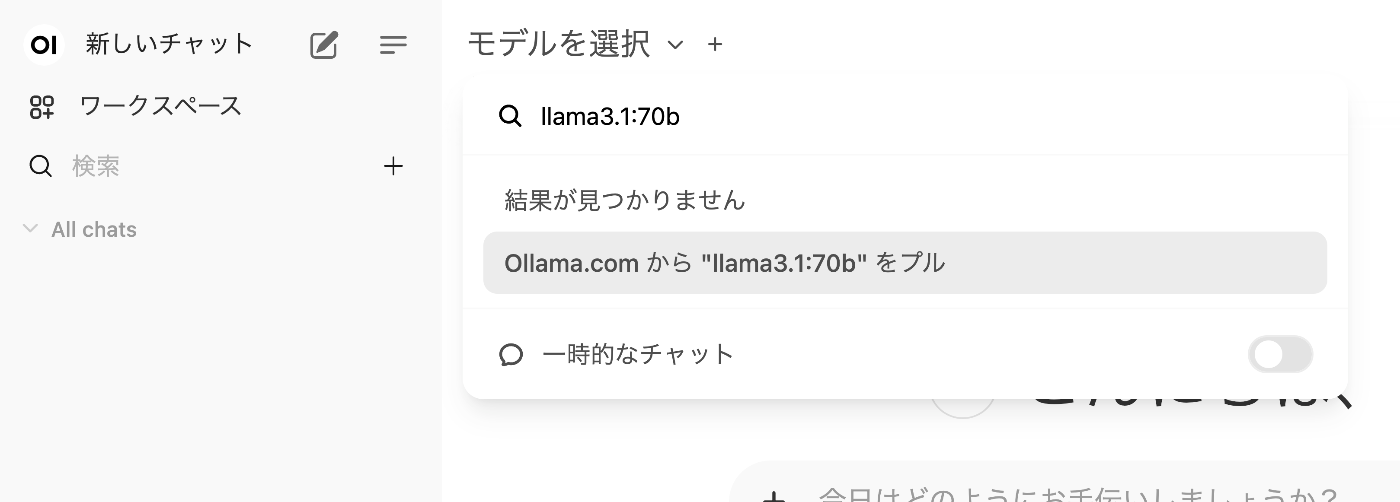
Overview I had the opportunity to run a local LLM using mdx.jp’s 1GPU pack and Ollama, so this is a memo of the process. https://mdx.jp/mdx1/p/guide/charge References I referred to the following article. https://highreso.jp/edgehub/machinelearning/ollamainference.html Downloading the Model Here, we target llama3.1:70b. After the download is complete, it becomes selectable as shown below. Usage Example We use the following “Shibusawa Eiichi Biographical Materials.” https://github.com/shibusawa-dlab/lab1 Using the API Documentation was found at the following location. ...

Achieving Parallel Display of IIIF and TEI Using XSLT

Achieving Parallel Display of IIIF and TEI Using XSLT

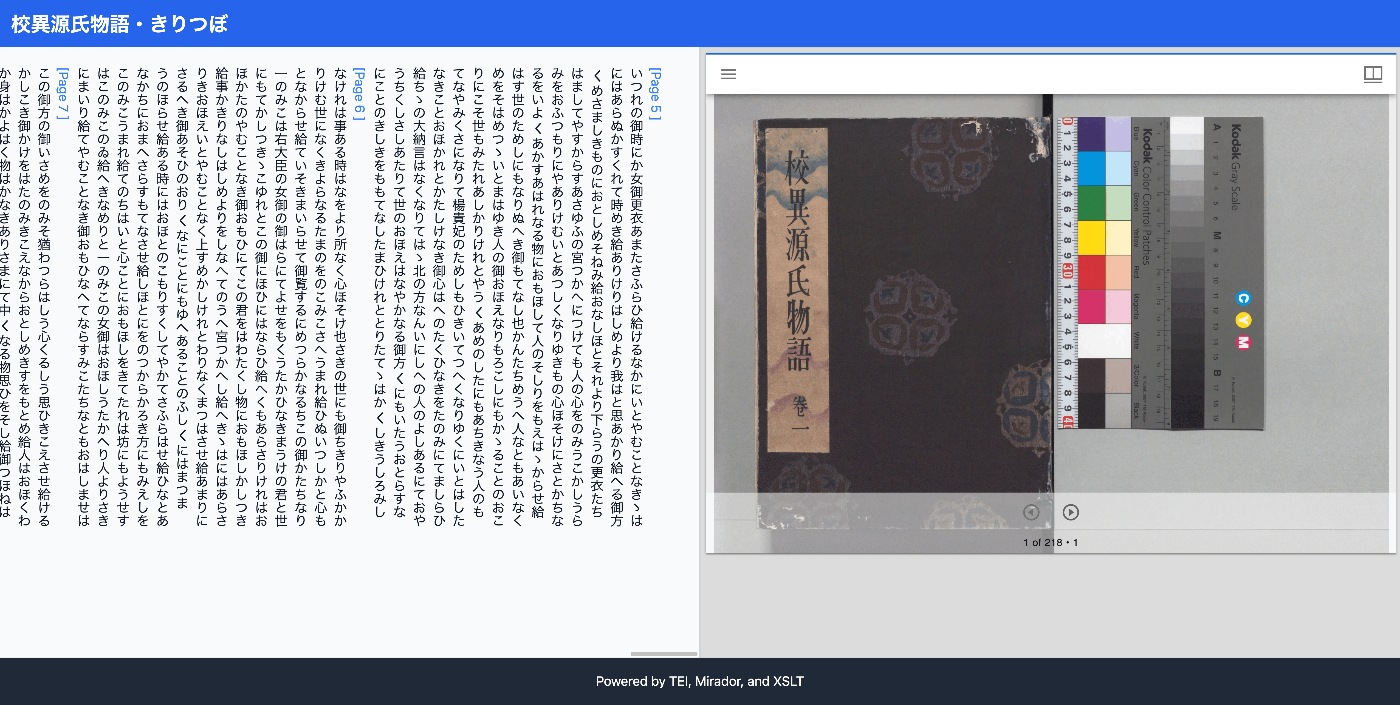
Overview I had the opportunity to implement parallel display of IIIF and TEI using XSLT, so this is a memo of the process. The results can be viewed at the following link. It uses the “Koui Genji Monogatari Text DB.” https://kouigenjimonogatari.github.io/xml/xsl/01.xml Background For visualizing TEI/XML, I had previously often used CETEICean, a JavaScript library for converting TEI XML to HTML and displaying it in browsers. These efforts enabled flexible development when combined with JavaScript frameworks. ...

Creating a Transparent Text PDF from a Single Page Using Google Cloud Vision API

Creating a Transparent Text PDF from a Single Page Using Google Cloud Vision API

Overview I had the opportunity to create a transparent text PDF from a PDF using Google Cloud Vision API, so this is a personal note for future reference. Below is an example of searching for simple. Background This time, we target PDFs consisting of a single page. Procedure Creating the Image Create an image to be used as the OCR target. With the default settings, the resulting image was blurry, so I set the resolution to 2x and performed position alignment considering the resolution in the process described below. ...

Using the Zotero API from Next.js

Using the Zotero API from Next.js

Overview I looked into how to use the Zotero API from Next.js, so this is a memo. As a result, I created the following application. https://zotero-rouge.vercel.app/ Library I used the following library. https://github.com/tnajdek/zotero-api-client Getting the API Key and Other Information Please refer to the following article. Usage Collection List // app/api/zotero/collections/route.js import { NextResponse } from "next/server"; import api from "zotero-api-client"; import { prisma } from "@/lib/prisma"; import { decrypt } from "../../posts/encryption"; import { getSession } from "@auth0/nextjs-auth0"; async function fetchZoteroCollections( zoteroApiKey: string, zoteroUserId: string ) { const myapi = api(zoteroApiKey).library("user", zoteroUserId); const collectionsResponse = await myapi.collections().get(); return collectionsResponse.raw; } Specific Collection // app/api/zotero/collection/[id]/route.ts import { NextResponse } from "next/server"; import api from "zotero-api-client"; import { prisma } from "@/lib/prisma"; import { decrypt } from "@/app/api/posts/encryption"; import { getSession } from "@auth0/nextjs-auth0"; async function fetchZoteroCollection( zoteroApiKey: string, zoteroUserId: string, collectionId: string ) { const myapi = api(zoteroApiKey).library("user", zoteroUserId); const collectionResponse = await myapi.collections(collectionId).get(); return collectionResponse.raw; } List of Items in a Specific Collection // app/api/zotero/collection/[id]/items/route.ts import { NextResponse, NextRequest } from "next/server"; import api from "zotero-api-client"; import { prisma } from "@/lib/prisma"; import { decrypt } from "@/app/api/posts/encryption"; import { getSession } from "@auth0/nextjs-auth0"; async function fetchZoteroCollection( zoteroApiKey: string, zoteroUserId: string, collectionId: string ) { const myapi = api(zoteroApiKey).library("user", zoteroUserId); const collectionResponse = await myapi .collections(collectionId) .items() .get(); return collectionResponse.raw; References The application is hosted on Vercel, using Vercel Postgres for the database and Prisma as the ORM. The UI was built with Tailwind CSS, using design suggestions from ChatGPT. Auth0 was adopted for authentication. ...

Customizing the LEAF Writer Editor Toolbar

Customizing the LEAF Writer Editor Toolbar

Overview LEAF Writer provides buttons at the top of the screen to support tag insertion. This article introduces how to customize them. As a result, I added functionality to insert <app><lem>aaa</lem><rdg>bbb</rdg></app>. https://youtu.be/XMnRP7s2atw Editing Edit the following file: packages/cwrc-leafwriter/src/components/editorToolbar/index.tsx Features for supporting tags such as person names and place names are configured as follows. For example, the description for organization has been commented out: ... const items: (MenuItem | Item)[] = [ { group: 'action', hide: isReadonly, icon: 'insertTag', onClick: () => { if (!container.current) return; const rect = container.current.getBoundingClientRect(); const posX = rect.left; const posY = rect.top + 34; showContextMenu({ // anchorEl: container.current, eventSource: 'ribbon', position: { posX, posY }, useSelection: true, }); }, title: 'Tag', tooltip: 'Add Tag', type: 'button', }, { group: 'action', type: 'divider', hide: isReadonly }, { color: entity.person.color.main, group: 'action', disabled: !isSupported('person'), hide: isReadonly, icon: entity.person.icon, onClick: () => window.writer.tagger.addEntityDialog('person'), title: 'Tag Person', type: 'iconButton', }, { color: entity.place.color.main, group: 'action', disabled: !isSupported('place'), hide: isReadonly, icon: entity.place.icon, onClick: () => window.writer.tagger.addEntityDialog('place'), title: 'Tag Place', type: 'iconButton', }, /* { color: entity.organization.color.main, group: 'action', disabled: !isSupported('organization'), hide: isReadonly, icon: entity.organization.icon, onClick: () => window.writer.tagger.addEntityDialog('organization'), title: 'Tag Organization', type: 'iconButton', }, ... As a result, the choices are limited as follows: ...

A Python Library for Visualizing the Contents of Archivematica METS Files

A Python Library for Visualizing the Contents of Archivematica METS Files

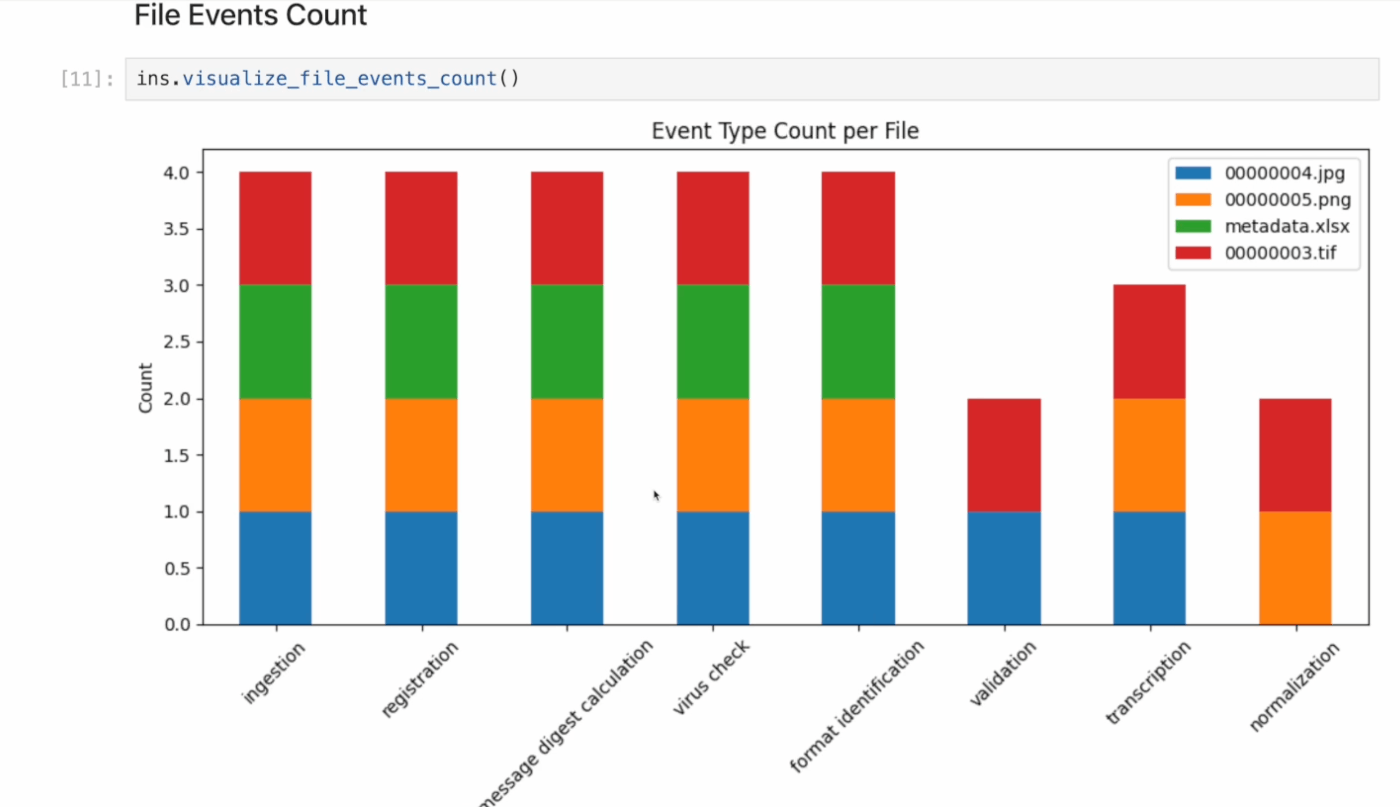
Overview I created a Python library for visualizing the contents of Archivematica METS files. For example, it visualizes aggregated results of processes (premis:event) performed during AIP creation, as shown below. Background In the following article, I introduced METSFlask, a web application for exploring Archivematica METS files in a human-friendly way. What I created this time is a library version of the functionality provided by METSFlask, making it easier to use outside of Flask. ...

Using LEAF Writer from Next.js

Using LEAF Writer from Next.js

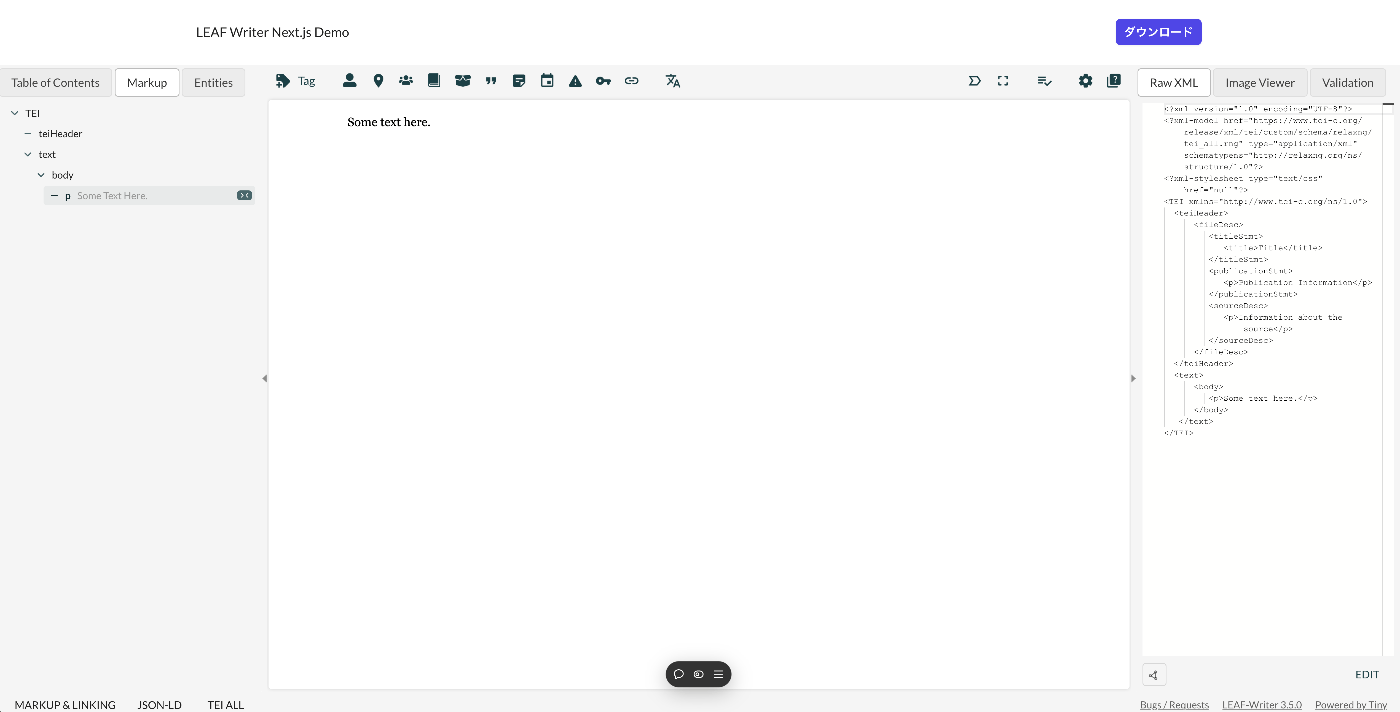
Overview This article introduces how to use LEAF Writer from Next.js. Demo You can try it from the following URL. https://leaf-writer-nextjs.vercel.app/ Below is a screenshot example. The header section is the part added using Next.js. The editor section uses LEAF Writer. The source code is available at the following link. https://github.com/nakamura196/leaf-writer-nextjs Usage Instructions are described at the following link. https://gitlab.com/calincs/cwrc/leaf-writer/leaf-writer/-/tree/main/packages/cwrc-leafwriter?ref_type=heads As a note, the div container’s id must be set to leaf-writer-container. I found that not doing so causes the styling to break. I would like to submit a pull request regarding this in the future. ...

Using Roma to Restrict Allowed Values for Tag Attributes

Using Roma to Restrict Allowed Values for Tag Attributes

Overview This is a memo on how to restrict the allowed values for tag attributes using Roma. Background In the following article, I described how to restrict the attributes available for a tag. For example, making only the key and type attributes available for the persName tag. In this article, I go further to restrict the allowed values for specific attributes. For example, allowing only “right marginal note” or “left marginal note” to be set for the type attribute. ...

Using Roma to Restrict Attributes for Tags According to Your Project

Using Roma to Restrict Attributes for Tags According to Your Project

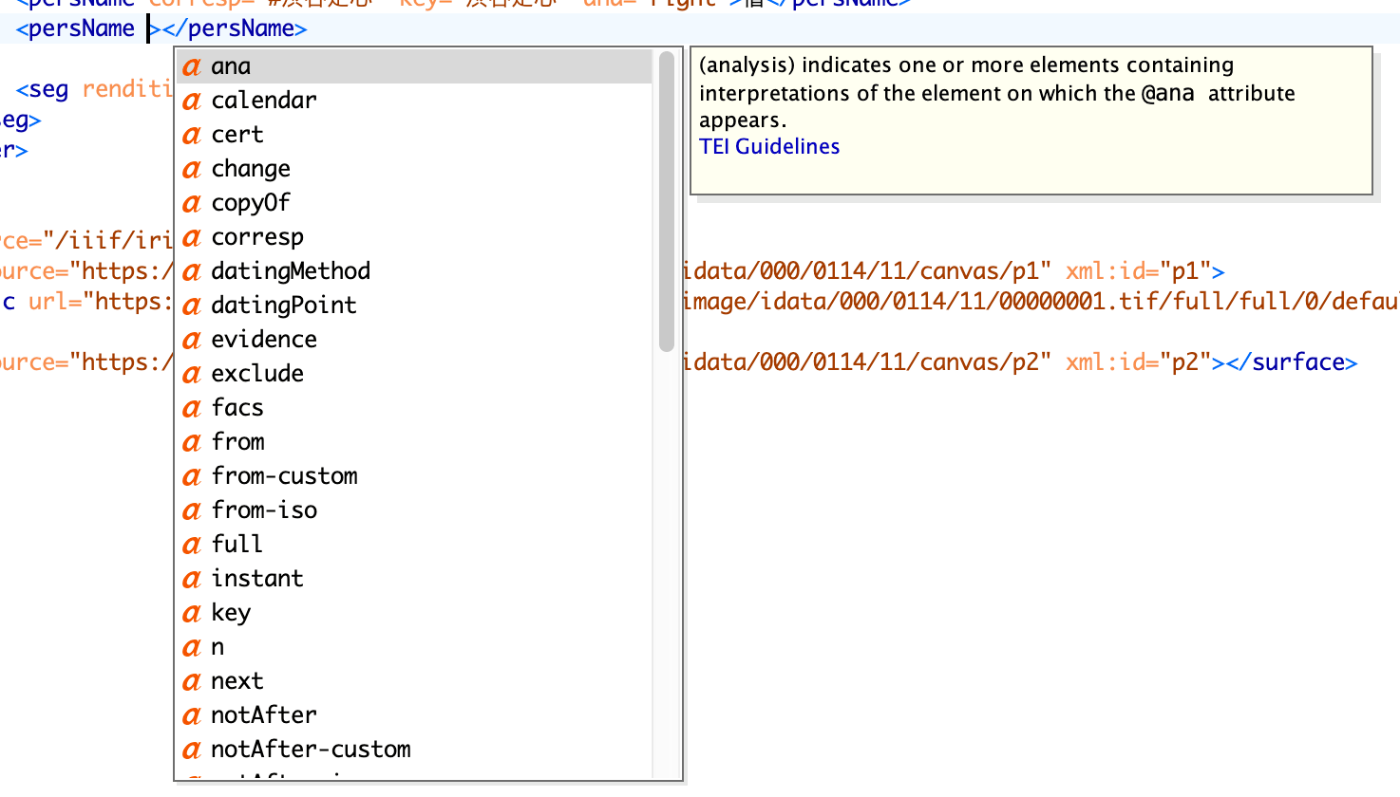
Overview This is a personal note on how to restrict attributes used for tags according to your project using Roma. Background In the following article, I described how to restrict tags according to your project using Roma. This time, as an extension of that, we will customize the attributes used for each tag. Use Case Here, as an example, we will try restricting the available attributes for persName. When using the default (tei_all.rng) with Oxygen XML Editor, as shown below, many options are presented as available attributes for the persName tag. ...

Using the GakuNin RDM API

Using the GakuNin RDM API

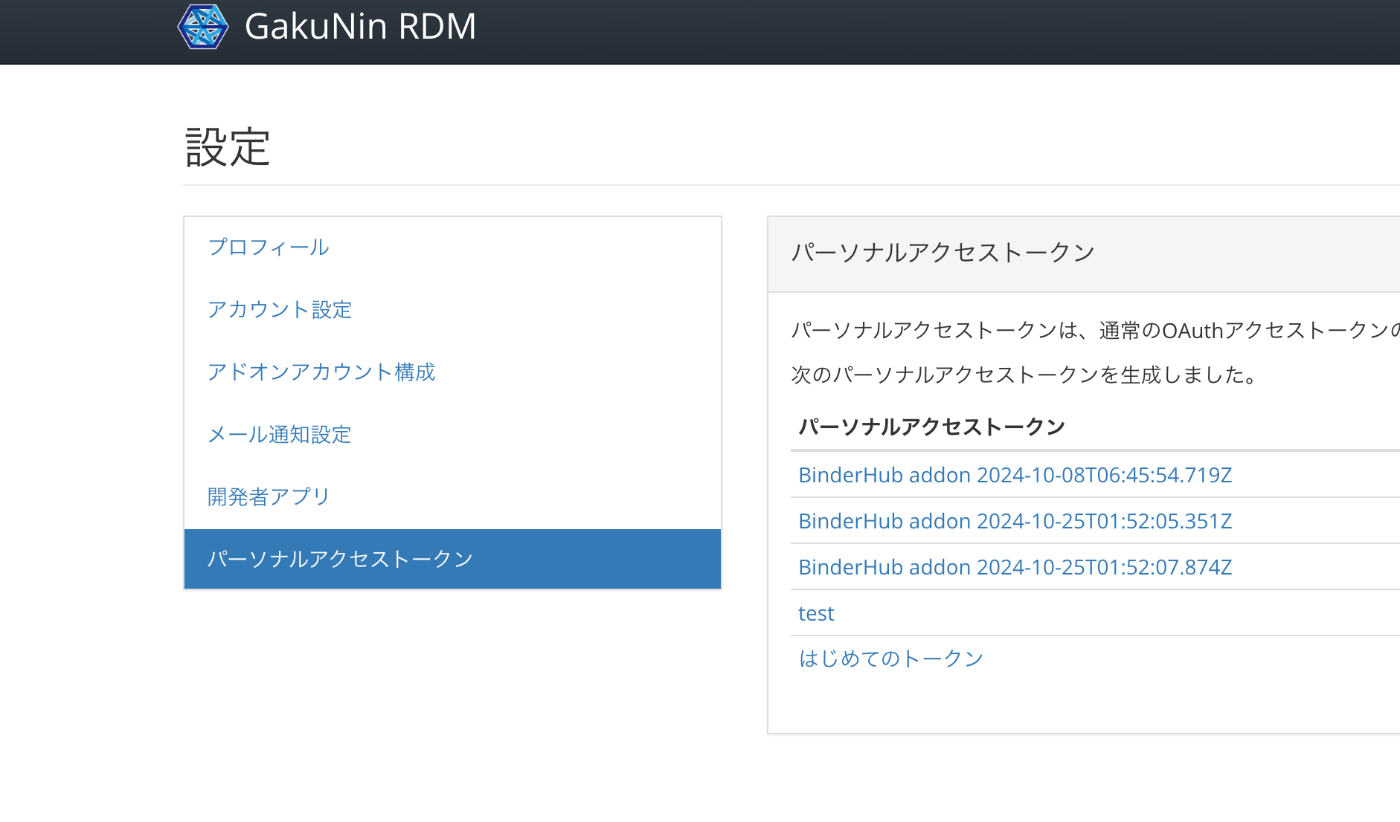
Overview GakuNin RDM provides an API at the following link. These are notes on usage examples of this API. https://api.rdm.nii.ac.jp/v2/ Reference GakuNin RDM is built on OSF (Open Science Framework), and API documentation can be found at the following link. It conforms to OpenAPI. https://developer.osf.io/ Obtaining a PAT Obtain a PAT (Personal Access Token). After logging in, you can create one from the following URL. https://rdm.nii.ac.jp/settings/tokens/ Usage You can also access it programmatically with the following script. ...

Connecting GakuNin RDM with Zotero

Connecting GakuNin RDM with Zotero

Overview I had an opportunity to connect GakuNin RDM with Zotero, so here are my notes. As shown below, you can link a specified Zotero collection and folder. Method In GakuNin RDM’s /addons/, click the “Import Account from Profile” link for Zotero to connect the project with your Zotero account. Then, first configure the settings for the library. Next, specify the folder. In the above steps, you need to press the “Change” button to configure each setting. ...

Adding mdx.jp Object Storage to Archivematica

Adding mdx.jp Object Storage to Archivematica

Overview I had the opportunity to add mdx.jp object storage to Archivematica, so this is a note for reference. Background In the following article, I described how to configure Amazon S3 as both a processing target and AIP storage destination for Archivematica. This time, based on those steps, I tried connecting mdx.jp object storage. Configuration Method Configure as follows. For S3 Endpoint URL, set https://s3ds.mdx.jp. For Access Key ID to authenticate and Secret Access Key to authenticate with, use the Access Key and Secret Key obtained from the following. ...

Differences Between ShExC and ShExJ

Differences Between ShExC and ShExJ

Overview This is a ChatGPT-generated answer about the differences between ShExC (ShEx Compact Syntax) and ShExJ (ShEx JSON Syntax). There may be some inaccuracies, but I hope it serves as a useful reference. Answer ShExC (ShEx Compact Syntax) and ShExJ (ShEx JSON Syntax) are both representation formats for ShEx (Shape Expressions) schemas, but they differ in notation format and use cases. The differences are explained below. 1. Notation Format ShExC (ShEx Compact Syntax): ...

Differences Between ShEx and SHACL

Differences Between ShEx and SHACL

Overview This is a ChatGPT-generated answer about the differences between ShEx (Shape Expressions) Schema and SHACL (Shapes Constraint Language). There may be some inaccuracies, but I hope it serves as a useful reference. Answer ShEx (Shape Expressions) Schema and SHACL (Shapes Constraint Language) are both languages for defining validation and constraints on RDF data. While they share the same purpose, they differ in syntax and approach. The differences are explained below. ...

Trying the Model Viewer Module for Omeka S

Trying the Model Viewer Module for Omeka S

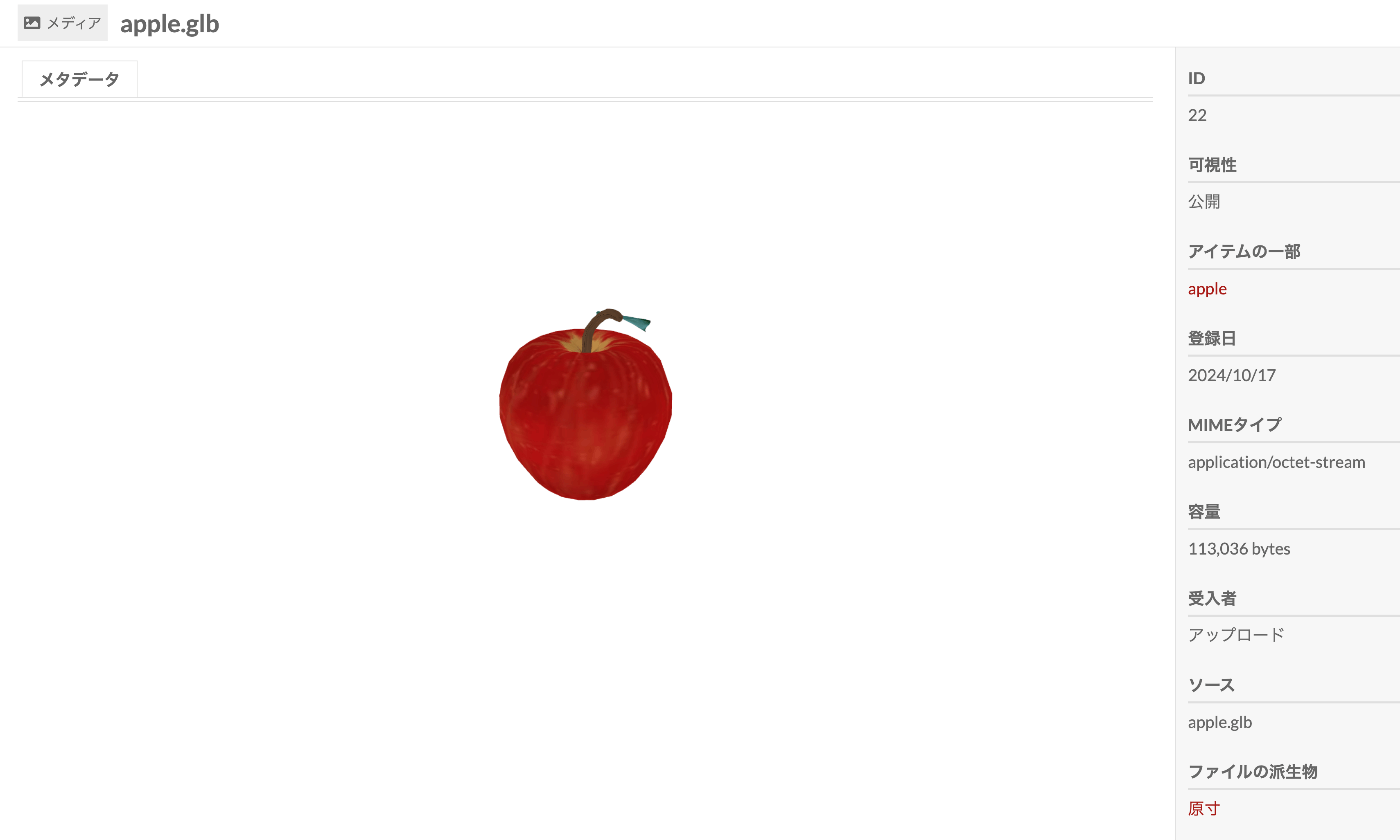
Overview Model Viewer is a module for Omeka S that integrates three.js, a viewer for 3D models. https://github.com/Daniel-KM/Omeka-S-module-ModelViewer This article explains how to use this module. References The following article introduces how to publish 3D models using IIIF. Please refer to it as well. Installation The installation process is the same as for other standard modules. Usage On the media detail page, the 3D viewer is displayed as shown below. ...

How to Use the Files/Markers Tabs in the @samvera/ramp Viewer

How to Use the Files/Markers Tabs in the @samvera/ramp Viewer

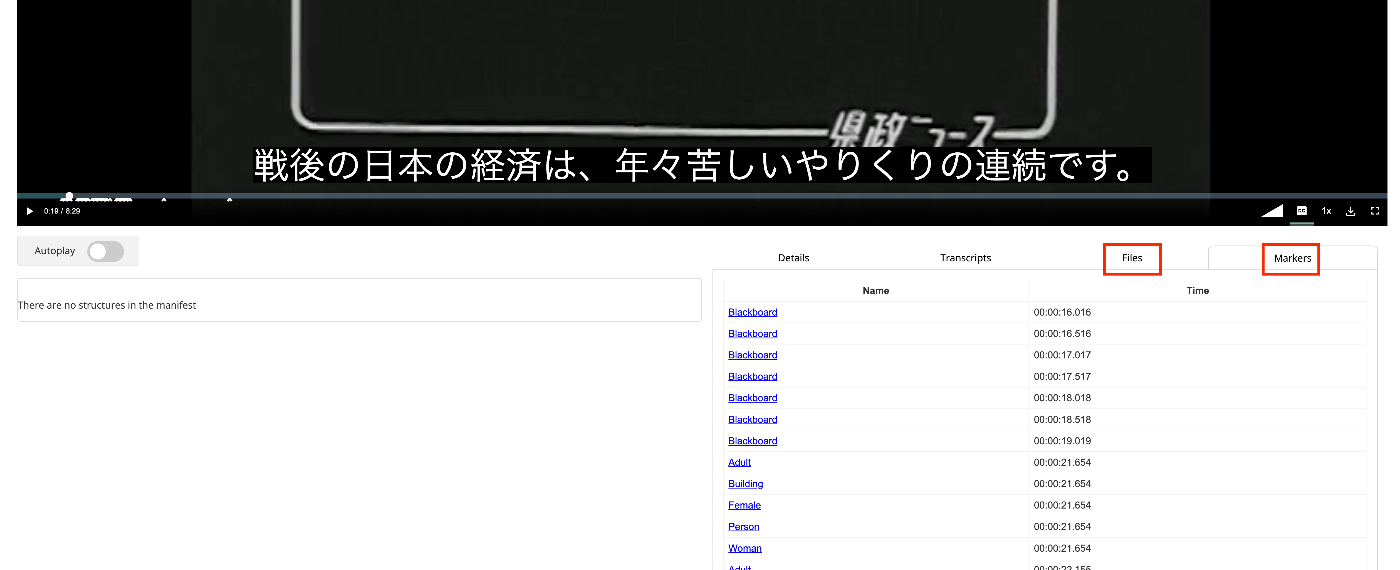
Overview I looked into how to use the Files/Markers tabs of the @samvera/ramp viewer, one of the viewers compatible with IIIF Audio/Visual, so this is a personal note for future reference. Documentation For Files, documentation was found at the following. https://samvera-labs.github.io/ramp/#supplementalfiles For Markers, documentation is found at the following. https://samvera-labs.github.io/ramp/#markersdisplay Data Used “Kensei News Volume 1” (Nagano Prefectural Library) is used. https://www.ro-da.jp/shinshu-dcommons/library/02FT0102974177 Files Tab It is documented that it reads the rendering property. The rendering property is also featured in the following Cookbook. ...

Addressing the resumptionToken Bug in Omeka S OAI-PMH Repository

Addressing the resumptionToken Bug in Omeka S OAI-PMH Repository

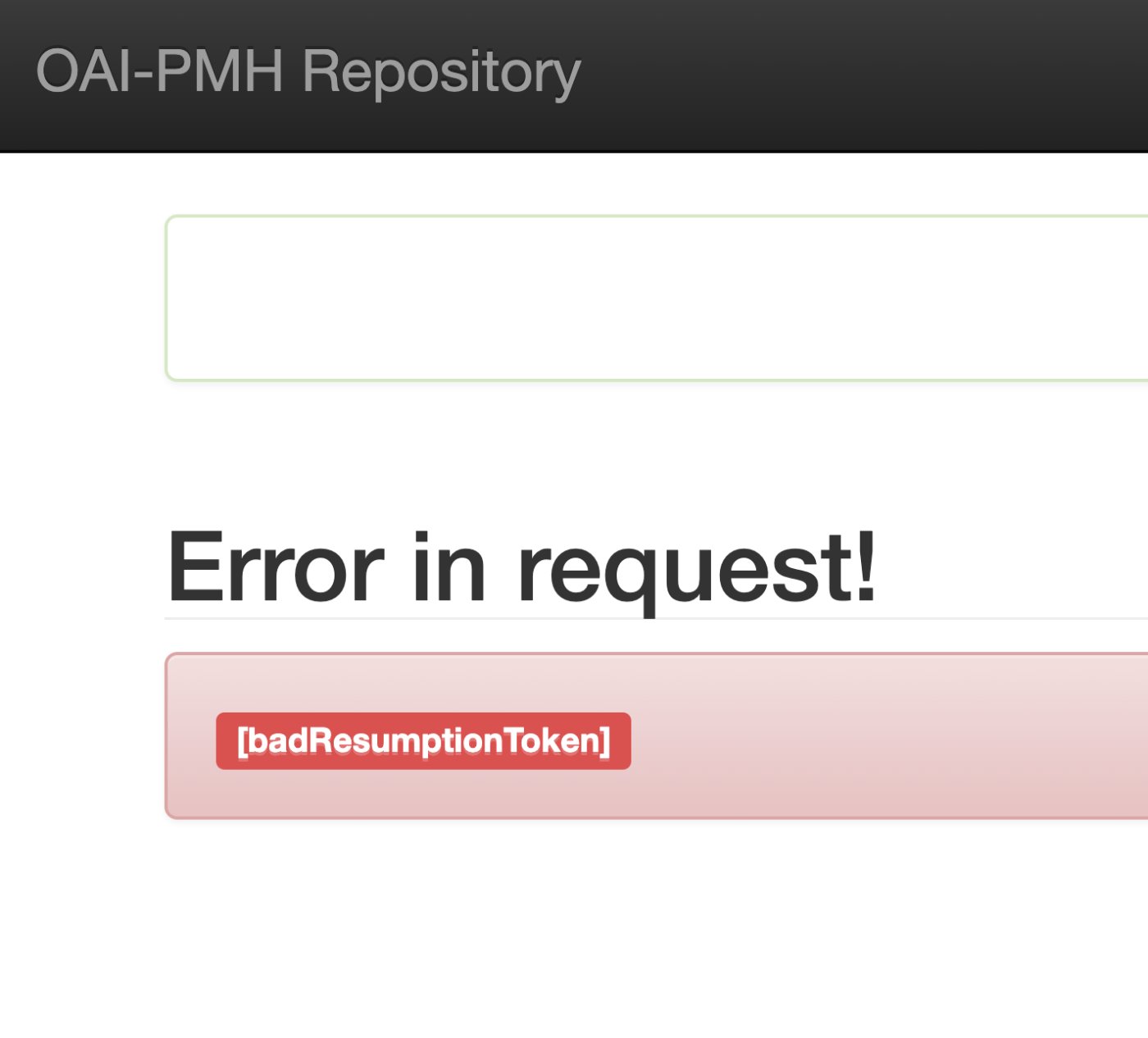
Overview I encountered an issue where the Omeka S OAI-PMH repository’s resumptionToken was outputting a [badResumptionToken] error even though the token was still within its expiration period. Here are my notes on how to address this bug. Solution By adding a comparison between $currentTime and $expirationTime to the following file, tokens within their expiration period are now properly retained. ... private function resumeListResponse($token): void { $api = $this->serviceLocator->get('ControllerPluginManager')->get('api'); $expiredTokens = $api->search('oaipmh_repository_tokens', [ 'expired' => true, ])->getContent(); foreach ($expiredTokens as $expiredToken) { $currentTime = new \DateTime(); // Added $expirationTime = $expiredToken->expiration(); // Added if (!$expiredToken || $currentTime > $expirationTime) { // Added $api->delete('oaipmh_repository_tokens', $expiredToken->id()); } // Added } There were cases where things worked without this fix, so there may be differences depending on the PHP version, etc. ...

(Non-Standard) Outputting Delete Records with the Omeka S OAI-PMH Repository Module

(Non-Standard) Outputting Delete Records with the Omeka S OAI-PMH Repository Module

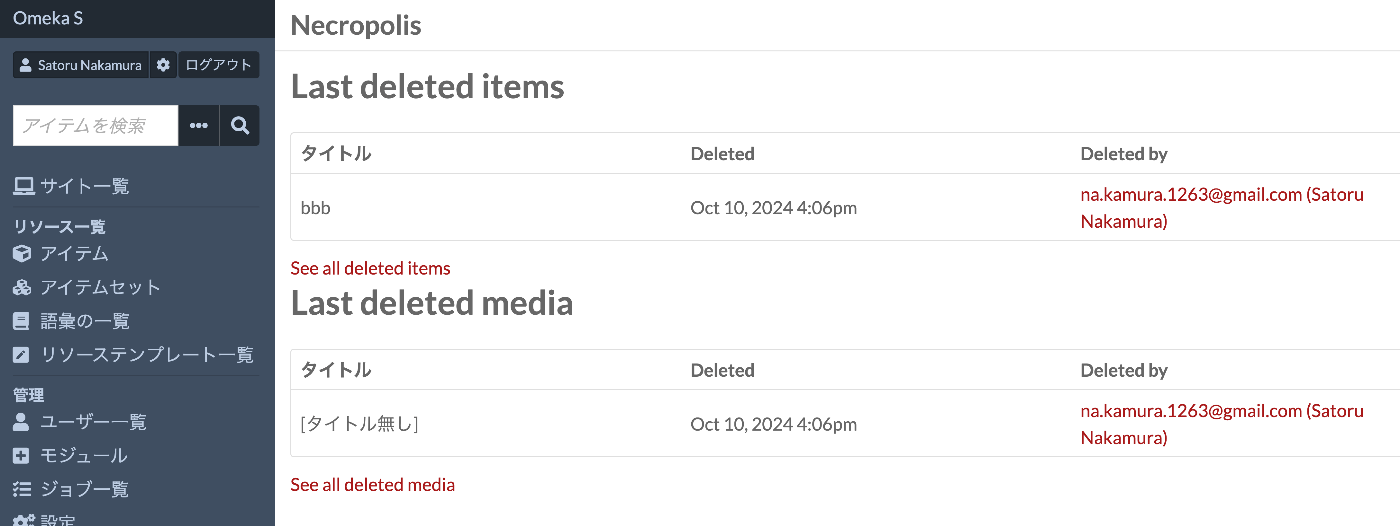
Overview I tried outputting Delete records with the Omeka S OAI-PMH Repository module, so this is a personal note for future reference. Background By using the following module, you can build OAI-PMH repository functionality. https://omeka.org/s/modules/OaiPmhRepository/ However, as far as I could confirm, there did not appear to be a feature for outputting Delete records. Related Module Omeka’s standard features do not seem to include functionality for storing deleted resources. On the other hand, the following module adds functionality to retain deleted resources. ...

Adding a Table of Contents to Videos Using iiif-prezi3

Adding a Table of Contents to Videos Using iiif-prezi3

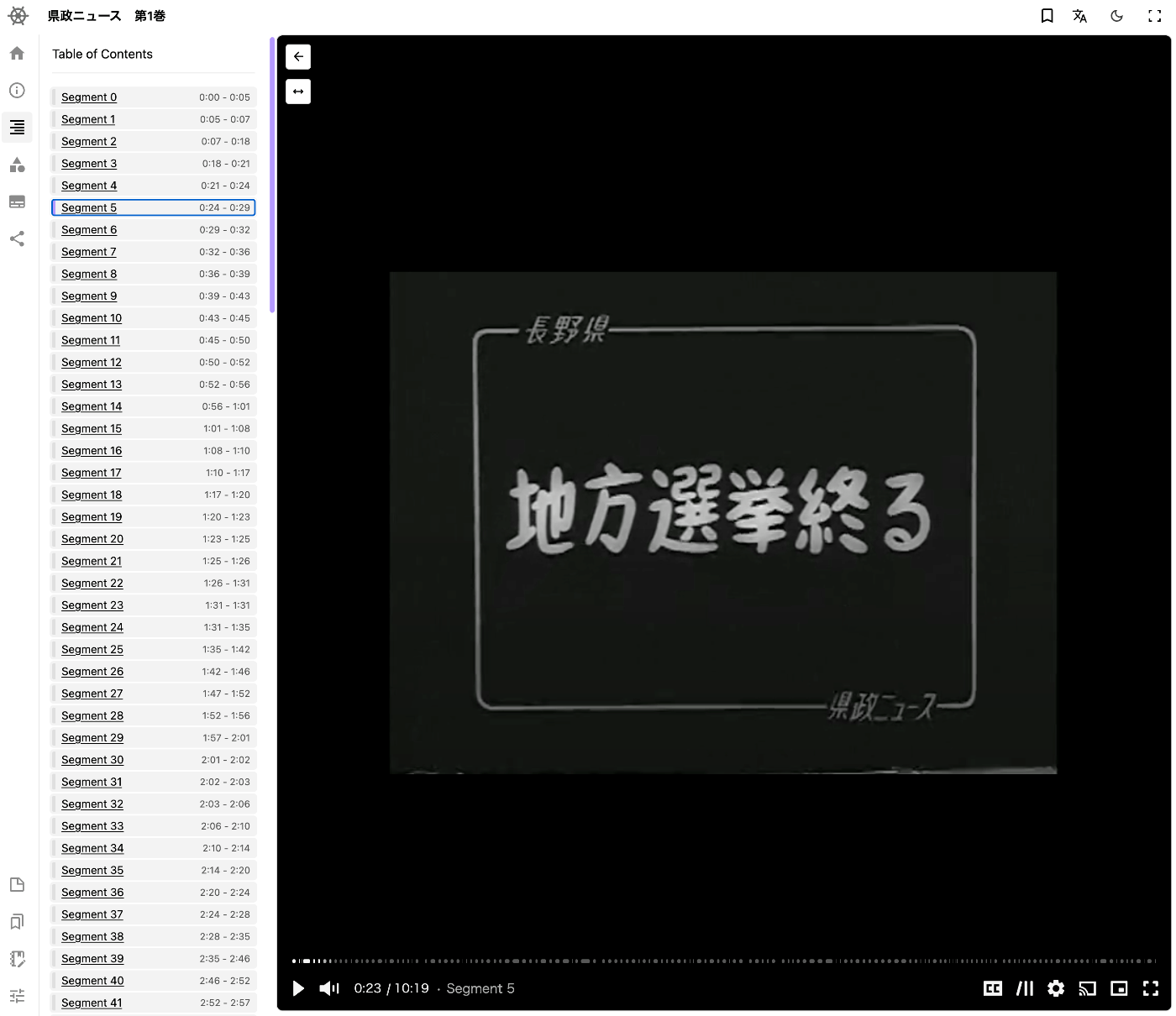
Overview This is a memo on how to add a table of contents to videos using iiif-prezi3. Segment Detection We use Amazon Rekognition’s video segment detection. https://docs.aws.amazon.com/ja_jp/rekognition/latest/dg/segments.html Sample code is available at the following link. https://docs.aws.amazon.com/ja_jp/rekognition/latest/dg/segment-example.html Data Used We use “Prefectural News Volume 1” (Nagano Prefectural Library). https://www.ro-da.jp/shinshu-dcommons/library/02FT0102974177 Reflecting in the Manifest File We assume that a manifest file has already been created by referring to the following article. The following script adds a VTT file to the manifest file. ...

Setting Subtitles on Videos Using iiif-prezi3

Setting Subtitles on Videos Using iiif-prezi3

Overview This is a memo on how to set subtitles on videos using iiif-prezi3. Creating Subtitles Subtitle files were created using the OpenAI API. The video file is converted to an audio file. from openai import OpenAI from pydub import AudioSegment from dotenv import load_dotenv class VideoClient: def __init__(self): load_dotenv(verbose=True) api_key = os.getenv("OPENAI_API_KEY") self.client = OpenAI(api_key=api_key) def get_transcriptions(self, input_movie_path): audio = AudioSegment.from_file(input_movie_path) # Write audio to a temporary file with tempfile.NamedTemporaryFile(suffix=".mp3") as temp_audio_file: audio.export(temp_audio_file.name, format="mp3") # Export in MP3 format temp_audio_file.seek(0) # Reset file pointer to the beginning # Get transcript with Whisper API with open(temp_audio_file.name, "rb") as audio_file: # Get transcript with Whisper API transcript = self.client.audio.transcriptions.create( model="whisper-1", file=audio_file, response_format="vtt" ) return transcript Data Used “Kensei News Volume 1” (Nagano Prefectural Library) is used. ...