Home Articles Books Search About
日本語

Latest Articles

Trying Out "Rekichizu" (Historical Maps)

Trying Out "Rekichizu" (Historical Maps)

Overview I looked into how to use “Rekichizu,” so this is a memo. “Rekichizu” is described as follows. “Rekichizu” is a service that allows you to browse historical maps with a “modern map design.” https://rekichizu.jp/ Background I participated in the following conference and learned about “Rekichizu.” I would like to thank the people involved in developing “Rekichizu,” everyone who organized the conference, and Professor Asanobu Kitamoto for teaching me how to use it. ...

Developed a Simple Viewer for CSV Files Published on the Internet

Developed a Simple Viewer for CSV Files Published on the Internet

Overview I developed a simple viewer for CSV files published on the internet. You can try it at the following URL: https://nakamura196.github.io/csv_viewer/ Here is an example with a CSV file actually loaded: https://nakamura196.github.io/csv_viewer/?u=https%3A%2F%2Fraw.githubusercontent.com%2Fomeka-j%2FOmeka-S-module-BulkImport-Sample-Data%2Frefs%2Fheads%2Fmain%2Fitem.csv Repository It is published in the following repository: https://github.com/nakamura196/csv_viewer/ Summary While there are many similar services available, I hope this serves as a useful reference for quickly viewing CSV files published on the internet.

Building a Gradio App Using NDL Kotenseki OCR-Lite

Building a Gradio App Using NDL Kotenseki OCR-Lite

Overview I built a Gradio App using NDL Kotenseki OCR-Lite. You can try it at the following URL. https://huggingface.co/spaces/nakamura196/ndlkotenocr-lite “NDL Kotenseki OCR-Lite” provides a desktop application, so an execution environment is available without the need for a web app like Gradio. Therefore, the intended use cases for this web app include usage from smartphones or tablets, and integration via web API. Development Notes and Bug Fixes Using Submodules The original ndlkotenocr-lite was introduced as a submodule. ...

Trying Out Geocoding Libraries

Trying Out Geocoding Libraries

Overview I had the opportunity to try out geocoding libraries, so here are my notes. Target This time, we will use the following text as our target: 岡山市旧御野郡金山寺村。現在の岡山市金山寺。市の中心部からは直線で北方約一〇キロを隔てた金山の中腹にある。 (Okayama City, former Mino District, Kinzanji Village. Currently Kinzanji, Okayama City. Located on the hillside of Kanayama, approximately 10 kilometers north of the city center in a straight line.) Tool 1: Jageocoder - A Python Japanese geocoder First, let’s try “Jageocoder.” ...

Specifying Viewing Direction in the Omeka S IIIF Server Module

Specifying Viewing Direction in the Omeka S IIIF Server Module

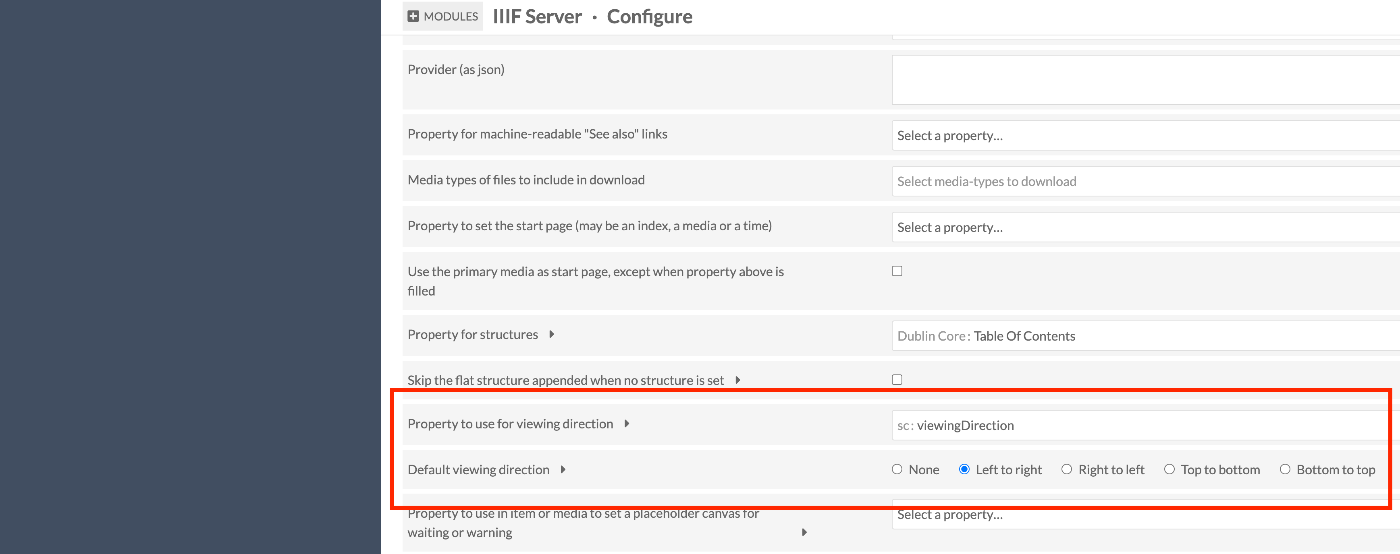
Overview Here is how to specify the viewing direction in the IIIF Server module for Omeka S. In IIIF, you can use the viewingDirection property to specify the viewing direction of manifests and canvases. Module Configuration /admin/module/configure?id=IiifServer In the IIIF Server module settings page, find the “viewing direction” section. You can specify a property with Property to use for viewing direction, and you can also set a default viewing direction. ...

Using IIIF Manifest Files Stored in mdx.jp Object Storage from NestJS

Using IIIF Manifest Files Stored in mdx.jp Object Storage from NestJS

Overview I had the opportunity to use IIIF manifest files stored in mdx.jp object storage from NestJS, so here are my notes. Background After a brief investigation into mdx.jp object storage, it appeared that CORS settings could not be configured, making it difficult to use IIIF manifest files uploaded to mdx.jp object storage directly from other viewers. https://tech.ldas.jp/en/posts/ad76f58db4e098/#Note (CORS permission) Therefore, we use NestJS to load the IIIF manifest files uploaded to object storage and return them. ...

Notes on LLM-Related Tools

Notes on LLM-Related Tools

Overview This is a memo on tools related to LLMs. LangChain https://www.langchain.com/ It is described as follows. LangChain is a composable framework to build with LLMs. LangGraph is the orchestration framework for controllable agentic workflows. LlamaIndex https://docs.llamaindex.ai/en/stable/ It is described as follows. LlamaIndex is a framework for building context-augmented generative AI applications with LLMs including agents and workflows. LangChain and LlamaIndex The response from gpt-4o was as follows. ...

Minor Modifications to openai-assistants-quickstart

Minor Modifications to openai-assistants-quickstart

Overview When building a chat interface using RAG (Retrieval-augmented generation) with OpenAI’s Assistants API, I used the following repository. https://github.com/openai/openai-assistants-quickstart A modification was needed regarding the handling of citation, so I am documenting it here as a memo. Background I used the above repository to try RAG with OpenAI’s Assistants API. With the default settings, citation markers like “4:13†” were displayed as-is, as shown below. Solution I modified annotateLastMessage as follows. By changing file_path to file_citation, the citation markers could be replaced. ...

Using NDL Classical Book OCR-Lite (ndlkotenocr-lite) on Mac OS

Using NDL Classical Book OCR-Lite (ndlkotenocr-lite) on Mac OS

Overview On November 26, 2024, NDL Lab released NDL Classical Book OCR-Lite. https://lab.ndl.go.jp/news/2024/2024-11-26/ This article introduces how to use it on Mac OS. Usage (Video) https://www.youtube.com/watch?v=NYv93sJ6WLU Usage (Text) Access the following. https://github.com/ndl-lab/ndlkotenocr-lite/releases/tag/1.0.0 Select the one containing “macos” from the list. Also select the one matching your chip. Clicking the link downloads “ndlkotenocr-lite_v1.0.0_macos_m1.tar.gz” as shown below. After extracting by double-clicking, the application “NDLkotenOCR-Lite” is extracted inside a macos folder. ...

Using processing_config in Archivematica Transfers

Using processing_config in Archivematica Transfers

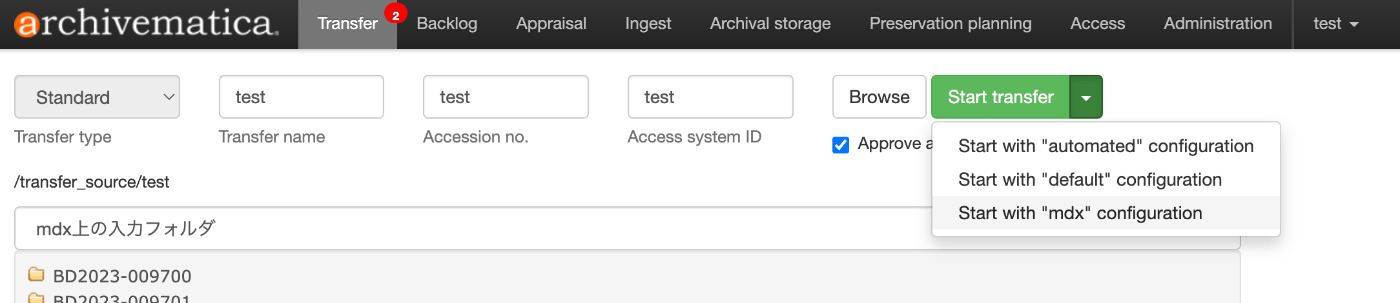
Overview This article explains how to use processing_config in Archivematica transfers. Background In Archivematica transfers, you can select a processing_config. The following shows that you can choose from three options: “automated,” “default,” and “mdx.” This can be configured in “Processing configuration” under the “Administration” menu. For example, the following is a configuration example designed for interacting with mdx.jp’s S3-compatible storage. By selecting the target storage for “Store AIP location” as shown below, when this processing configuration is selected, the AIP will be saved to that storage. ...

Connecting GakuNin RDM and figshare

Connecting GakuNin RDM and figshare

Overview I had the opportunity to connect GakuNin RDM and figshare, so this is a note for reference. Work on figshare Create a folder to be linked with GakuNin RDM. First, create a project. In the following example, a project called “My First Project” is created. It appeared that linking with GakuNin RDM could be done on a per-project basis. Configuration on GakuNin RDM Select the project created on the GakuNin RDM side (in this case, “My First Project”). ...

Using GakuNin RDM from Next.js

Using GakuNin RDM from Next.js

Overview This is a memo on using GakuNin RDM from Next.js. Background In the following article, I introduced how to authenticate with GakuNin RDM using NextAuth.js. As an extension of this, I prototyped a Next.js app that loads data from GakuNin RDM. Demo This is limited to those who can use GakuNin RDM authentication, but you can try it from the following link. https://rdm-app.vercel.app/ For example, below is a page for viewing the list of connected storage. ...

Uploading Files and More Using the GakuNin RDM API

Uploading Files and More Using the GakuNin RDM API

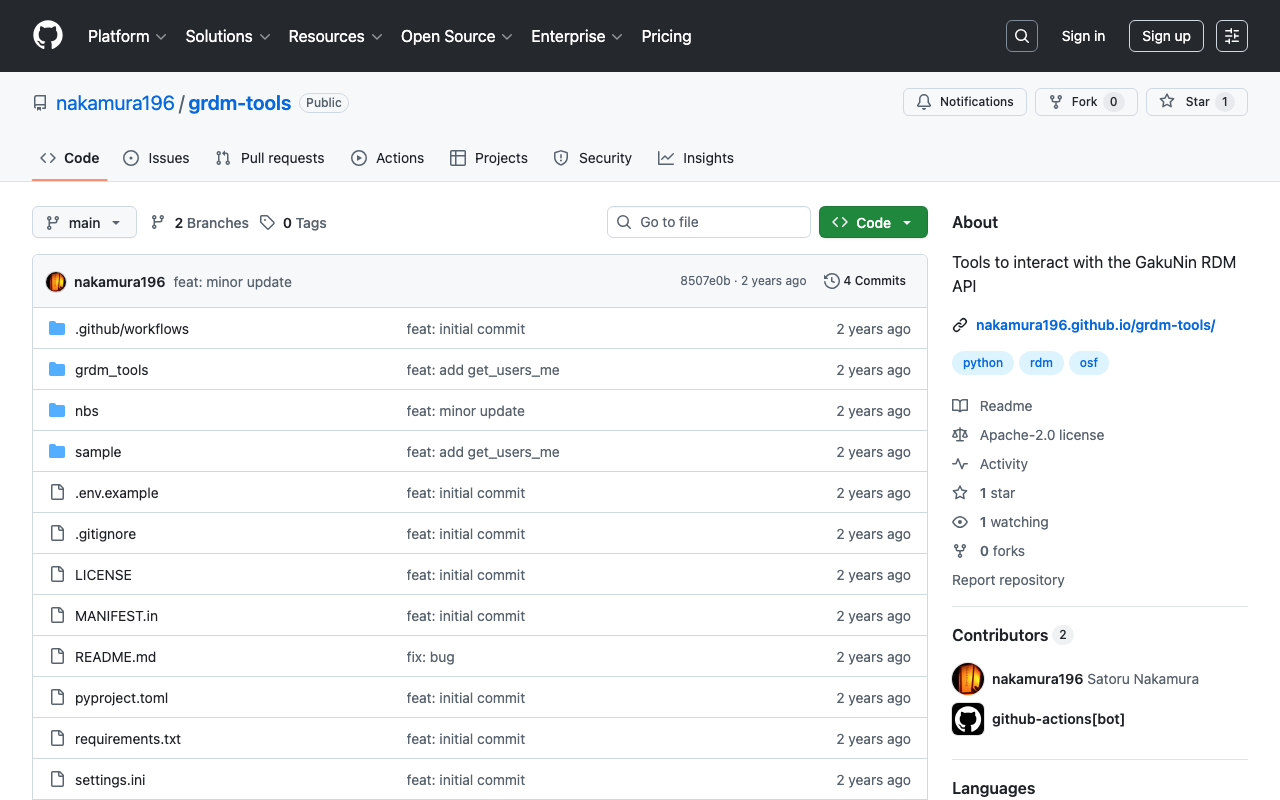
Background These are notes on how to upload files and perform other operations using the GakuNin RDM API. References The following article explains how to obtain a PAT (Personal Access Token). The following article introduces a method using OAuth (Open Authorization). If you are using it from a web application, this may be helpful. Method I created the following repository using nbdev. https://github.com/nakamura196/grdm-tools The documentation can be found here. ...

Authenticating with ORCID, The Open Science Framework, and GakuNin RDM Using NextAuth.js

Authenticating with ORCID, The Open Science Framework, and GakuNin RDM Using NextAuth.js

Overview This article describes how to perform authentication with ORCID, OSF (The Open Science Framework), and GRDM (GakuNin RDM) using NextAuth.js. Demo Apps ORCID https://orcid-app.vercel.app/ OSF https://osf-app.vercel.app/ GRDM https://rdm-app.vercel.app/ Repository ORCID https://github.com/nakamura196/orcid_app Below is an example of the options configuration. https://github.com/nakamura196/orcid_app/blob/main/src/app/api/auth/[…nextauth]/authOptions.js export const authOptions = { providers: [ { id: "orcid", name: "ORCID", type: "oauth", clientId: process.env.ORCID_CLIENT_ID, clientSecret: process.env.ORCID_CLIENT_SECRET, authorization: { url: "https://orcid.org/oauth/authorize", params: { scope: "/authenticate", response_type: "code", redirect_uri: process.env.NEXTAUTH_URL + "/api/auth/callback/orcid", }, }, token: "https://orcid.org/oauth/token", userinfo: { url: "https://pub.orcid.org/v3.0/[ORCID]", async request({ tokens }) { const res = await fetch(`https://pub.orcid.org/v3.0/${tokens.orcid}`, { headers: { Authorization: `Bearer ${tokens.access_token}`, Accept: "application/json", }, }); return await res.json(); }, }, profile(profile) { return { id: profile["orcid-identifier"].path, // Get ORCID ID name: profile.person?.name?.["given-names"]?.value + " " + profile.person?.name?.["family-name"]?.value, email: profile.person?.emails?.email?.[0]?.email, }; }, }, ], callbacks: { async session({ session, token }) { session.accessToken = token.accessToken; session.user.id = token.orcid; // Add ORCID ID to session return session; }, async jwt({ token, account }) { if (account) { token.accessToken = account.access_token; token.orcid = account.orcid; } return token; }, }, }; OSF https://github.com/nakamura196/osf-app ...

Using OldMaps Online

Using OldMaps Online

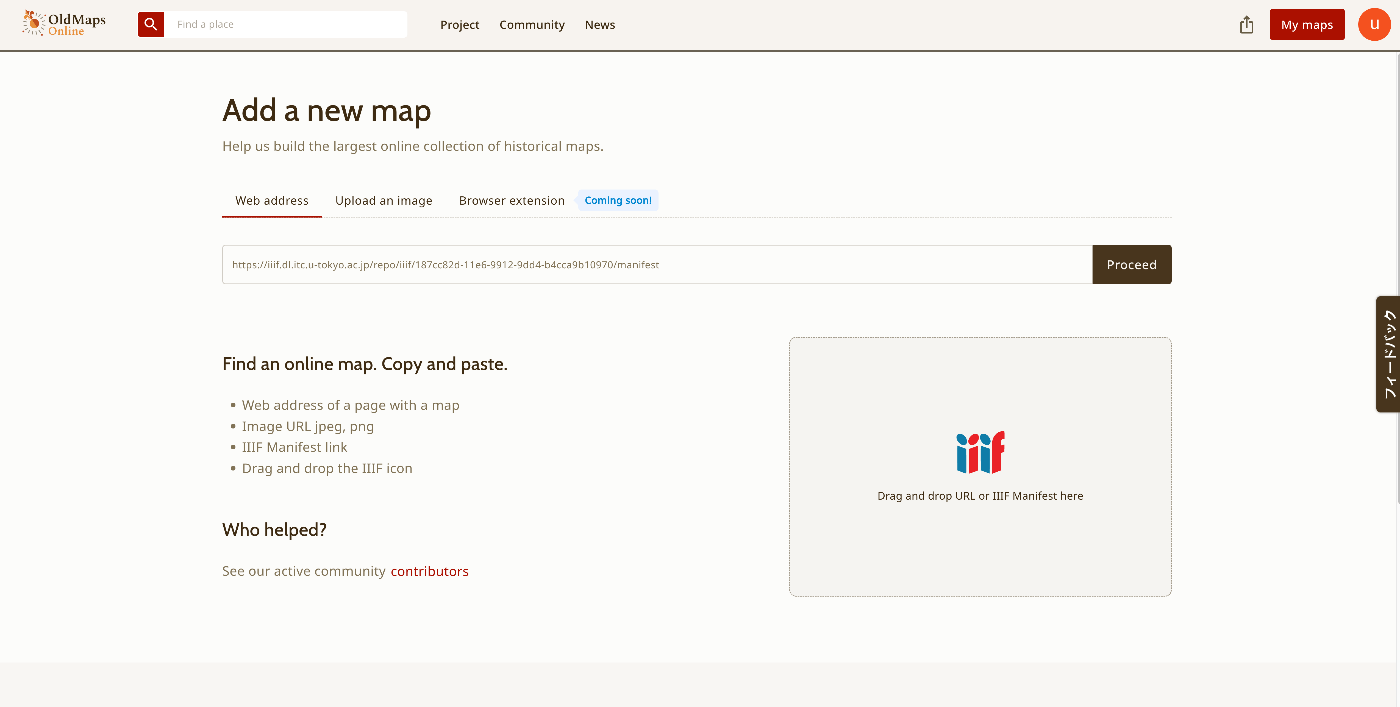
Overview I had the opportunity to use OldMaps Online, so this is a memo of my experience. https://www.oldmapsonline.org/ Registration Log in with a Google account or similar. With a free account, I was able to register one private image. For this example, I use the “Bird’s-eye View of the Main Campus and Faculty of Agriculture Buildings, Tokyo Imperial University” (Graduate School of Agricultural and Life Sciences / Faculty of Agriculture, The University of Tokyo). ...

Using Knight Lab's TimelineJS and StoryMapJS from Next.js

Using Knight Lab's TimelineJS and StoryMapJS from Next.js

Overview This is a memo on how to use Knight Lab’s TimelineJS and StoryMapJS from Next.js. Background Knight Lab’s TimelineJS and StoryMapJS are open source tools for digital storytelling. https://knightlab.northwestern.edu/ Data We use text data from “Shibusawa Eiichi Biographical Materials” published at the following location. https://github.com/shibusawa-dlab/lab1 Repository Published at the following location. https://github.com/nakamura196/shibusawa StoryMap By preparing a component like the following, it was possible to use it from Next.js. ...

Building a Character Detection Model Using YOLOv11x and the Japanese Classical Character Dataset

Building a Character Detection Model Using YOLOv11x and the Japanese Classical Character Dataset

Overview I had the opportunity to build a character detection model using YOLOv11x and the Japanese Classical Character (Kuzushiji) Dataset, so this is a memo of the process. http://codh.rois.ac.jp/char-shape/ References Previously, I performed a similar task using YOLOv5. You can check the demo and pre-trained models at the following Spaces. https://huggingface.co/spaces/nakamura196/yolov5-char Below is an example of application to publicly available images from the “National Treasure Kanazawa Bunko Documents Database.” ...

Training YOLOv11 Classification (Kuzushiji Recognition) Using mdx.jp

Training YOLOv11 Classification (Kuzushiji Recognition) Using mdx.jp

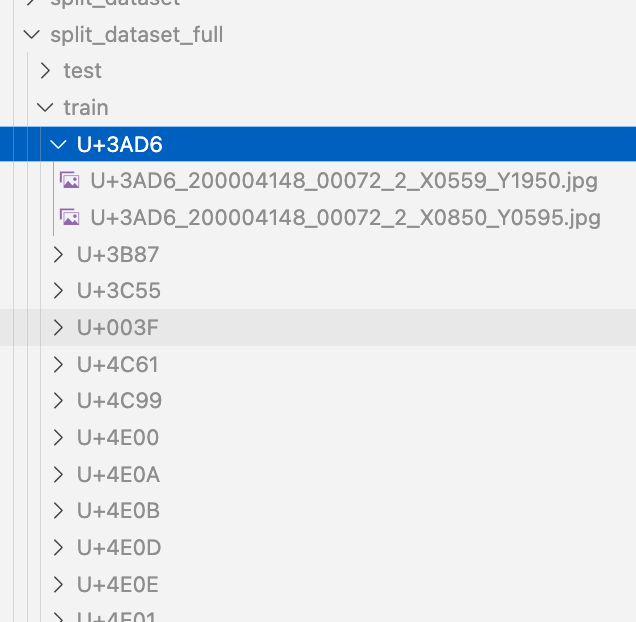
Overview We had the opportunity to train a YOLOv11 classification model (for kuzushiji/classical Japanese character recognition) using mdx.jp, so this article serves as a reference. Dataset We target the following “Kuzushiji Dataset”: http://codh.rois.ac.jp/char-shape/book/ Creating the Dataset We format the dataset to match the YOLO format. First, we merge the data, which is separated by book title, into a flat structure. #| export class Classification: def create_dataset(self, input_file_path, output_dir): # "../data/*/characters/*/*.jpg" files = glob(input_file_path) # output_dir = "../data/dataset" for file in tqdm(files): cls = file.split("/")[-2] output_file = f"{output_dir}/{cls}/{file.split('/')[-1]}" if os.path.exists(output_file): continue # print(f"Copying {file} to {output_file}") os.makedirs(f"{output_dir}/{cls}", exist_ok=True) shutil.copy(file, output_file) Next, we split the dataset using the following script: ...

Getting a List of Properties for a Specific Vocabulary in Omeka S

Getting a List of Properties for a Specific Vocabulary in Omeka S

Overview Here is how to get a list of properties for a specific vocabulary in Omeka S. Method We will target the following. https://uta.u-tokyo.ac.jp/uta/api/properties?vocabulary_id=5 The following program writes the property list to MS Excel. import pandas as pd import requests url = "https://uta.u-tokyo.ac.jp/uta/api/properties?vocabulary_id=5" page = 1 data_list = [] while 1: response = requests.get(url + "&page=" + str(page)) data = response.json() if len(data) == 0: break data_list.extend(data) page += 1 remove_keys = ["@context", "@id", "@type", "o:vocabulary", "o:id", "o:local_name"] for data in data_list: for key in remove_keys: if key in data: del data[key] # DataFrameに変換 df = pd.DataFrame(data_list) df.to_excel("archiveshub.xlsx", index=False) Result The following MS Excel file is obtained. ...

Linking to Other Items Using the Custom Vocab Module in Omeka S

Linking to Other Items Using the Custom Vocab Module in Omeka S

Overview I had an opportunity to link to other items using the Custom Vocab module in Omeka S, so here are my notes. Background The following article explained how to use custom vocabularies. This time, instead of strings or URIs, I will try linking items. Creating an Item Set First, create an item set to store the items to be linked. In this case, I created an item set called “Reuse Condition Display.” ...