Home Articles Books Search About
RSS 日本語
Registering Resource Classes with Bulk Import and Editing Settings

Registering Resource Classes with Bulk Import and Editing Settings

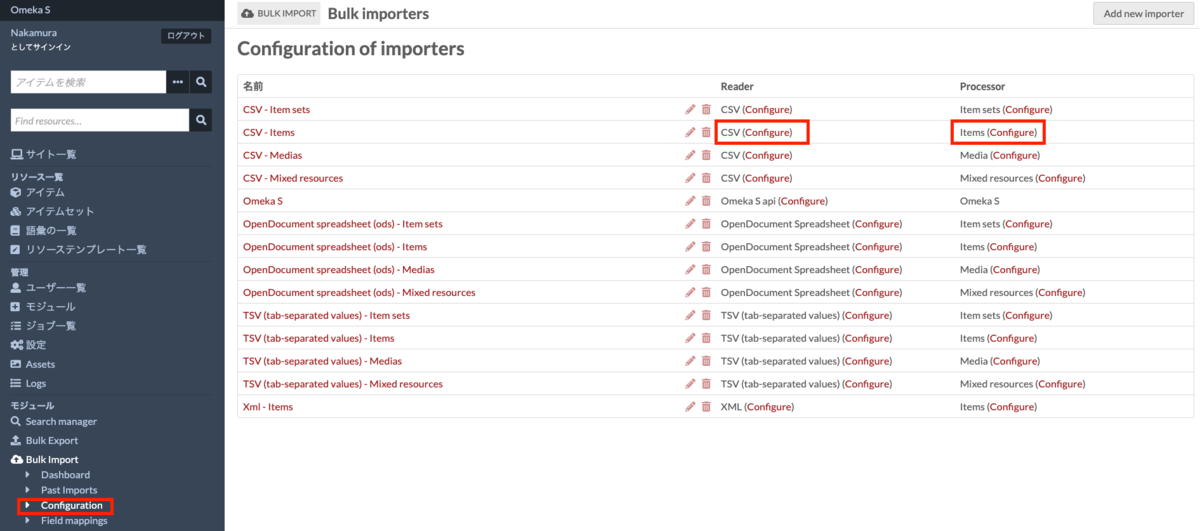
I have written the following articles about batch registration and updating using Bulk Import. nakamura196.hatenablog.com nakamura196.hatenablog.com Since the above articles did not cover how to register resource classes, I address this here. I also provide supplementary information on how to edit Bulk Import module settings. Registering Resource Classes I have prepared a sample CSV file for registering resource classes at the following link. https://github.com/omeka-j/Omeka-S-module-BulkImport-Sample-Data/blob/main/resource_class/sample.csv The key point is to set the column name to “o:resource_class.” The cell values should be the Term values that can be confirmed in Omeka S. For example, enter values such as dctype:Collection. ...
Created a Program for Batch Updating File Owners in Google Drive

Created a Program for Batch Updating File Owners in Google Drive

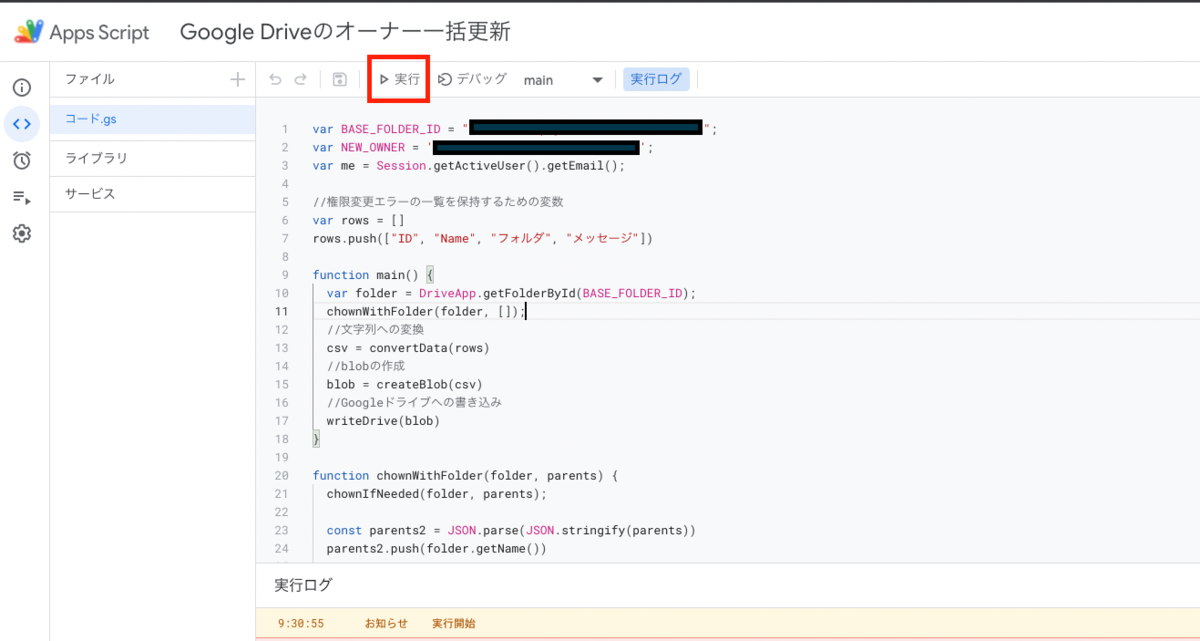
I created a program for batch updating file owners in Google Drive. Below, I explain the process separately for the person transferring ownership and the person receiving ownership. Please note that this program cannot transfer ownership of PDF or image files. The workaround for this is described later. Person Transferring Ownership Access the Google Apps Script at the following link and follow the instructions. https://script.google.com/d/1k6ZiwHNeJSvc4W7uRmc_DfSSmwGOWCbUriLBy0MpuoEAgWvcVNdyRMDa/edit?usp=sharing After navigating to the Apps Script page, press the “Run” button. ...

[Memo] Created a Program for Batch Deleting Folders on Google Drive

[Memo] Created a Program for Batch Deleting Folders on Google Drive

Background While working with a kuzushiji (classical Japanese character) dataset, a data processing error resulted in creating a large number of folders with Unicode names directly under My Drive. To address this issue, this article explains a program for batch deleting multiple folders on Google Drive. Note that this article primarily serves as a personal memo. Target Audience Those with knowledge of Google Cloud Platform Solution To solve this problem, we created a sample program for batch deleting folders on Google Drive. You can try it in the following Google Colaboratory notebook: ...

How to Install Omeka S Modules

How to Install Omeka S Modules

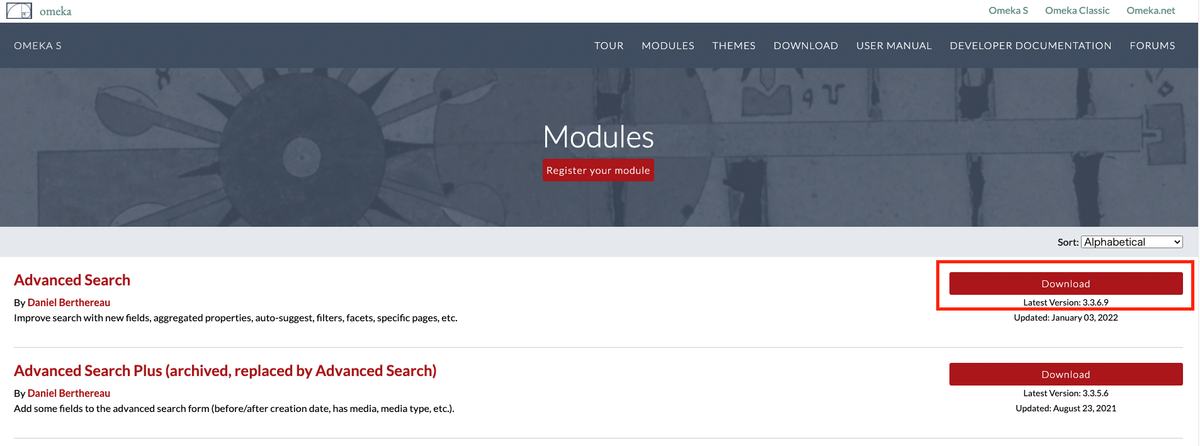
This article summarizes how to install Omeka S modules. A. From the Official Site First, you can download zip files from the official site below. https://omeka.org/s/modules/ Clicking the download button above will download a zip file. Extract the folder and place it in the modules folder within the Omeka S installation directory. This is the most basic method. An explanatory video is also available, so if this is your first time, please refer to the following video: ...

Batch Updating Metadata Using CSV Files with Bulk Import

Batch Updating Metadata Using CSV Files with Bulk Import

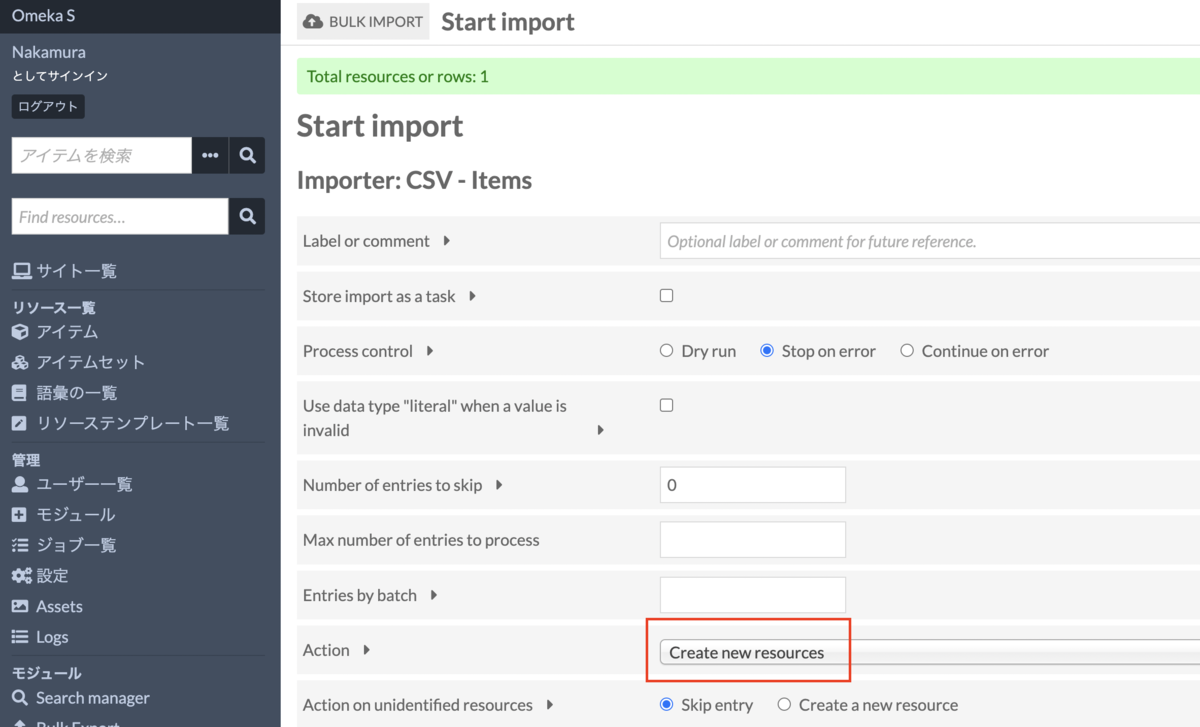
Introduction In the following article, I explained how to batch register metadata and images using CSV files with Bulk Import. nakamura196.hatenablog.com This article explains how to batch update already registered metadata. Procedure Bulk Import offers the following five options: Create new resources Append data to resources Revise data of resources Update data of resources Replace all data of resources Delete resources Below, we examine the behavior of each option. 1. Create new resources First, as with the batch registration method shared earlier, we use the “Create new resources” option. ...

Notes on Japanese Full-Text Search in Omeka S and the Mroonga Search Module

Notes on Japanese Full-Text Search in Omeka S and the Mroonga Search Module

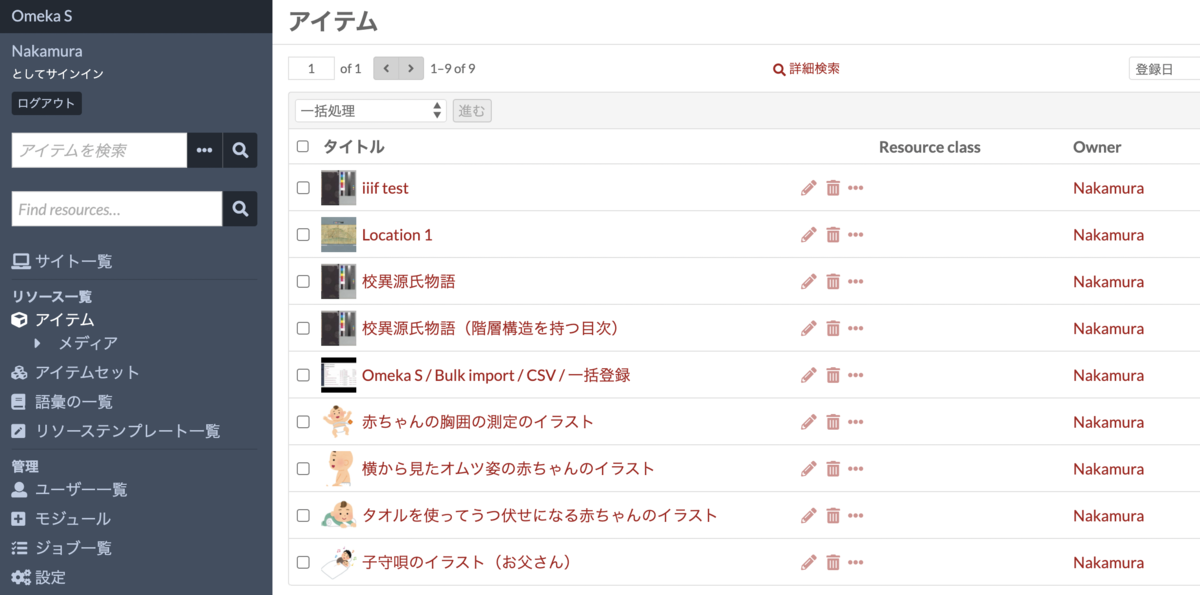
Issue Omeka S provides full-text search functionality, but unfortunately, Japanese search does not work properly with default settings. Specifically, partial match search does not function correctly. For example, assume that multiple items with titles containing the string “Koui” (校異) are registered, as shown below. When entering “校異” (Koui) in the full-text search form at the top left, the search returns 0 results. On the other hand, entering “校異源氏物語” (Koui Genji Monogatari) returns the correct search results. ...

Created a Sample Program for Analyzing TEI/XML Files with Python

Created a Sample Program for Analyzing TEI/XML Files with Python

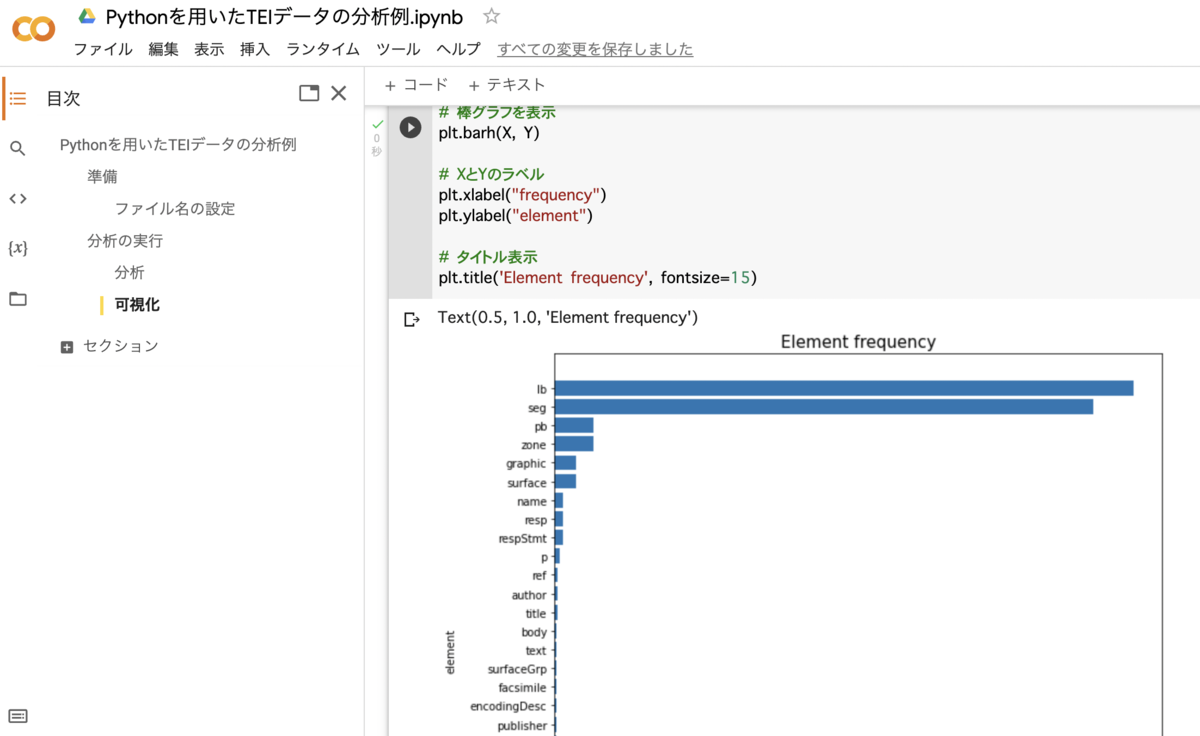
We created a sample program for analyzing TEI/XML files with Python. You can use it from the following Google Colab notebook: https://colab.research.google.com/drive/1fji80KZW8typjJMi01fyUWjrdYrNldsK We hope this serves as a useful reference for those considering the utilization of TEI data.

Created a Program for Batch Downloading Images from IIIF Manifest Files

Created a Program for Batch Downloading Images from IIIF Manifest Files

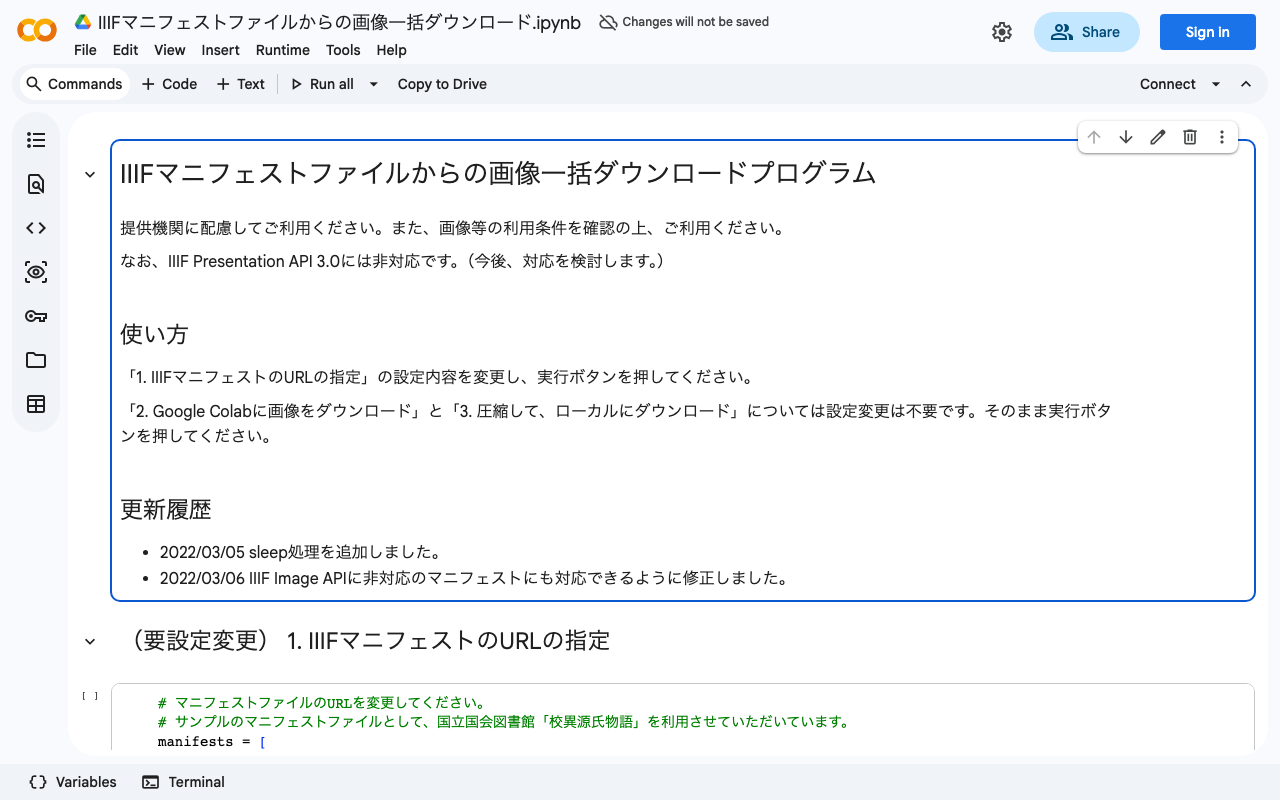
We created a program for batch downloading images from IIIF manifest files. You can use it from the following Google Colab notebook: https://colab.research.google.com/drive/1XL6cnY6fdtYTB5EdNA_B_EfqKHXZMDQJ?usp=sharing Please use it with consideration for the providing institutions. Also, please check the terms of use for the IIIF manifest before using it.

Omeka S IIIF Serverモジュールにおいて、外部のImage Serverを利用する方法

概要 本記事では、Omeka S IIIF Serverモジュールにおいて、外部のImage Serverを利用する方法について説明します。 以下、本記事で使用する用語の整理です。 IIIF Image API: https://iiif.io/api/image/3.0/ IIIF Presentation API: https://iiif.io/api/presentation/3.0/ (Omeka S)Image Server モジュール: https://omeka.org/s/modules/ImageServer/ (Omeka S)IIIF Server モジュール: https://omeka.org/s/modules/IiifServer/ 背景 Omeka SではImage Serverモジュールを用いてIIIF Image APIに対応したImage Server機能を持つことができます。 一方、Image ServerはIIPImage ServerやCantaloupeなどの専用サーバで対応しつつ、Omeka SではIIIF Presentation APIにのみ対応する(マニフェストファイルを自動生成する)ことができます。 このような構成を取ることにより、Omeka Sはレンタルサーバ上に構築し運用コストを軽減させる、といったことが可能となります。 ※ 冒頭で述べたImage Serverモジュールを利用することで、レンタルサーバ上で動作するOmeka SのみでImage Serverに対応することも可能です。ただしこの場合、レンタルサーバのスペック不足により、画像の返却に時間がかかってしまう場合があります。そのため、レンタルサーバ上でIIIFに対応したOmeka Sを構築する際は、この記事が対象とする構成のようにImage Serverを別途立てるか、以下の記事にあるように、IIIF ServerモジュールにおいてImage APIを使用しないオプションを設定することをお勧めします。(この場合、Image APIに非対応となり利便性が下がるデメリットはありますが、レンタルサーバのみでデジタルアーカイブシステムを運用することが可能となり、運用コストが軽減するメリットなどがあります。 ) nakamura196.hatenablog.com ※ なお、VPSやオンプレミス、クラウドなどのサーバ上でOmeka Sを運用する場合には、サーバのスペックが高いことが期待されるため、Omeka SのみでImage Serverの構築(Image Serverモジュールを導入し、IIIF Image APIへ対応する)と、IIIFマニフェストの自動生成(IIIF Serverモジュールを導入し、IIIF Presentation APIへ対応する)ことも有効かと思います。 前置きが長くなりましたが、以下で具体的な方法を説明します。 外部のImage Serverを利用する方法 外部のIIIF画像の利用は、Omeka Sの標準機能で対応することができます。以下のように、メディアの登録画面において、IIIF画像オプションを選択し、IIIF画像のURLを登録します。注意点として、info.json までを含むURLを使用してください。 以下は、国立国会図書館のIIIF画像を登録している例です。 上記のようにメディアを登録した上で、かつOmeka SにIIIF Serverモジュールがインストールされていれば、以下のように、Omeka SでIIIFマニフェストを自動生成しつつ、IIIF画像は外部機関(例:国立国会図書館)が提供してくださっているものを利用することができます。 https://diyhistory.org/nakamura196/iiif/879/manifest まとめ 外部のImage Serverを使用しつつ、Omeka SでIIIFマニフェストを配信する、といった構成を検討されている方の参考になりましたら幸いです。 ...

How to Use the Omeka S XML Viewer Module

How to Use the Omeka S XML Viewer Module

Note: Using this module requires some advanced procedures. If you are considering basic use of Omeka S, please be aware of this. Overview This article explains how to use the XML Viewer module, which enables the display of XML files in Omeka S. It can be used for purposes such as displaying XML files created with TEI. gitlab.com Installation As of March 4, 2022, this module is only published on GitLab and is not available on GitHub. ...

[Pinned Post] Welcome to the Digital Archive Systems Technical Blog

[Pinned Post] Welcome to the Digital Archive Systems Technical Blog

This is a blog about digital archive system technologies. In particular, we write articles about Omeka, IIIF, TEI, and related topics. Information about using Omeka is summarized in the following article: Summary of Articles on Omeka S Information about using Omeka.net (Classic) is summarized in the following article: Summary of Articles on Omeka.net (Classic) Articles in the “IIIF” category can be found here: IIIF Category Article List Articles in the “TEI” category can be found here: ...

How to Use the Omeka S Mirador Module

How to Use the Omeka S Mirador Module

Overview This article introduces a module that adds the Mirador viewer to Omeka S. The GitHub repository is available here: github.com Both Mirador 2 and 3 are supported. Various plugins can also be added from the settings screen. In this article, we introduce how to add the “Image tools” plugin, which enables image rotation and horizontal flipping. To use this module, you need to either give Omeka S IIIF server functionality or reference an external manifest file. We plan to cover how to set up the former in a separate article. ...

Summary of Articles About Omeka S

Summary of Articles About Omeka S

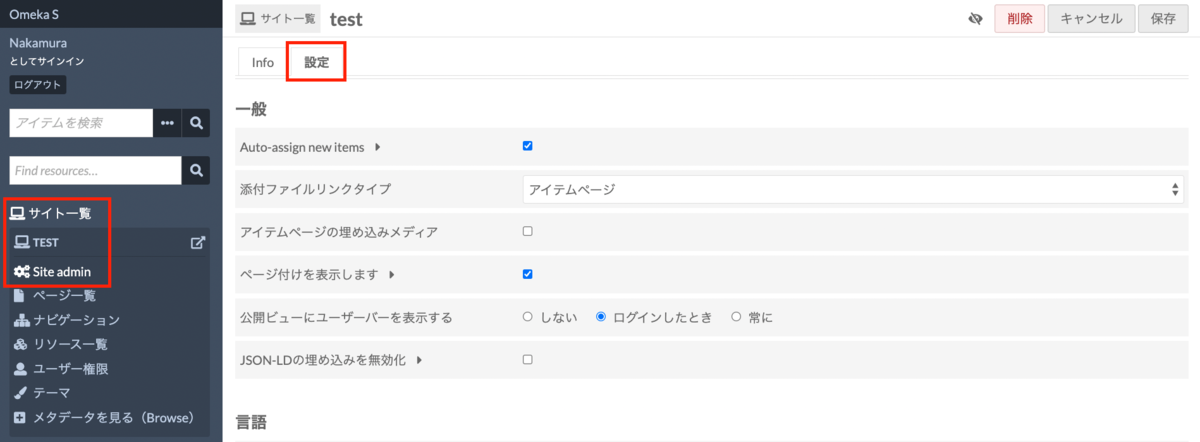
This is a summary of articles about Omeka S. (Updated periodically) Currently migrating to Zenn. For the latest articles, please check the following: zenn.dev For Users How to Install Omeka S and Add Modules Sites Auto-Adding New Items to Each Site Upon Registration Resources How to Add Existing Standard Vocabularies How to Set Language Attributes for Metadata Administration Modules How to Install Modules Identifiers How to Use Clean Url [Video] How to Use Clean Url Clean Url Module Bug and Temporary Fix Maps How to Use the Mapping Module IIIF-Related How to Set Up IIIF Server Using an External Image Server with the IIIF Server Module ...

How to Fix Errors with gdown

How to Fix Errors with gdown

When using gdown, a dedicated Google Drive downloader, the following error started occurring frequently: Access denied with the following error: Cannot retrieve the public link of the file. You may need to change the permission to ‘Anyone with the link’, or have had many accesses. You may still be able to access the file from the browser: As a workaround, reinstalling gdown as follows resolved the error: !pip install -U –no-cache-dir gdown –pre ...

Created a Program to Generate TEI facsimile Elements from IIIF Manifest Files

Created a Program to Generate TEI facsimile Elements from IIIF Manifest Files

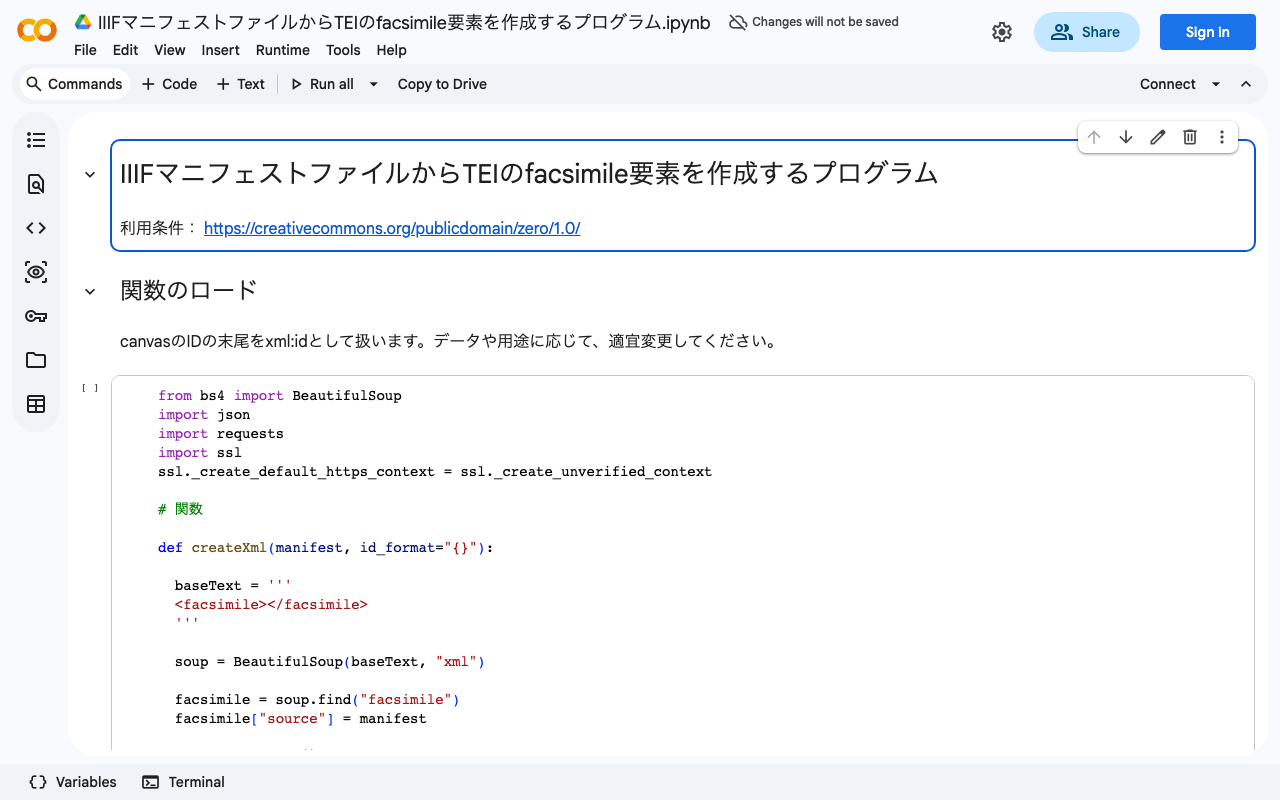
We created a program to generate TEI facsimile elements from IIIF manifest files. You can try it in the following Google Colaboratory notebook: colab.research.google.com We hope this serves as a useful reference for those considering integration between IIIF and TEI.

Flaskを用いてyolo5モデルを公開するリポジトリの紹介とカスタムモデルのロード方法

Flaskを用いてyolo5モデルを公開するリポジトリ Flaskを用いてyolo5モデルを公開するにあたり、以下のリポジトリが参考になりました。 github.com 画像のアップロードフォームを含むシンプルなWebアプリと、RestAPIのサンプルなどが提供されています。 カスタムモデルのロード load関数の引数を以下のように変更することで、独自に学習したモデルなどをローカルからロードすることができました。 model = torch.hub.load("ultralytics/yolov5", "custom", path='model/best.pt', force_reload=True, autoshape=True) https://github.com/robmarkcole/yolov5-flask/blob/f1ee21bc3b14cdf1a1ea3bc95111a8db31172216/webapp.py#L47-L49 pathの値は、適宜変更してください。force_reloadやautoshareはオプションで、私の環境では未指定でも動作しました。 以上、参考になりましたら幸いです。

Omeka S IIIF Serverモジュール使用時におけるcors policyの設定について

Omeka SのIIIF Serverモジュールで生成したIIIFマニフェストについて、Image Serverを使用しない設定(後述)を行った際、以下の図に示すように、cors policyによって画像の読み込みエラーが生じるケースが見られました。以下のようなメッセージは、各ブラウザの開発者ツールから確認できます。 このような不具合は、以下の図に示すように、IIIF Serverモジュールの設定において「Default IIIF image api version」を「No image server」に設定している場合に生じる可能性があります。 対処方法として、「(Omeka Sのインストールディレクトリ)/files」の直下に、以下の内容を書き込んだ「.htaccess」という名前のファイルを設置することで解決することができます。 Header set Access-Control-Allow-Origin “*” 同様の不具合でお困りの方の参考になれば幸いです。

How to Get an Element with a Specific xml:id Value Using JavaScript querySelector()

How to Get an Element with a Specific xml:id Value Using JavaScript querySelector()

This is a memo on how to get an element with a specific xml:id value using JavaScript’s querySelector(). Specifically, for a variable called myDoc, you can retrieve the element as follows. This example gets the element with the value abc in its xml:id attribute. myDoc.querySelector("[*|id=‘abc’]") The key point is to specify it in the format *|(pipe)id. When working with TEI/XML files in JavaScript, there are cases where you need to retrieve elements using xml:id attribute values. Unlike other attributes such as type or corresp, the xml:id attribute has the prefix “xml:” in its attribute name. Therefore, you need to use the approach described above. ...

[Omeka S Development] Created a Program to Generate CSV Files for Registering Dummy Data in Omeka S

[Omeka S Development] Created a Program to Generate CSV Files for Registering Dummy Data in Omeka S

We created a program to generate CSV files for registering dummy data in Omeka S. You can use it from the following Google Colab notebook: https://colab.research.google.com/drive/1Wy865vh9GpUPyiudu1L2A6RPAPXkGPmO?usp=sharing After running it, a CSV file will be downloaded. By using this CSV file with the CSV Import module or the Bulk Import module, you can register dummy data like the following: We hope this is helpful for testing Omeka S functionality or during theme and module development. ...

[Omeka S Module Introduction] How to Use the Mapping Module (Especially Batch Registration via the CSV Import Module)

[Omeka S Module Introduction] How to Use the Mapping Module (Especially Batch Registration via the CSV Import Module)

Overview This article explains how to use the Mapping module, which adds maps to Omeka S, with a particular focus on batch registration using the CSV Import module. Omeka S - Mapping Module Installation First, install the Mapping module. Also, for batch data registration, install the CSV Import module. https://omeka.org/s/modules/CSVImport/ If the Bulk Import module is already installed, you need to disable it. Alternatively, consider applying a patch as described at the following link. ...