Home Articles Books Search About
RSS 日本語
Aggregations with Different Keys and Values (Labels and IDs) in Elasticsearch

Aggregations with Different Keys and Values (Labels and IDs) in Elasticsearch

Overview I am currently working on updating the search application for the Cultural Japan project, and I needed to perform aggregation on multilingual data. This article is a memo of the investigation results regarding the methods. Data For the data, we assume a case where the agential (indicating a person) field has values for id, ja, and en. { "agential": [ { "ja": "葛飾北斎", "en": "Katsushika, Hokusai", "id": "chname:葛飾北斎" } ] } For the above data, we want to perform filtering by id while displaying the ja or en value according to the language setting. ...
Created a Video on How to Use the NDLOCR App with Google Colab

Created a Video on How to Use the NDLOCR App with Google Colab

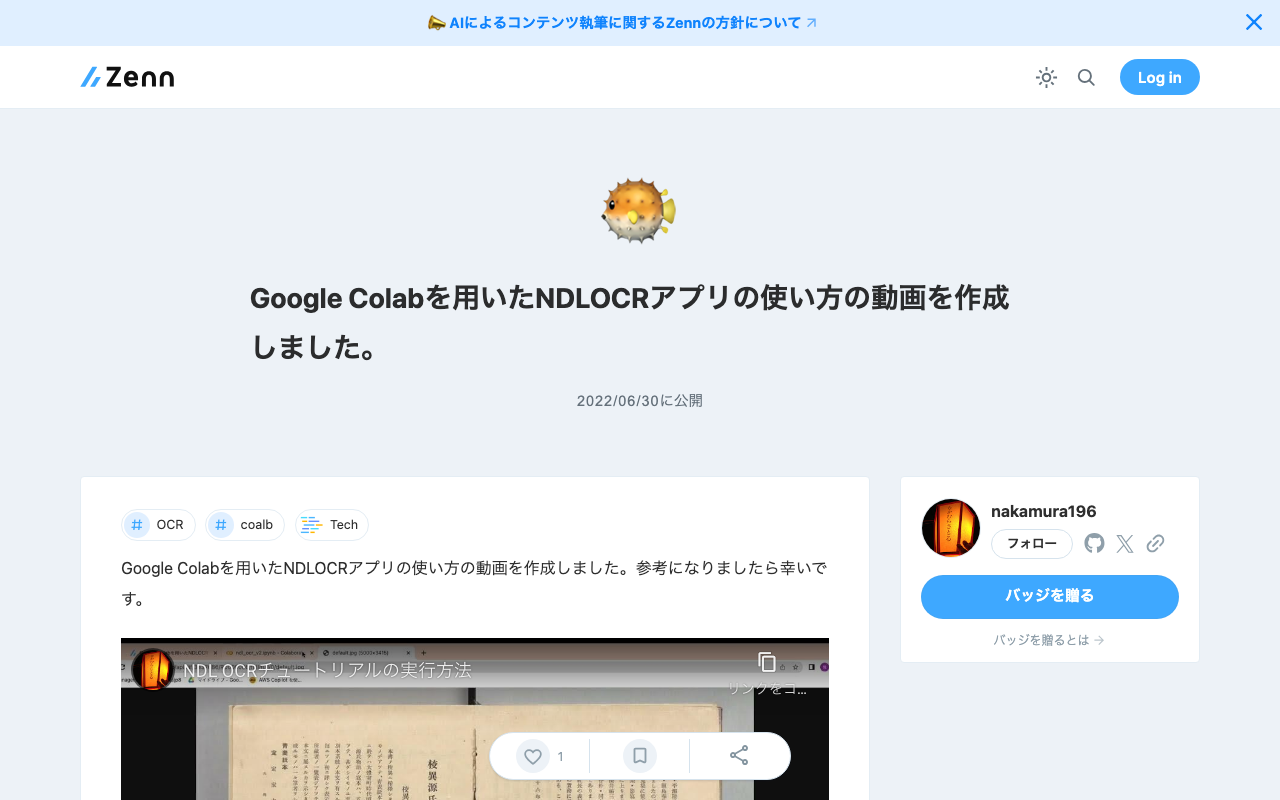
I created a video on how to use the NDLOCR app with Google Colab. I hope it serves as a useful reference. https://youtu.be/46p7ZZSul0o The blog used in the video is the following. Note that the “Initial Setup” portion has been trimmed in the video. In reality, it takes about 3-5 minutes, so please be aware.

Scheduled Backup of Omeka S Data Using AWS Copilot

Scheduled Backup of Omeka S Data Using AWS Copilot

Overview I previously created a program to download Omeka S data. This time, I use AWS Copilot to run the above program on a scheduled basis. Installing AWS Copilot Please refer to the following. https://docs.aws.amazon.com/ja_jp/AmazonECS/latest/developerguide/AWS_Copilot.html Preparing Files Create three files in any location: Dockerfile, main.sh, and .env. Dockerfile FROM python:3 COPY *.sh . CMD sh main.sh main.sh set -e export output_dir=../docs # Program to download data from Omeka S export repo_tool=https://github.com/nakamura196/omekas_backup.git dir_tool=tool dir_dataset=dataset # If folder exists if [ -d $dir_tool ]; then rm -rf $dir_tool rm -rf $dir_dataset fi # clone git clone --depth 1 $repo_tool $dir_tool git clone --depth 1 $repo_dataset $dir_dataset # requirements.txt cd $dir_tool pip install --upgrade pip pip install -r requirements.txt # Execute cd src sh main.sh # copy odir=../../$dir_dataset/$subdir mkdir -p $odir cd $odir cp -r ../../$dir_tool/data . cp -r ../../$dir_tool/docs . # git git status git add . git config user.email "$email" git config user.name "$name" git commit -m "update" git push # Cleanup cd ../../ rm -rf $dir_tool rm -rf $dir_dataset .env api_url=https://dev.omeka.org/omeka-s-sandbox/api github_url=https://<personal-access-token>@github.com/<username>/<repository-name>.git username=nakamura email=nakamura@example.org dirname=dev The following is an explanation of the parameters. ...

How to Add the mirador-image-tools Plugin to Mirador 3 and Bundle It into a Single JS File for Distribution

How to Add the mirador-image-tools Plugin to Mirador 3 and Bundle It into a Single JS File for Distribution

Overview As the title suggests, this article describes how to add plugins such as mirador-image-tools to Mirador 3 and bundle them into a single JS file for distribution. Due to my limited knowledge of JavaScript, there may be some inaccuracies. I would appreciate it if you could point out any mistakes. Goal The goal is to create an application like the one at the following URL by writing an HTML file as shown below. It uses Mirador 3 with the mirador-image-tools plugin enabled. ...

File Upload (Python) and Download (PHP)

File Upload (Python) and Download (PHP)

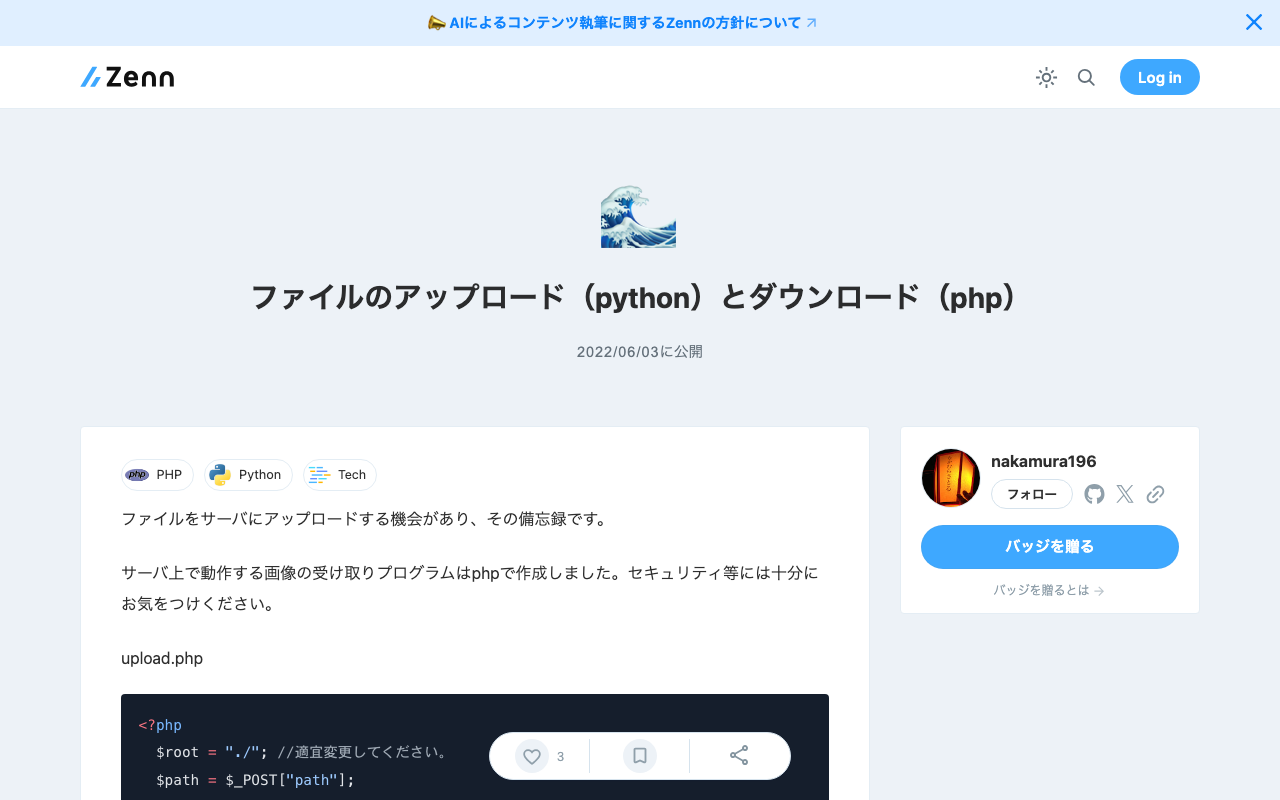
I had an opportunity to upload files to a server, so this is a memo of the process. The image receiving program running on the server was created in PHP. Please be careful about security. upload.php <?php $root = "./"; // Change as appropriate. $path = $_POST["path"]; $dirname = dirname($path); if (!file_exists($dirname)) { mkdir($dirname, 0755, true); } move_uploaded_file($_FILES['media']['tmp_name'], $root.$path); ?> The program to upload files via POST was created in Python. It posts the local image file and the output destination path. ...

Creating Microsoft Word Files with python-docx: Using Templates and int2kanji

Creating Microsoft Word Files with python-docx: Using Templates and int2kanji

Overview I had the opportunity to convert information managed in a tabular format into a vertical-writing Microsoft Word format, so here are my notes. Before conversion: Research Project Title Project Number Direct Costs Development of Digital Archive System Construction Methods Considering Sustainability and Reusability 21K18014 2600000 After conversion: The implementation uses a specified template and the “Kanjize” library for mutual conversion between numbers and kanji numerals. Creating Microsoft Word Files with python-docx First, create a Microsoft Word template file like the following. While using the specified layout, place {<variable_name>} in the parts where values should be changed. ...

Sample Notebook for Fetching Google Spreadsheet Data from Google Colab

Sample Notebook for Fetching Google Spreadsheet Data from Google Colab

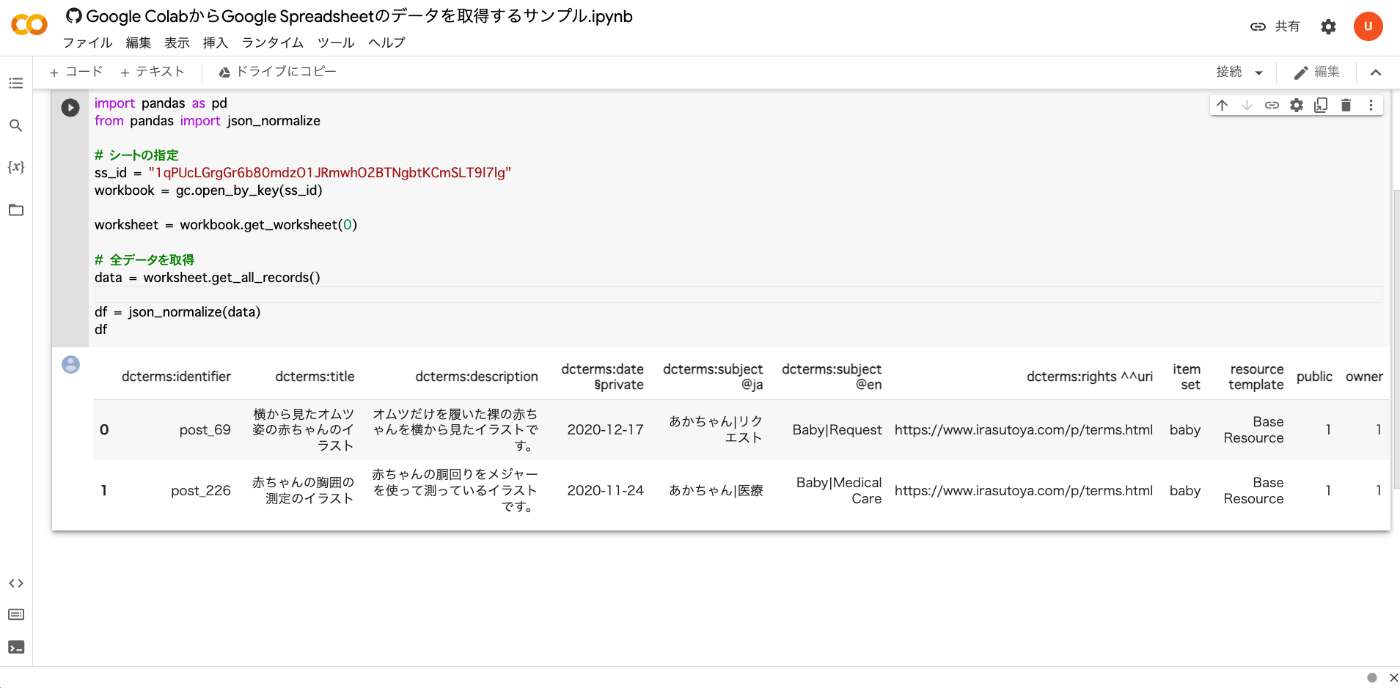
I created a sample notebook for fetching Google Spreadsheet data from Google Colab. You can try it from the following link. https://colab.research.google.com/github/nakamura196/ndl_ocr/blob/main/Google_ColabからGoogle_Spreadsheetのデータを取得するサンプル.ipynb As shown below, you can retrieve the contents of a Google Spreadsheet. Below is the source code. from google.colab import auth auth.authenticate_user() import gspread from google.auth import default creds, _ = default() gc = gspread.authorize(creds) import pandas as pd from pandas import json_normalize # Specify the sheet ss_id = "<Google Spreadsheet ID>" workbook = gc.open_by_key(ss_id) worksheet = workbook.get_worksheet(0) # Fetch all data data = worksheet.get_all_records() df = json_normalize(data) df I hope this serves as a useful reference. ...

Memo: Specifying a Profile When Running sam deploy

Memo: Specifying a Profile When Running sam deploy

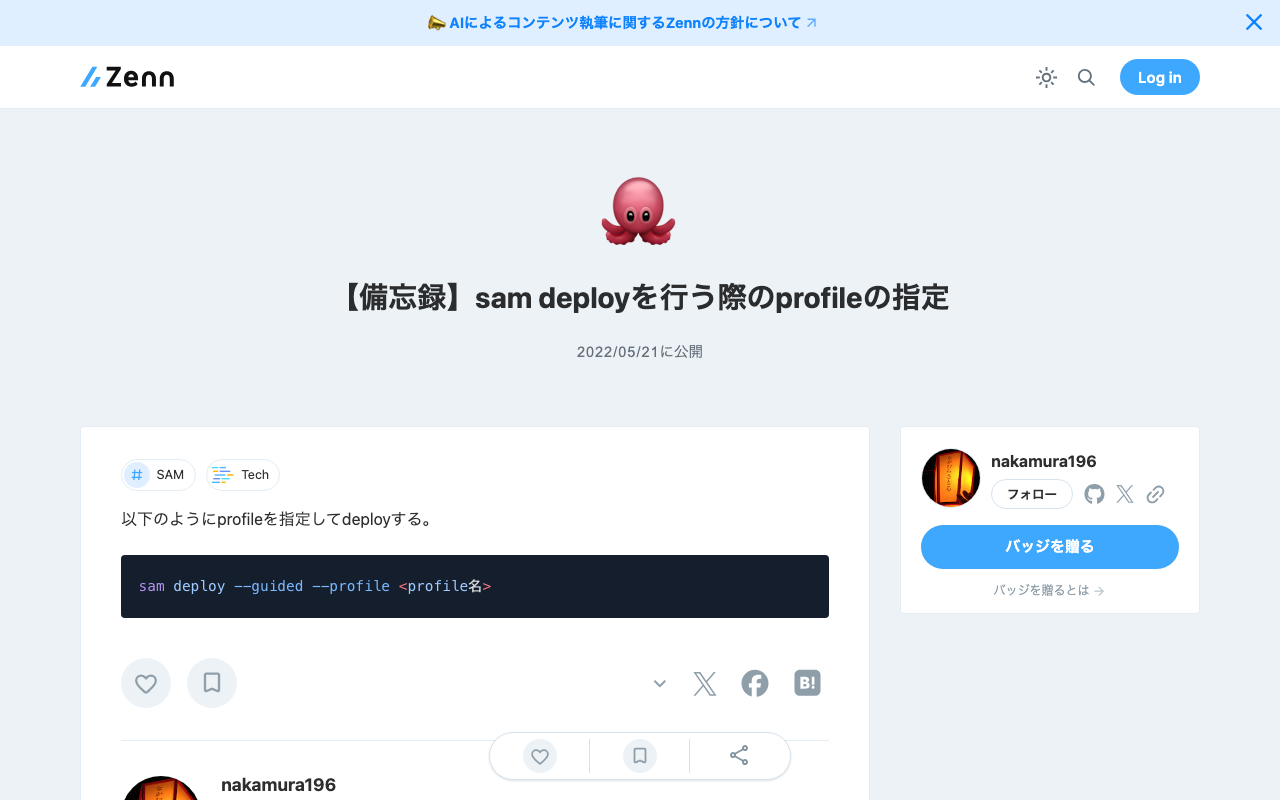
Specify a profile when deploying as follows. sam deploy --guided --profile <profile-name>

Resolving "Error building docker image" During Local Development with AWS SAM

Resolving "Error building docker image" During Local Development with AWS SAM

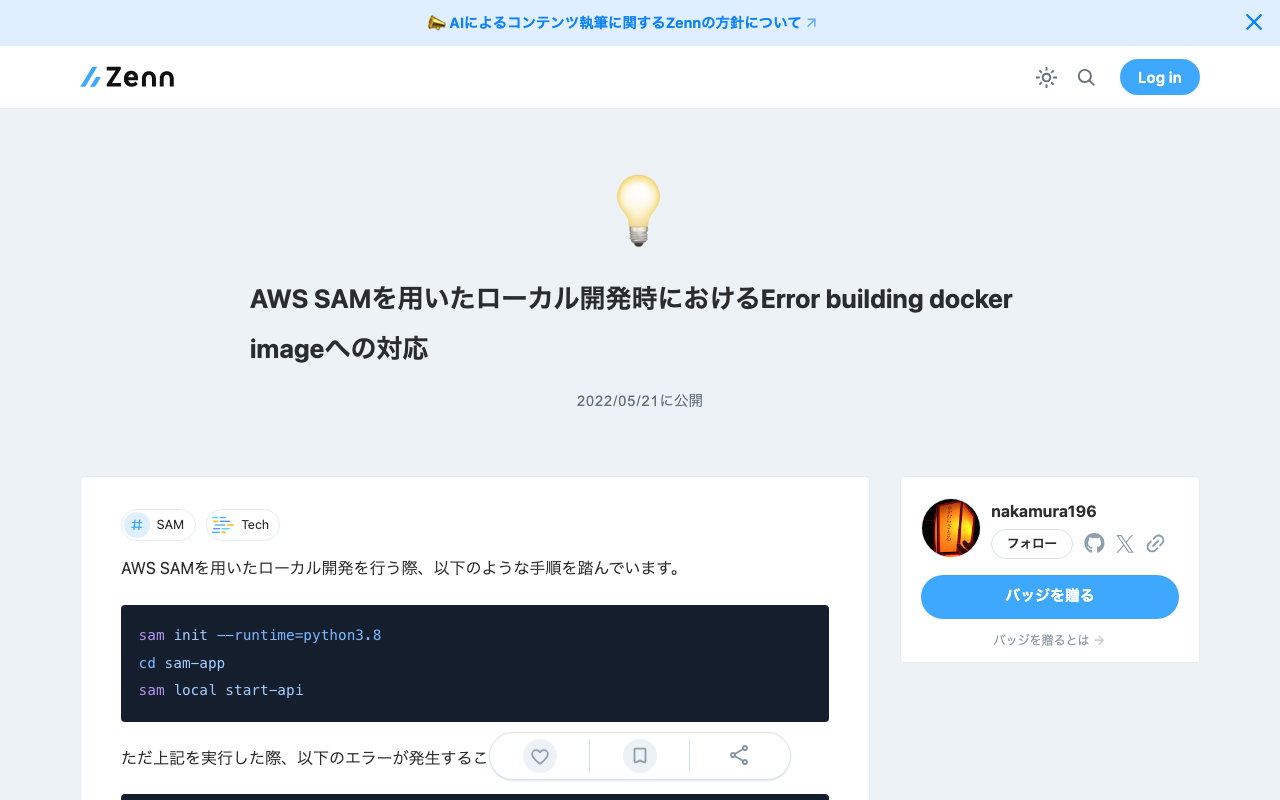
When doing local development with AWS SAM, I follow these steps: sam init --runtime=python3.8 cd sam-app sam local start-api However, when running the above, the following error sometimes occurred: samcli.commands.local.cli_common.user_exceptions.ImageBuildException: Error building docker image: pull access denied for public.ecr.aws/sam/emulation-python3.8, repository does not exist or may require 'docker login': denied: Your authorization token has expired. Reauthenticate and try again. Running the following command resolved the error. The region may need to be adjusted for your environment: ...

Simple Backup of Omeka S Using gdrive

Simple Backup of Omeka S Using gdrive

Overview This is a memo on how to perform simple backups of Omeka S using gdrive. As an example, we target Omeka S installed on a LAMP environment launched on Amazon Lightsail. Please refer to the following for installation instructions. Installing gdrive This time, we will back up files to Google Drive. For this purpose, we use gdrive. Please install gdrive by referring to the following article. Prepare a Backup Script In the $HOME directory, create a file such as backup.sh. An example of the file contents is as follows. ...

Using gdrive in a LAMP environment started with Amazon Lightsail

Using gdrive in a LAMP environment started with Amazon Lightsail

Overview Memorandum for using gdrive in a LAMP environment started with Amazon Lightsail, allowing backup of files to Google Drive, etc. Procedure First, access Amazon Lightsail and press the following “Connect using SSH” button on the target instance. You can access the server as follows. Linux ip-172-26-5-202 4.19.0-19-cloud-amd64 #1 SMP Debian 4.19.232-1 (2022-03-07) x86_64 The programs included with the Debian GNU/Linux system are free software; The programs included with the Debian GNU/Linux system are free software; the exact distribution terms for each program are described in the The programs included with the Debian GNU/Linux system are free software; the exact distribution terms for each program are described in the /usr/share/doc/*/copyright. The programs included with the Debian GNU/Linux system are free software; the exact distribution terms for each program are described in the individual files in /usr/share/doc/*/copyright. Debian GNU/Linux comes with ABSOLUTELY NO WARRANTY, to the extent permitted by applicable law. ___ _ _ _ _ _ | _ _ |_) |_ _ _ _ _ _ _ _ _ _ _ __ (_) | _ _ \ \ \}/ _| ' \}/ _` | ' \} |___/_|\__|_|_|\__,_|_|_|_|_|_| *** Welcome to the LAMP packaged by Bitnami 7.4.28-14 *** *** Documentation: https://docs.bitnami.com/aws/infrastructure/lamp/ *** *** https://docs.bitnami.com/aws/ *** *** Bitnami Forums: https://community.bitnami.com/ *** Last login: Thu May 12 03:25:13 2022 from 72.21.217.186 bitnami@ip-172-26-5-202:~$ Install golang Install golang as follows. ...

Using gdrive in a LAMP Environment on Amazon Lightsail

Using gdrive in a LAMP Environment on Amazon Lightsail

Overview This is a memo for using gdrive in a LAMP environment launched on Amazon Lightsail. This enables file backups to Google Drive, among other things. Steps First, access Amazon Lightsail and press the “Connect using SSH” button on the target instance. You can access the server as shown below. Linux ip-172-26-5-202 4.19.0-19-cloud-amd64 #1 SMP Debian 4.19.232-1 (2022-03-07) x86_64 The programs included with the Debian GNU/Linux system are free software; the exact distribution terms for each program are described in the individual files in /usr/share/doc/*/copyright. Debian GNU/Linux comes with ABSOLUTELY NO WARRANTY, to the extent permitted by applicable law. ___ _ _ _ | _ |_) |_ _ _ __ _ _ __ (_) | _ \ | _| ' \/ _` | ' \| | |___/_|\__|_|_|\__,_|_|_|_|_| *** Welcome to the LAMP packaged by Bitnami 7.4.28-14 *** *** Documentation: https://docs.bitnami.com/aws/infrastructure/lamp/ *** *** https://docs.bitnami.com/aws/ *** *** Bitnami Forums: https://community.bitnami.com/ *** Last login: Thu May 12 03:25:13 2022 from 72.21.217.186 bitnami@ip-172-26-5-202:~$ Installing golang Install golang as follows. ...

What to do when

What to do when

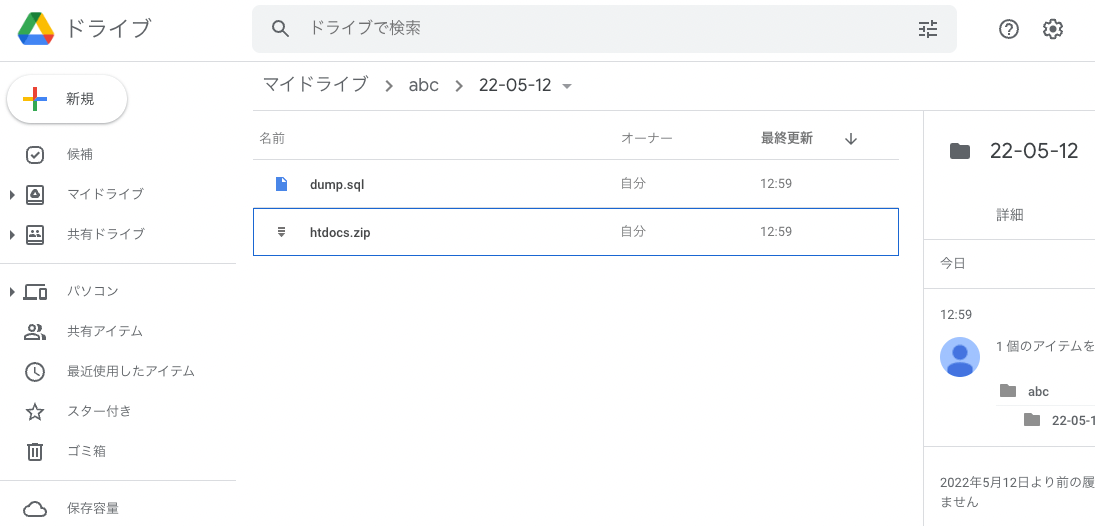
Overview When creating a large number of files on a shared drive, I encountered an error message “An error has occurred in Google Drive. and the file could not be saved. The cause of the above may be that the file was caught by the shared drive limitation shown below. https://support.google.com/a/answer/7338880?hl=en *The maximum number of items that can be stored on a shared drive The maximum number of items that can be stored on a shared drive is 400,000. This includes files, folders, and shortcuts. * ...

How to Fix "An error occurred in Google Drive": Script to Empty Shared Drive Trash

How to Fix "An error occurred in Google Drive": Script to Empty Shared Drive Trash

Overview When creating a large number of files in a shared drive, I encountered a situation where “An error occurred in Google Drive” was displayed and files could no longer be saved. The likely cause was hitting the following shared drive limitations. https://support.google.com/a/answer/7338880?hl=ja Maximum number of items in a shared drive A shared drive can contain a maximum of 400,000 items. This includes files, folders, and shortcuts. Daily upload limit Individual users can upload up to 750 GB per day to My Drive and all shared drives. ...

Running gcv2hocr on Google Colab: Creating Searchable PDFs with Transparent Text Using Google Vision API

Running gcv2hocr on Google Colab: Creating Searchable PDFs with Transparent Text Using Google Vision API

Overview gcv2hocr is a repository that converts Google Cloud Vision OCR output to hOCR format and creates searchable PDFs. https://github.com/dinosauria123/gcv2hocr I created a notebook to run the above repository on Google Colab. https://colab.research.google.com/github/nakamura196/ndl_ocr/blob/main/gcv2hocrの実行サンプル.ipynb As shown below, you can create searchable PDF files. How to Use Access the following notebook. https://colab.research.google.com/github/nakamura196/ndl_ocr/blob/main/gcv2hocrの実行サンプル.ipynb First, obtain an API key to use the Google Cloud Vision API. The following article may be helpful. https://zenn.dev/tmitsuoka0423/articles/get-gcp-api-key ...

How to Delete Files on Google Drive Using Google Colab

How to Delete Files on Google Drive Using Google Colab

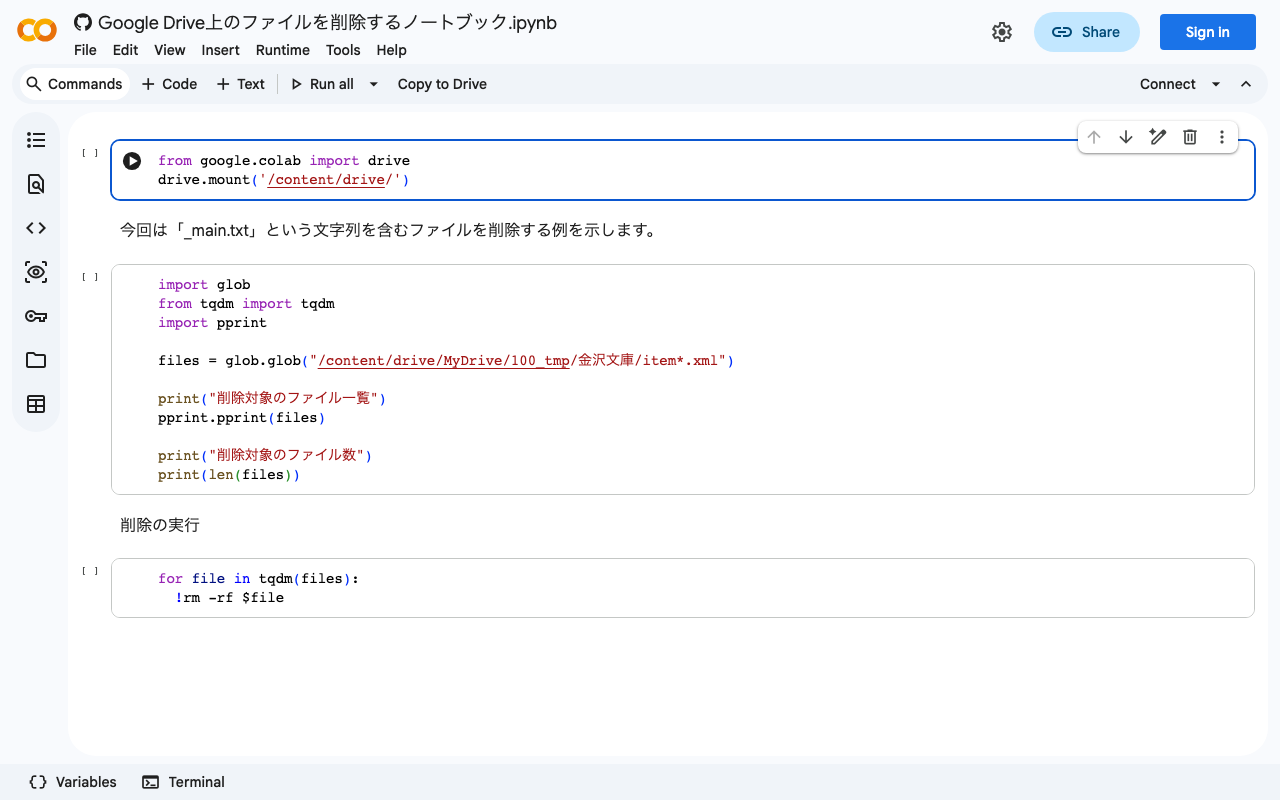
I created a notebook that demonstrates how to delete files on Google Drive using Google Colab. I hope this is useful when you have accidentally created a large number of unnecessary files on Google Drive. https://colab.research.google.com/github/nakamura196/ndl_ocr/blob/main/Google_Drive上のファイルを削除するノートブック.ipynb

Created Version 2 of the NDLOCR App Using Google Colab

Created Version 2 of the NDLOCR App Using Google Colab

Announcements Notebook URL https://colab.research.google.com/github/nakamura196/ndl_ocr/blob/main/ndl_ocr_v2.ipynb 2022-07-06 A demo video showing how to use it has been created. https://youtu.be/46p7ZZSul0o Additionally, a ruby (furigana) text conversion feature has been added. Overview I created an NDLOCR app using Google Colab and introduced it in the following article. This time, I created Version 2, an improved version of the above notebook. You can access the notebook from the following link. https://colab.research.google.com/github/nakamura196/ndl_ocr/blob/main/ndl_ocr_v2.ipynb Features Support for multiple input formats has been added. The following options are available: ...

Updating the NDLOCR App Using Google Colab: Adding Single Input Dir Mode

Updating the NDLOCR App Using Google Colab: Adding Single Input Dir Mode

Overview I recently created the following article and notebook. At the time of writing the above article, only the following input format was supported. Image file mode (specified with -s f) (Use this when providing a single image file as input) However, through verification in the following article, it became clear that applying the above option to multiple images incurs significant overhead. Therefore, I modified the notebook to also support the following input format. ...

Execution Time for NDLOCR Using Google Colab

Execution Time for NDLOCR Using Google Colab

I recently wrote the following article: This time, I conducted a brief investigation on the execution time of NDLOCR using Google Colab, and here are the results. Configuration The GPU used was: Fri Apr 29 06:26:29 2022 +-----------------------------------------------------------------------------+ | NVIDIA-SMI 460.32.03 Driver Version: 460.32.03 CUDA Version: 11.2 | |-------------------------------+----------------------+----------------------+ | GPU Name Persistence-M| Bus-Id Disp.A | Volatile Uncorr. ECC | | Fan Temp Perf Pwr:Usage/Cap| Memory-Usage | GPU-Util Compute M. | | | | MIG M. | |===============================+======================+======================| | 0 Tesla V100-SXM2... Off | 00000000:00:04.0 Off | 0 | | N/A 35C P0 23W / 300W | 0MiB / 16160MiB | 0% Default | | | | N/A | +-------------------------------+----------------------+----------------------+ +-----------------------------------------------------------------------------+ | Processes: | | GPU GI CI PID Type Process name GPU Memory | | ID ID Usage | |=============================================================================| | No running processes found | +-----------------------------------------------------------------------------+ The following image was used. The size was 5000 x 3415 px, 1.1 MB: ...

Running the NDL Lab Automatic Figure/Table Extraction Program Using Google Colab

Running the NDL Lab Automatic Figure/Table Extraction Program Using Google Colab

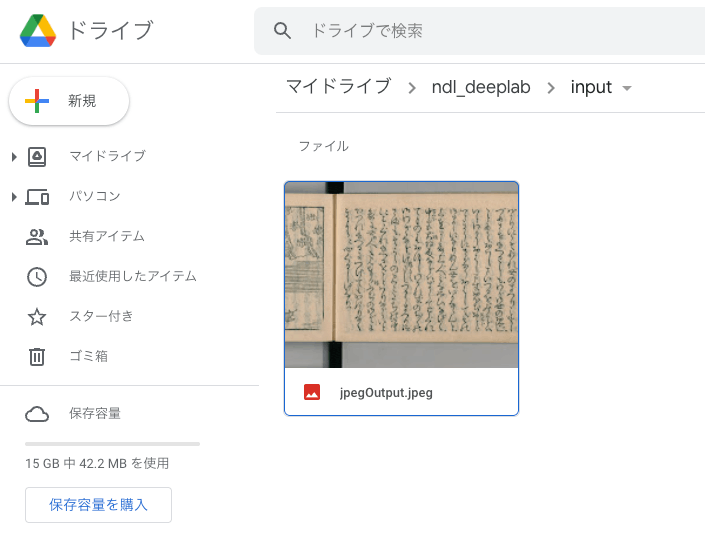
Overview NDL Lab publishes the following automatic figure/table extraction program. https://github.com/ndl-lab/tensorflow-deeplab-v3-plus This time, I summarize how to use Google Colab for the above program, including the procedures for inputting images via Google Drive and saving results. Notebook The Google Colab notebook created this time can be accessed from the following. https://colab.research.google.com/github/nakamura196/ndl_ocr/blob/main/ndl_deeplab.ipynb By preparing a folder of input images on Google Drive, you can execute the automatic figure/table extraction process. For basic operation instructions, please check the explanations within the notebook above. Below, I introduce execution examples. ...