Home Articles Books Search About
RSS 日本語
Batch Registering Data to Omeka Classic IIIF Toolkit

Batch Registering Data to Omeka Classic IIIF Toolkit

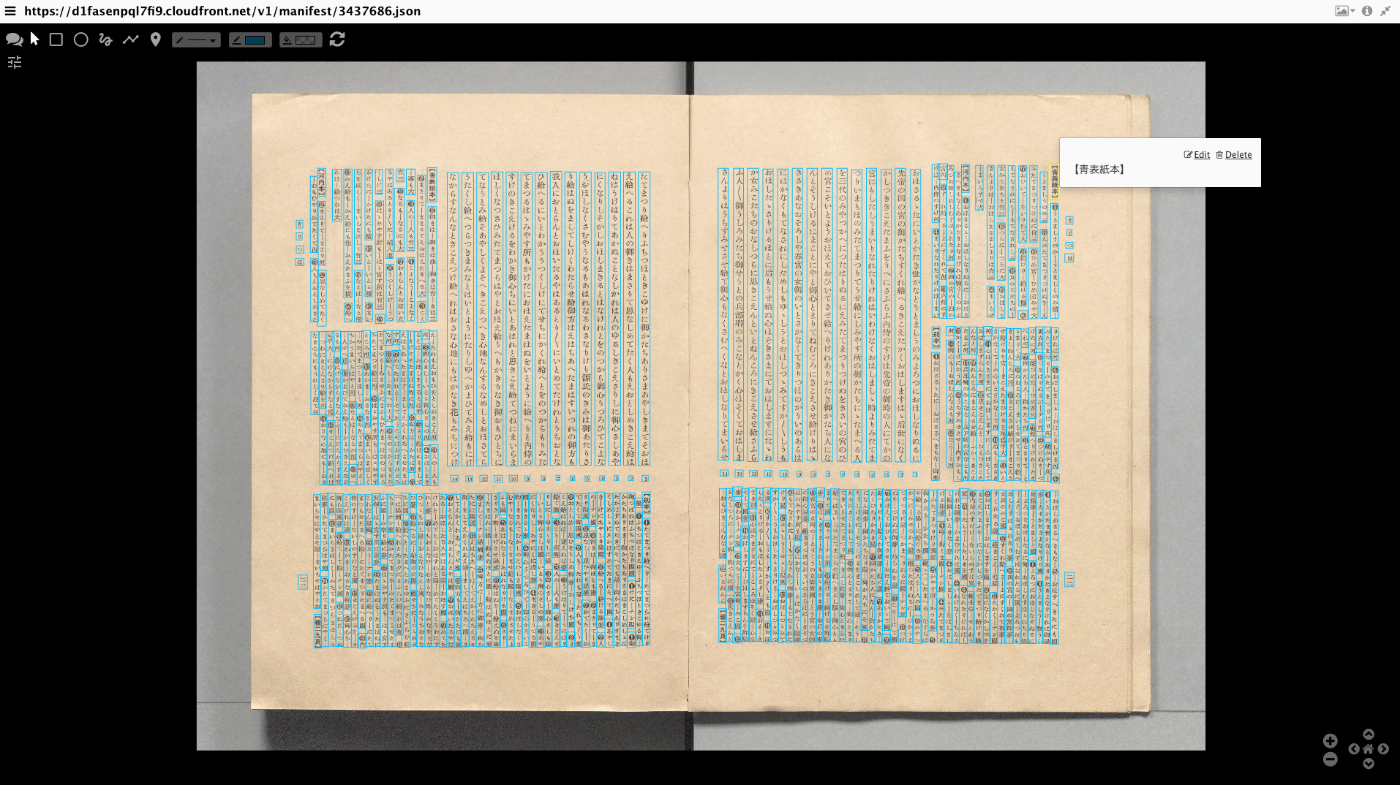
Overview This article explains how to batch register data to Omeka Classic IIIF Toolkit. For setting up Omeka Classic IIIF Toolkit, please refer to the following: This also builds on the content of the following article, making it easier to use by accepting Excel data as input. Preparing the Excel File Prepare an Excel file like the following: https://github.com/nakamura196/000_tools/blob/main/data/sample.xlsx Create three sheets: “collection,” “item,” and “annotation.” collection manifest_uri https://d1fasenpql7fi9.cloudfront.net/v1/manifest/3437686.json ...

Mirador 3 Plugin Development: Copying a Window

Mirador 3 Plugin Development: Copying a Window

Overview I created a plugin for Mirador 3 that copies a window. Note that this functionality is already provided by the following plugin. https://github.com/ProjectMirador/mirador-plugin-demos Therefore, this plugin was created to learn the plugin development process. I hope this plugin serves as a useful reference from that perspective. Here is a screenshot. The source code is available here. https://github.com/nakamura196/mirador-copy-window-plugin The demo site is available here. https://nakamura196.github.io/mirador-copy-window-plugin/ Development Notes For developing this plugin, I first cloned the following repository and made modifications to it. ...

Trying QuickStatements on wikibase.cloud

Trying QuickStatements on wikibase.cloud

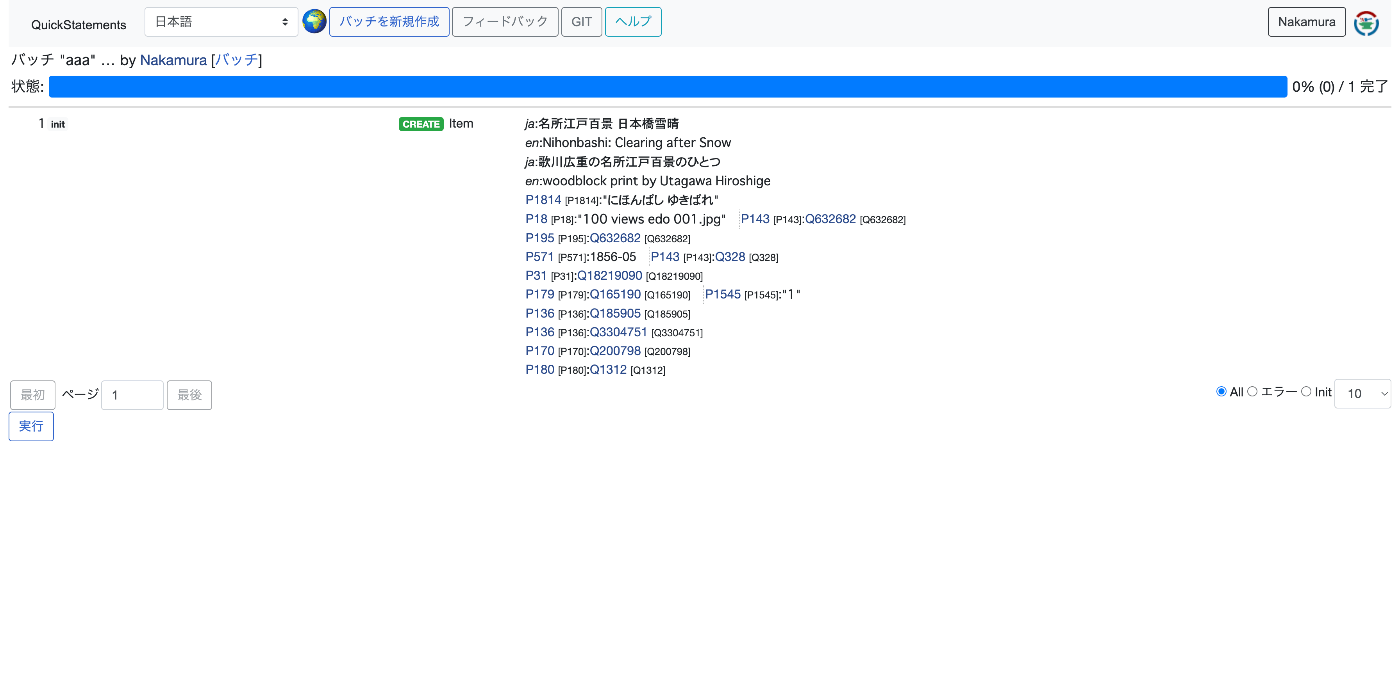
Overview I tried QuickStatements on wikibase.cloud, so here are my notes. I referred to the following article. https://qiita.com/higa4/items/10affb47215def42d8e0 Adding Data Following the article above, I imported a CSV file. However, the following error occurred. The cause was that the required properties were not registered on the independently set up wikibase instance. Property [[Property:P1814|P1814]] not found It turned out that properties (especially those with the same IDs as wikidata) need to be registered in advance using WikibaseSync or similar tools. ...

Trying Out WikibaseSync

Trying Out WikibaseSync

Overview I had the opportunity to try out the following WikibaseSync, so this is a personal note for future reference. https://github.com/the-qa-company/WikibaseSync I learned about this tool from the following paper. https://doi.org/10.11517/jsaisigtwo.2022.SWO-056_04 Installation Install the source code and related libraries. !get clone https://github.com/the-qa-company/WikibaseSync cd WikibaseSync !pip install -r requirements.txt Creating a Bot Account Access the Wikibase prepared in advance, and click “Bot passwords” from “Special pages”. On the following screen, enter the “Bot name”. ...

Using the Wikibase API

Using the Wikibase API

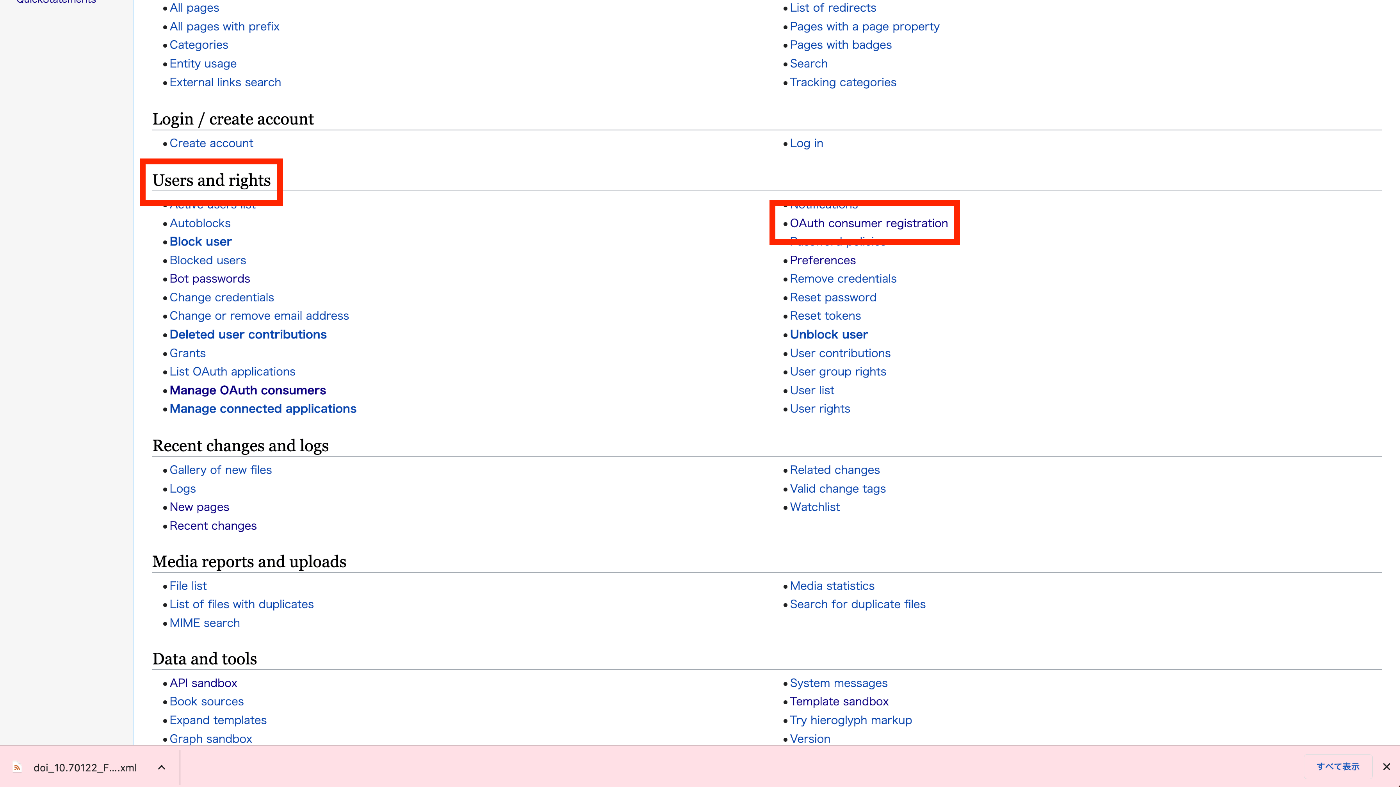
Overview I had the opportunity to use the Wikibase API from a Python client, so this is a memo of the process. I used the following library. https://wikibase-api.readthedocs.io/en/latest/index.html Installation Install with the following: !pip install wikibase-api Read This time, we will work with the following Wikibase instance. https://nakamura196.wikibase.cloud/ from wikibase_api import Wikibase api_url = "https://nakamura196.wikibase.cloud/w/api.php" wb = Wikibase(api_url=api_url) r = wb.entity.get("Q1") print(r) With the above, we were able to retrieve information about Q1. Create Obtaining Authentication Credentials When creating items, authentication needed to be performed using one of the following methods: ...

Trying Dataverse

Trying Dataverse

Overview I had an opportunity to try Dataverse, so here are my notes. I used the following demo environment. https://demo.dataverse.org/ Creating an Account Create an account from Sign Up. Creating a Dataverse Let’s try creating a Dataverse. I created the following Dataverse. https://demo.dataverse.org/dataverse/nakamura196 Creating a Dataset Create a dataset from Add Data. The following is the registration screen. The following is the registration result screen. ...

Trying wikibase.cloud

Trying wikibase.cloud

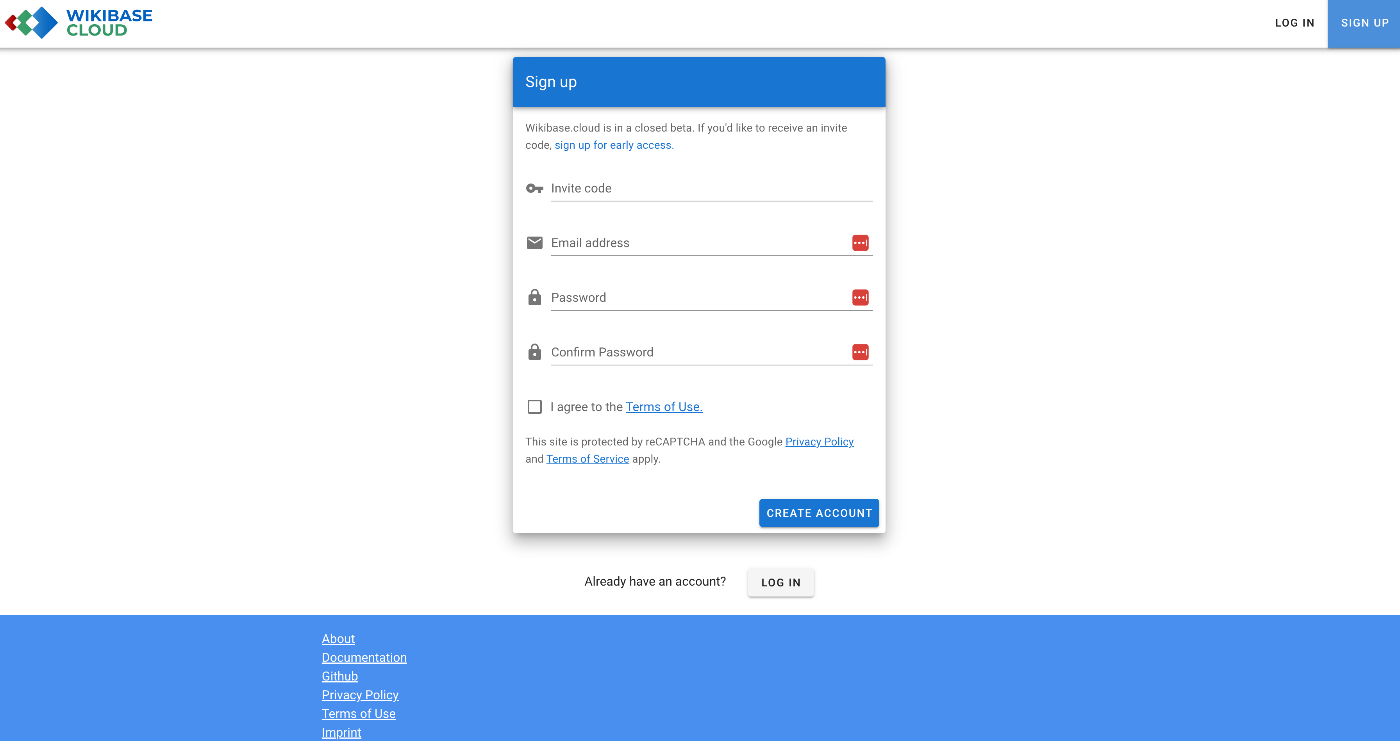
Overview I had an opportunity to try wikibase.cloud, so here are my notes. Documentation The manual was available at the following link. https://www.mediawiki.org/wiki/Wikibase/Wikibase.cloud Creating an Instance Initially, I tried setting up a custom domain, but it didn’t work. I’ll just leave the record below. From that point on, I gave up on the custom domain and used nakamura196.wikibase.cloud. Failure It appeared that a custom domain could be assigned, so I entered wikibase.aws.ldas.jp. ...

Using the onClose Prop

Using the onClose Prop

When using onBackdropClick in MUI’s Dialog component, the following warning occurred. Warning: Failed prop type: The prop `onBackdropClick` of `ForwardRef(Dialog)` is deprecated. Use the onClose prop with the `reason` argument to handle the `backdropClick` events. The warning message is about the deprecated prop onBackdropClick of the Dialog component. This means that this prop is being used somewhere in your code but is no longer supported or recommended. The warning suggests using the onClose prop instead. ...

Zooming to Meet Viewport Constraints in Mirador 3

Zooming to Meet Viewport Constraints in Mirador 3

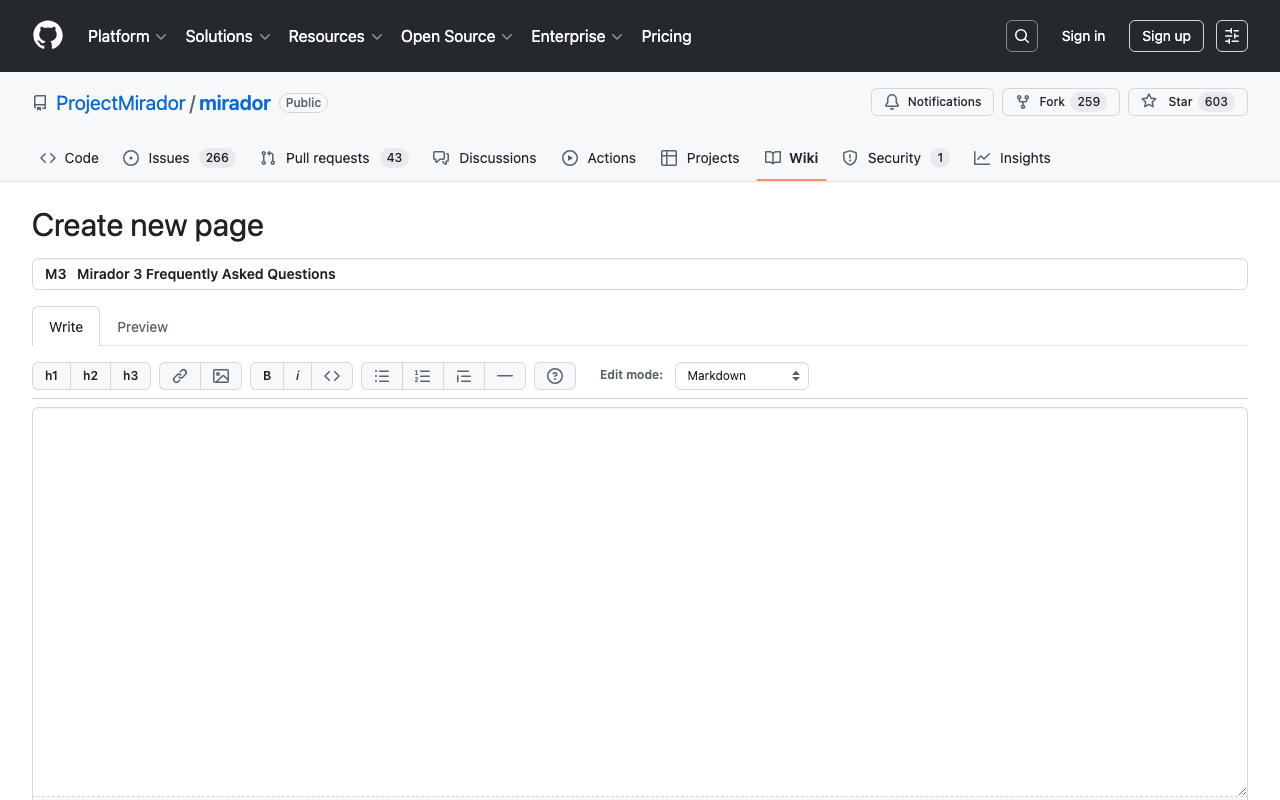
Overview To zoom to a specific area in Mirador 3, you can use the method described below. https://github.com/ProjectMirador/mirador/wiki/M3---Mirador-3-Frequently-Asked-Questions#q-how-do-i-change-the-view-of-an-image-to-zoom-to-a-certain-area Specifically, it looks like this. // Box to zoom to const boxToZoom = { x: 1420, y: 1831, width: 800, height: 1195 }; const zoomCenter = { x: boxToZoom.x + boxToZoom.width / 2, y: boxToZoom.y + boxToZoom.height / 2 }; var action = Mirador.actions.updateViewport(windowId, { x: zoomCenter.x, y: zoomCenter.y, zoom: 1 / boxToZoom.width }); miradorInstance.store.dispatch(action); Internally, it appears that OpenSeadragon’s panTo and zoomTo are used. The issue here is that zoomTo ignores constraints when zooming, as described in the following article. ...

Highlighting LaTeX in Monaco Editor

Highlighting LaTeX in Monaco Editor

Overview I had the opportunity to highlight LaTeX in Monaco Editor, so here are my notes. This is a follow-up to the following article that targeted Ace Editor. I hope this serves as a useful reference. Screenshot Demo Site https://nakamura196.github.io/ace_latex/monaco/ Repository https://github.com/nakamura196/ace_latex/ Source Code <!DOCTYPE html> <html lang="en"> <head> <meta charset="UTF-8" /> <meta name="viewport" content="width=device-width, initial-scale=1.0" /> <title>Monaco Editor Demo</title> <link href="https://cdn.jsdelivr.net/npm/monaco-editor@0.40.0/min/vs/editor/editor.main.min.css" rel="stylesheet" /> </head> <body> <h2>Monaco Editor LaTeX</h2> <div id="container" style="width: 100%; height: 600px; border: 1px solid lightgray" ></div> <script src="https://cdn.jsdelivr.net/npm/monaco-editor@0.40.0/min/vs/loader.min.js"></script> <script> require.config({ paths: { vs: "https://cdn.jsdelivr.net/npm/monaco-editor@0.40.0/min/vs", }, }); require(["vs/editor/editor.main"], function () { // Register a new language monaco.languages.register({ id: "latex" }); // Register a tokens provider for the language monaco.languages.setMonarchTokensProvider("latex", { tokenizer: { root: [ [/(\\[a-zA-Z]+)/, "command"], // LaTeX commands [/(\\[\w\u3000-\u9FFF]+)/, "note"], // LaTeX commands [/(\{)/, "brace"], [/(\})/, "brace"], [/(\[)/, "bracket"], [/(\])/, "bracket"], [/(document|dvips)/, "keyword"], // LaTeX keywords [/(%.*)/, "comment"], // Comments ], }, }); // Define a new theme that contains only rules that match this language monaco.editor.defineTheme("myTheme", { base: "vs", inherit: true, rules: [ { token: "command", foreground: "#F44336" }, // LaTeX commands in red { token: "note", foreground: "#2196F3" }, // Notes in blue { token: "brace", foreground: "FF00FF" }, // Braces in magenta { token: "bracket", foreground: "00FFFF" }, // Brackets in cyan { token: "keyword", foreground: "#4CAF50" }, // Keywords in green { token: "comment", foreground: "#9E9E9E" }, // Comments in gray ], colors: {}, }); monaco.editor.create(document.getElementById("container"), { value: getCode(), language: "latex", theme: "myTheme", wordWrap: true, }); }); function getCode() { return `\\documentclass{tbook} \\usepackage{hiragino,cid} \\usepackage[dvips]{graphics} \\usepackage{font} % \\見開き \\begin{document} テキスト \\書名{(サンプル)}テキスト 長いテキスト長いテキスト長いテキスト長いテキスト長いテキスト長いテキスト長いテキスト長いテキスト長いテキスト長いテキスト長いテキスト長いテキスト長いテキスト長いテキスト長いテキスト\\右注{(あああ)}長いテキスト長いテキスト \\右注{(サンプル)}テキスト \\end{document}`; } </script> </body> </html> The following page was helpful for configuring custom languages. ...

Highlighting TeX with Ace.js

Highlighting TeX with Ace.js

Overview I had an opportunity to highlight TeX with Ace.js, so here are my notes. I referenced the following article. https://banatech.net/blog/view/11 I hope this serves as a helpful reference. Screen Example Demo Site https://nakamura196.github.io/ace_latex/ Repository https://github.com/nakamura196/ace_latex Source Code <html lang="en"> <head> <title>ACE in Action</title> </head> <body> <div id="editor" style="width: 100%; height: 400px; border: 1px solid gray;"></div> <script src="https://cdnjs.cloudflare.com/ajax/libs/ace/1.23.2/ace.js" integrity="sha512-oVyp48/610D5Jo577cvp2vX+Fc0kYaI6s2tZRqBRzjZh7+y/vOEHTzUefbXk/B8P0B76bOK3tL1zeF/QcXlyiA==" crossorigin="anonymous" referrerpolicy="no-referrer" ></script> <script> const text = `\\usepackage{hiragino,ryumin,cid} \\usepackage[dvips]{graphics} \\usepackage{multicol} \\begin{document} テキスト \\右注{(サンプル)}テキスト \\end{document}`; const editor = ace.edit("editor"); // editor.setTheme("ace/theme/monokai"); editor.setFontSize(14); editor.getSession().setMode("ace/mode/latex"); editor.getSession().setUseWrapMode(true); editor.getSession().setTabSize(4); editor.$blockScrolling = Infinity; editor.setOptions({ enableBasicAutocompletion: true, enableSnippets: true, }); editor.setValue(text, 1); </script> </body> </html>

Building a Django CI/CD Environment from GitHub to EC2 Using GitHub Actions (2023 Edition)

Building a Django CI/CD Environment from GitHub to EC2 Using GitHub Actions (2023 Edition)

Overview I had the opportunity to build a Django CI/CD environment from GitHub to EC2 using GitHub Actions, and here are my notes. The following article was used as a reference. https://qiita.com/fffukken/items/27b0bfa712940914d3f6 I made some updates to the GitHub Actions configuration compared to the above article. GitHub Actions Configuration name: Test and Deploy on: push: branches: [ develop, main ] pull_request: branches: [ develop ] jobs: build: runs-on: ubuntu-latest strategy: max-parallel: 4 matrix: python-version: [3.9, "3.10"] steps: - uses: actions/checkout@v3 - name: Set up Python ${{ matrix.python-version }} uses: actions/setup-python@v4 with: python-version: ${{ matrix.python-version }} - name: Install Dependencies run: | python -m pip install --upgrade pip pip install -r requirements.txt - name: Run Tests run: | python manage.py makemigrations python manage.py migrate python manage.py test - name: deploy run: | echo "$SECRET_KEY" > secret_key chmod 600 secret_key ssh -oStrictHostKeyChecking=no ${EC2_USER}@${EC2_HOST} -i secret_key "source <仮想環境名>/bin/activate \ && cd ~/<プロジェクト名>\ && git pull origin main \ && python manage.py makemigrations \ && python manage.py migrate \ && deactivate \ && sudo systemctl restart gunicorn" env: SECRET_KEY: ${{ secrets.SECRET_KEY }} EC2_USER: ${{ secrets.EC2_USER }} EC2_HOST: ${{ secrets.EC2_HOST }} The changes made were updating the versions of actions/checkout and actions/setup-python. I also changed the pip install section to pip install -r requirements.txt. ...

django-simple-history: Recording Model Edit History in Django

django-simple-history: Recording Model Edit History in Django

Overview This is a personal note from researching how to keep edit history in Django. As shown in the following message, by default, edit history is recorded for changes made through the admin interface, but not for changes made through other interfaces. This object doesn’t have a change history. It probably wasn’t added via this admin site. django-simple-history So I tried using the following package. https://django-simple-history.readthedocs.io/en/latest/ I was able to use it without issues by following the quick start page below. ...

Implementing Partial Match Filters in Django Rest Framework (DRF)

Implementing Partial Match Filters in Django Rest Framework (DRF)

To implement partial match filters in Django Rest Framework (DRF), it is common to use the Django filter backend. This uses the django_filters module. If you haven’t installed this module yet, you can install it with the following command: pip install django-filter Here are the general steps to achieve partial match search: Define a filter set. The following is a filter set for performing partial match search on the name field of a model called MyModel in models.py: ...

Trying Out bagit-python

Trying Out bagit-python

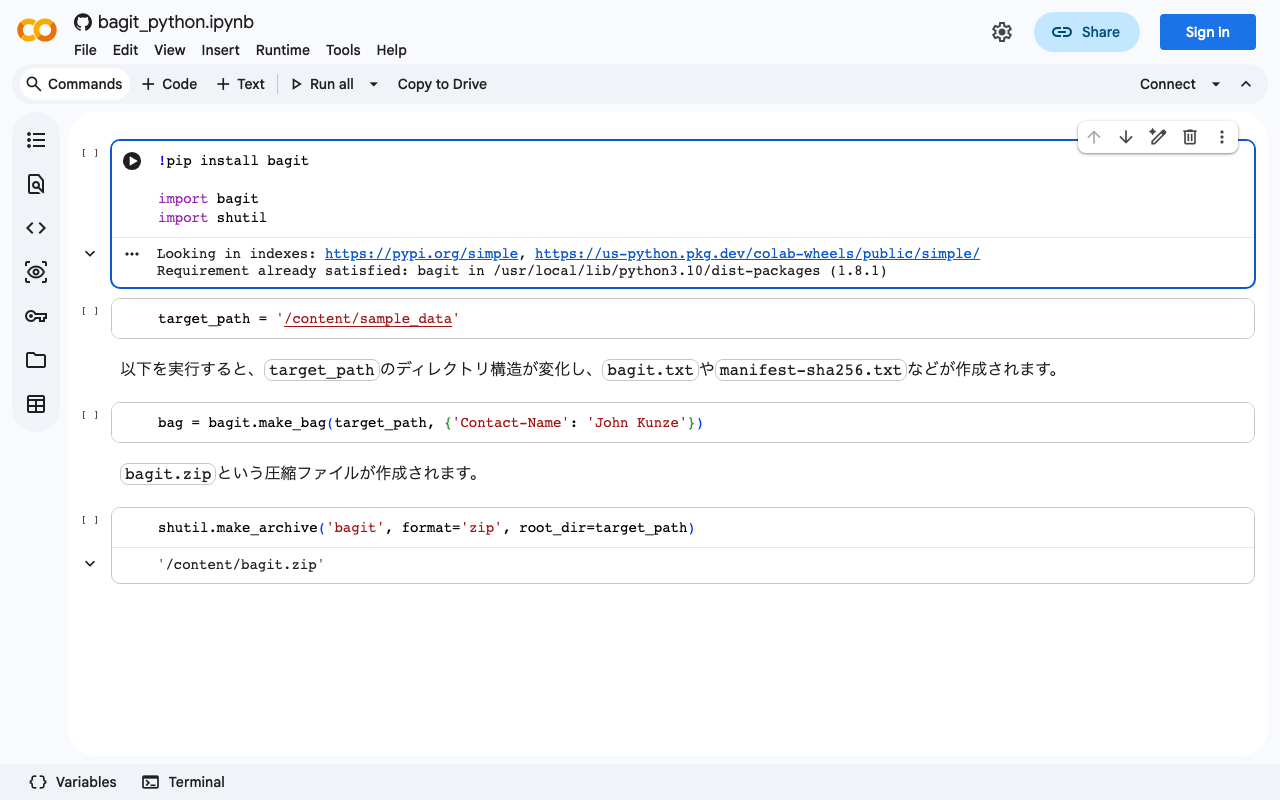
bagit is described as follows: bagit is a Python library and command line utility for working with BagIt style packages. I created a Google Colab notebook for trying out this library. https://colab.research.google.com/github/nakamura196/ndl_ocr/blob/main/bagit_python.ipynb I hope this serves as a useful reference for using bagit.

Getting the File Path of an Uploaded File Using Django's ModelForm

Getting the File Path of an Uploaded File Using Django's ModelForm

I had the opportunity to get the file path of an uploaded file using Django’s ModelForm, so I am making a note of it. Assume the following model. class Document(models.Model): file = models.FileField(upload_to='documents/') With the above, the path could be accessed using the following views. from django.shortcuts import render, redirect from .forms import DocumentForm def upload_file(request): if request.method == 'POST': form = DocumentForm(request.POST, request.FILES) if form.is_valid(): document = form.save() file_url = document.file.url # Correct field name used here full_path = document.file.path # Correct field name used here return redirect('some-view') else: form = DocumentForm() return render(request, 'upload.html', {'form': form}) This may be basic, but I hope you find it helpful. ...

Connecting Django with AWS OpenSearch

Connecting Django with AWS OpenSearch

Overview These are notes on how to connect Django with AWS OpenSearch. The following article was helpful. https://testdriven.io/blog/django-drf-elasticsearch/ However, since the above article targets Elasticsearch, changes corresponding to OpenSearch were needed. Changes Changes for OpenSearch were needed starting from the Elasticsearch Setup section of the article. https://testdriven.io/blog/django-drf-elasticsearch/#elasticsearch-setup Specifically, the following two libraries were required. (env)$ pip install opensearch-py (env)$ pip install django-opensearch-dsl After that, by replacing django_elasticsearch_dsl with django-opensearch-dsl and elasticsearch_dsl with opensearchpy, I was able to proceed as described in the article. ...

Bulk Registration with Django REST Framework

Bulk Registration with Django REST Framework

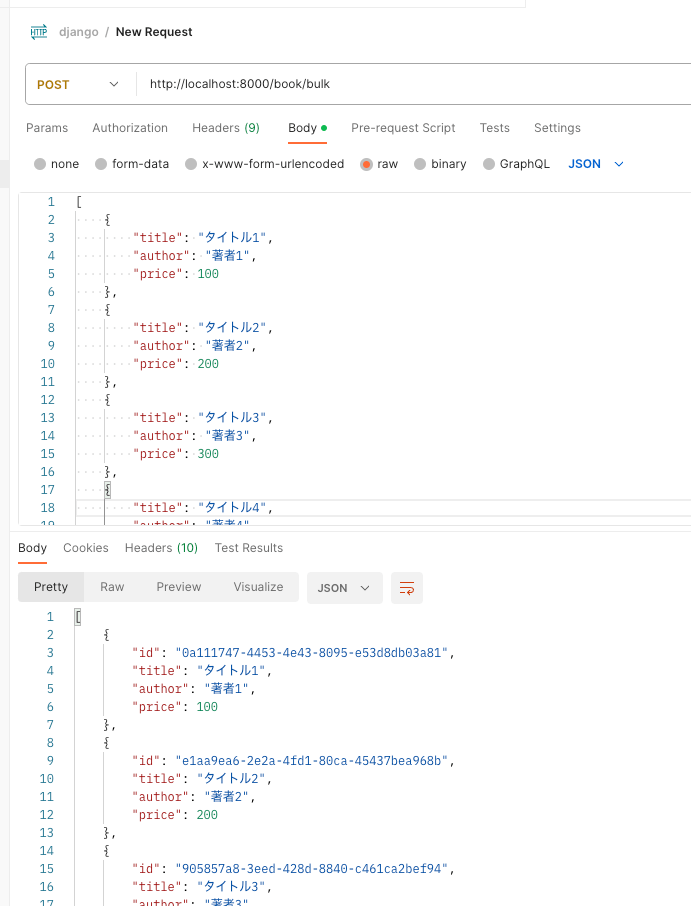
Overview I looked into how to perform bulk registration with Django REST framework, so here are my notes. By following the article below, I was able to create an endpoint for bulk registration. https://qiita.com/Utena-lotus/items/c7bde7f663cfc4aabff1 Postman I sent the following request using Postman. As a result, I was able to perform bulk registration as shown below. Summary I hope this serves as a helpful reference.

Using JWT in Django (djangorestframework-simplejwt)

Using JWT in Django (djangorestframework-simplejwt)

Overview I wanted to use JWT with Django, so I tried djangorestframework-jwt. https://github.com/jpadilla/django-rest-framework-jwt I followed the instructions on the following site. https://dev-yakuza.posstree.com/django/jwt/ However, when I added 'rest_framework_jwt.authentication.JSONWebTokenAuthentication', the following error occurred. ImportError: cannot import name 'smart_text' from 'django.utils.encoding' Upon investigation, I found the following article. https://stackoverflow.com/questions/72102911/could-not-import-rest-framework-jwt-authentication-jsonwebtokenauthentication It suggested using djangorestframework-simplejwt instead. https://github.com/jazzband/djangorestframework-simplejwt Below are my notes on how to use it. djangorestframework-simplejwt I was able to verify its operation by following the page below. ...

Handling CORS Errors with Drupal's JSON:API

Handling CORS Errors with Drupal's JSON:API

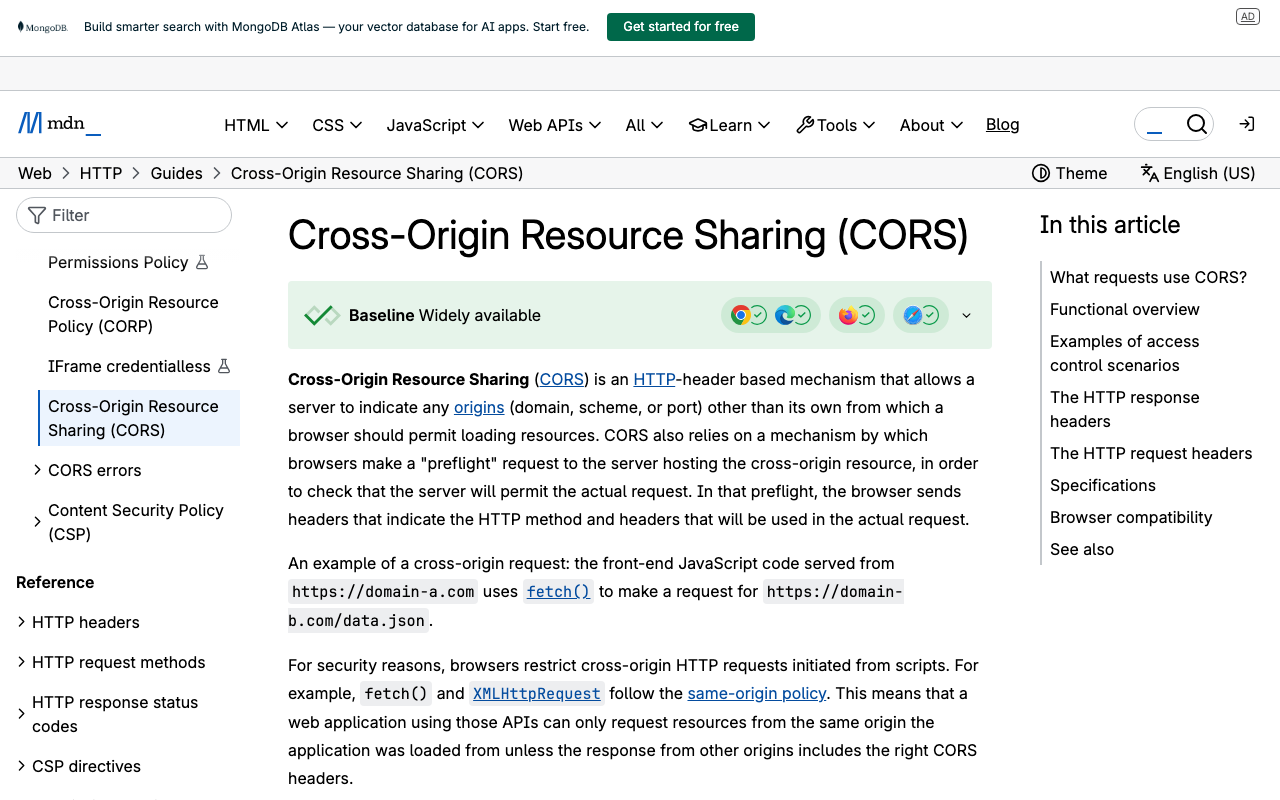
Overview When using the output from Drupal’s JSON:API in a separate application, a CORS error occurred. Here, I explain how to resolve the CORS error. Solution Copy the following file: /web/sites/default/default.services.yml cp /web/sites/default/default.services.yml /web/sites/default/services.yml Then, set enabled to true in cors.config: # Configure Cross-Site HTTP requests (CORS). # Read https://developer.mozilla.org/en-US/docs/Web/HTTP/Access_control_CORS # for more information about the topic in general. # Note: By default the configuration is disabled. cors.config: enabled: false # Change this to true! # Specify allowed headers, like 'x-allowed-header'. allowedHeaders: [] As a result, the CORS error was resolved. ...