Home Articles Books Search About
RSS 日本語
Disabling Autotune in Amazon OpenSearch Service

Disabling Autotune in Amazon OpenSearch Service

When attempting to change the instance type from t3.small.search to t3.medium.search on a development domain in Amazon OpenSearch Service, the following message was displayed. Autotune is not supported in t2/t3 instance types. Disable autotune or change your instance type. I could not find the Autotune setting in the UI, but the following page described how to do it using the CLI. https://docs.aws.amazon.com/opensearch-service/latest/developerguide/auto-tune.html#auto-tune-enable So I ran the following command. aws opensearch update-domain-config \ --domain-name my-domain \ --auto-tune-options DesiredState=DISABLED After that, I was able to successfully change the instance type. ...
Enabling HTTPS for Archivematica on EC2

Enabling HTTPS for Archivematica on EC2

Introduction In the following article, I described how to set up Archivematica on EC2. This time, we configure a custom domain and enable HTTPS. Custom Domain Configuration This time, we assign the domains matica.aws.ldas.jp and storage.aws.ldas.jp to the IP address. We use Route 53. Obtaining an SSL Certificate sudo su yum install epel-release yum install certbot ertbot certonly --webroot -w /usr/share/nginx/html -d matica.aws.ldas.jp -d storage.aws.ldas.jp Web Server Configuration: Nginx Installation vi /etc/nginx/conf.d/archivematica-and-storage.conf Configuration: ...

Trying Cantaloupe Access Control

Trying Cantaloupe Access Control

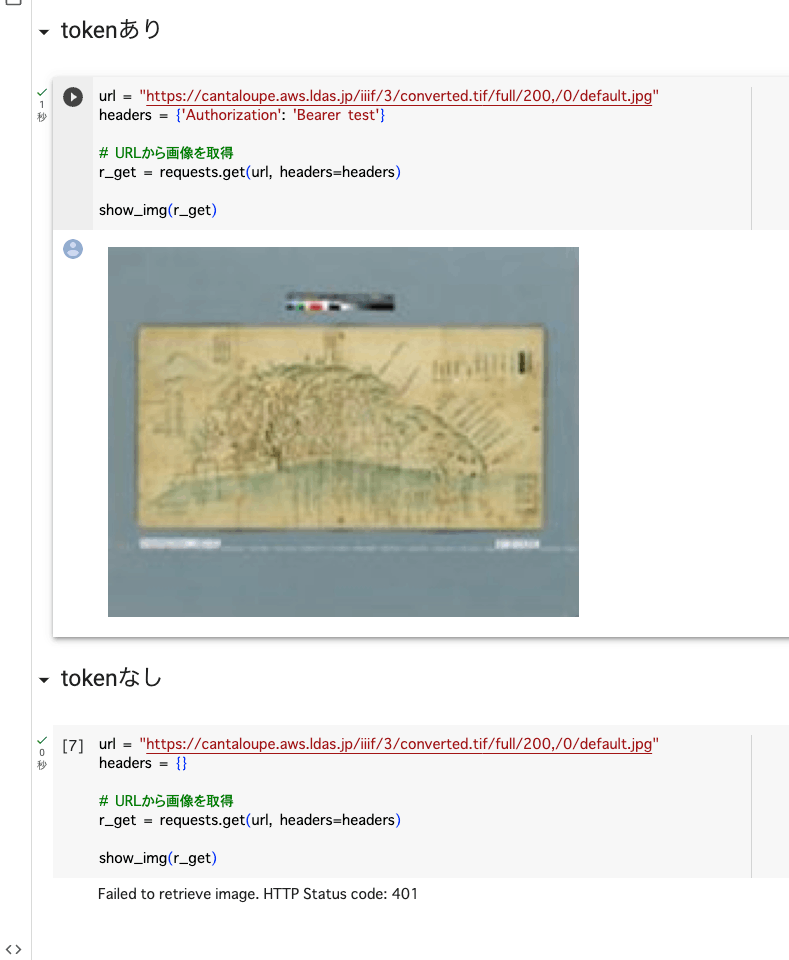
Overview This is a memo about trying Cantaloupe’s Access Control. https://cantaloupe-project.github.io/manual/5.0/access-control.html Bearer Authentication I referenced the following. https://cantaloupe-project.github.io/manual/5.0/access-control.html#Tiered Access All or Nothing Access This returns an error when the authentication information is incorrect. I configured it so that images are returned when the token is test, as shown below. def authorize(options = {}) header = context['request_headers'] .select{ |name, value| name.downcase == 'authorization' } .values.first if header&.start_with?('Bearer ') token = header[7..header.length - 1] if token == "test" return true end end return { 'status_code' => 401, 'challenge' => 'Bearer charset="UTF-8"' } end I created a Google Colab notebook to verify the above behavior. ...

Adding Values to info.json in Cantaloupe

Adding Values to info.json in Cantaloupe

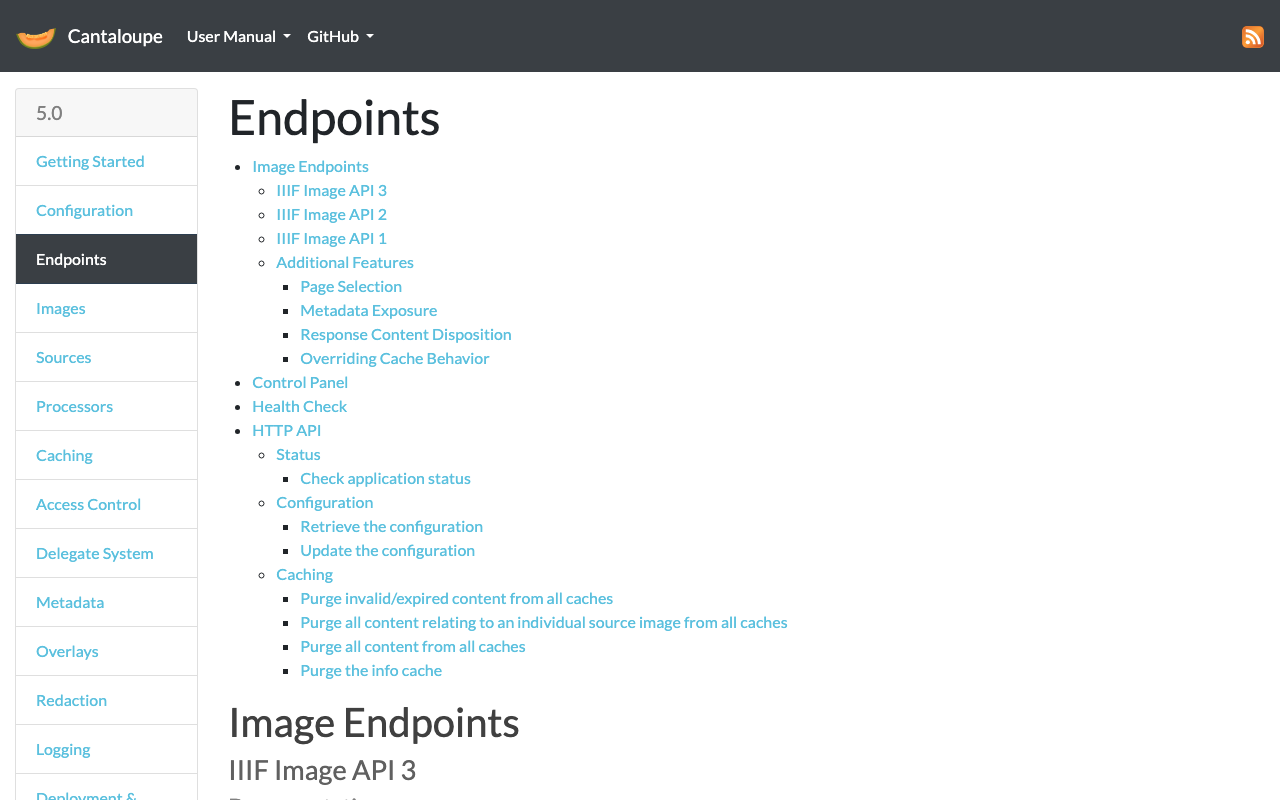
Overview Referring to the following, I tried adding values to the info.json returned by Cantaloupe. https://cantaloupe-project.github.io/manual/5.0/endpoints.html Method Referring to the page above, I modified extra_iiif3_information_response_keys as follows. def extra_iiif3_information_response_keys(options = {}) { 'rights' => 'http://example.org/license.html', 'service' => [ { '@id': 'https://example.org/auth/login', '@type': 'AuthCookieService1', 'profile': 'http://iiif.io/api/auth/1/login', 'label': 'Log In' } ], 'exif' => context.dig('metadata', 'exif'), 'iptc' => context.dig('metadata', 'iptc'), 'xmp' => context.dig('metadata', 'xmp_string') } end As a result, I was able to obtain the following info.json. { "@context": "http://iiif.io/api/image/3/context.json", "id": "https://cantaloupe.aws.ldas.jp/iiif/3/converted.tif", ... "rights": "http://example.org/license.html", "service": [ { "@id": "https://example.org/auth/login", "@type": "AuthCookieService1", "profile": "http://iiif.io/api/auth/1/login", "label": "Log In" } ], "exif": { "tagSet": "Baseline TIFF", "fields": { "ImageWidth": 13300, "ImageLength": 10400, "BitsPerSample": 8, "Compression": 7, "PhotometricInterpretation": 6, ... This can likely be used in combination with license display and the IIIF Auth API. ...

Trying Cantaloupe Overlays

Trying Cantaloupe Overlays

Overview Let’s try the overlay feature provided by Cantaloupe. https://cantaloupe-project.github.io/manual/5.0/overlays.html BasicStrategy With BasicStrategy, overlays are applied based on the settings in cantaloupe.properties. As shown below, you can overlay an image on another image. I used the following image from Irasutoya. https://www.irasutoya.com/2020/12/blog-post_279.html Since I set position to bottom right in the configuration file described below, the specified image appeared in the bottom right as shown below. I modified overlays.BasicStrategy.enabled and overlays.BasicStrategy.image in cantaloupe.properties. ...

Enabling HTTPS for Cantaloupe on EC2

Enabling HTTPS for Cantaloupe on EC2

Introduction In the following article, I described how to set up Cantaloupe on EC2. This time, I will configure a custom domain and enable HTTPS. Custom Domain Configuration This time, I will assign the domain cantaloupe.aws.ldas.jp to 54.172.71.20. When using Route 53, it can be configured as follows. Obtaining an SSL Certificate sudo su apt install certbot certbot certonly --standalone -d cantaloupe.aws.ldas.jp root@ip-172-31-62-61:/home/ubuntu# certbot certonly --standalone -d cantaloupe.aws.ldas.jp Saving debug log to /var/log/letsencrypt/letsencrypt.log Enter email address (used for urgent renewal and security notices) (Enter 'c' to cancel): xxx@gmail.com - - - - - - - - - - - - - - - - - - - - - - - - - - - - - - - - - - - - - - - - Please read the Terms of Service at https://letsencrypt.org/documents/LE-SA-v1.3-September-21-2022.pdf. You must agree in order to register with the ACME server. Do you agree? - - - - - - - - - - - - - - - - - - - - - - - - - - - - - - - - - - - - - - - - (Y)es/(N)o: Y - - - - - - - - - - - - - - - - - - - - - - - - - - - - - - - - - - - - - - - - Would you be willing, once your first certificate is successfully issued, to share your email address with the Electronic Frontier Foundation, a founding partner of the Let's Encrypt project and the non-profit organization that develops Certbot? We'd like to send you email about our work encrypting the web, EFF news, campaigns, and ways to support digital freedom. - - - - - - - - - - - - - - - - - - - - - - - - - - - - - - - - - - - - - - - - (Y)es/(N)o: Y Account registered. Requesting a certificate for cantaloupe.aws.ldas.jp Successfully received certificate. Certificate is saved at: /etc/letsencrypt/live/cantaloupe.aws.ldas.jp/fullchain.pem Key is saved at: /etc/letsencrypt/live/cantaloupe.aws.ldas.jp/privkey.pem This certificate expires on 2023-12-19. These files will be updated when the certificate renews. Certbot has set up a scheduled task to automatically renew this certificate in the background. - - - - - - - - - - - - - - - - - - - - - - - - - - - - - - - - - - - - - - - - If you like Certbot, please consider supporting our work by: * Donating to ISRG / Let's Encrypt: https://letsencrypt.org/donate * Donating to EFF: https://eff.org/donate-le - - - - - - - - - - - - - - - - - - - - - - - - - - - - - - - - - - - - - - - - Web Server Configuration: Installing Nginx apt install nginx vi /etc/nginx/sites-available/cantaloupe.aws.ldas.jp Configuration: ...

Handling "two factor auth enabled..." on PyPI

Handling "two factor auth enabled..." on PyPI

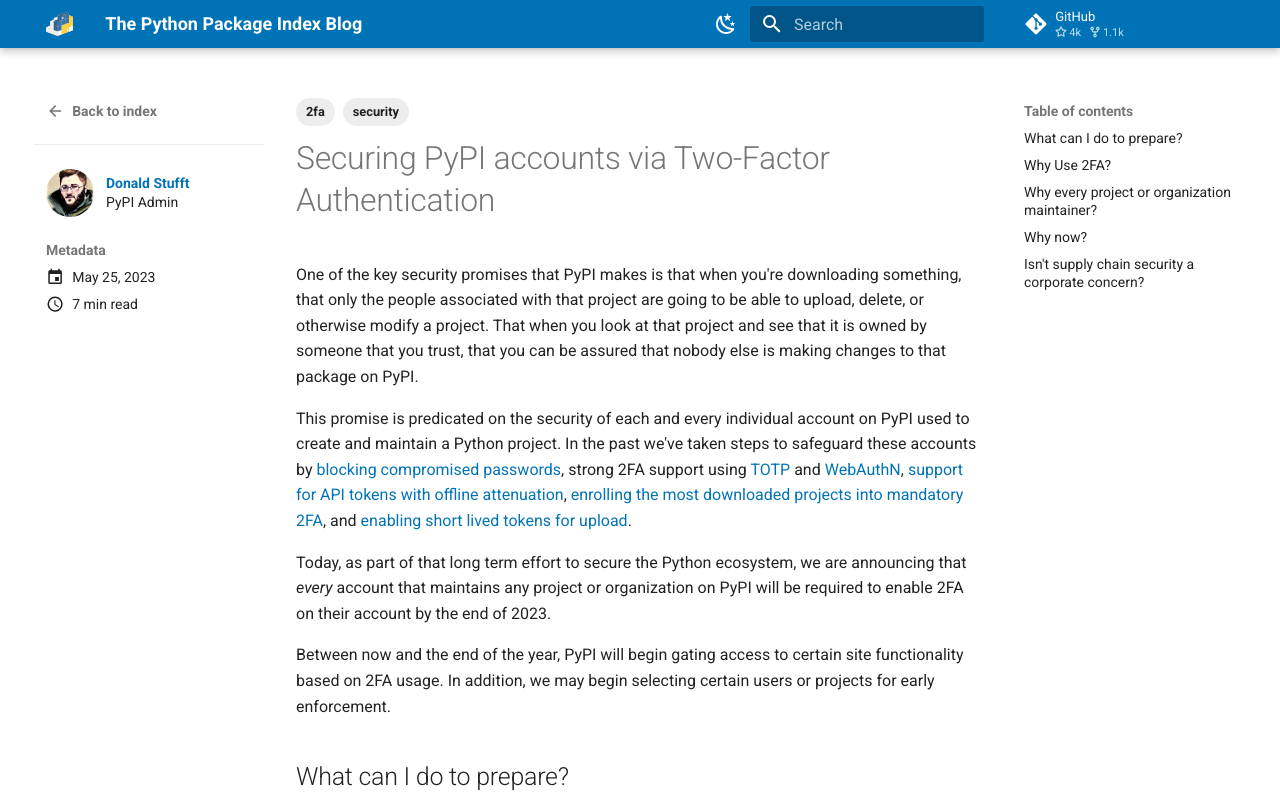
Overview Two-factor authentication is becoming mandatory on PyPI. https://blog.pypi.org/posts/2023-05-25-securing-pypi-with-2fa/ After setting up two-factor authentication and attempting to upload, the following error occurred. Uploading xxxx.whl 100% ━━━━━━━━━━━━━━━━━━━━━━━━━━━━━━━━━━━━━━━━ 22.2/22.2 kB • 00:00 • 65.2 MB/s WARNING Error during upload. Retry with the --verbose option for more details. ERROR HTTPError: 401 Unauthorized from https://upload.pypi.org/legacy/ User <アカウント名> has two factor auth enabled, an API Token or Trusted Publisher must be used to upload in place of password. Solution I had ~/.pypirc configured as follows. ...

Launching Cantaloupe, a IIIF Image Server, on EC2

Launching Cantaloupe, a IIIF Image Server, on EC2

Overview This is a reference guide on how to launch Cantaloupe, a IIIF image server, on EC2. https://cantaloupe-project.github.io/ Additionally, this article introduces an example of Delegate Methods for restricting image download sizes. Specifically, it addresses cases where an error occurs when attempting to retrieve a full-size image via /full/full/. https://cantaloupe-project.github.io/manual/5.0/access-control.html Setting Up Cantaloupe Creating an EC2 Instance I created an EC2 instance with the platform set to Ubuntu, instance type set to t2.medium, and storage set to 8 GB. ...

Running NDL Classical Japanese OCR on mdx

Running NDL Classical Japanese OCR on mdx

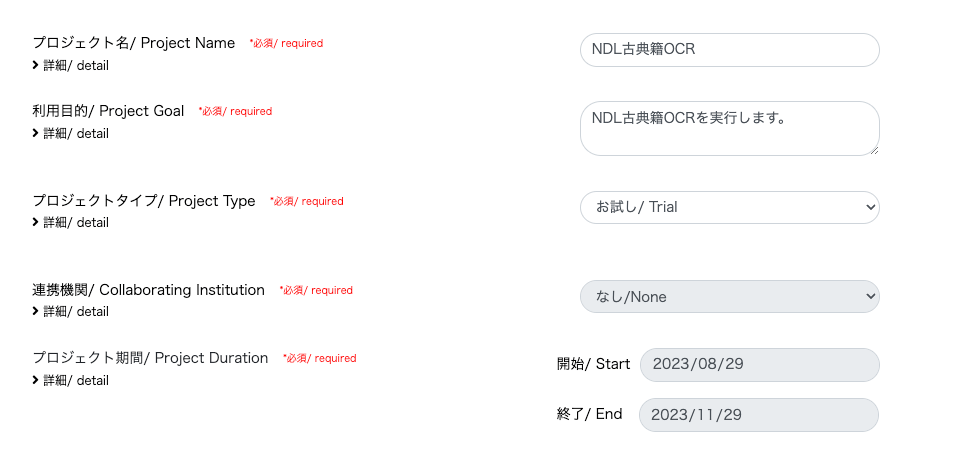
Update History 2024-05-22 Added the section “Adding the Docker Command User to the docker Group”. Overview mdx is a data platform for industry-academia-government collaboration co-created by universities and research institutions. https://mdx.jp/ In this article, we will run NDL Classical Japanese OCR using an mdx virtual machine. https://github.com/ndl-lab/ndlkotenocr_cli Project Application For the project type, we selected “Trial”. With the “Trial” type, one GPU pack was allocated. Creating a Virtual Machine Deployment We selected “01_Ubuntu-2204-server-gpu (Recommended)”. ...

Trying Mirador 2's Physical Document Ruler

Trying Mirador 2's Physical Document Ruler

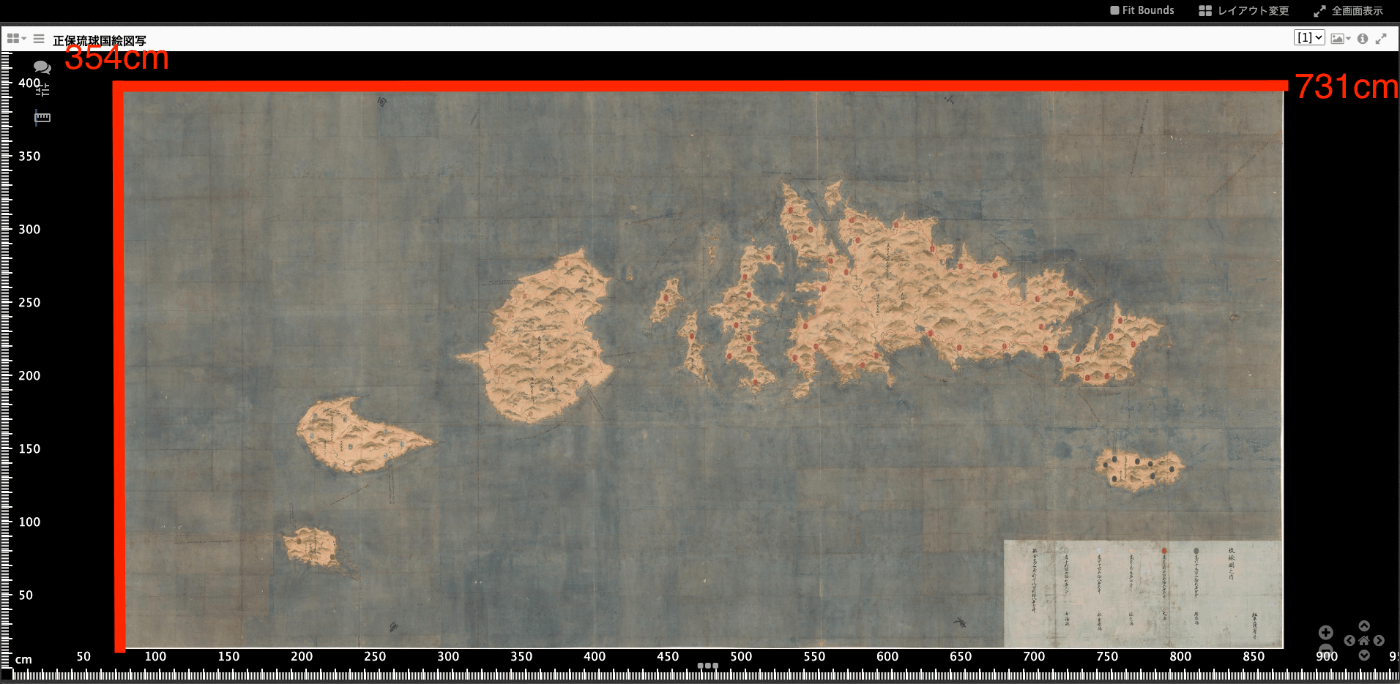
Overview IIIF’s Linking to External Services includes Physical Dimensions. https://iiif.io/api/annex/services/#physical-dimensions It is described as follows. For digitized objects, it is often useful to know the physical dimensions of the object. When available, they allow a client to present a ruler, or other rendition of physical scale, to the user. For Mirador ver.2 and ver.3, the following plugins exist respectively. ver.2 https://github.com/dbmdz/mirador-plugins#physical-document-ruler ver.3 https://github.com/ubleipzig/mirador-ruler-plugin Unfortunately, I was unable to successfully introduce the ver.3 plugin. Therefore, I will explain how to use the Physical Document Ruler with Mirador 2. ...

Notes on Extracting Latitude and Longitude from Google Maps Short URLs

Notes on Extracting Latitude and Longitude from Google Maps Short URLs

Overview I had an opportunity to extract latitude and longitude from a Google Maps short URL like the following. https://goo.gl/maps/aPxUgDJ9KP2FLFkN7 https://goo.gl/maps/aPxUgDJ9KP2FLFkN7 At that time, two sets of latitude and longitude could be obtained, so this is a personal note on the matter. Extraction Method I received the following answer from GPT-4. -– Answer below — It is not possible to directly extract latitude and longitude from a Google Maps short URL (goo.gl/maps/...). However, by expanding this short URL to obtain the original URL, you can extract the latitude and longitude from that URL. ...

Trying the mirador-annotations Plugin and SimpleAnnotationServer with Mirador 3

Trying the mirador-annotations Plugin and SimpleAnnotationServer with Mirador 3

Overview mirador-annotations is a Mirador 3 plugin that adds annotation creation tools. https://github.com/ProjectMirador/mirador-annotations This time, I tried combining it with the following SimpleAnnotationServer, and this is a memorandum of the process. https://github.com/glenrobson/SimpleAnnotationServer Preparing SimpleAnnotationServer Follow the Getting Started guide below. https://github.com/glenrobson/SimpleAnnotationServer#getting-started When you access http://localhost:8888/index.html, the following screen is displayed. The endpoint appears to be http://localhost:8888/annotation/, which displays a list of registered annotations (initially empty). This endpoint will be used from Mirador 3. ...

[Omeka S Module Introduction] Advanced Search Adapter for Solr

[Omeka S Module Introduction] Advanced Search Adapter for Solr

Overview “Advanced Search adapter for Solr” is an Omeka S module that provides an advanced search adapter for Apache Solr. This enables you to leverage the full power of a search engine within Omeka. It provides features such as relevance-based (score) search, instant search, facets, autocomplete, and suggestions for both general users and administrators. https://github.com/Daniel-KM/Omeka-S-module-SearchSolr Setting Up Apache Solr ! Apache Solr can be installed on a server different from the one where Omeka S is installed. ...

Accessing a Specific AWS S3 Bucket Using Cyberduck for macOS

Accessing a Specific AWS S3 Bucket Using Cyberduck for macOS

I tried to access a specific AWS S3 bucket using Cyberduck, referencing the following article. https://dev.classmethod.jp/articles/specify_s3_folder_iam_cyberduck/ However, when I opened the macOS version of Cyberduck and pressed the “New Connection” button at the top of the screen, the form for entering bucket information and other details was not displayed. After investigating, I found the following issue. https://github.com/iterate-ch/cyberduck/issues/11154 It indicated that you should open a bookmark instead, as follows: Please refer to Access third party buckets. To set a default path, create a new bookmark instead of choosing Open Connectoin. ...

Setting Up GitHub 2FA Using a Browser Extension

Setting Up GitHub 2FA Using a Browser Extension

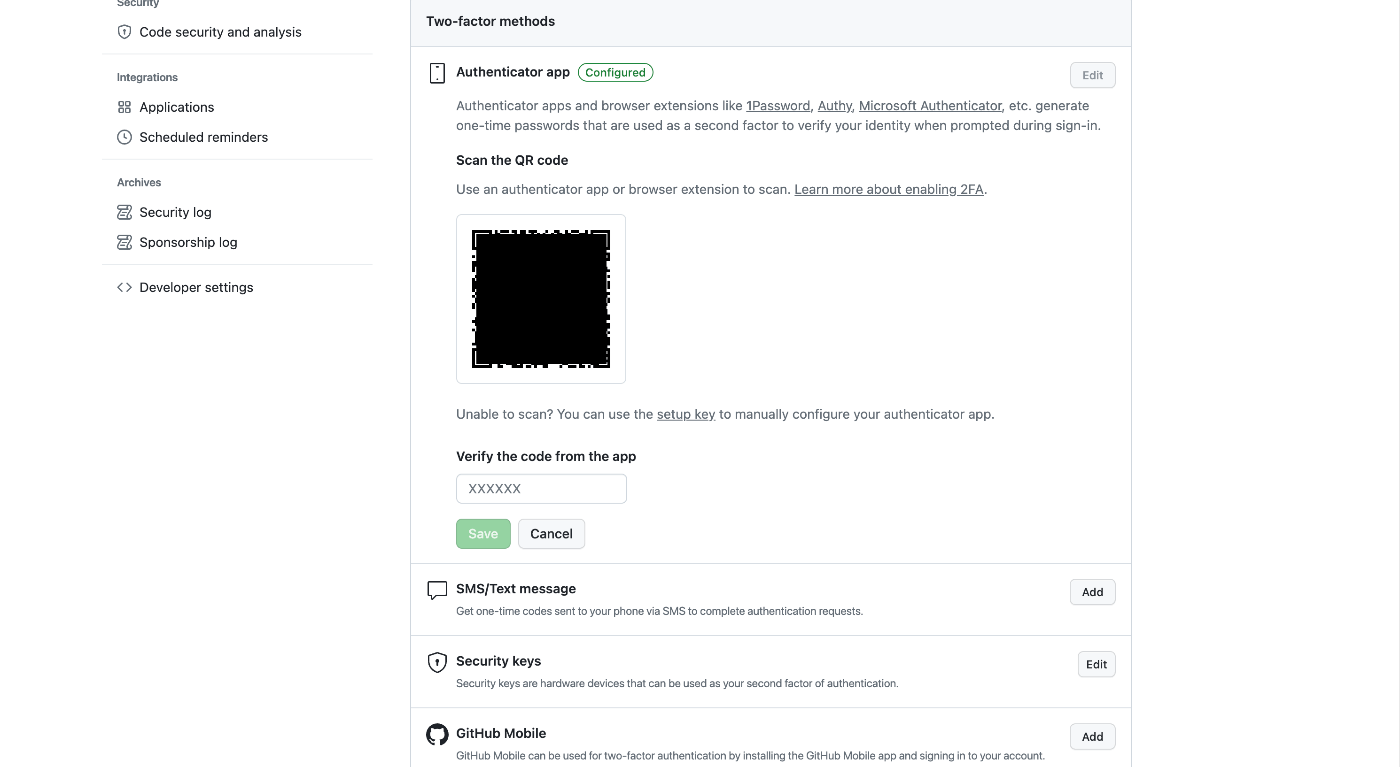
Overview This is a memo on using the browser extension “Authenticator” to set up two-factor authentication (2FA) for GitHub. https://authenticator.cc/ Preparing the QR Code First, prepare the QR code on the GitHub side. I’ll skip the detailed steps, but the QR code will be displayed on a screen like the following. Adding the Browser Extension Access the following URL from Chrome, Firefox, or Edge. The example below uses Chrome. ...

Error When Running npx nuxi typecheck

Error When Running npx nuxi typecheck

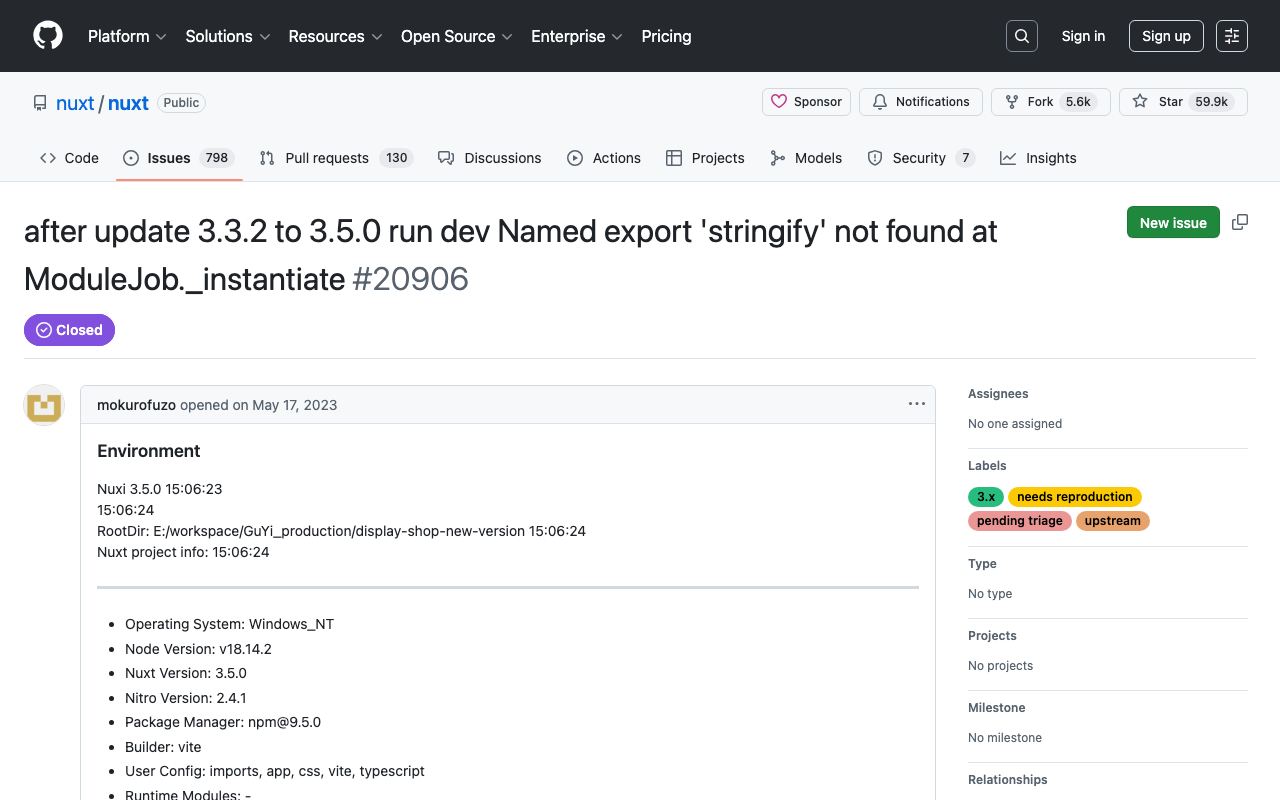
When running npx nuxi typecheck in Nuxt3, the following error occurred. nuxt.config.ts:16:3 - error TS2345: Argument of type '{ app: { baseURL: string; }; runtimeConfig: { public: { token: string; }; }; typescript: { strict: boolean; }; }' is not assignable to parameter of type 'InputConfig<NuxtConfig, ConfigLayerMeta>'. Object literal may only specify known properties, and '"app"' does not exist in type 'InputConfig<NuxtConfig, ConfigLayerMeta>'. As a solution, as described in the following documentation, it was necessary to install two libraries. ...

Commands for Restarting Virtuoso When It Stops

Commands for Restarting Virtuoso When It Stops

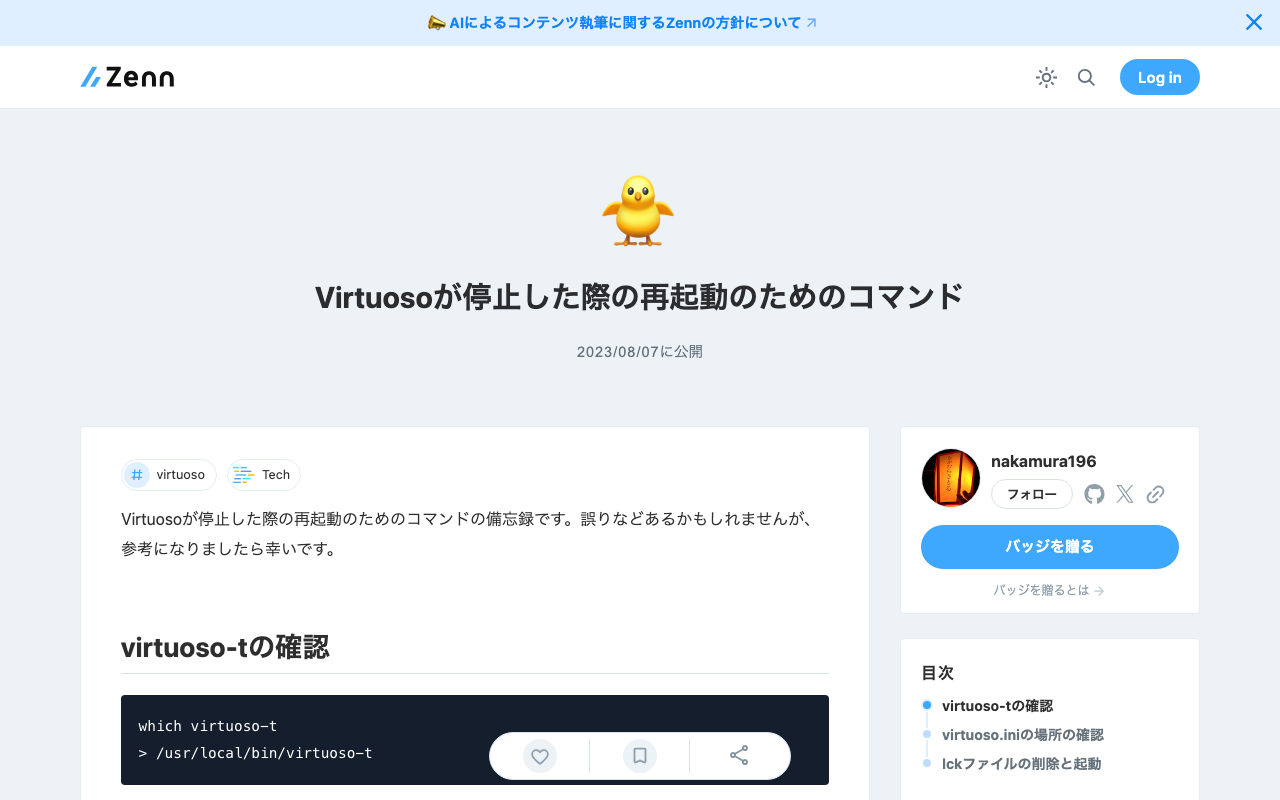
This is a personal note on the commands for restarting Virtuoso when it stops. There may be some errors, but I hope it serves as a useful reference. Checking virtuoso-t which virtuoso-t > /usr/local/bin/virtuoso-t Checking the Location of virtuoso.ini sudo find / -name virtuoso.ini > ... > /usr/local/var/lib/virtuoso/db/virtuoso.ini > ... Deleting the lck File and Starting sudo rm -rf /usr/local/var/lib/virtuoso/db/virtuoso.lck sudo /usr/local/bin/virtuoso-t +configfile /usr/local/var/lib/virtuoso/db/virtuoso.ini

Utilizing Exhibition Information Stored in the Cultural Japan RDF Store

Utilizing Exhibition Information Stored in the Cultural Japan RDF Store

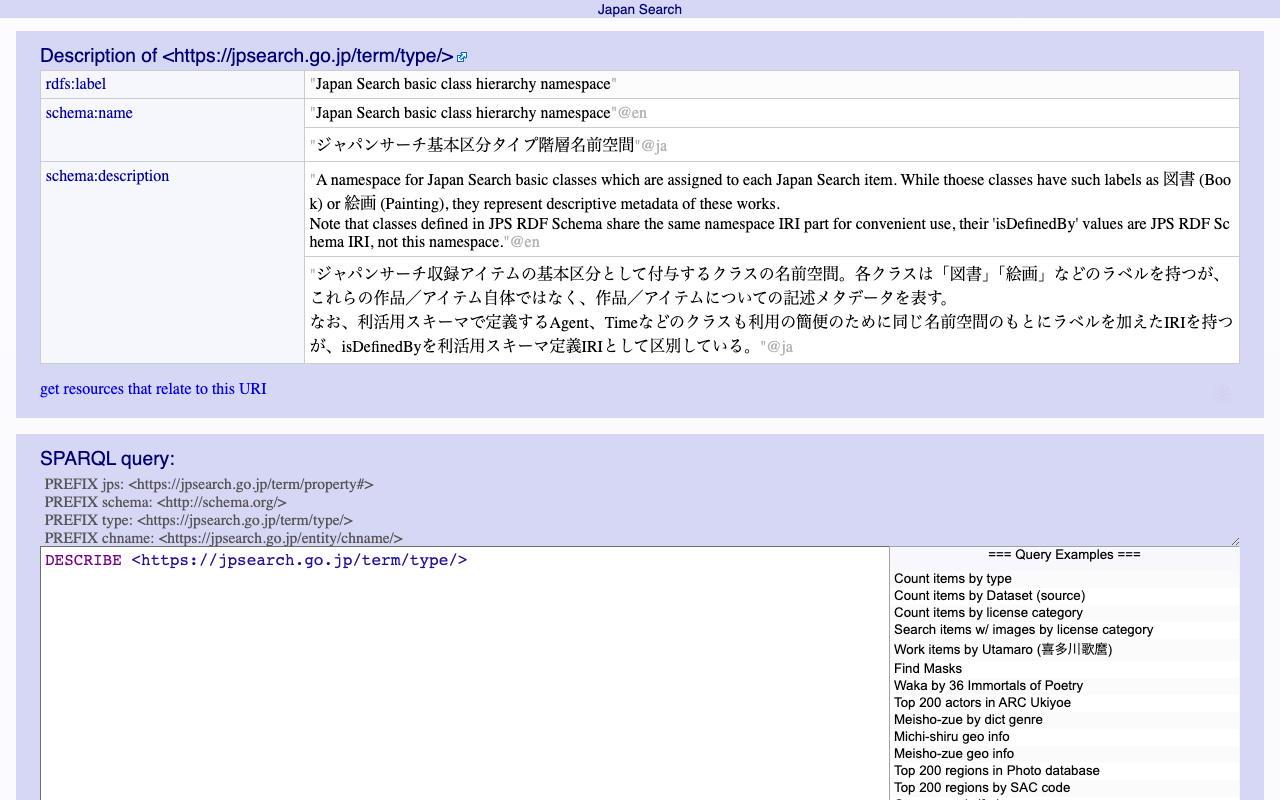
Overview The Cultural Japan RDF store contains information about exhibitions. A list can be retrieved using the following query, which specifies type:展覧会 (Exhibition) for rdf:type. PREFIX type: <https://jpsearch.go.jp/term/type/> PREFIX rdfs: <http://www.w3.org/2000/01/rdf-schema#> select distinct * where { ?s rdf:type type:展覧会; rdfs:label ?label . } https://ld.cultural.jp/snorql/?query=select+distinct+*+where+{ %3Fs+rdf%3Atype+type%3A展覧会%3B +++++++rdfs%3Alabel+%3Flabel+.+ } ++ This article introduces an example of how to utilize this exhibition information. List of Exhibitions Each exhibition has values such as jps:temporal and jps:spatial (which may have multiple values). https://ld.cultural.jp/data/apmoa-exhib-2021-soga The following query can be used to retrieve a list including exhibition metadata. ...

Watching URL Query Changes with watch in Nuxt3

Watching URL Query Changes with watch in Nuxt3

I wanted to watch URL query changes with watch in Nuxt3, so I wrote the following code, but the watch did not work when the URL query changed. <script lang="ts" setup> const route = useRoute() watch( route, () => { console.log(route['query']) } ) </script> So I referenced the following article. https://qiita.com/YumaInaura/items/9c86ed91d56402e816db By changing the code to the following, the watch worked in response to URL query changes. <script lang="ts" setup> const route = useRoute() watch( () => route.query, () => { console.log(route['query']) } ) </script> There are still many things I don’t fully understand, but I hope this is helpful to others. ...

How to Check How Fields Are Indexed in Apache Solr

How to Check How Fields Are Indexed in Apache Solr

Here are my notes on how to check how fields are indexed in Apache Solr. Using the Schema API You can use Solr’s Schema API to check how a specific field is defined. Below is an example request for a specific field. http://localhost:8983/solr/{core_name}/schema/fields/{field_name} By accessing this URL from a browser or sending a GET request using curl or similar tools, information about the specific field is returned in JSON format. This includes information about how the field is indexed. ...