Home Articles Books Search About
日本語
Retrieving the URL of Site Pages Where Items Are Published in the Omeka S OaiPmh Repository Module

Retrieving the URL of Site Pages Where Items Are Published in the Omeka S OaiPmh Repository Module

Overview This is a personal note on how to retrieve the URL of site pages where items are published in the Omeka S OaiPmh Repository module. Background The following article introduces how to create custom vocabularies using OaiPmhRepository. https://nakamura196.hatenablog.com/entry/2021/07/25/222651 Please refer to it as well. Retrieving the URL of Site Pages Where Items Are Published Before Fix In a certain customization case, the site page URL was retrieved as follows. This does not work properly when something other than dcterms:identifier is configured in the Clean URL module. Additionally, hardcoded paths like /s/db/record/ can be seen. ...

Bulk Deleting Multiple Content Items Using the Drupal REST API

Bulk Deleting Multiple Content Items Using the Drupal REST API

Overview I had the opportunity to bulk delete multiple content items using the Drupal REST API, so this is a memo of the process. References For a method to bulk delete content without using the REST API, please refer to the following. Preparation First, enable the HTTP Basic Authentication module and the JSON:API module. Additionally, enable DELETE in REST resources. /admin/config/services/rest Execution Example The following custom library is used. ...

Adding Images to IIIF Manifest Files for Audio Materials

Adding Images to IIIF Manifest Files for Audio Materials

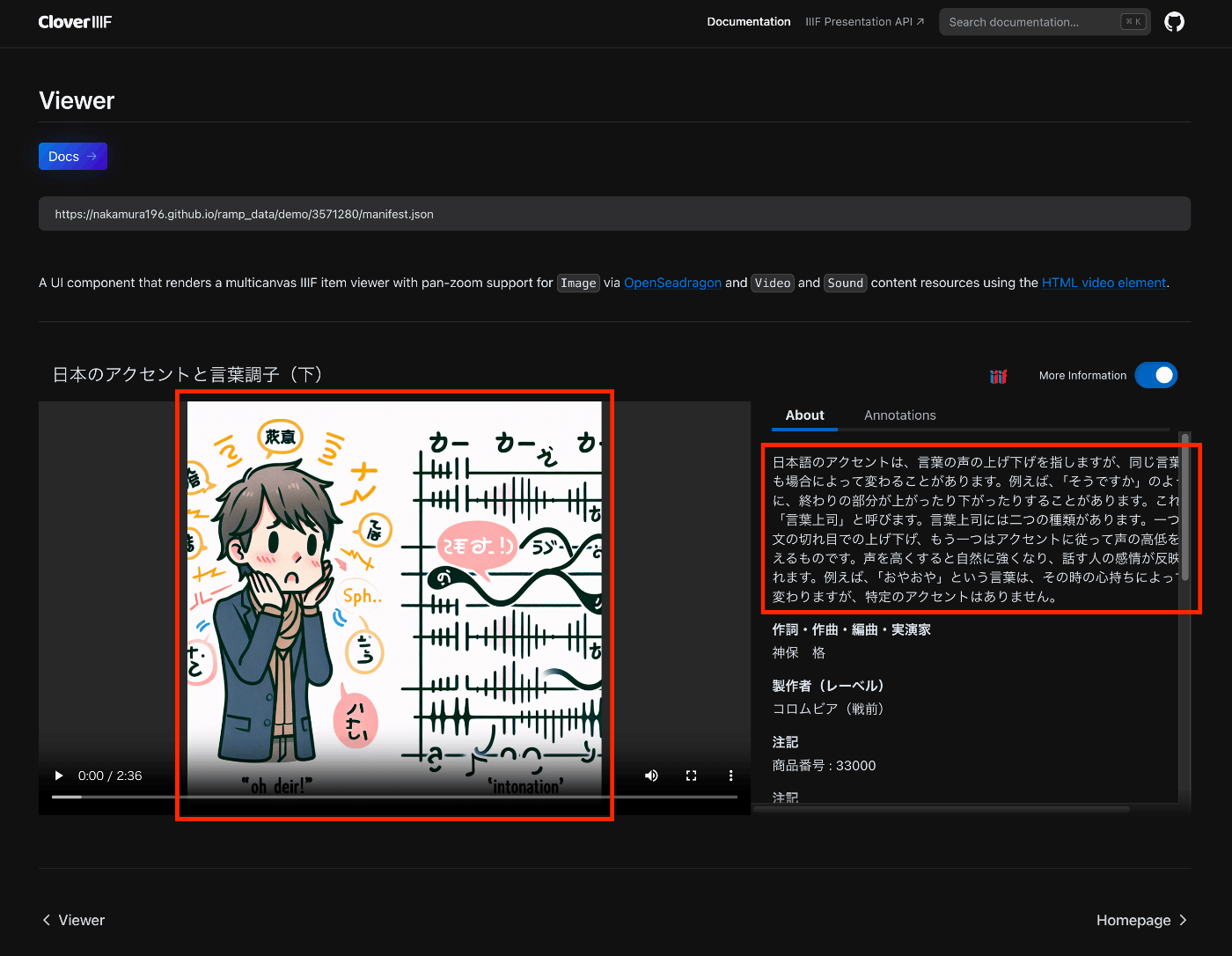
Overview This is a note on trying out the Audio Presentation with Accompanying Image recipe. https://iiif.io/api/cookbook/recipe/0014-accompanyingcanvas/ The following is an example displayed in Clover, where the configured image appears in the player. https://samvera-labs.github.io/clover-iiif/docs/viewer/demo?iiif-content=https://nakamura196.github.io/ramp_data/demo/3571280/manifest.json Manifest File Description An example is stored at the following location. https://github.com/nakamura196/ramp_data/blob/main/docs/demo/3571280/manifest.json Specifically, it was necessary to add an accompanyingCanvas to the Canvas as follows. { "id": "https://nakamura196.github.io/ramp_data/demo/3571280/canvas", "type": "Canvas", "duration": 156.07999999999998, "accompanyingCanvas": { "id": "https://nakamura196.github.io/ramp_data/demo/3571280/canvas/accompanying", "type": "Canvas", "height": 1024, "width": 1024, "items": [ { "id": "https://nakamura196.github.io/ramp_data/demo/3571280/canvas/accompanying/annotation/page", "type": "AnnotationPage", "items": [ { "id": "https://nakamura196.github.io/ramp_data/demo/3571280/canvas/accompanying/annotation/image", "type": "Annotation", "motivation": "painting", "body": { "id": "https://nakamura196.github.io/ramp_data/demo/3571280/3571280_summary_image.jpg", "type": "Image", "height": 1024, "width": 1024, "format": "image/jpeg" }, "target": "https://nakamura196.github.io/ramp_data/demo/3571280/canvas/accompanying/annotation/page" } ] } ] }, It may be a bit hard to follow, but here is the code example using iiif_prezi3. The accompanyingCanvas is created via create_accompanying_canvas() and associated with the canvas. ...

IIIF Audio/Visual: Describing Multiple VTT Files

IIIF Audio/Visual: Describing Multiple VTT Files

Overview This is a note on how to describe multiple VTT files for Audio/Visual materials using IIIF. Here, we describe transcription text in both Japanese and English as shown below. https://ramp.avalonmediasystem.org/?iiif-content=https://nakamura196.github.io/ramp_data/demo/3571280/manifest.json Manifest File Description An example is stored at the following location. https://github.com/nakamura196/ramp_data/blob/main/docs/demo/3571280/manifest.json Please also refer to the following article. Specifically, by describing them as multiple annotations as shown below, they were correctly processed by the Ramp viewer. ...

App Development Using Zotero's API and Streamlit

App Development Using Zotero's API and Streamlit

Overview I prototyped an app using Zotero’s API and Streamlit. https://nakamura196-zotero.streamlit.app/ This article is a memo on developing this app. Streamlit The following article was very helpful. https://qiita.com/sypn/items/80962d84126be4092d3c Zotero’s API Zotero’s API is described at the following page. https://www.zotero.org/support/dev/web_api/v3/start This time, I used the following library introduced on the above page. https://github.com/urschrei/pyzotero To use the API, you need to obtain a personal library ID and an API key, which could be obtained by following the Quickstart steps in the README. ...

Displaying Audio Files with Subtitles in an IIIF Viewer

Displaying Audio Files with Subtitles in an IIIF Viewer

Overview I had the opportunity to display audio files with subtitles in an IIIF viewer, so this is a memo. The target is “Accents and Intonation of the Japanese Language (Part 2)” published in the National Diet Library Historical Sound Archive. OpenAI’s Speech to text was used. Please note that the transcription results may contain errors. The following is a display example in Ramp. https://ramp.avalonmediasystem.org/?iiif-content=https://nakamura196.github.io/ramp_data/demo/3571280/manifest.json The following is a display example in Clover. ...

Uploading Multiple Files to mdx.jp Object Storage

Uploading Multiple Files to mdx.jp Object Storage

Overview This is a personal note on how to upload multiple files to mdx.jp object storage. It references the following video. https://youtu.be/IN_4NS9hO2Y Preparation Working on macOS. brew install s3cmd Configuration (please refer to the video for details.) s3cmd --configure Batch Registration (Sync) The following syncs files in the local rekion folder to s3://rekion/iiif/. s3cmd sync docs/rekion/ s3://rekion/iiif/ --exclude '.DS_Store' Reference find . -name '.DS_Store' -type f -delete Batch ACL Change s3cmd setacl s3://rekion/iiif/ --acl-public --recursive Note (CORS Permission) I prepared the following XML file and attempted to enable CORS. ...

Converting Audio Published on the NDL Historical Sound Archive to mp4

Converting Audio Published on the NDL Historical Sound Archive to mp4

Overview I had an opportunity to convert audio published on the National Diet Library Historical Sound Archive (hereinafter “Rekion”) to mp4, so here are my notes. Format Provided by Rekion Rekion provides files in m3u8 format. For example, let’s check the following: “Lecture: Union of Morality and Economy (Part 1).” https://rekion.dl.ndl.go.jp/pid/3574643 By checking with developer tools, you can confirm that it is accessible from the following URL. https://rekion.dl.ndl.go.jp/contents/3574643/83389ec6-2b45-4fdd-88d6-89628841039f/317d6ab4-32ec-4085-88e6-cfe36ffd34c3/317d6ab4-32ec-4085-88e6-cfe36ffd34c3_hls.m3u8 The IDs that make up this URL can be found in the response from the following API. ...

Customizing Ramp

Customizing Ramp

Overview This is a memo on how to customize Ramp. As a result of customization, the UI is partially localized to Japanese, with the media player and metadata/transcription displayed side by side. Additionally, the query parameter t can be used to specify the playback start time for audio. For example, playback starting from the 140-second mark can be accessed from the following URL. https://ramp-iiif.vercel.app/?iiif-content=https://nakamura196.github.io/ramp_data/demo/3571280/manifest.json&t=140 Below is the pre-customization state. ...

Running Ramp Locally

Running Ramp Locally

Overview This is a memo on running Ramp locally. Background Ramp is described as follows. Interactive, IIIF powered audio/video media player React components library. The source code is available on the following GitHub repository. https://github.com/samvera-labs/ramp Starting Up It can be started with the following commands. git clone https://github.com/samvera-labs/ramp pnpm i pnpm demo Details are described here. https://github.com/samvera-labs/ramp?tab=readme-ov-file#styleguidist-development Note that the following command will display the style guide page instead. ...

Using Scroll View in Mirador 3

Using Scroll View in Mirador 3

Overview These are notes on how to use Scroll View in Mirador 3. The following example uses “Kagoshima Seitoki no Uchi: The Battle at Takase River Crossing - Nozu’s Brigade Recaptures the Regimental Flag” (held by the National Diet Library). This IIIF manifest consists of three canvases (images), and in the default display mode (Single), images are shown one at a time. Our goal is to display all three connected together. ...

Redirecting to HTTPS with Traefik

Redirecting to HTTPS with Traefik

Overview In the following article, I introduced an example of running HTTPS-enabled containers using Traefik. However, (this has since been fixed) the setting to redirect HTTP connections to HTTPS was missing, and accessing port 80 resulted in a “not found” error. This is a memorandum on how to fix this issue. Before the Change log: # level: DEBUG entryPoints: web: address: :80 websecure: address: :443 api: dashboard: true providers: docker: exposedByDefault: false certificatesResolvers: myresolver: acme: email: aaa@bbb storage: /acme.json caServer: https://acme-v02.api.letsencrypt.org/directory # caServer: https://acme-staging-v02.api.letsencrypt.org/directory httpChallenge: entryPoint: web After the Change log: # level: DEBUG entryPoints: web: address: :80 http: redirections: entryPoint: to: websecure schema: https permanent: true websecure: address: :443 api: dashboard: true providers: docker: exposedByDefault: false certificatesResolvers: myresolver: acme: email: na.kamura.1263@gmail.com storage: /acme.json caServer: https://acme-v02.api.letsencrypt.org/directory # caServer: https://acme-staging-v02.api.letsencrypt.org/directory httpChallenge: entryPoint: web In the entryPoints section, the redirect configuration has been added as follows: ...

Large Videos Not Playing in Chrome

Large Videos Not Playing in Chrome

Overview I encountered an issue where large videos could not be played in Chrome. However, they could be played in Safari. When I checked with the developer tools, the download was being cancelled. The viewer part looks like this: <video controls="controls" preload="none" style="width: 620px; height: 465px;" width="100%" height="100%"> <source src="https://omeka.aws.ldas.jp/files/original/c486fe4ae8d926034678fa11b0d6b2fd55b0e695.mp4" type="video/quicktime" title="undefined"> </video> This HTML was generated by the combination of Omeka S + IIIF Server introduced in the following article. Cause Looking at the HTML above, the type is type="video/quicktime", and although the extension is mp4, the actual content is different (a mov file perhaps). ...

Difference Between production and development in Omeka S SetEnv APPLICATION_ENV

Difference Between production and development in Omeka S SetEnv APPLICATION_ENV

The steps to enable detailed error display in Omeka S are as follows. By making this setting, specific error messages and details will be displayed on the “Omeka S has encountered an error” page. Additionally, PHP-level errors and warnings will also be displayed on the page. This is intended to make it easier to identify and resolve issues during development, but for security reasons, it is recommended not to use this in production environments. ...

Operating Multiple HTTPS-Enabled Containers with Traefik

Operating Multiple HTTPS-Enabled Containers with Traefik

Overview This is a note on how to operate multiple HTTPS-enabled containers with Traefik. https://github.com/traefik/traefik Background Previously, I was using jwilder/nginx-proxy and jrcs/letsencrypt-nginx-proxy-companion with the following configuration. Proxy version: '3' # proxy services: nginx-proxy: image: jwilder/nginx-proxy container_name: nginx-proxy ports: - "80:80" - "443:443" volumes: - html:/usr/share/nginx/html - dhparam:/etc/nginx/dhparam - vhost:/etc/nginx/vhost.d - certs:/etc/nginx/certs:ro - /var/run/docker.sock:/tmp/docker.sock:ro - /srv/docker/nginx-proxy-with-encrypt/log:/var/log/nginx labels: - "com.github.jrcs.letsencrypt_nginx_proxy_companion.nginx_proxy" restart: always letsencrypt: image: jrcs/letsencrypt-nginx-proxy-companion container_name: nginx-proxy-lets-encrypt depends_on: - "nginx-proxy" volumes: - certs:/etc/nginx/certs:rw - vhost:/etc/nginx/vhost.d - html:/usr/share/nginx/html - /var/run/docker.sock:/var/run/docker.sock:ro volumes: certs: html: vhost: dhparam: networks: default: external: name: common_link Container Below is a Django example. ...

Fixing Issues with the Omeka S GoogleAnalytics Module

Fixing Issues with the Omeka S GoogleAnalytics Module

Overview In Omeka S, there is a module called Google Analytics for enabling Google Analytics. https://github.com/Libnamic/Omeka-S-GoogleAnalytics/ When enabling this module, there were cases where the following error message was displayed. Undefined index: additional_snippet in (...) /modules/GoogleAnalytics/Module.php on line 316 The following issue had also been raised regarding this. https://github.com/Libnamic/Omeka-S-GoogleAnalytics/issues/9 I will share the method for addressing this issue. Fix Method Make the following changes. https://github.com/Libnamic/Omeka-S-GoogleAnalytics/pull/10/commits/0123ce557d0f38834c5c37fa1ac9c986c87cbc90 Specifically, the changes are as follows. ...

Redirecting Using Amazon S3 and Route 53

Redirecting Using Amazon S3 and Route 53

Overview I needed to redirect from one URL to another and was able to accomplish this using Amazon S3 and Route 53, so this is a memo of the process. Method This method uses an S3 bucket for the redirect and Route 53 for DNS configuration. The steps are explained below. Step 1: Amazon S3 Bucket Configuration Create a new bucket in Amazon S3. The bucket name should match the domain name you want to redirect (e.g., example.com). In the bucket properties, select “Static website hosting.” In the “Static website hosting” options, choose “Redirect requests” and enter the redirect destination URL (e.g., http://example.net). Step 2: DNS Configuration in Route 53 In Route 53, open the hosted zone for the domain name you want to redirect. Create a new record set. Select A as the record type. Set “Alias” to “Yes.” As the alias target, select the static website hosting endpoint of the S3 bucket configured in Step 1 (e.g., example.com.s3-website-us-east-1.amazonaws.com). With this setup, when someone accesses the specified domain, they will be redirected to the configured URL. This method is simple yet effective for redirecting from one domain to another URL. ...

Configuring CORS for Docker-based Omeka S

Configuring CORS for Docker-based Omeka S

Overview When implementing CORS configuration for a Docker-based Omeka S as described in the following article, a server error occurred. This is a memo about that issue. Dockerfile The target is a Dockerfile like the following. FROM php:apache LABEL maintainer="Satoru Nakamura <na.kamura.1263@gmail.com>" RUN a2enmod rewrite ENV DEBIAN_FRONTEND noninteractive RUN apt-get -qq update && apt-get -qq -y upgrade RUN apt-get install -y \ zlib1g-dev \ libpng-dev \ libjpeg-dev \ libfreetype6-dev \ imagemagick \ unzip \ wget # PHP extensions RUN docker-php-ext-install -j$(nproc) iconv pdo pdo_mysql mysqli gd RUN docker-php-ext-configure gd --with-jpeg=/usr/include/ --with-freetype=/usr/include/ # Download Omeka-s ARG version=4.1.1 RUN wget https://github.com/omeka/omeka-s/releases/download/v${version}/omeka-s-${version}.zip -O /var/www/omeka-s-${version}.zip \ && unzip -q /var/www/omeka-s-${version}.zip -d /var/www/ \ && rm /var/www/omeka-s-${version}.zip \ && rm -rf /var/www/html/ \ && mv /var/www/omeka-s/ /var/www/html/ COPY ./.htaccess /var/www/html/.htaccess # Configure volumes and permissions COPY ./database.ini /var/www/html/volume/config/ RUN mkdir -p /var/www/html/volume/files/ \ && rm /var/www/html/config/database.ini \ && ln -s /var/www/html/volume/config/database.ini /var/www/html/config/database.ini \ && rm -Rf /var/www/html/files/ \ && ln -s /var/www/html/volume/files/ /var/www/html/files \ && chown -R www-data:www-data /var/www/html/ \ && find /var/www/html/volume/ -type f -exec chmod 600 {} \; VOLUME /var/www/html/volume/ CMD ["apache2-foreground"] Cause and Solution The following line needed to be added. ...

CORS Error with Omeka S IIIF Server Module

CORS Error with Omeka S IIIF Server Module

Overview When distributing IIIF manifests using the Omeka S IIIF Server module, the following CORS error occurred in external viewers. Access to fetch at 'https://xxx/iiif/2/09fd29d5-8497-4def-a64d-ca104284f90d/manifest' from origin 'https://universalviewer.io' has been blocked by CORS policy: No 'Access-Control-Allow-Origin' header is present on the requested resource. If an opaque response serves your needs, set the request's mode to 'no-cors' to fetch the resource with CORS disabled. This article introduces measures to address CORS errors in Omeka S. ...

LEAF Writer: Customizing Schemas

LEAF Writer: Customizing Schemas

Overview This is an investigation record on how to customize LEAF Writer. https://gitlab.com/calincs/cwrc/leaf-writer/leaf-writer This time, it is a memo on how to customize schemas. The goal is to display Japanese translations and other customizations as shown below. Below is the display before customization. Based on the following schema, many elements are displayed with English descriptions. https://www.tei-c.org/release/xml/tei/custom/schema/relaxng/tei_all.rng Method Specify the schema file as follows. https://github.com/kouigenjimonogatari/kouigenjimonogatari.github.io/blob/master/xml/lw/01.xml Specifically: <?xml-model href="https://kouigenjimonogatari.github.io/lw/tei_genji.rng" type="application/xml" schematypens="http://relaxng.org/ns/structure/1.0"?> LEAF Writer reads this schema file and uses it for validation and presenting available elements. ...