Home Articles Books Search About
日本語
LEAF Writer: CSS Customization

LEAF Writer: CSS Customization

Overview This is a research note on how to customize LEAF Writer. https://gitlab.com/calincs/cwrc/leaf-writer/leaf-writer This article specifically covers CSS-based visual customization. This allows you to set up an editing environment with vertical text display, as shown below. The following shows the display before customization. Method Specify the schema file as follows. https://github.com/kouigenjimonogatari/kouigenjimonogatari.github.io/blob/master/xml/lw/01.xml Specifically: <?xml-stylesheet type="text/css" href="https://kouigenjimonogatari.github.io/lw/tei_genji.css"?> LEAF Writer reads this schema file and changes the editor’s style accordingly. This is not a LEAF Writer-specific feature but is supported by general web browsers as well. ...

LEAF Writer: Entity Lookup for Japan Search

LEAF Writer: Entity Lookup for Japan Search

Overview This is an investigation record on how to customize LEAF Writer. https://gitlab.com/calincs/cwrc/leaf-writer/leaf-writer This time, it is a memo on how to add Entity Lookup. Specifically, we add functionality to query the Japan Search utilization schema, as shown below. Method The following changes were made to the forked repository. https://gitlab.com/nakamura196/leaf-writer/-/commit/69e10e2ddd17f6cd01501fbf29f0dd86d1e86a3a Usage You can try a version with partially Japanese-localized UI using the following repository. https://gitlab.com/nakamura196/leaf-writer Please refer to the following for startup instructions. ...

LEAF Writer: Adding Japanese UI

LEAF Writer: Adding Japanese UI

Overview This is a research note on how to customize LEAF Writer. https://gitlab.com/calincs/cwrc/leaf-writer/leaf-writer This article covers how to add Japanese UI as a note. Method The following changes were made to a forked repository. https://gitlab.com/nakamura196/leaf-writer/-/commit/c9b7053814fc1e5a27a1847f20076096832dd68b Usage You can try a version with partially Japanese-localized UI using the following repository. https://gitlab.com/nakamura196/leaf-writer For startup instructions, please refer to the following. Summary I hope this is helpful for applications of LEAF Writer. ...

Published the Mirador 4 Version of mirador-sync-windows Repository

Published the Mirador 4 Version of mirador-sync-windows Repository

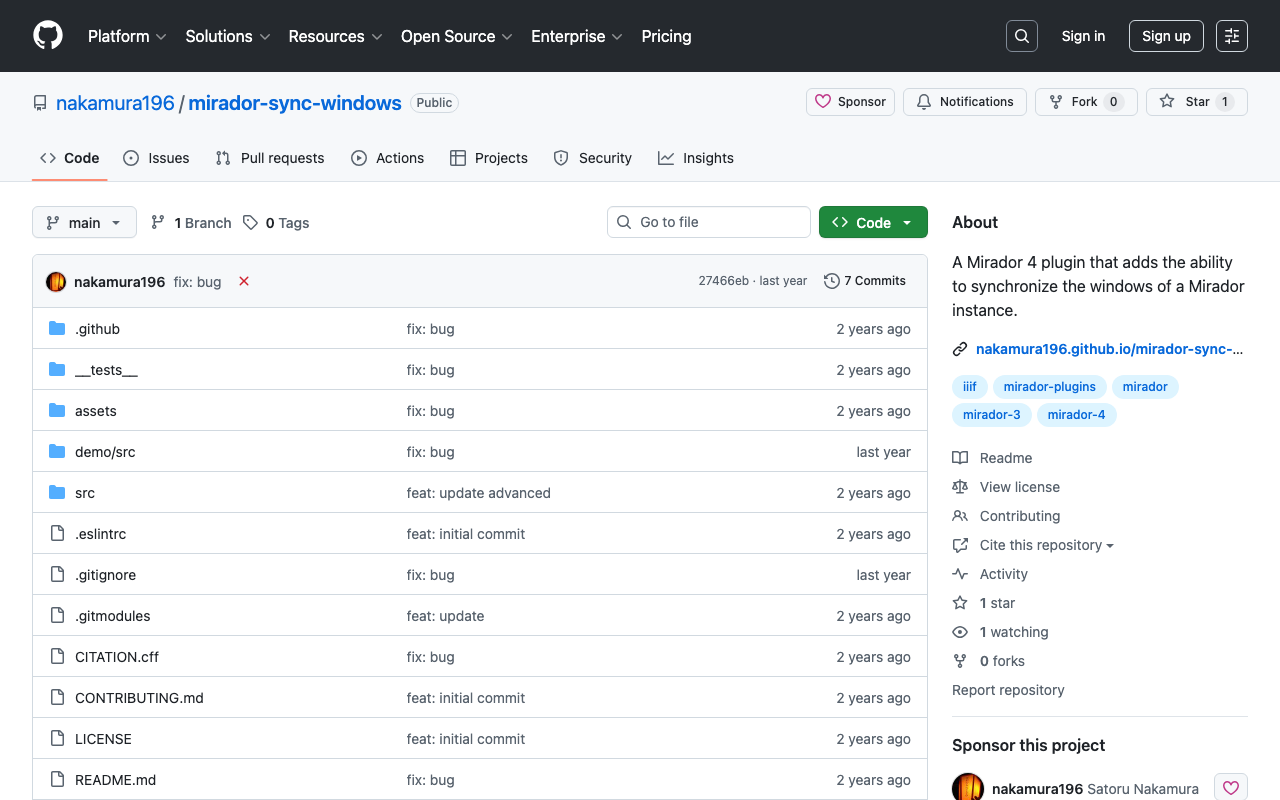
Overview In the following article, I introduced the creation of the Mirador 4 (3) version of mirador-sync-windows. This time, I am writing a quick note about publishing the repository for this plugin. Repository It is available at the following URL. https://github.com/nakamura196/mirador-sync-windows Demo Page You can try it out at the following URL. https://nakamura196.github.io/mirador-sync-windows/ Here are the configurations I made for publishing on GitHub Pages. webpack I made some changes to the following file. ...

Mirador 4 Plugin Development: Rotating Images at Arbitrary Angles

Mirador 4 Plugin Development: Rotating Images at Arbitrary Angles

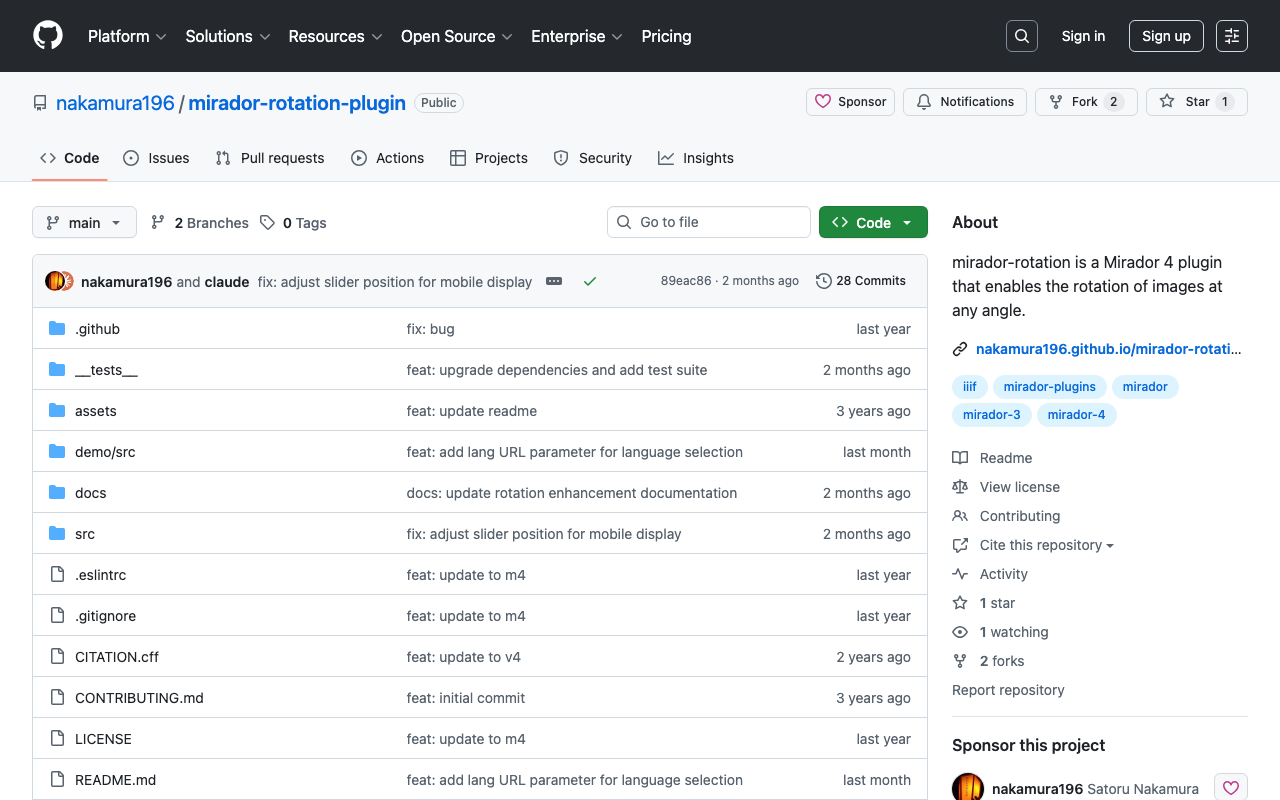
Overview I created a plugin for Mirador 4 that allows rotating images at arbitrary angles. https://github.com/nakamura196/mirador-rotation-plugin You can check the behavior at the following URL. https://nakamura196.github.io/mirador-rotation-plugin/ Background I had been developing this plugin for Mirador 3, but Mirador 4 was pre-released on 2024/3/15. https://github.com/ProjectMirador/mirador/releases/tag/v4.0.0.alpha-1 The latest version of Mirador 3, v3.3.0, was released in 2021, so the libraries it used had become outdated. With this update, development has become easier. ...

Running LEAF-Writer in a Local Environment

Running LEAF-Writer in a Local Environment

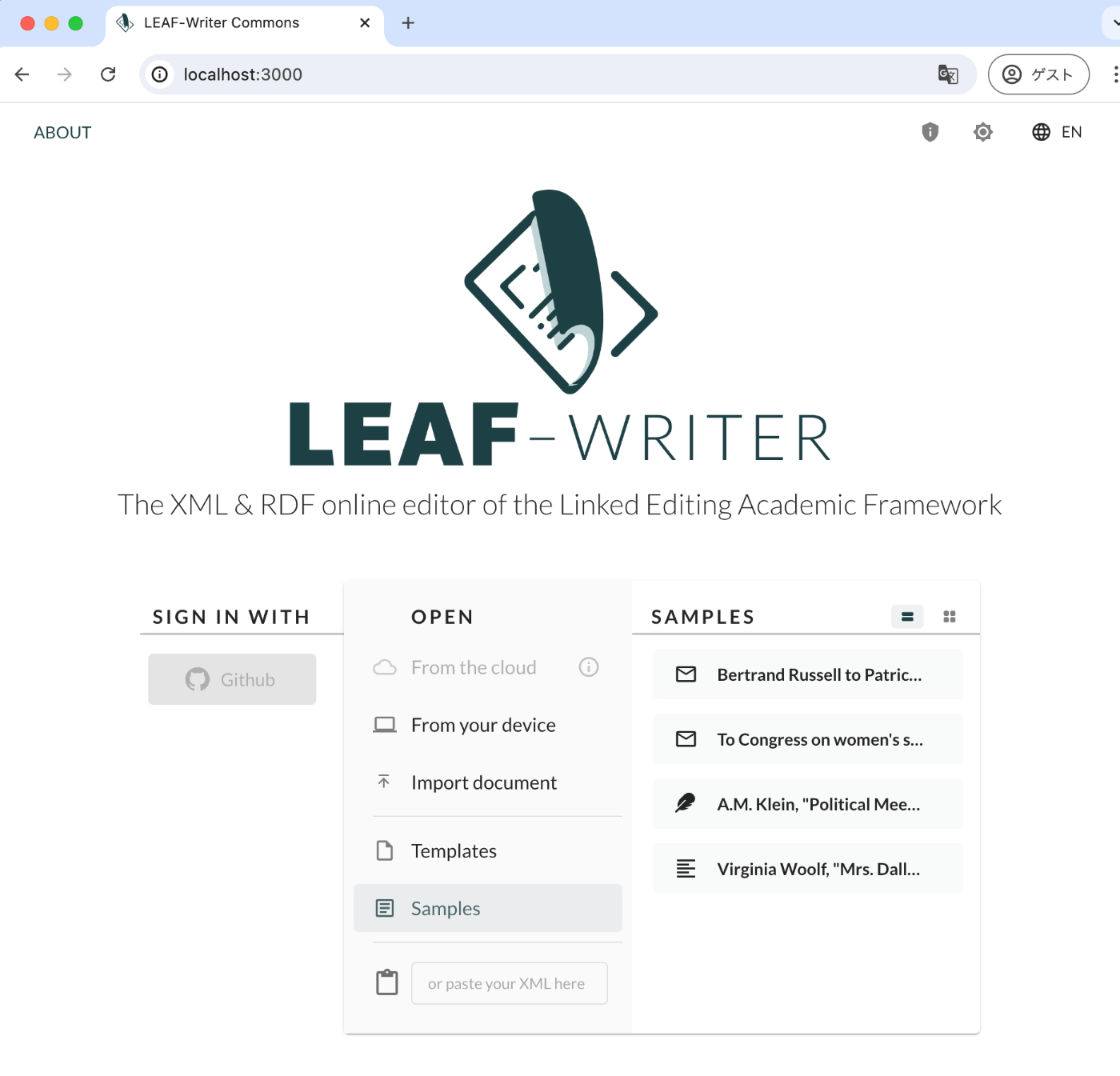
Overview I had the opportunity to run LEAF-Writer in a local environment, so here are my notes. Repository The following repository is used. https://gitlab.com/calincs/cwrc/leaf-writer/leaf-writer Method git clone https://gitlab.com/calincs/cwrc/leaf-writer/leaf-writer cd leaf-writer npm i npm run dev LEAF-Writer starts on port 3000. Summary There also seems to be a method using Docker, so I will share it once I figure it out.

Verifying the Behavior of Mirador 2 Plugins

Verifying the Behavior of Mirador 2 Plugins

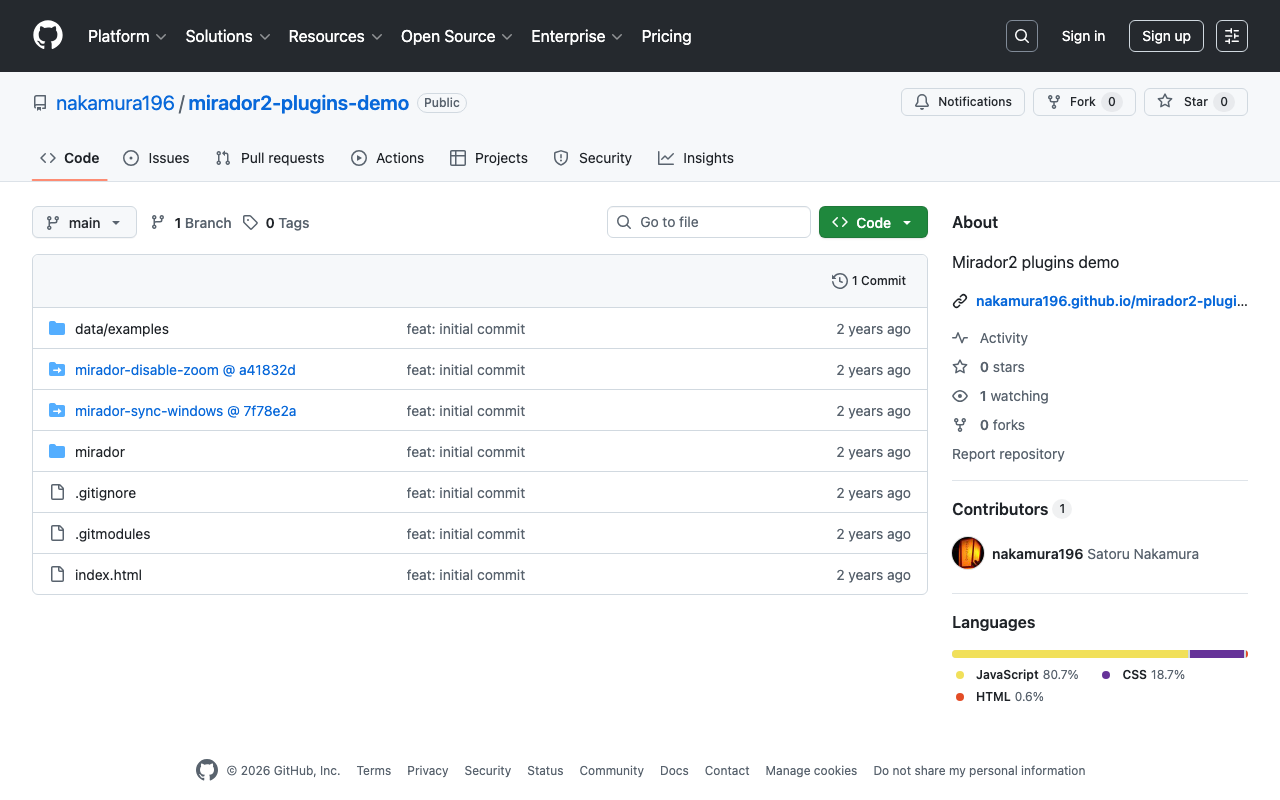
Overview I created a repository for verifying the behavior of Mirador 2 plugins. https://github.com/nakamura196/mirador2-plugins-demo You can try it from the following URL. https://nakamura196.github.io/mirador2-plugins-demo/ A working example with sample data is as follows. https://nakamura196.github.io/mirador2-plugins-demo/?manifest=https://nakamura196.github.io/mirador2-sync-windows/data/examples/org.json;https://nakamura196.github.io/mirador2-sync-windows/data/examples/inf.json The purpose of creating this repository was to verify the behavior of plugins developed for Mirador 2 in order to port them to Mirador 3. Plugins mirador-sync-windows The mirador-sync-windows plugin introduced in the following article is enabled. ...

Created an M3 Version of mirador-sync-windows

Created an M3 Version of mirador-sync-windows

Overview In the following article, I introduced mirador-sync-windows, a plugin for Mirador 2. This time, I updated the above functionality for Mirador 3 (actually Mirador 4). The behavior is still somewhat unstable, but you can try it at the following link. https://mirador-sync-windows.vercel.app/ Deploying to Vercel Development was based on the Mirador 4-compatible branch of the mirador-image-tools plugin. https://github.com/ProjectMirador/mirador-image-tools/tree/mirador4-compat-clean The above project provides the following commands: { ... "scripts": { "build": "npm run build:umd", "build:demo": "NODE_ENV=development webpack --mode=development", "build:umd": "NODE_ENV=production webpack --mode=production", "build:es": "mkdir -p es && cp -r src/* es && NODE_ENV=production MODULE_FORMAT=es npx babel es -d es", "build:cjs": "mkdir -p lib && cp -r src/* lib && NODE_ENV=production MODULE_FORMAT=cjs npx babel lib -d lib", "clean": "rm -rf ./umd && rm -rf ./es && rm -rf ./lib && rm -rf ./demo/dist", "lint": "eslint ./src ./__tests__", "prepublishOnly": "npm run clean && npm run build:es && npm run build:cjs && npm run build", "start": "NODE_ENV=development webpack serve --open", "test": "npm run lint && jest", "test:coverage": "jest --coverage", "test:watch": "jest --watch" }, ... } Based on the above commands, I modified the Vercel deployment settings as follows: ...

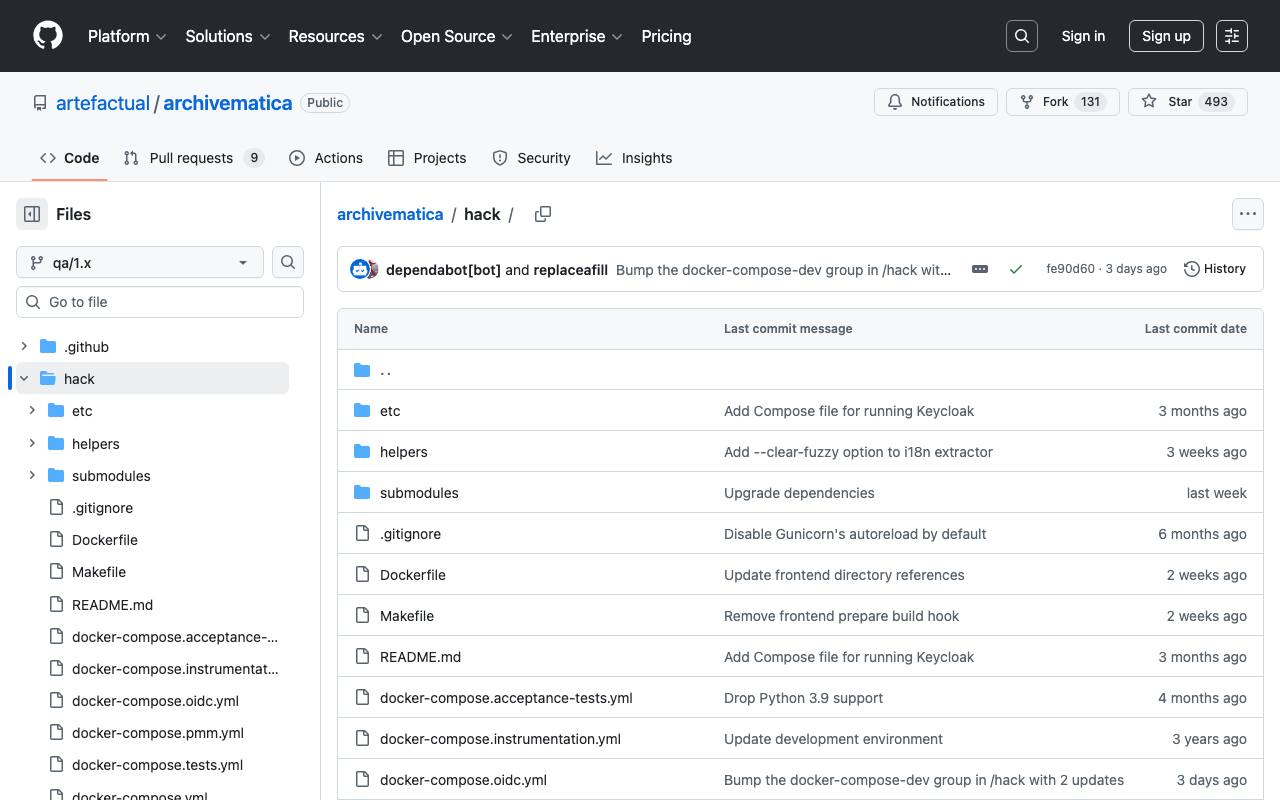
Running Archivematica with Docker

Running Archivematica with Docker

Overview For starting Archivematica, using Docker was the easiest method. Installation instructions are documented at the following link. https://github.com/artefactual/archivematica/tree/qa/1.x/hack Following the steps worked well for installation, but I am documenting the points where I encountered failures as a memo. Elasticsearch container When starting the Elasticsearch container, instructions were given to set vm.max_map_count. https://github.com/artefactual/archivematica/tree/qa/1.x/hack#elasticsearch-container If this setting is forgotten, the Elasticsearch container would not start, as shown below. docker compose up [+] Running 10/0 ✔ Container am-mysql-1 Running 0.0s ✔ Container am-archivematica-storage-service-1 Running 0.0s ✔ Container am-nginx-1 Running 0.0s ✔ Container am-clamavd-1 Running 0.0s ✔ Container am-elasticsearch-1 Created 0.0s ✔ Container am-fits-1 Running 0.0s ✔ Container am-gearmand-1 Running 0.0s ✔ Container am-archivematica-mcp-client-1 Running 0.0s ✔ Container am-archivematica-dashboard-1 Created 0.0s ✔ Container am-archivematica-mcp-server-1 Running 0.0s Attaching to archivematica-dashboard-1, archivematica-mcp-client-1, archivematica-mcp-server-1, archivematica-storage-service-1, clamavd-1, elasticsearch-1, fits-1, gearmand-1, mysql-1, nginx-1 elasticsearch-1 | [2024-06-18T02:16:40,373][INFO ][o.e.e.NodeEnvironment ] [am-node] using [1] data paths, mounts [[/usr/share/elasticsearch/data (/dev/root)]], net usable_space [11.4gb], net total_space [48.2gb], types [ext4] ... elasticsearch-1 | ERROR: [1] bootstrap checks failed elasticsearch-1 | [1]: max virtual memory areas vm.max_map_count [65530] is too low, increase to at least [262144] ... dependency failed to start: container am-elasticsearch-1 exited (78) Summary Regarding Docker startup, it is noted that it is designed for developers, and care should be taken when using it in production environments. We hope this serves as a useful reference for using Archivematica. ...

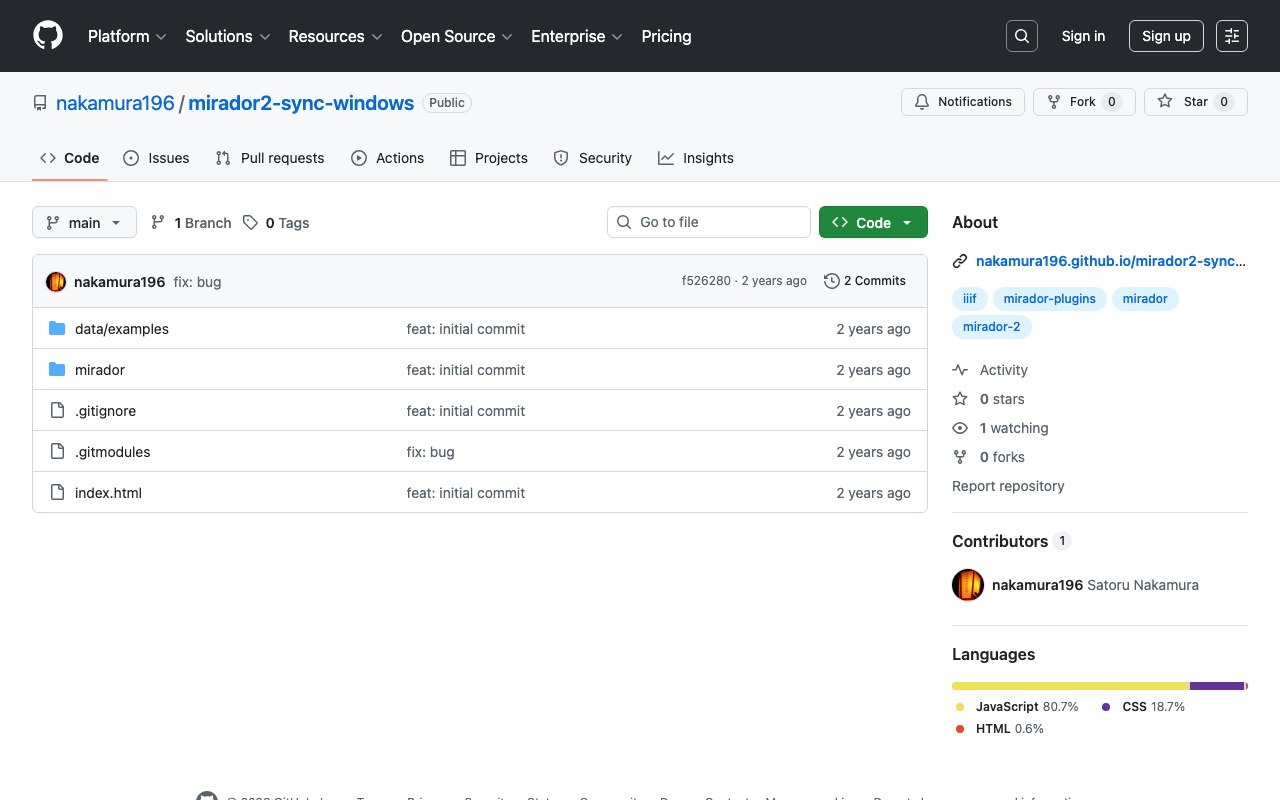
Trying Out mirador-sync-windows

Trying Out mirador-sync-windows

Overview mirador-sync-windows is described as follows. https://github.com/UCLALibrary/mirador-sync-windows When comparing multiple nearly identical images, such as different spectral images of the same object, it is helpful to apply actions simultaneously across multiple windows. Here is a usage demo: https://youtu.be/Ls2zvJpSRlc Note that this is a plugin for Mirador 2, and the repository has been archived. This time, I created a repository for trying out mirador-sync-windows, so I will introduce it. ...

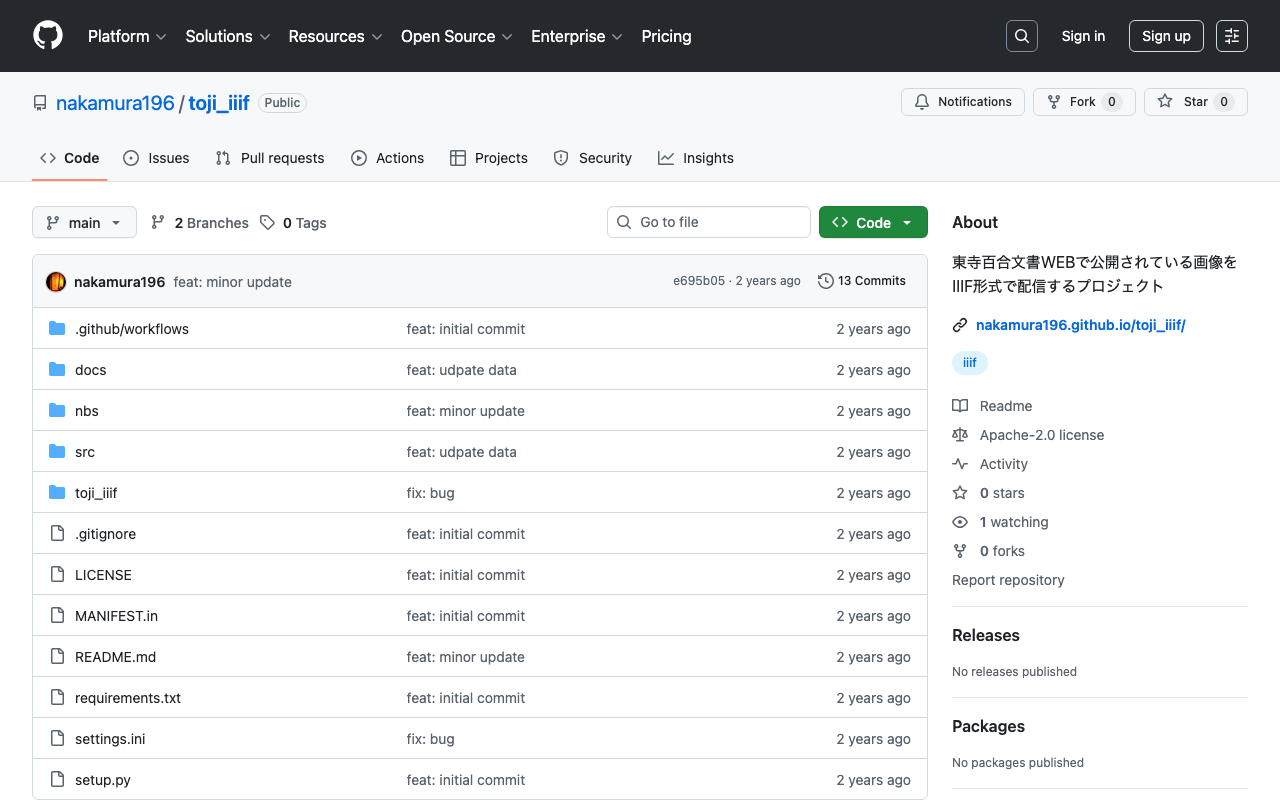
Converting Toji Hyakugo Monjo WEB Data to IIIF

Converting Toji Hyakugo Monjo WEB Data to IIIF

Overview I had the opportunity to use images published on the Toji Hyakugo Monjo WEB, which publishes the National Treasure Toji Hyakugo Monjo held by the Kyoto Prefectural Library and Archives, and created a repository that converts the published data to IIIF format. https://github.com/nakamura196/toji_iiif The following dataset was used. https://hyakugo.pref.kyoto.lg.jp/?page_id=1481 In particular, you can view a list of images from the following URL. https://nakamura196.github.io/toji_iiif/ Key Points IIIF Collection You can access the IIIF collection from the following URL. This enables machine-readable access. ...

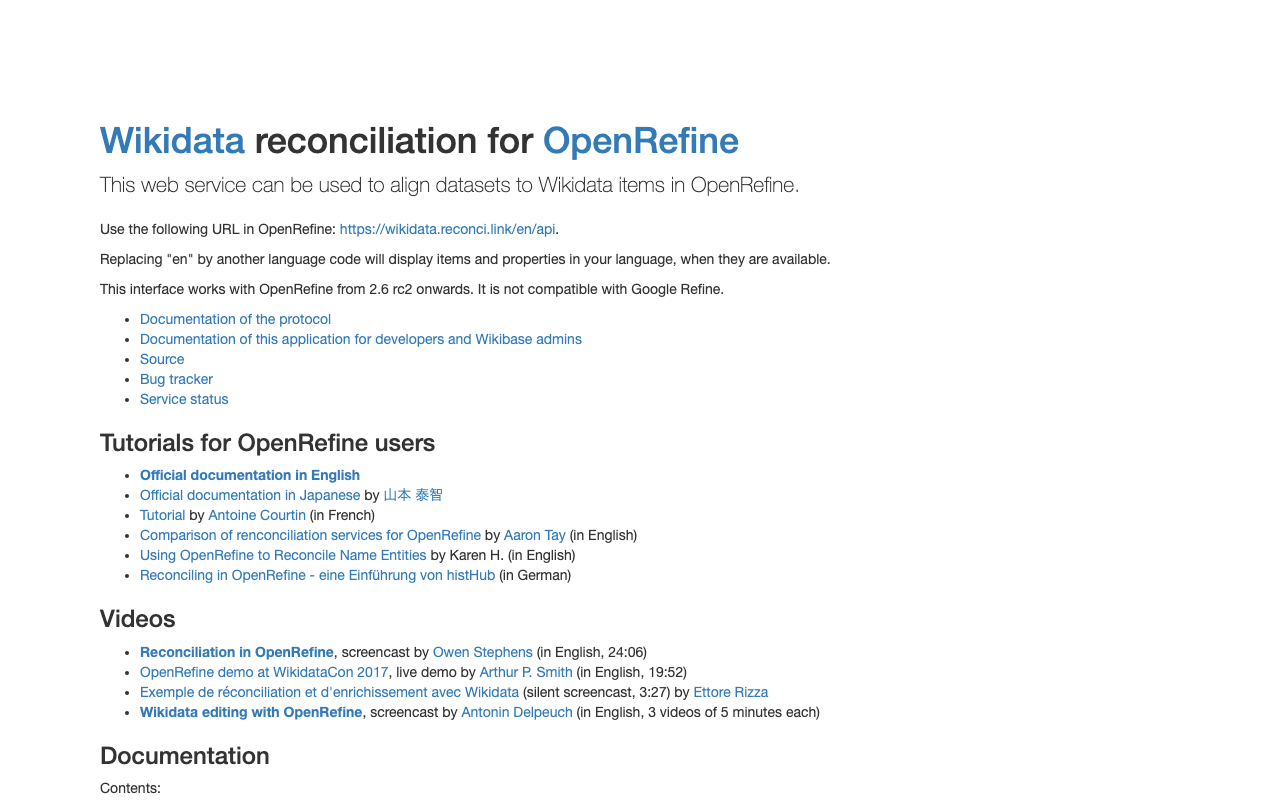
Trying Parts of https://wikidata.reconci.link/

Trying Parts of https://wikidata.reconci.link/

Overview During my research, I learned about the existence of the following API. https://wikidata.reconci.link/ This is a memo on how to use it. Suggest Suggest values could be obtained using URLs like the following. https://wikidata.reconci.link/en/suggest/entity?prefix=中村覚 Preview Preview results could be obtained using URLs like the following. https://wikidata.reconci.link/en/preview?id=Q107095935 Summary It appears to be commonly used together with OpenRefine, and I would like to investigate further when the opportunity arises. https://qiita.com/yayamamo/items/eade3e5788e6f359bce7

Adding Classes and Properties Using the Omeka S CustomOntology Module

Adding Classes and Properties Using the Omeka S CustomOntology Module

Overview Custom Ontology is a module that allows you to add custom vocabularies when standard ontologies such as LOV, schema.org, and W3C are not available. For basic usage of this module, please refer to the following. https://nakamura196.hatenablog.com/entry/2021/07/24/235050 For how to update vocabularies that have already been created using this module, please refer to the following. This article explains how to add classes and properties to an already created vocabulary. ...

Released v4.1.0 of Omeka-S-module-FixCjkSearch

Released v4.1.0 of Omeka-S-module-FixCjkSearch

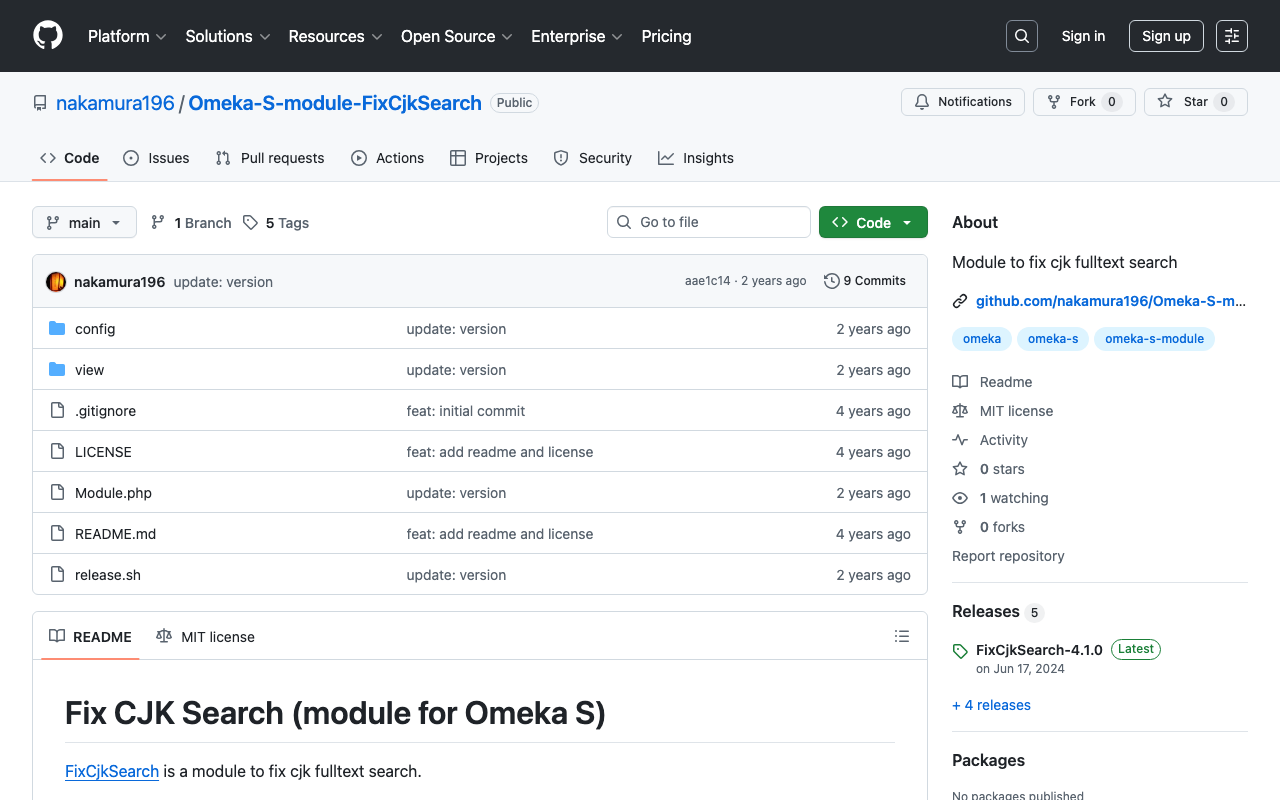
Overview To address the issue where full-text search in Japanese does not work well with Omeka S’s standard functionality, I have created the following module. https://github.com/nakamura196/Omeka-S-module-FixCjkSearch This module had stopped working with the latest version of Omeka S at the time of writing (v4.1.0), so I released an updated version of the module. https://github.com/omeka-j/Omeka-S-module-FixCjkSearch/releases There may be some incomplete aspects, but I hope this serves as a helpful reference. ...

Accent Sensitivity in Omeka S Partial Match Search

Accent Sensitivity in Omeka S Partial Match Search

Overview I investigated accent sensitivity in Omeka S partial match search, and here are my notes. Symptom For example, when items containing the string “tako” (in hiragana) are stored, searching for “tako” in hiragana, katakana, or with dakuten (voiced mark) variations all return the same results. Cause The issue appeared to be caused by the default collation “utf8mb4_unicode_ci” set during installation. Specifically, this collation is “case-insensitive” (does not distinguish between uppercase and lowercase) and “accent-insensitive” (does not distinguish between accented and unaccented characters), which is why hiragana, katakana, and dakuten variations return the same search results. ...

Notes on Using Zotero

Notes on Using Zotero

Overview https://www.zotero.org/ Zotero is described as follows. Zotero is a free, easy-to-use tool to help you collect, organize, annotate, cite, and share research. These are notes on how to use Zotero. From Identifiers You can import from DOI as shown below. Websites Install the following Chrome extension “Zotero Connector.” https://chromewebstore.google.com/detail/ekhagklcjbdpajgpjgmbionohlpdbjgc Click the extension on the website you want to cite, and you can register it as shown below. ...

How to Handle CSP Errors in Strapi

How to Handle CSP Errors in Strapi

Overview I configured Strapi with the following plugin to store media in S3. https://www.npmjs.com/package/@liashchynskyi/strapi-provider-upload-s3-cloudfront At that time, the following error occurred and images were not displayed. Refused to load the image 'https://xxx/uploads/yyy.jpg' because it violates the following Content Security Policy directive: "img-src 'self' data: blob: dl.airtable.com". I was able to resolve this issue by modifying ./config/middleware.js, as described in the following article. https://zenn.dev/studiobros/articles/04400f413eb2aa Regarding ACL Similarly, I also encountered a situation where media could not be uploaded to S3. However, as described in the above article, by enabling S3 ACL and configuring the appropriate Block Public Access (bucket settings), I was able to upload successfully. ...

Drupal: Setting Pre-filled Values Using the Prepopulate Module

Drupal: Setting Pre-filled Values Using the Prepopulate Module

Overview When accessing the Drupal content creation screen, I was able to set pre-filled values by specifying query parameters, so this is a memo of the process. The following module is used. https://www.drupal.org/project/prepopulate Usage For example, when adding new content to a content type called “poems,” add query parameters as follows. </node/add/poems?edit[field_spot][widget][0][target_id]=1&edit[title][widget][0][value]=テスト> As a result, the registration screen is displayed with the initial values pre-filled as shown below. Summary I hope this serves as a useful reference. ...

Creating RDF Data Using Microsoft Visio

Creating RDF Data Using Microsoft Visio

Overview I had the opportunity to use Microsoft Visio for creating RDF data, so this is a memo of that experience. https://www.microsoft.com/ja-jp/microsoft-365/visio/flowchart-software Note that Microsoft Visio is not a tool specialized for creating RDF data, but it is a flowchart and diagramming software with high usability. Therefore, I attempted to convert data created with this tool into RDF. For converting data created in Microsoft Visio to RDF, the following Python library is used. ...

Using "ARC2 RDF Graph Visualization" from Python

Using "ARC2 RDF Graph Visualization" from Python

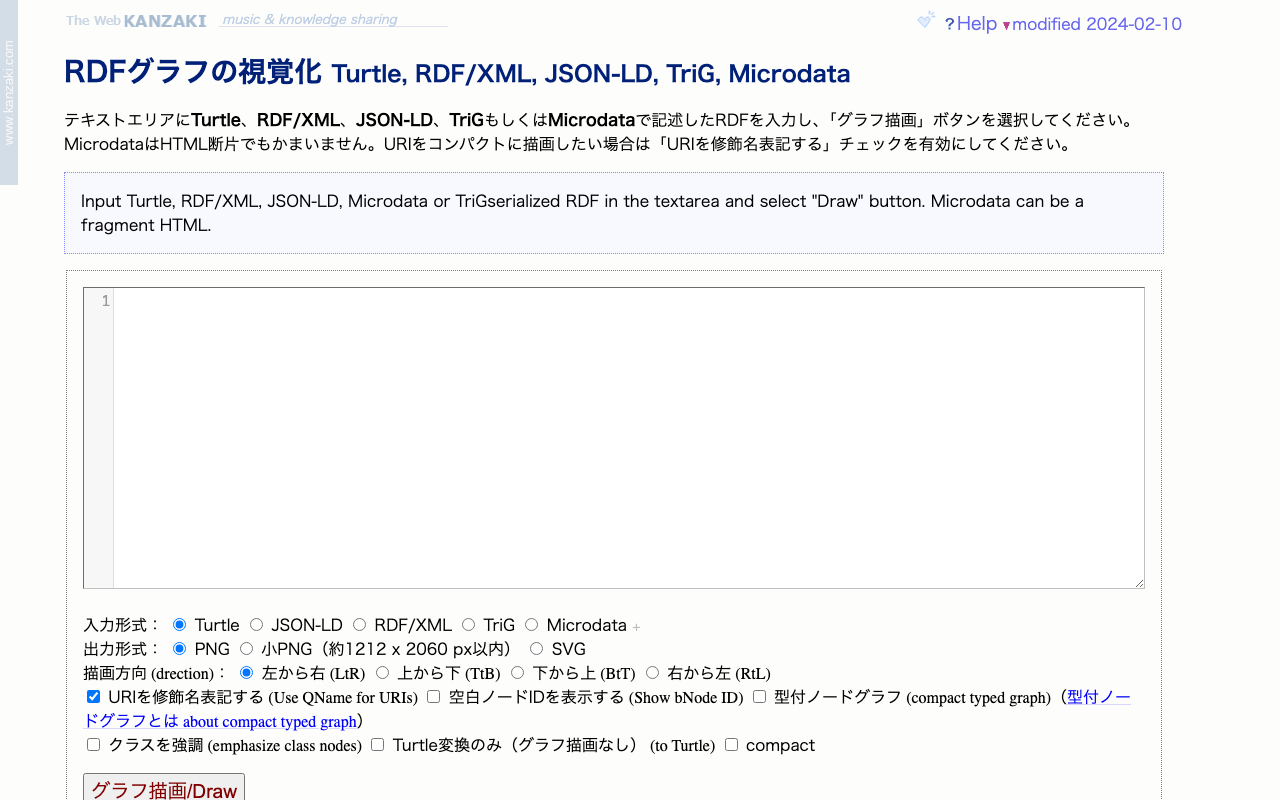
Overview I had the opportunity to use “ARC2 RDF Graph Visualization” published by Masahide Kanzaki from Python, so here are my notes. The public page for “ARC2 RDF Graph Visualization” is below. https://www.kanzaki.com/works/2009/pub/graph-draw By providing RDF described in Turtle, RDF/XML, JSON-LD, TriG, or Microdata as input, you can obtain visualization results as png or svg files. Usage Example in Python import requests text = "@prefix ns1: <http://example.org/propery/> .\n\n<http://example.org/bbb> ns1:aaa \"ccc\" ." output_path = "./graph.png" # Data needed for POST request url = "https://www.kanzaki.com/works/2009/pub/graph-draw" data = { "RDF": text, "rtype": "turtle", "gtype": "png", "rankdir": "lr", "qname": "on", } # Send POST request response = requests.post(url, data=data) # Check if response is not a PNG image if response.headers['Content-Type'] != 'image/png': print("Response is not a PNG image. Displaying content:") # print(response.text[:500]) # Display first 500 characters # [:500] else: os.makedirs(os.path.dirname(output_path), exist_ok=True) # Save response as PNG file with open(output_path, 'wb') as f: f.write(response.content) Summary I hope this is helpful for visualizing RDF data. ...